GoHotel User Guide
The complete guide, one chapter per app. Back to the index
- Signing in and finding your way
- The dashboards
- The property, its units and its fee rules
- Guests and accounts
- Rate plans, rates, restrictions and allotments
- Reservations and the tape chart
- Front desk: arrivals, in house, departures
- Folios, charges, payments and the city ledger
- The night audit and the business date
- Housekeeping
- Users, roles and the subscription
- Maintenance and engineering
- Restaurant, bar and room service — charging to the room
- Compliance — guest lists, licences and fee returns
- Rosters, service charge and staff credentials
- The property website and online booking
- Events and banquets
- Help desk: tickets from guests, owners and residents
- Facilities and club memberships
- Guest experience: journeys, upsells, loyalty, complaints and satisfaction
- Distribution: channel manager, OTA bookings and iCal calendars
- Access & Security — passes, the gate, visitors, vehicles and patrols
- Transport & transfers
- Revenue: KPIs, pace, forecast, budget and pricing
- Quality, safety and standards
- The assistant
- Spa, activities and rentals
- Community: owners, residents and service charges
- SMS: the local gateway, one-time codes and the WhatsApp fallback
- Card payments: cards on file, holds, captures, no-shows and refunds
- WhatsApp: guests, owners and residents talk to the property
- Owner Programme: rental contracts, the owner ledger, statements and payouts
- The portal — guests, bookers, owners and residents online
- Utilities: meters, readings and utility bills
- The phone app — guests, owners, residents, staff and guards
Signing in and finding your way
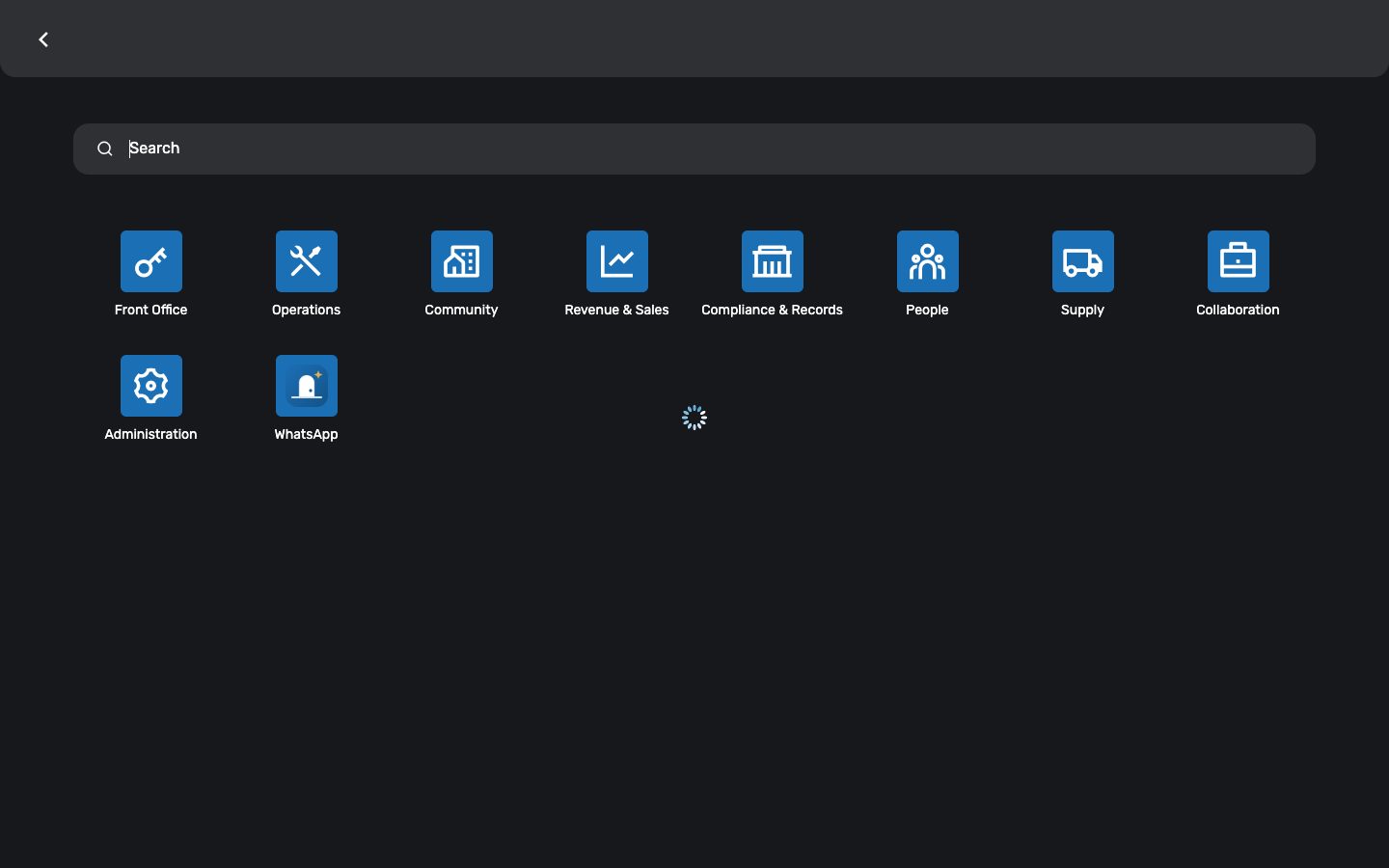
Your property lives at its own address. Every app opens on a dashboard; the app drawer groups them the way the property is organised — front office, operations, community, revenue, people.
Where:https://<your-property>.gohotel.goliveict.com
Before you start
- Your login
- The e-mail address your administrator invited; the first password comes in the welcome mail and you change it on first sign-in.
- Your role
- The GoHotel Role on your user decides which apps you see and which dashboard you land on.
How to
Sign in
- Open your property's address in a browser.
- Enter your e-mail and password.
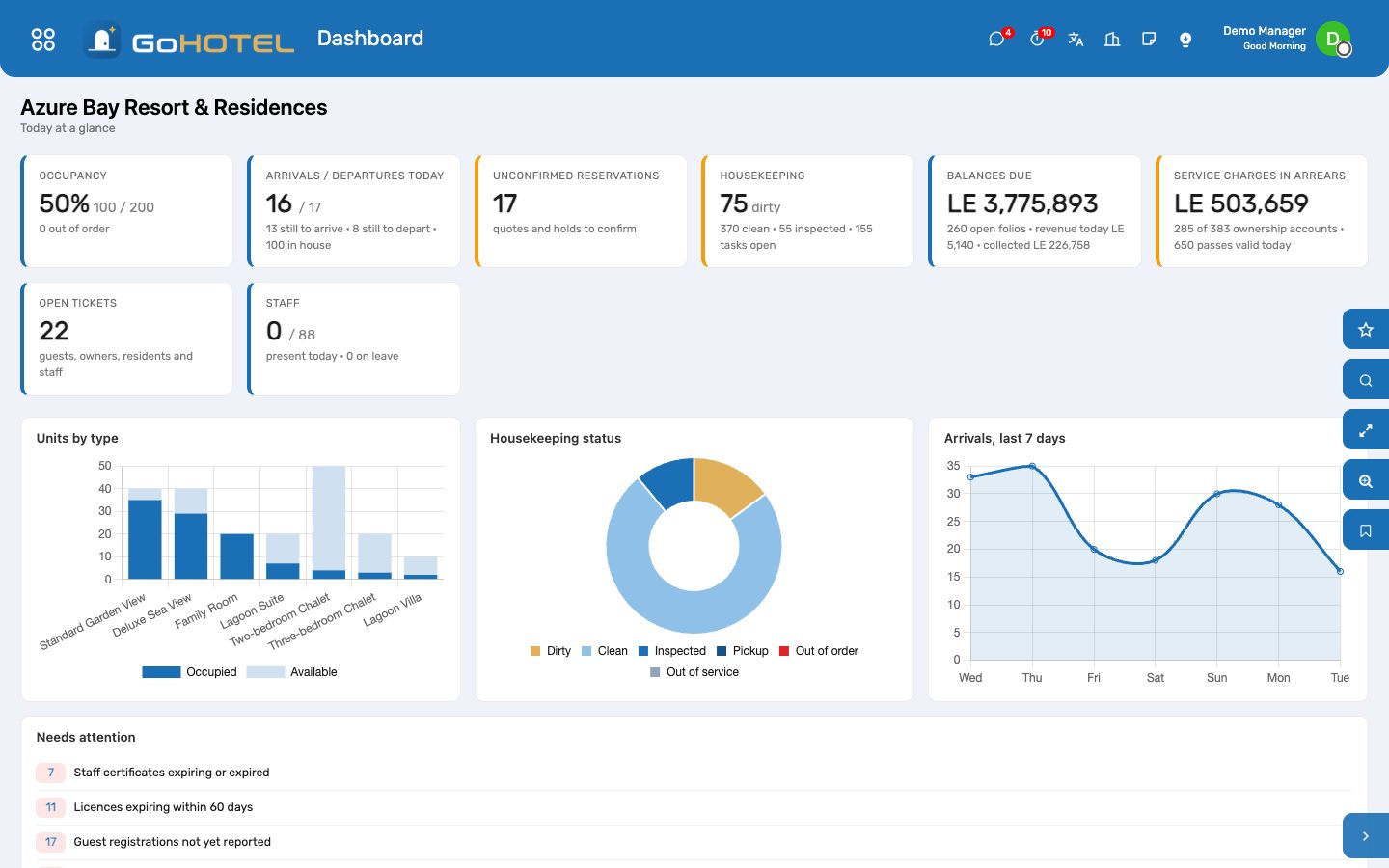
- Land on your role's dashboard — every card opens the records behind it.
Switch language to Arabic
- Open your avatar at the top right, then Preferences.
- Set Language to Arabic and save.
- The back office reloads right-to-left.
Questions the desk asks
I cannot see an app a colleague has.
Apps follow the role. Ask your Property IT administrator to change the GoHotel Role on your user.
See also: The dashboards
The dashboards
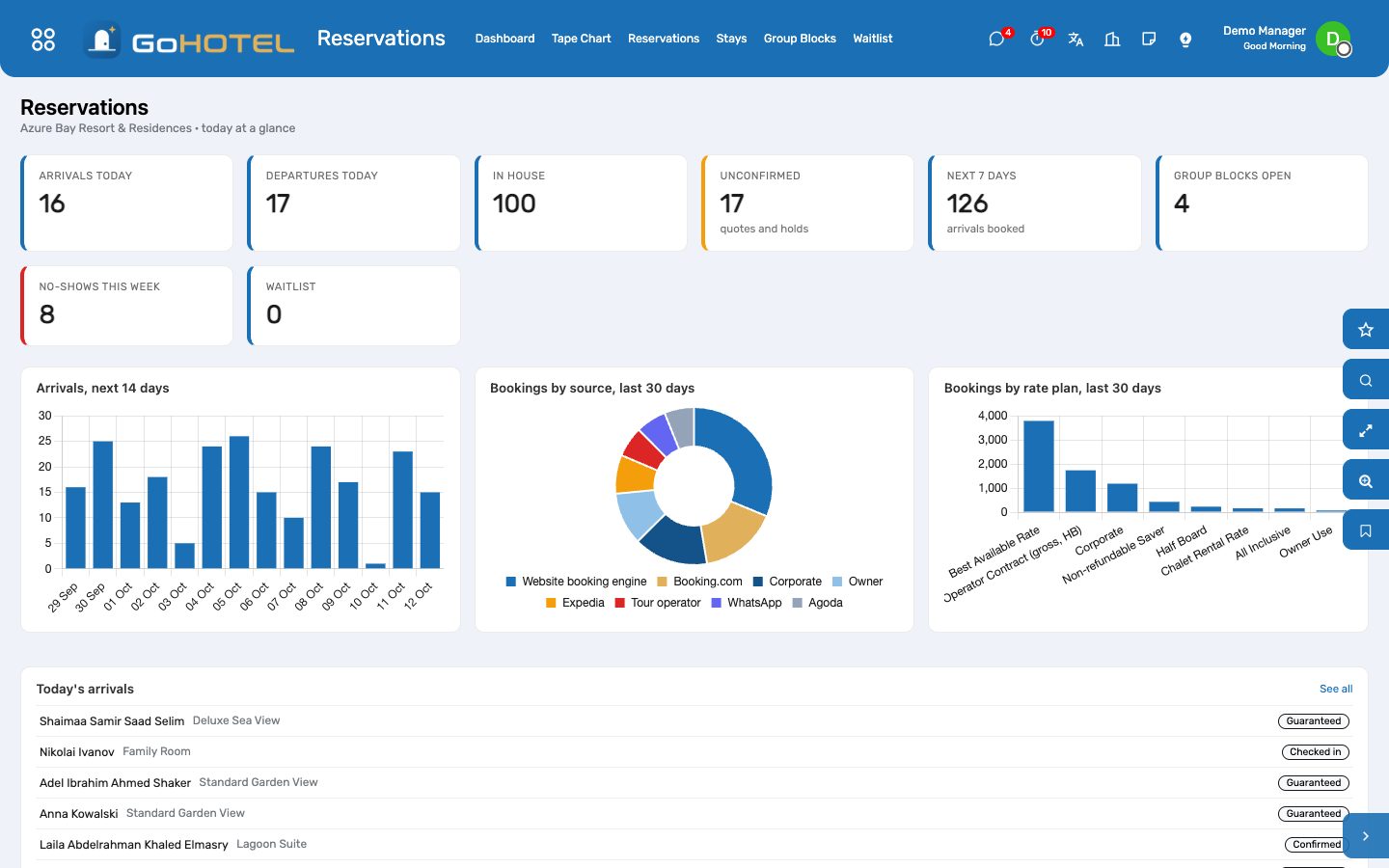
The property at a glance when you sign in, and a dashboard as the first menu of every app: cards with today's numbers, charts for the month, lists of what needs a hand.
Where:Dashboard, and the first menu of each app
How to
Read the property dashboard
- Occupancy shows sold units over the units available, with out-of-order units taken out.
- Arrivals and departures count today's stays with how many are still to arrive or depart.
- Housekeeping shows dirty, clean and inspected units.
- Balances due, service charges in arrears, open tickets and staff present complete the picture.
- Needs attention lists what is late: registrations not reported, expected arrivals not checked in, licences expiring.
Drill into a number
- Click any card.
- The list behind it opens with the same filter.
- Open a record, act, and use the breadcrumb to come back.
Questions the desk asks
A card is missing.
A card only appears when its pack is installed and you may read its records.
See also: Signing in and finding your way
The property, its units and its fee rules
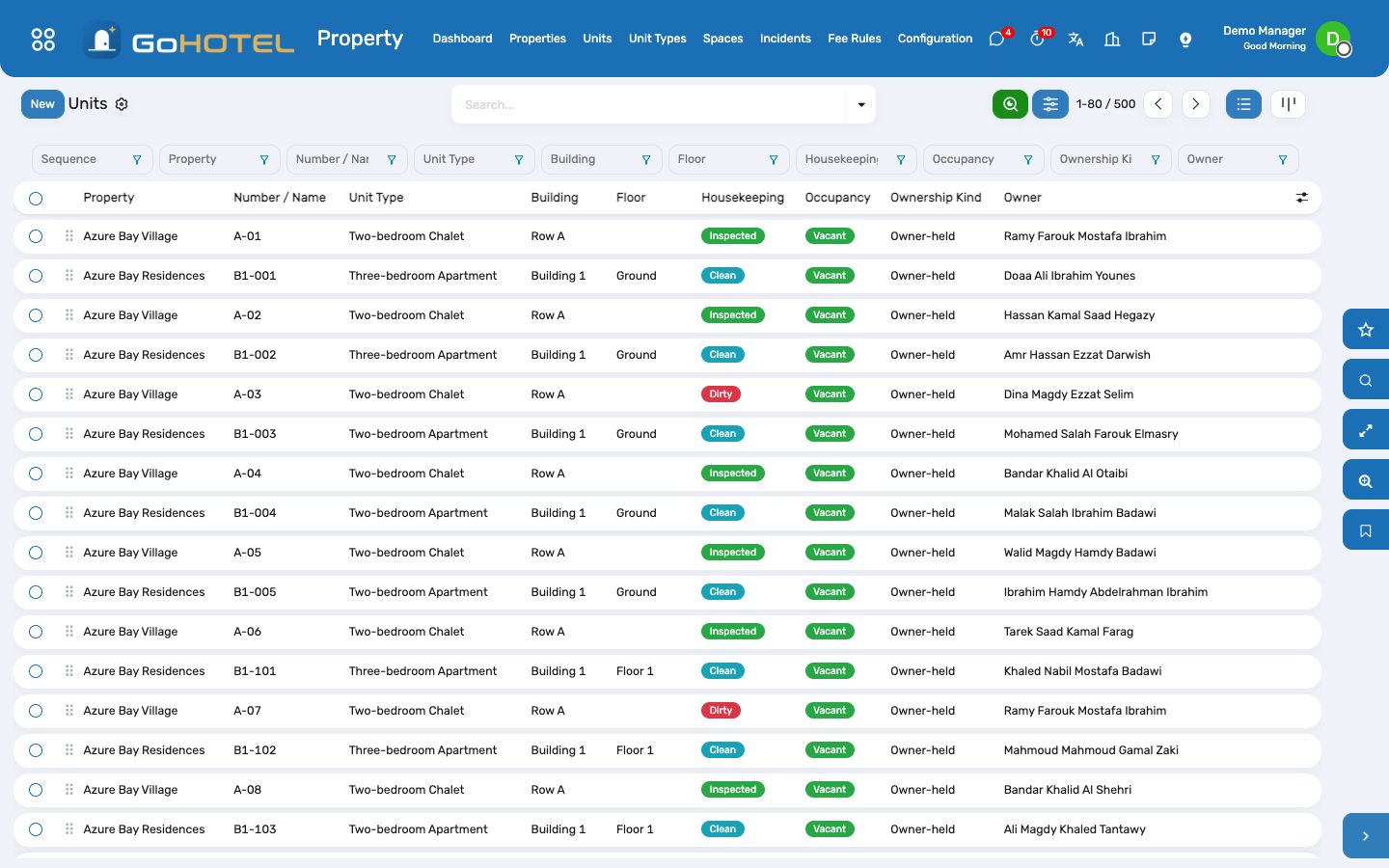
Everything hangs off the property: buildings and floors, unit types with their occupancy and rack rate, units with their housekeeping and occupancy state, bookable spaces, departments with their cost centres, seasons, and the fee rules that turn a room rate into a guest's total.
Where:Property › Properties · Unit Types · Units · Spaces · Fee Rules · Configuration
Before you start
- The company's country and its chart of accounts (VAT taxes) in Accounting.
How to
Create the property
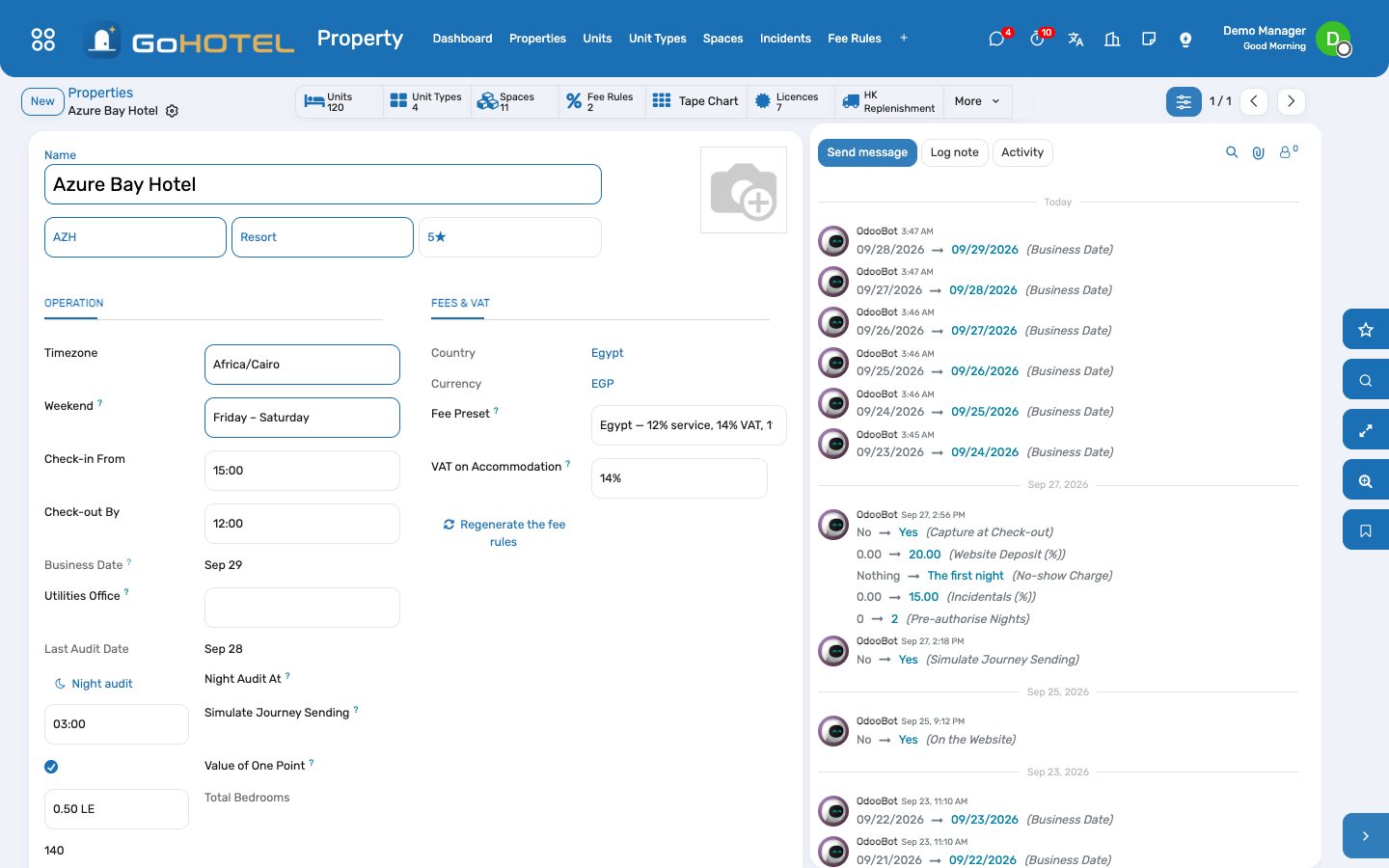
- Property › Properties › New: name, code (used in every document number), kind, star rating, timezone, weekend, check-in and check-out times, audit hour.
- Pick the fee preset for the country (Egypt: 12 % service charge inside VAT, 1 % city tax outside; Saudi Arabia: municipal fee; Dubai: service, municipality, Tourism Dirham; Abu Dhabi: service, tourism and municipality fees). The rules are generated; edit or add your own under Fee Rules.
- Check VAT on Accommodation — it is the tax put on room nights and on every fee inside the VAT base.
Unit types and units
- Unit Types: code, kind (room, suite, chalet, villa, apartment, cabin, berth), base and maximum occupancy, extra beds, bedrooms, amenities, rack rate. A service product is created for the accommodation revenue.
- Units: number, type, building and floor, view, connecting, accessible; owner-held units carry their owner. Virtual units (house accounts) are never sold and never counted.
- The licensed-unit count on the Subscription screen is the number of active, non-virtual units.
Departments and cost centres
- Property › Configuration › Departments: Rooms, each outlet, Minibar, Spa, Events, Laundry, Telephone, Transport, Utilities, Community.
- Create cost centre gives each an analytic account; charges carry it to the invoice line, so revenue by department needs nothing more in Accounting.
Seasons
- Property › Configuration › Seasons: date ranges with a kind (low, shoulder, high, peak, Ramadan, Eid, Hajj) and a priority; a Hijri label prints beside the dates.
- Rates reference seasons; the calendar view shows the year.
Questions the desk asks
We run a hotel and a village in one company.
Two properties in one database, each with its own units, rates, business date and fee rules; one accounting.
A unit is out of order for a week.
Set it out of order with the dates and the reason (or let a maintenance request do it); availability skips it and the tape chart hatches it.
See also: Guests and accounts Rate plans, rates, restrictions and allotments
Guests and accounts
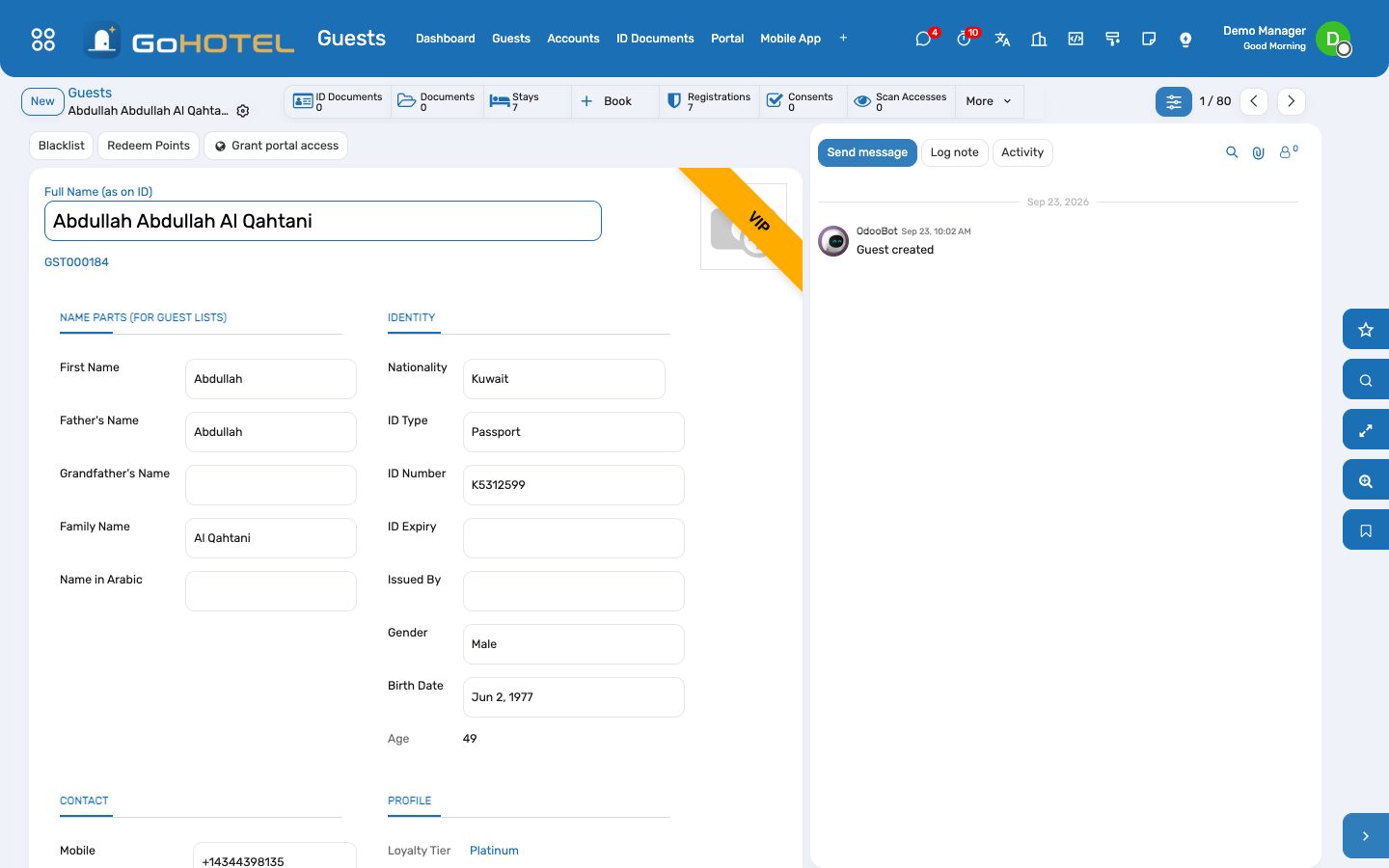
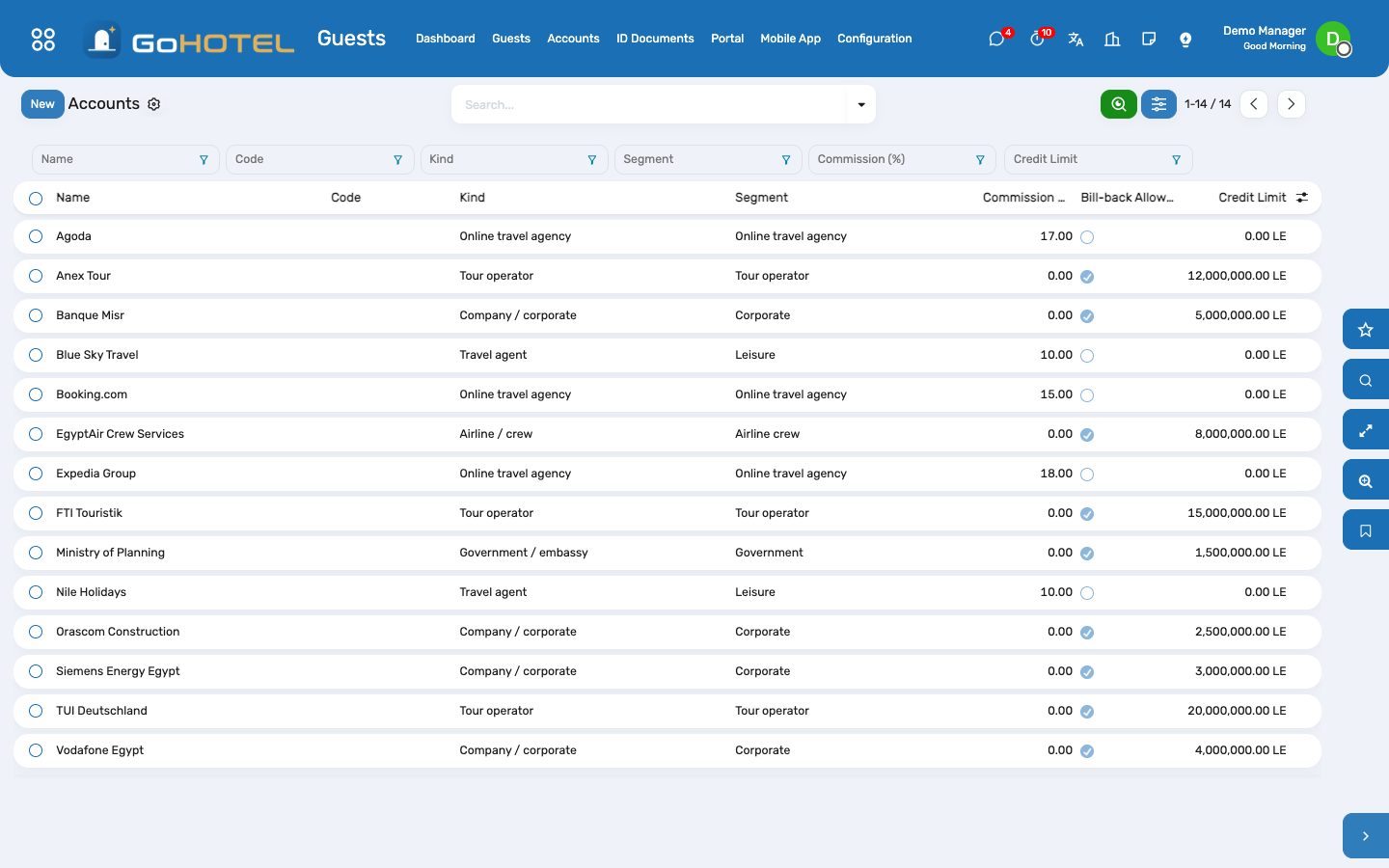
A guest profile is the person as the ID document spells them — that is what the police list needs. An account is a company, agent, tour operator or OTA with negotiated terms: rate plan, commission, credit limit, bill-back.
Where:Guests › Guests · Accounts · ID Documents
How to
Create a guest
- Guests › Guests › New: the full name as on the ID; for Egyptians the four name parts (first, father, grandfather, family).
- Nationality, ID type and number — an Egyptian national ID fills the date of birth and gender by itself; formats are checked.
- Mobile, e-mail, preferences, VIP level; consent to data processing and marketing.
- Family members: the head of family and dependants, and whether the marriage document was seen where practice asks for it.
ID documents
- On the guest, ID Documents: scan front and back, number, expiry; mark the primary one — its details become the guest's identity.
- Scans are visible to front-office roles only.
Accounts
- Guests › Accounts › New: kind (company, agent, tour operator, OTA, wholesaler, government, airline), the company contact, tax ID.
- Terms: negotiated rate plan, commission % and basis, credit limit, Bill-back allowed, payment terms, contract dates.
- A reservation on the account picks up its rate plan, segment and source; at check-out the folio can be billed back to it.
Questions the desk asks
The guest is blacklisted — can we still book?
A manager can; the reservation warns and refuses to confirm without the override.
Who is a "Guest" in Contacts?
The contact tag is set automatically from the guest profile, the ownership and the accounts; tags you add by hand are never touched.
See also: The property, its units and its fee rules Reservations and the tape chart
Rate plans, rates, restrictions and allotments
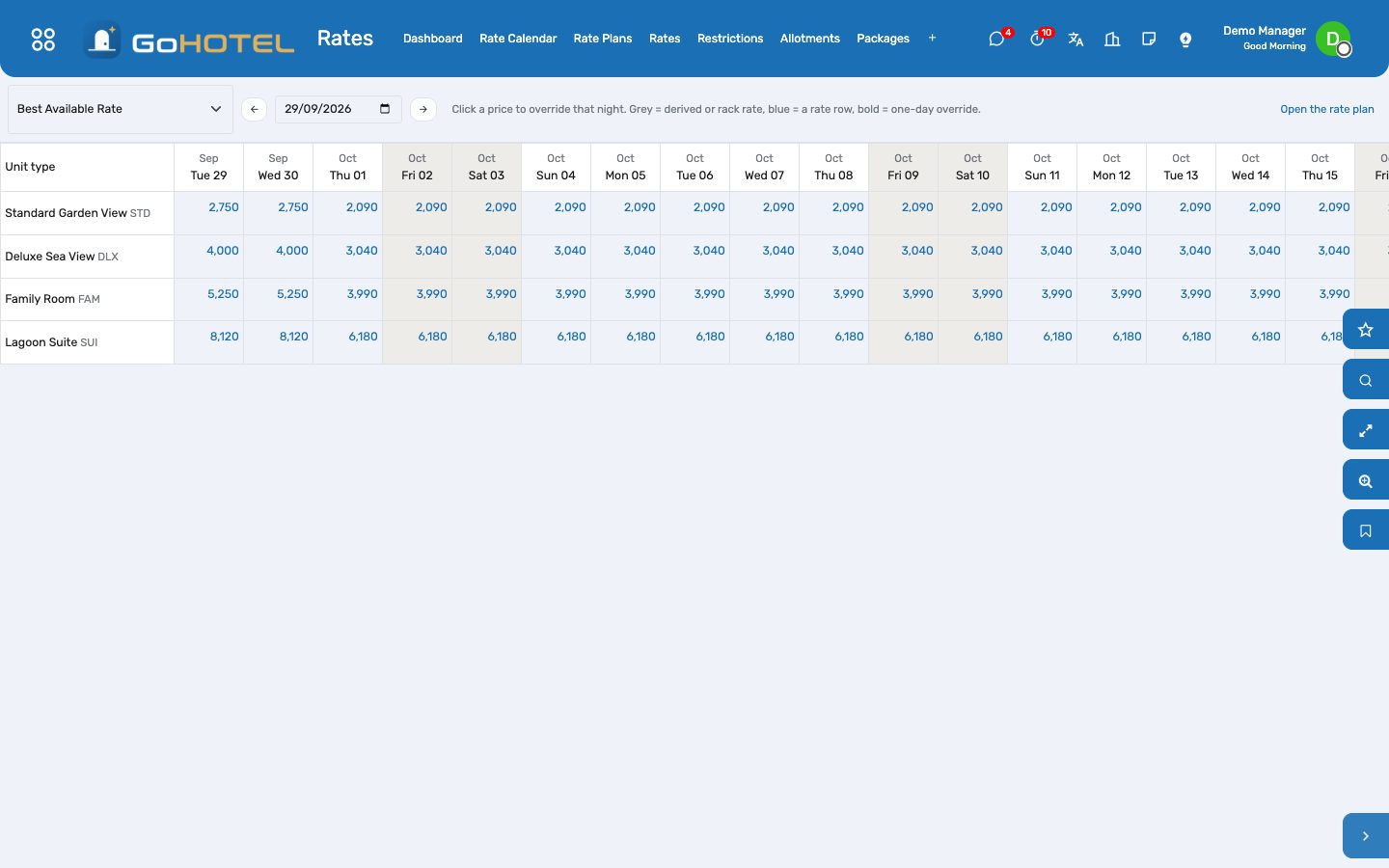
A rate plan is a way of selling — BAR, corporate, tour-operator contract, package, non-refundable, long stay — with a board basis and a policy. Rates are prices per unit type over dates and weekdays; the most specific row wins. Restrictions, yield rules, allotments, packages, extras and promo codes complete the picture.
Where:Rates › Rate Calendar · Rate Plans · Rates · Restrictions · Allotments · Packages · Extras & Child Policy · Promo Codes
Before you start
- Unit types under Property.
- Booking policies under Rates › Configuration.
How to
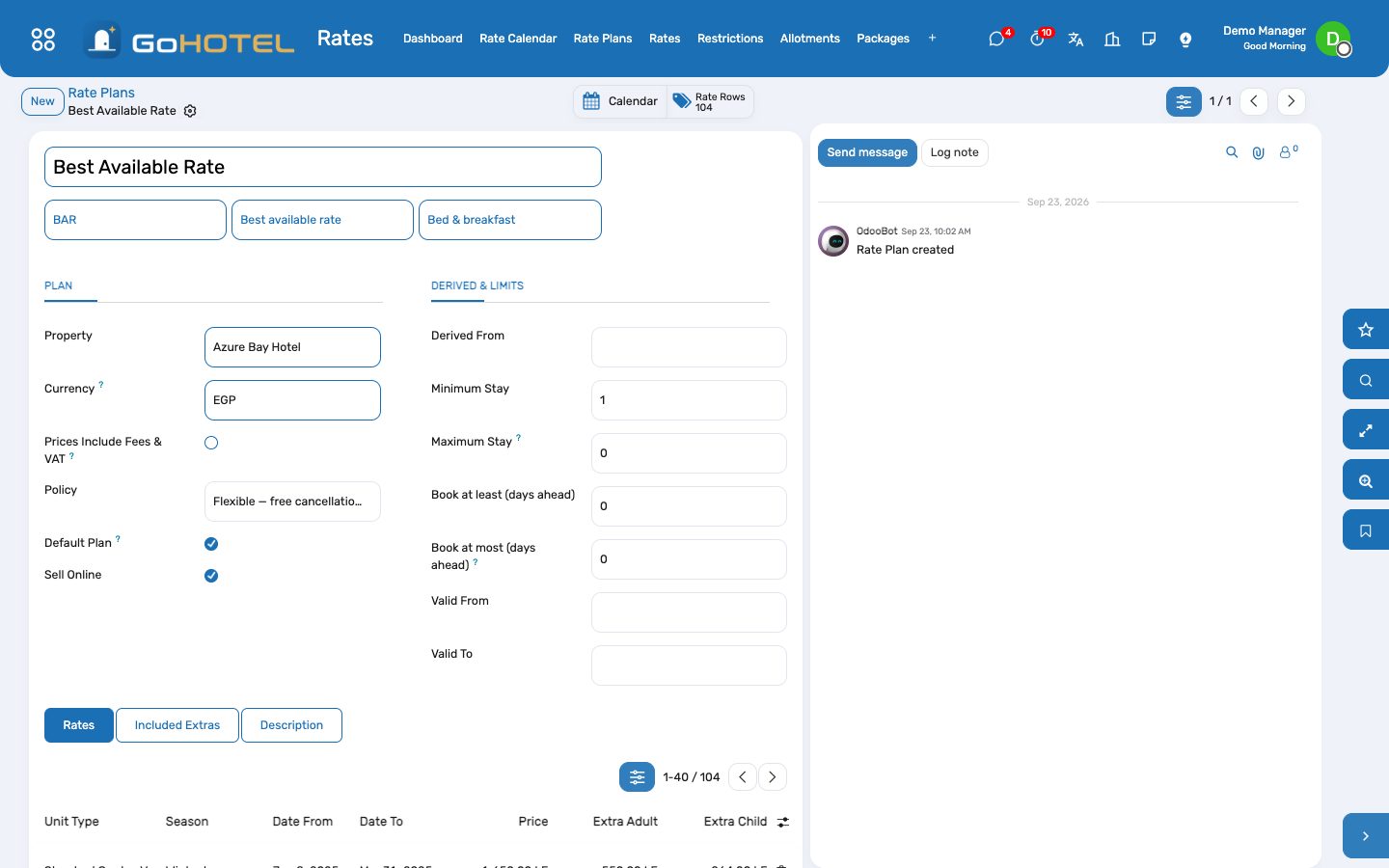
Set up the Best Available Rate
- Rates › Rate Plans › New: name, code BAR, kind Best available rate, board, policy, Default Plan.
- Rates tab: one row per unit type for the whole year with the base price, extra adult and extra child; then rows per season with higher or lower prices; a weekend row with only Thursday and Friday ticked.
- The Rate Calendar shows the result per night; click a cell to override one night.
Derive corporate and promotional plans
- New plan, Derived From BAR, −15 % or −200 per night; no rate rows needed.
- Tour-operator contracts are gross: tick Prices include fees & VAT and enter the contracted price; the night audit posts the net room rate and the fees on top.
Restrictions and yield
- Restrictions: minimum stay, closed to arrival or departure, stop-sell, for a date range, a unit type, a rate plan or all.
- Yield rules: occupancy bands that raise or lower the price automatically.
Allotments and packages
- Allotments: units held per type and night for a tour operator, released back to the house the given days before arrival; pickup is counted from the reservations on the allotment.
- Packages: the split of a package price across departments (rooms, meals, activities) so revenue reports are honest.
- Extras & Child Policy: supplements, extra beds, transfers, early and late charges, and what a child of each age band costs.
Questions the desk asks
Which price does a stay get?
The plan's dated row for that night and unit type (the shortest matching range wins), else the parent plan's price with the derivation, else the unit type's rack rate; then extra persons, yield and the child policy.
Can the price be typed on the reservation?
Yes — Nightly Rate Override on the line replaces the plan for every night of that stay.
See also: Reservations and the tape chart The property, its units and its fee rules
Reservations and the tape chart
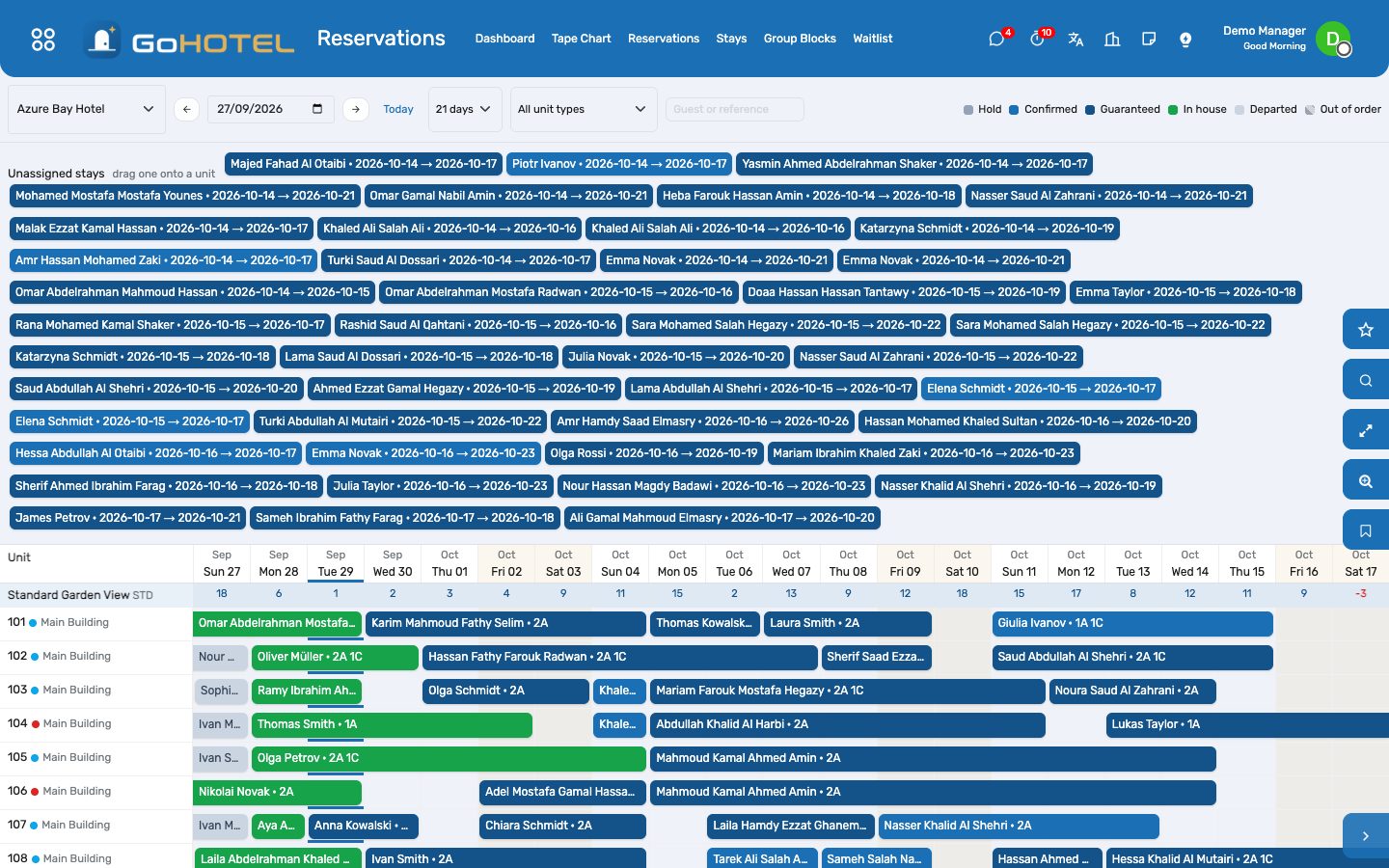
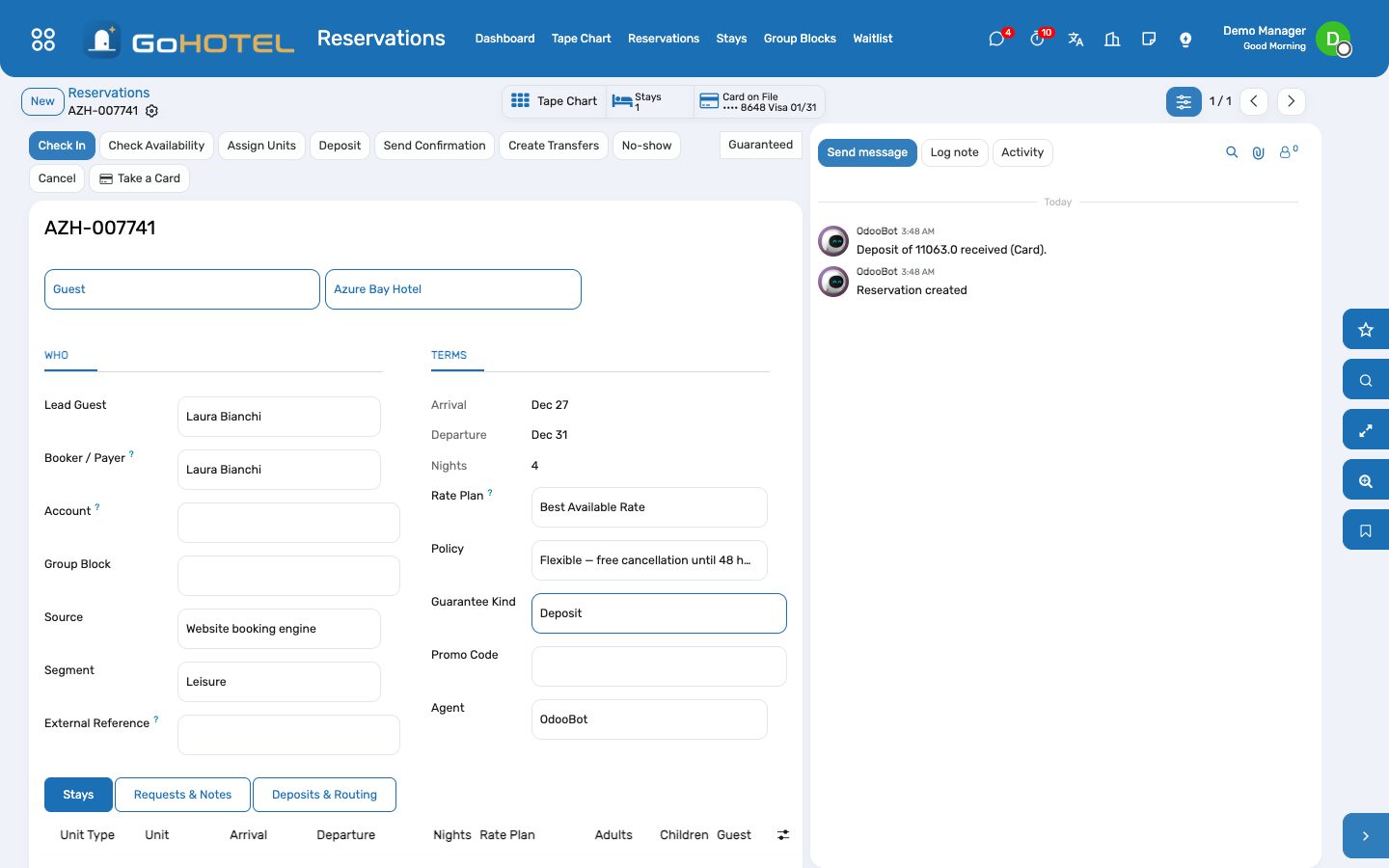
A reservation is one booking; each line is one unit for a range of nights with its rate plan, board, guests and guarantee. The tape chart shows every unit and every night — drag a stay to another unit or day, click a gap to book it.
Where:Reservations › Reservations · Reservations › Tape Chart · Reservations › Group Blocks
Before you start
- Unit types and units exist under Property.
- At least one rate plan under Rates (the default plan is pre-selected).
- Booking policies under Rates › Configuration decide guarantees, cancellation and no-show fees.
How to
Take a reservation
- Reservations › Reservations › New.
- Pick the lead guest, or create one exactly as the ID reads (four-part name for Egyptians, ID number).
- Company, agent or OTA? Choose the account — its rate plan, segment and source fill in.
- Add one line per unit: type, arrival, departure, adults, children. The nightly price and the estimated total with fees and VAT appear.
- Choose the guarantee (card, deposit, company account) and Confirm. Availability and restrictions are checked; a problem stops the confirmation and says why.
- Send the confirmation by e-mail (the PDF is attached).
Assign units on the tape chart
- Reservations › Tape Chart.
- Unassigned stays appear at the top; drag one onto a unit row on its arrival day.
- Drag a bar to another unit or another start day; the length stays the same. An in-house stay keeps its arrival date.
- Click a bar to open the stay, click an empty cell to start a booking for that unit and night.
Block units for a group
- Reservations › Group Blocks › New: dates, organiser or account, rate plan, cut-off date.
- Add the blocks: unit type, night, quantity. Make Definite — availability is checked.
- Rooming List creates the stays (one per unit or one reservation with several lines); name the guests now or later.
- Unpicked units go back to the house at the cut-off, or press Release Unpicked.
Cancel, no-show, reinstate
- Cancel opens a wizard with the policy fee; waive it or charge it — a charged fee posts to the folio and keeps the deposit.
- No-show marks the stays and posts the no-show fee per policy; the night audit does this on its own for arrivals that never came.
- Reinstate puts a cancelled or no-show reservation back to draft.
Questions the desk asks
Why can I not confirm?
The unit type has no availability for one of the nights, a restriction applies (minimum stay, closed to arrival, stop-sell), or the guest is blacklisted. The message names the night and the rule.
Where do I see who sent the booking?
Source (website, phone, Booking.com…) and Segment (leisure, corporate, tour operator…) on the reservation; the dashboards chart both.
See also: Rate plans, rates, restrictions and allotments Front desk: arrivals, in house, departures Folios, charges, payments and the city ledger
Front desk: arrivals, in house, departures
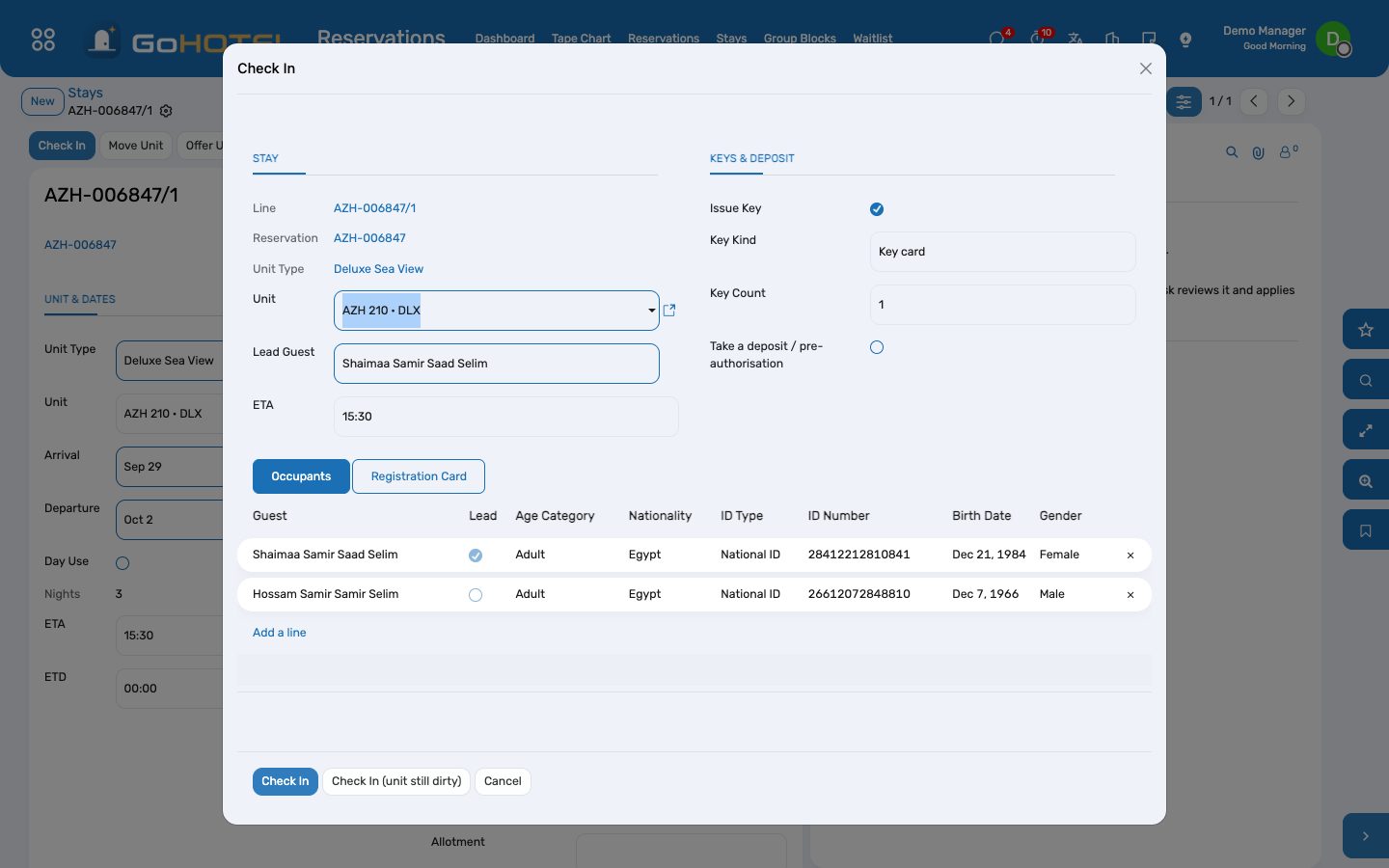
The desk works stays, not reservations: today's arrivals, who is in house, today's departures. Check-in captures identity, signs the registration card and issues the key; check-out settles the folio and issues the invoice.
Where:Front Desk › Arrivals · In House · Departures · Walk-in · Guest Requests · Lost & Found
Before you start
- Registration card wording under Property › Configuration › Settings.
- Payment methods and their journals under Billing › Configuration.
- Units clean and inspected by housekeeping.
How to
Check a guest in
- Front Desk › Arrivals, open the stay, Check In.
- The wizard proposes a clean unit of the booked type; change it if the guest prefers another.
- Every adult needs an ID number and a nationality — the identity panel lists what is missing. Egyptians need the four-part name.
- Sign the registration card on the tablet, or let the guest sign at the kiosk (/kiosk) with the booking reference and family name.
- Issue the key, take the deposit or card pre-authorisation, Check In.
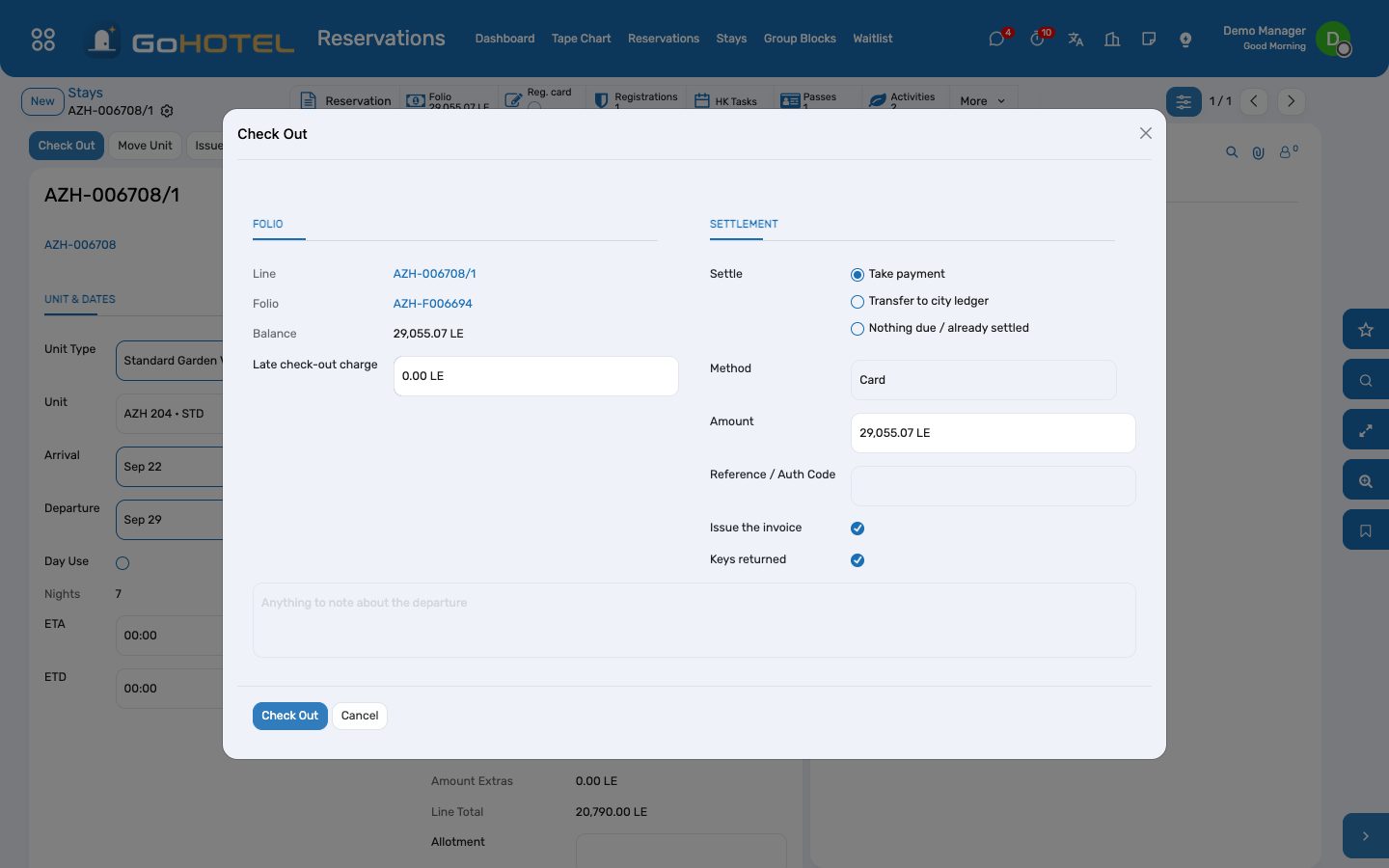
Check a guest out
- Front Desk › Departures, open the stay, Check Out.
- The balance shows; take the payment (cash, card, transfer) or transfer to the company account for a bill-back.
- The invoice is issued and the payment matched to it; the key is returned; the unit turns dirty for housekeeping.
Walk-in
- Front Desk › Walk-in: guest, ID, unit type, nights, rate.
- Create & Continue confirms the reservation and opens the check-in wizard.
Guest requests, traces, wake-up calls
- Guest Requests: a towel, a taxi, a complaint — housekeeping and maintenance requests are handed to those apps automatically when they are installed.
- Traces: a note for a department due on a date ("VIP amenity before arrival").
- Wake-up calls on the stay's Desk tab.
Move a guest to another unit
- Open the stay, Move Unit: choose the vacant unit and the reason; an upgrade may change the nightly rate.
- The old unit turns dirty; the folio follows the guest.
Questions the desk asks
The guest lost the key card.
On the stay's Desk tab mark the key Lost and issue a new one; a lock connector deactivates the old card when one is installed.
Can the guest leave without paying?
Only through a bill-back to a company account that allows it, within its credit limit. Otherwise the check-out refuses until the balance is settled.
See also: Reservations and the tape chart Folios, charges, payments and the city ledger Housekeeping
Folios, charges, payments and the city ledger
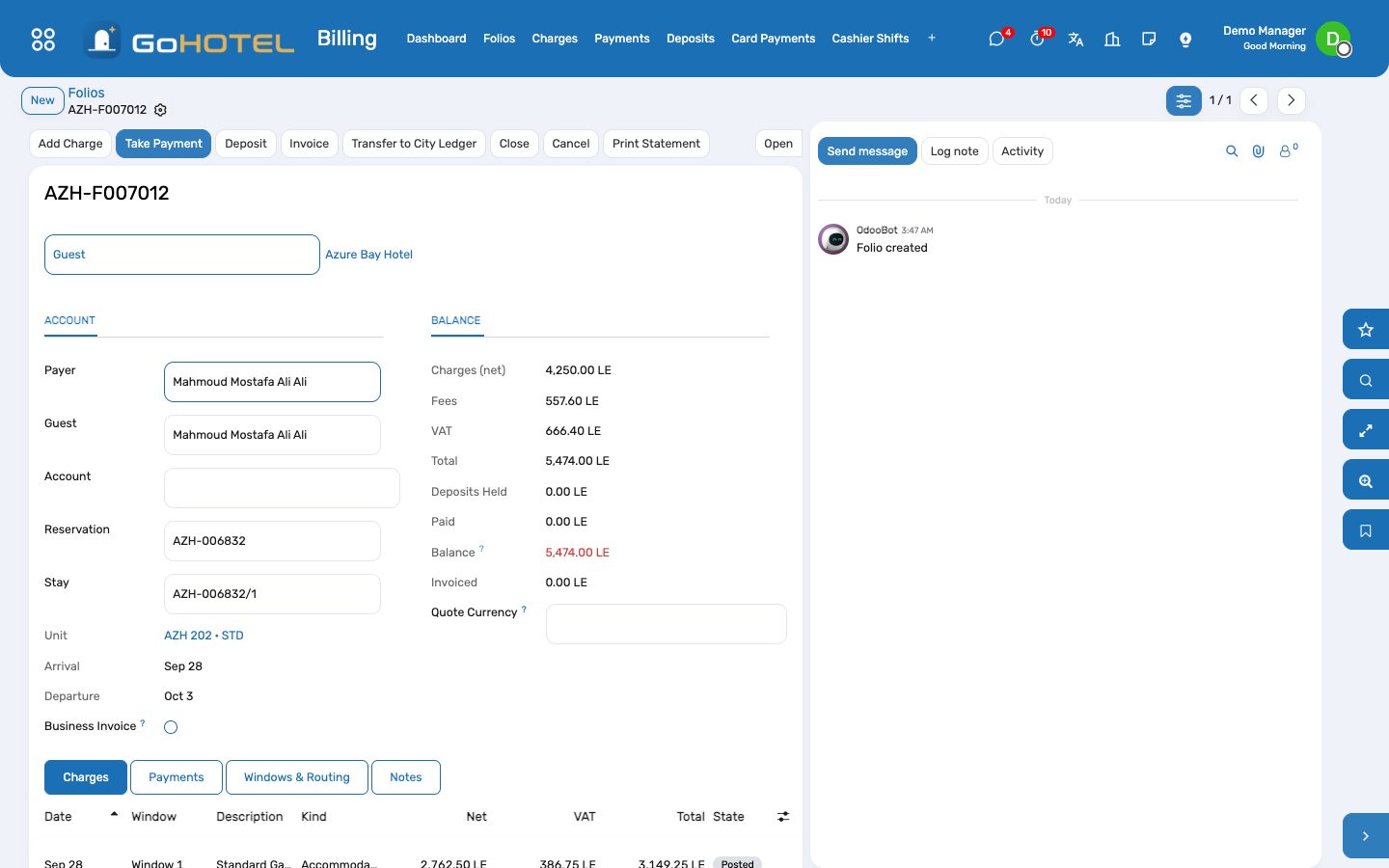
One folio per stay collects every charge — room nights and their fees from the night audit, restaurant cheques, minibar, spa, damages. Deposits and payments settle it; the invoice is the accounting document; companies and agents are billed back through the city ledger.
Where:Billing › Folios · Charges · Payments · Deposits · Cashier Shifts · City Ledger · Agent Commissions
Before you start
- Fee rules on the property (a country preset: Egypt, Saudi Arabia, Dubai, Abu Dhabi).
- VAT on accommodation on the property.
- Payment methods with journals; a cash and a bank journal in Accounting.
How to
Post a charge by hand
- Open the folio, Add Charge: kind, product or description, quantity, net price.
- Apply service charge / fees is ticked for room and F&B kinds; untick it for a discount or a damage charge.
- The fee lines (service charge, city tax, municipality, tourism) appear under the charge, each inside or outside the VAT base as the rule says.
Take a payment
- Take Payment: method, amount, reference (card authorisation code, cheque number).
- A foreign-currency payment converts at the day's rate; the folio shows the balance in the quoted currency too.
- The payment goes to the cashier's open shift and to the method's journal in Accounting.
Split or route charges
- Windows: a folio has up to eight billing windows, each with its own payer — the company pays room and breakfast, the guest pays the bar.
- Routing rules on the reservation or the folio send a charge kind or a department to a window or to another folio (a group master).
- Split a charge by percentage; transfer selected charges to another folio from the list.
Bill a company back
- The reservation carries the account and the guarantee "company account".
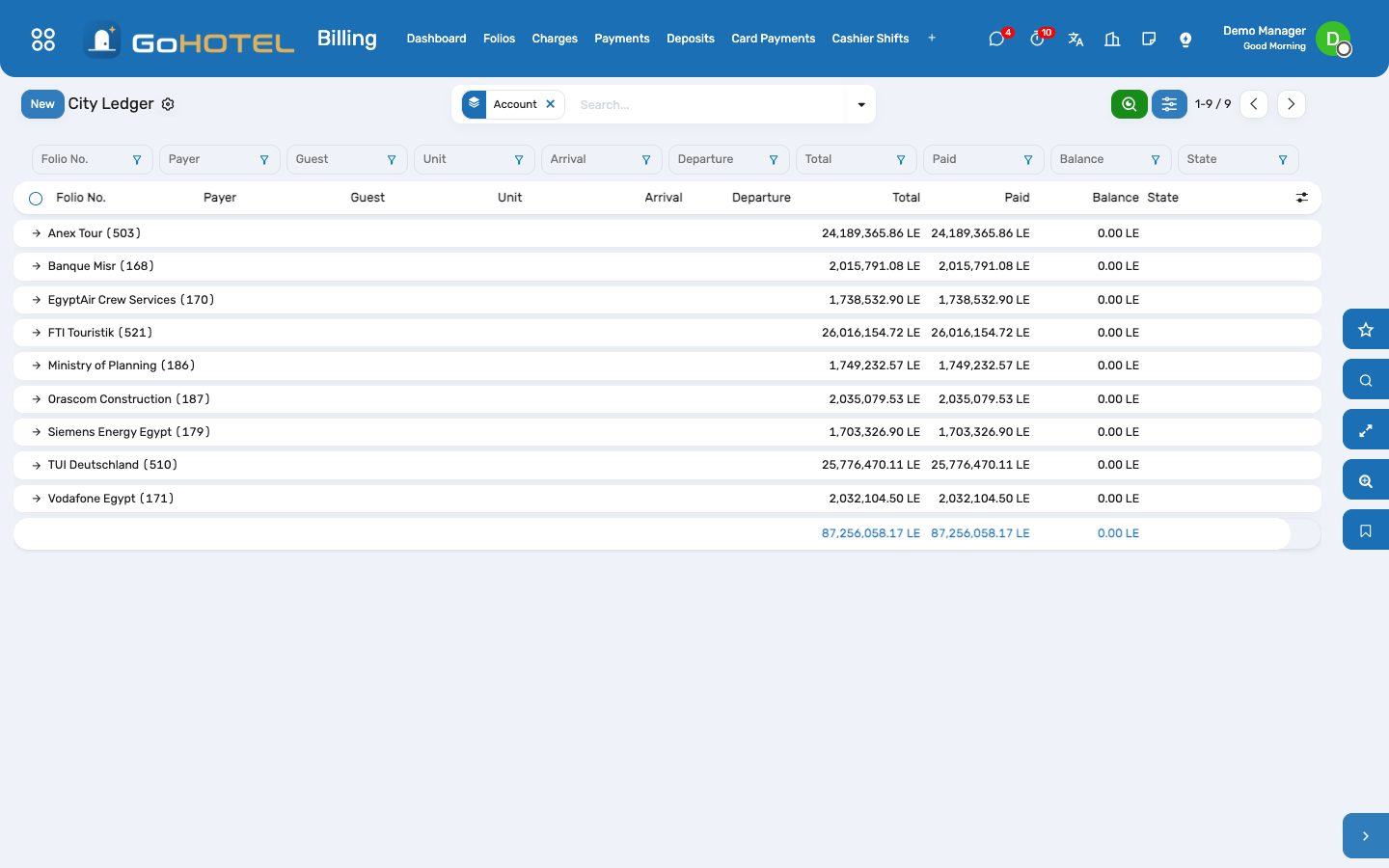
- At check-out choose Transfer to City Ledger: an invoice is issued to the company on its payment terms, the folio shows as transferred.
- Billing › City Ledger lists them; Accounting › Customer Invoices ages them; the agent's commission accrues under Agent Commissions and becomes a vendor bill in batches.
Cashier shift
- Billing › Cashier Shifts › New with the opening float.
- Every payment you post lands on your open shift.
- Close Shift with the counted cash; the difference is recorded.
Questions the desk asks
Why does the folio total differ from the reservation estimate?
The estimate uses today's rules; the folio posts each night with the rules and rate of that night, plus whatever was consumed.
A charge is wrong and already invoiced.
Issue a credit note from the invoice; the charge cannot be cancelled once invoiced.
See also: The night audit and the business date Front desk: arrivals, in house, departures
The night audit and the business date
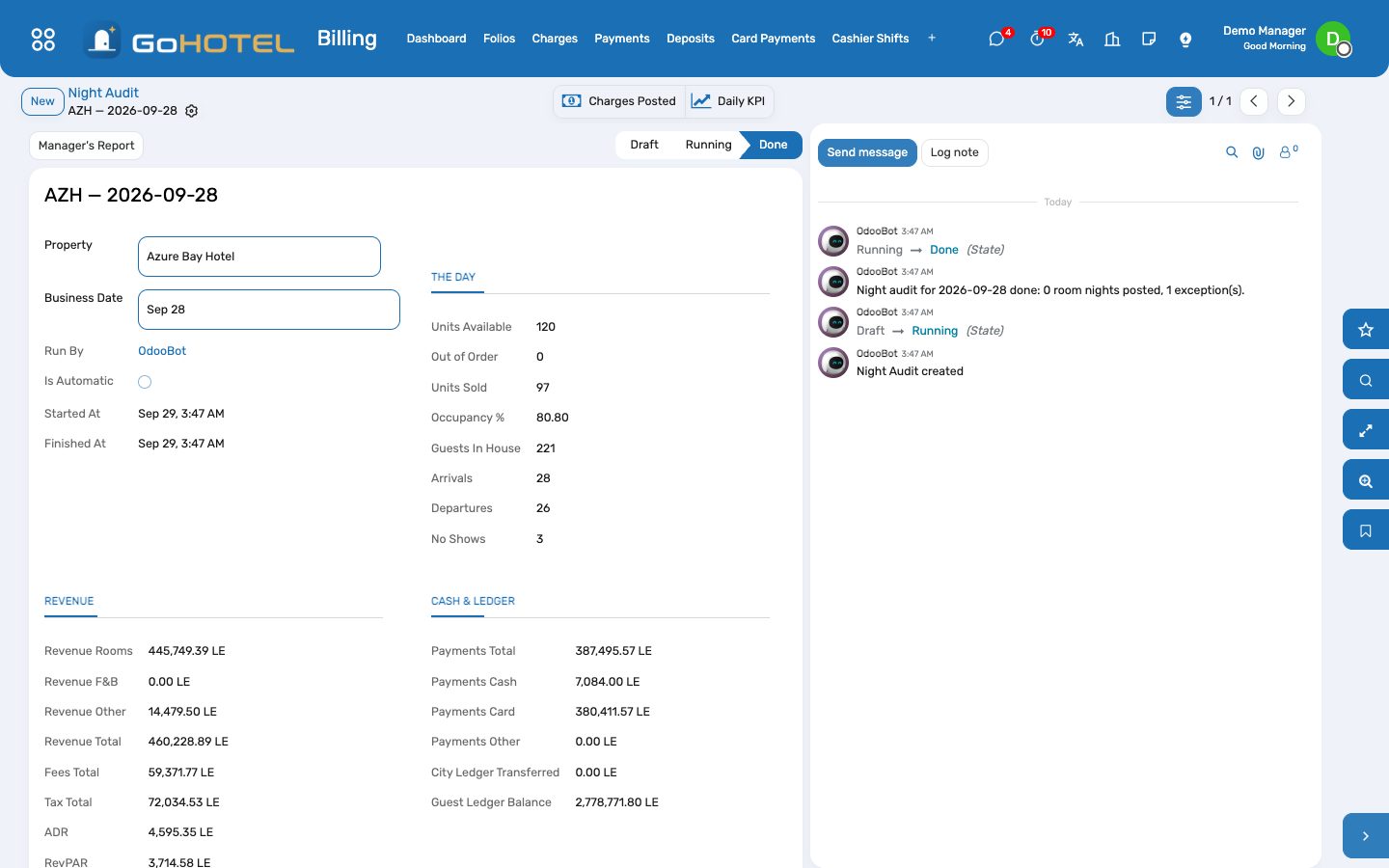
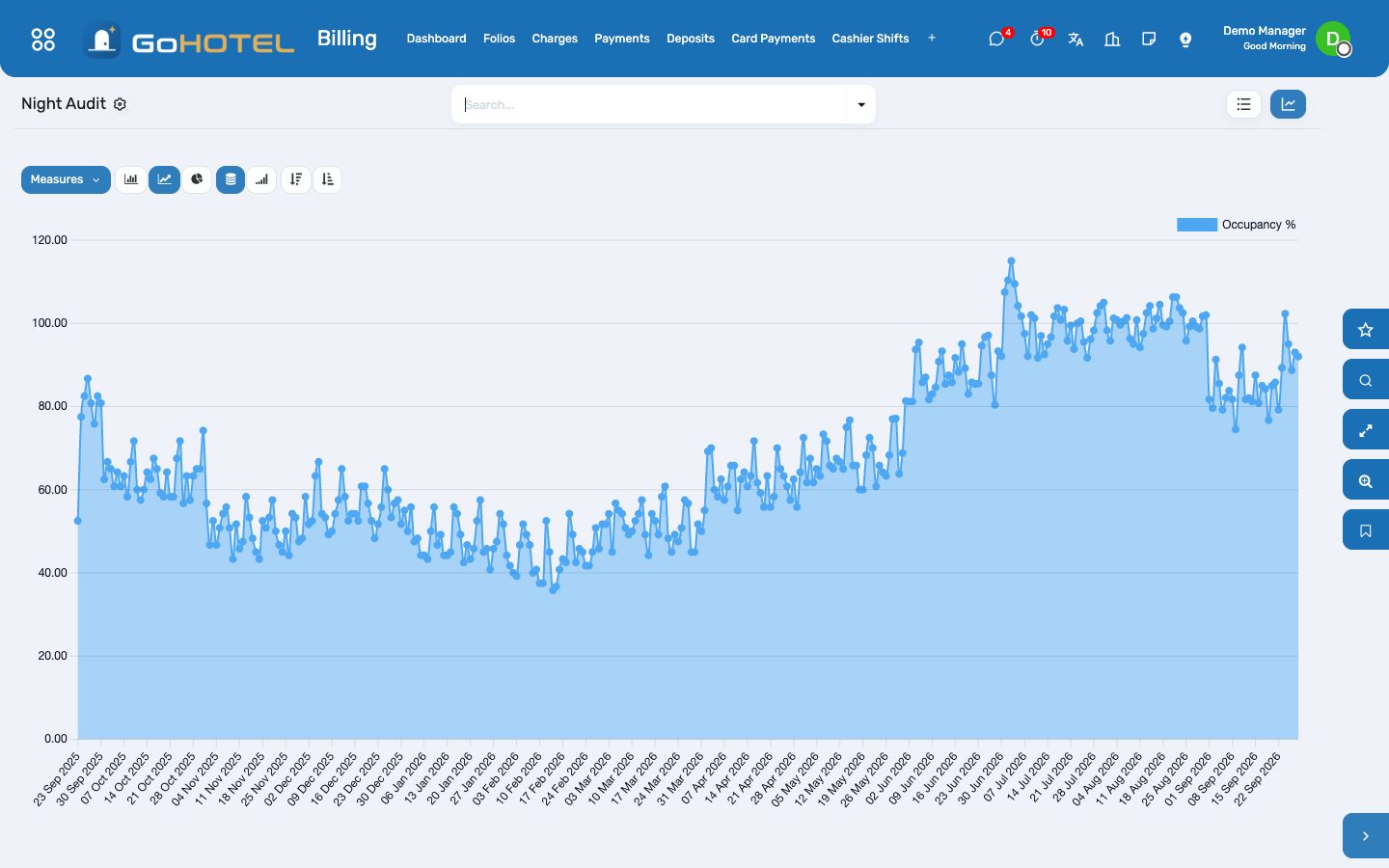
The property runs on a business date, not the clock. The audit settles no-shows, posts one night to every in-house stay with the fees of the day, checks housekeeping against the front office, freezes the manager's report and rolls the date forward — unattended at the audit hour, or by hand.
Where:Billing › Night Audit · Property › Properties (business date, audit hour)
Before you start
- Audit hour and timezone on the property.
- Every stay for tonight checked in (arrivals that did not come are marked no-show by the audit).
How to
Run the audit by hand
- Billing › Night Audit › New for the property (the business date fills in), Run the Audit.
- Read the steps and the exceptions: no-shows, day-use stays still in house, zero rates, housekeeping discrepancies, departures that left a balance.
- Print the Manager's Report: occupancy, ADR, RevPAR, revenue by department, payments by method, ledger balances.
Fix an exception
- A departed stay with a balance: open the folio, take the payment or transfer it.
- A discrepancy: the unit's front-office state and the housekeeping report differ — housekeeping re-checks the unit.
- Mark the exception resolved on the audit.
Questions the desk asks
The audit ran twice.
It cannot: an audit is one per property and business date, and a rerun after a failure posts nothing twice.
Can I post to yesterday?
Charges carry the business date; a manual charge can be dated to the day it belongs to before the month closes in Accounting.
See also: Folios, charges, payments and the city ledger Housekeeping
Housekeeping
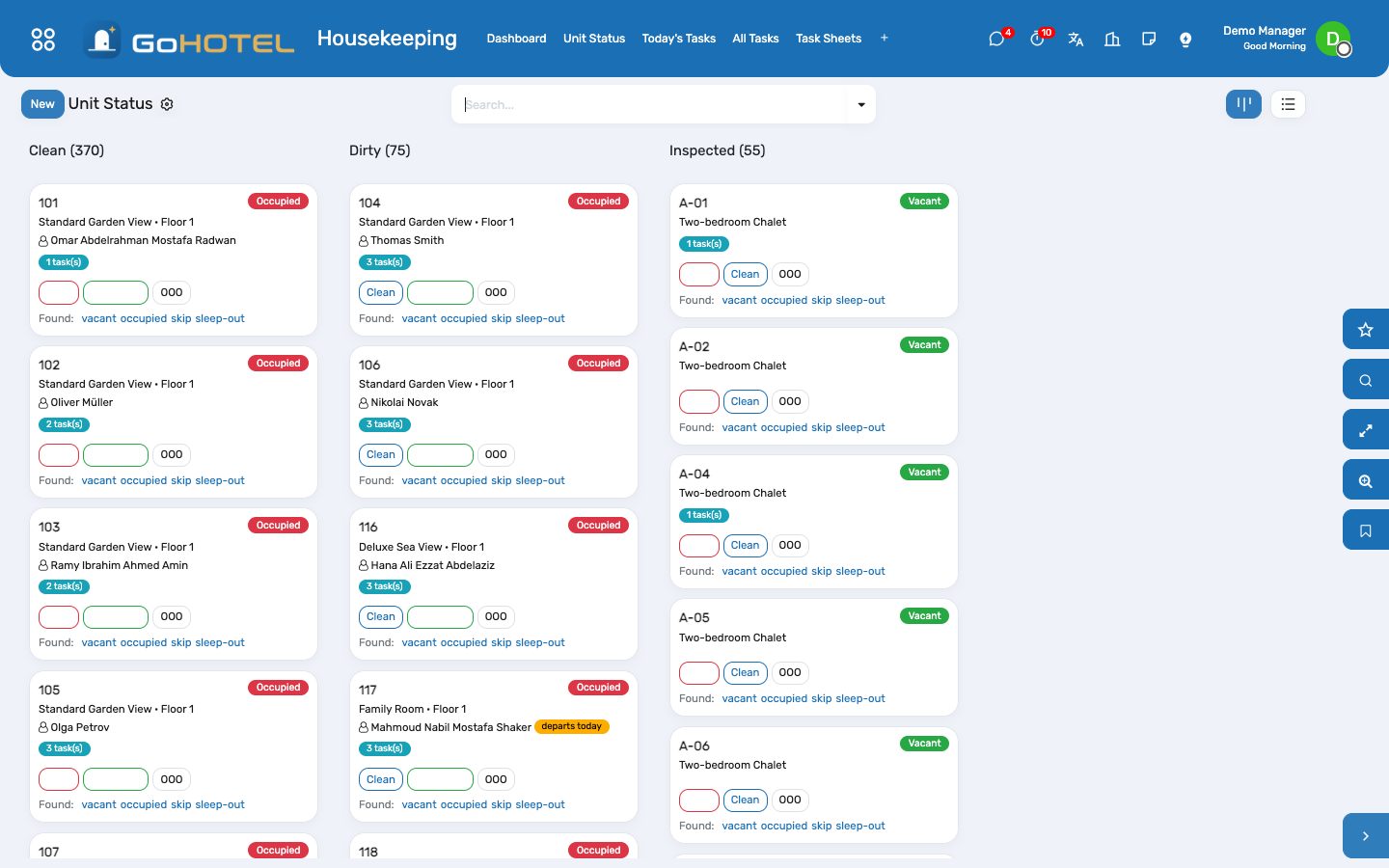
The morning sheet is built from what the front office knows — departures, stayovers, arrivals — one sheet per section, shared between its attendants. Finish a task and the unit turns clean; pass an inspection and it is ready to sell. Minibar postings go straight to the folio.
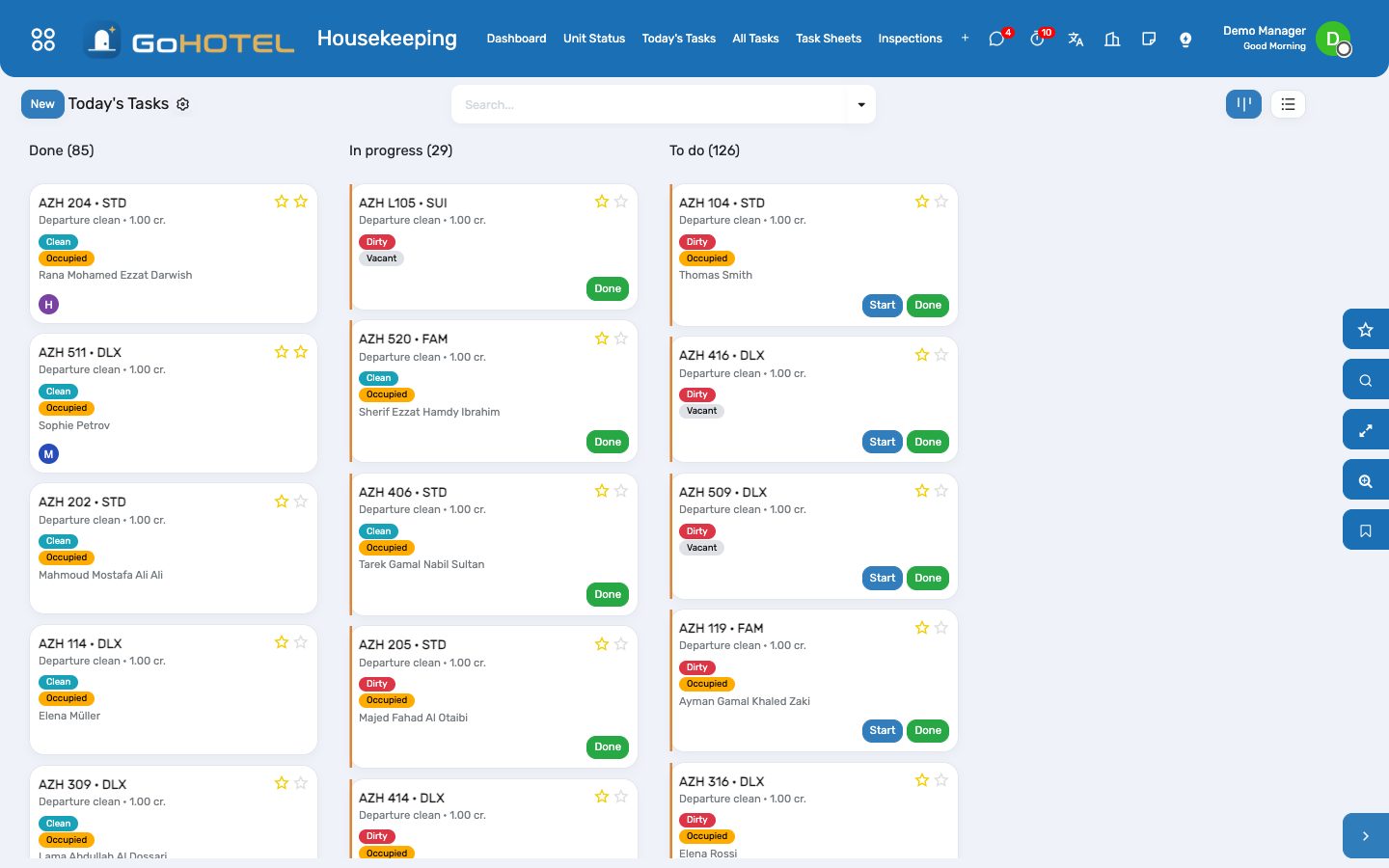
Where:Housekeeping › Unit Status · Housekeeping › Today's Tasks · Housekeeping › Task Sheets · Housekeeping › Inspections · Housekeeping › Minibar
Before you start
- Sections
- Housekeeping › Configuration › Sections: one per floor, wing or row of chalets — its supervisor, its attendants, its units (or whole floors). Tick "Skip inspection" for sections where a finished clean is enough.
- Checklists
- Housekeeping › Configuration › Checklists: what a clean unit looks like, per task type or unit kind; mark the items that fail the unit on their own as critical.
- Public areas
- Housekeeping › Configuration › Public Areas: lobby, pool deck, beach, corridors, with a frequency. Their rounds land on the board every morning.
- Minibar and par levels
- Housekeeping › Configuration › Minibar Items and Par Levels: the products, their par per unit and their minibar price.
How to
Build the morning sheet
- The sheets generate themselves at 05:00. To build them earlier, or again after a late change: Housekeeping › Task Sheets › Generate.
- One sheet per section: a departure clean for every unit leaving today (a turnover deep clean for chalets, villas and apartments), a stayover for every unit staying on, an arrival clean for every dirty unit with a guest due.
- Tasks are shared round-robin between the section's attendants; press Assign Attendants if you added people later.
- Print the sheet for attendants who work on paper.
Work the board
- Housekeeping › Today's Tasks shows one card per unit, grouped To do / In progress / Done, on any phone.
- Tap Start when you enter the unit and Done when you leave: the unit turns Clean (or Inspected in sections that skip inspection).
- A card with a bell is a guest request from the front desk — finishing it closes the request too.
- Skip a unit the guest refused (Do not disturb) and it stays on the sheet as skipped.
Report what you found
- On Housekeeping › Unit Status, every unit card has Found: vacant / occupied / skip / sleep-out.
- Tap what you saw. When it disagrees with the front office, the unit is flagged and listed under Discrepancy Report; the night audit raises the same exception.
- The front desk clears the flag once the stay record is corrected (Clear on the unit form).
Inspect a unit
- Open the finished task and press Inspect (or Housekeeping › Inspections › New).
- The checklist loads; untick what is wrong and add a note.
- Pass: the unit is Inspected and ready to sell. Fail: it goes back Dirty and a touch-up task listing the failed items goes to the attendant.
Post the minibar
- Housekeeping › Minibar › New: pick the unit; the in-house stay and its folio fill in.
- Load Minibar Items lists the par items at quantity 0; enter what was consumed.
- Post to Folio: the charges land on the guest's folio with the service charge and taxes; if a "Minibar" stock location exists, the items are consumed from it.
Replenish linen and amenities
- Housekeeping › Replenishment (or the HK Replenishment button on the property).
- Choose the section; the wizard multiplies each par level by the unit count and subtracts what the Housekeeping Store holds.
- Create Transfer drafts an internal transfer from the warehouse to the Housekeeping Store for the store keeper to validate.
Questions the desk asks
A unit checked out after the sheet was built — is it missed?
No. Every check-out creates today's departure (or turnover) task on the spot and puts it on the section's sheet.
Why does a chalet get a "turnover" instead of a "departure"?
Self-catering units — chalets, villas, apartments — take a deeper clean between guests; the task carries 1.5 credits instead of 1.0.
Who can post a minibar?
Housekeeping and the front desk. F&B can read the postings; only the folio can cancel an invoiced one, by credit note.
See also: Front desk: arrivals, in house, departures The dashboards
Users, roles and the subscription
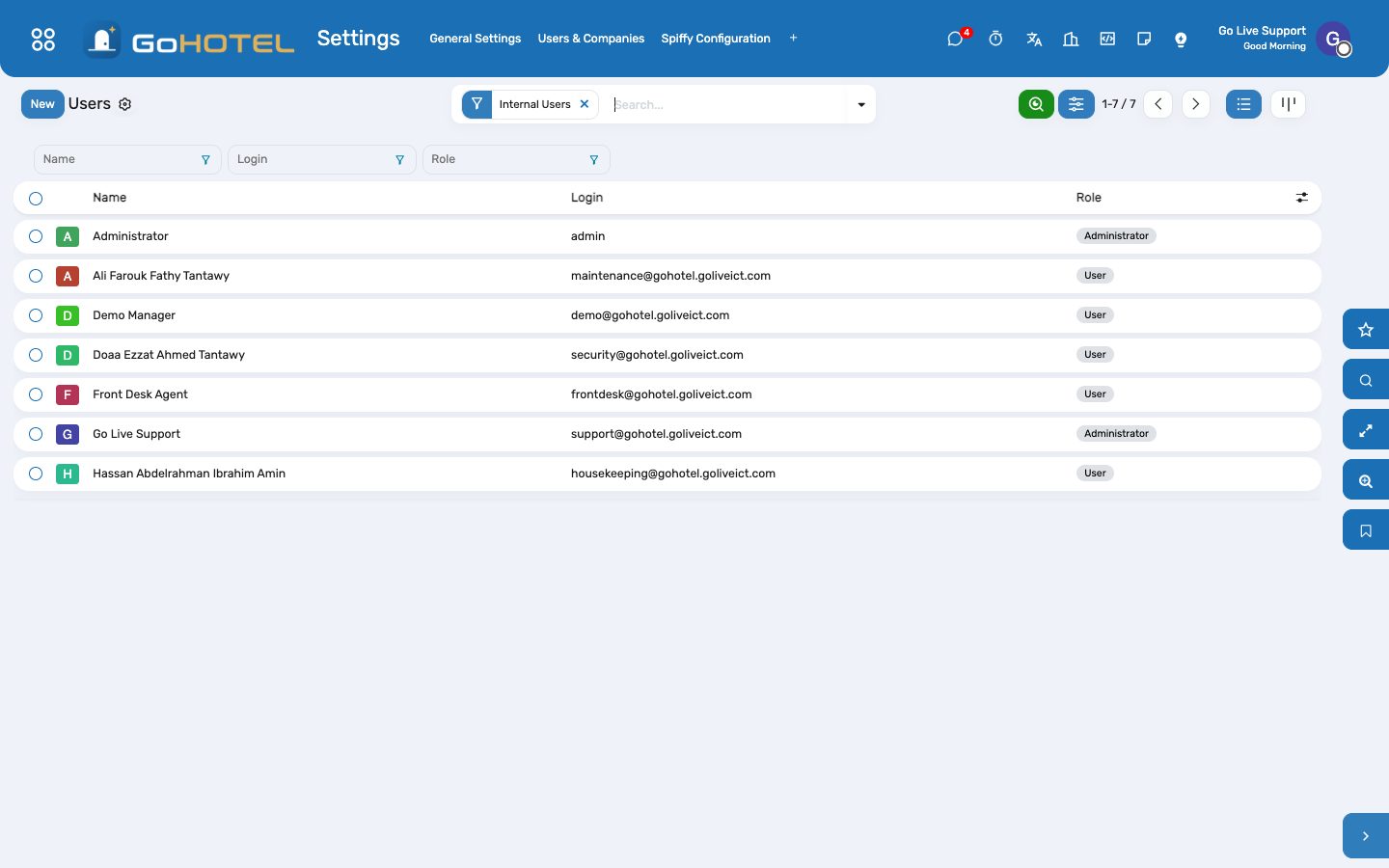
Staff are named users with a GoHotel Role; guests, owners and residents are portal users and are never counted. The Subscription screen shows how many users and units the plan allows.
Where:Settings › Users · Settings › Subscription
How to
Invite a staff member
- Settings › Users › New.
- Enter the name and e-mail.
- Pick the GoHotel Role — the groups behind it are granted and the start page is set.
- Save: the invitation mail goes out.
Check the subscription
- Settings › Subscription.
- Read users in use against allowed, and active units against allowed.
- Upgrade Plan opens the pricing page when either is close.
Questions the desk asks
We were blocked adding a room.
The plan's unit cap is reached. Archive units you no longer sell, or upgrade the plan; the caps are set by Go Live at provisioning.
See also: Signing in and finding your way
Maintenance and engineering
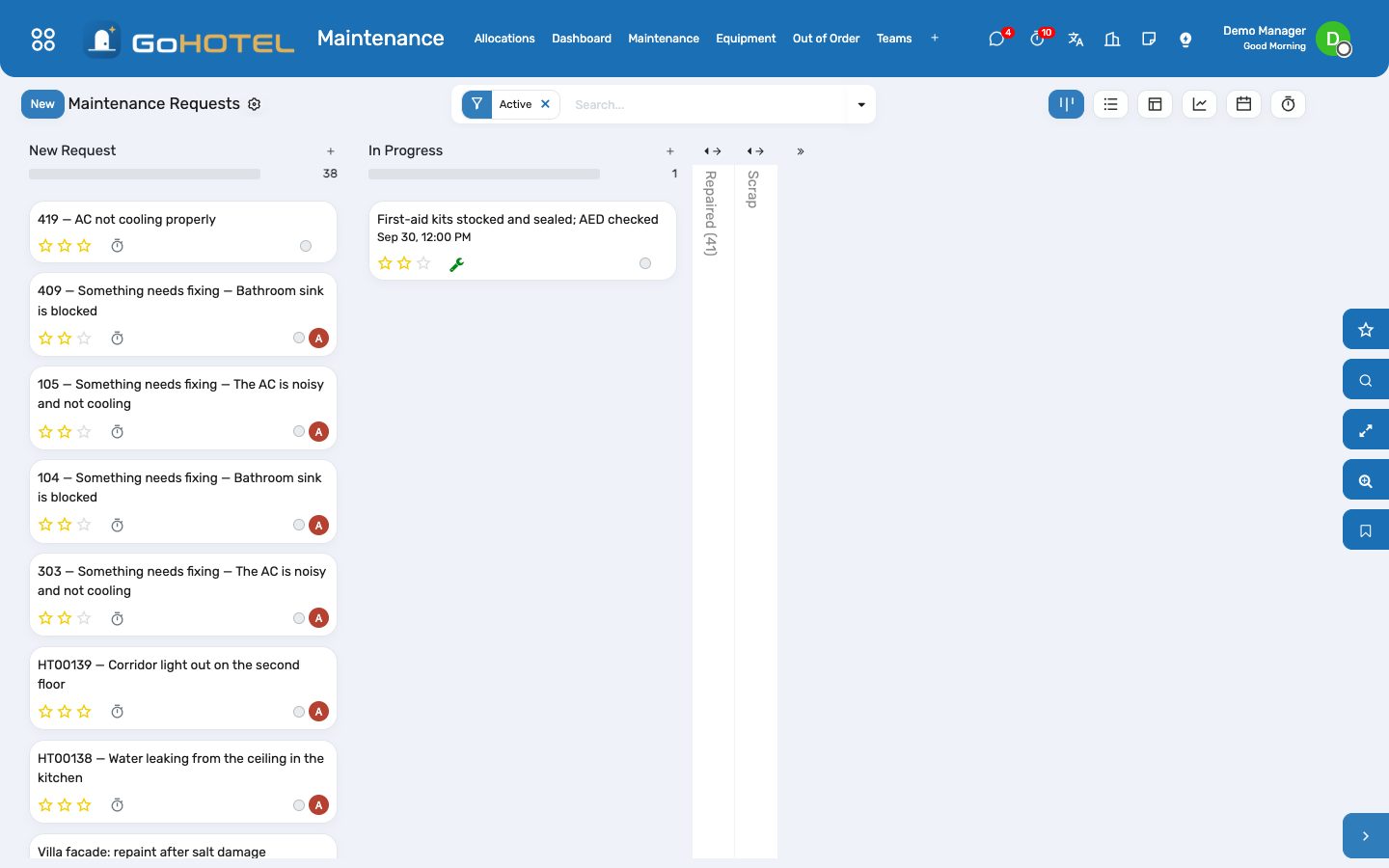
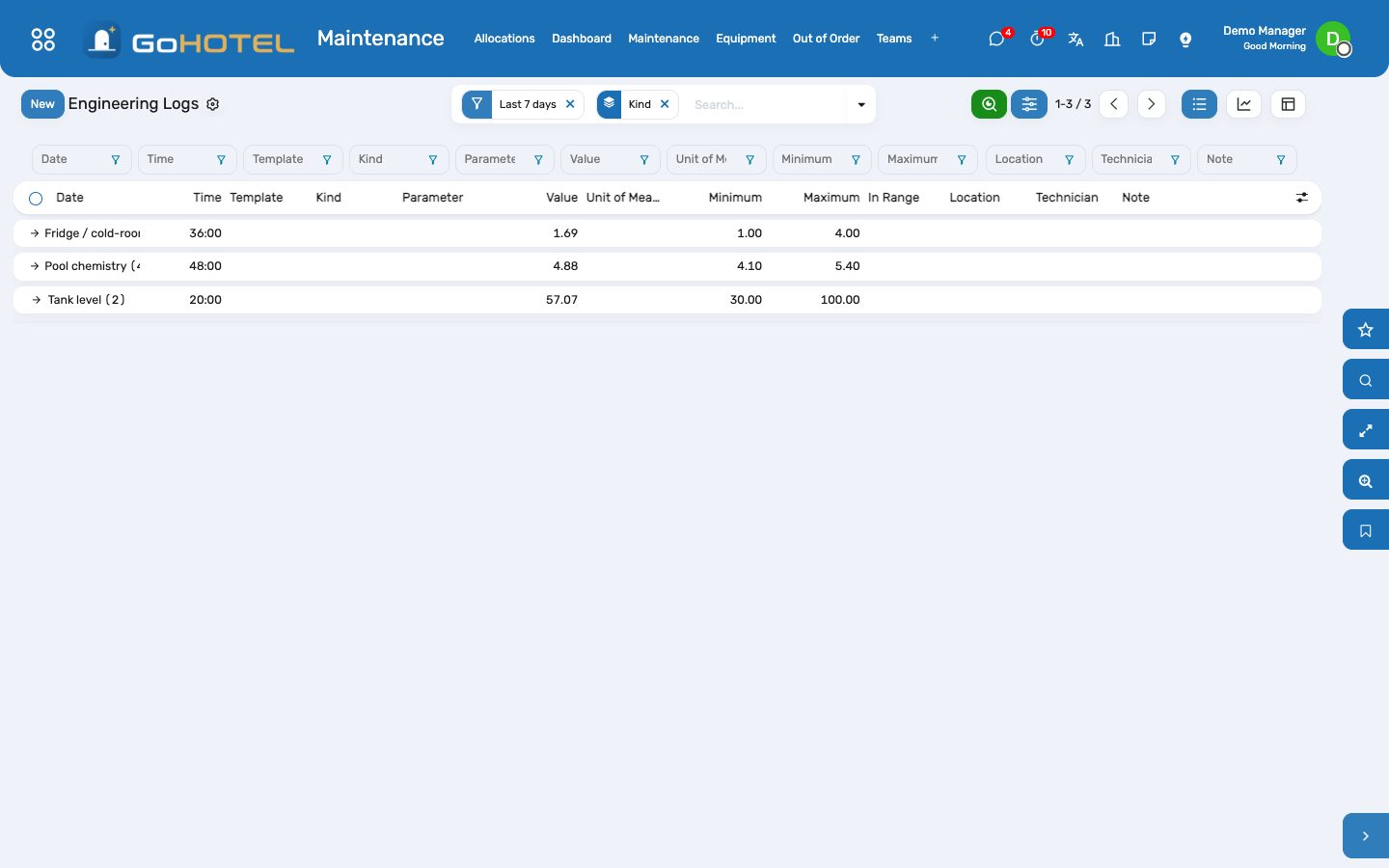
Work orders on units, spaces and plant; the unit taken out of order while the job runs; damage charged to the guest or billed back to the owner; contractor jobs with a vendor bill; equipment by unit; and the engineering log book with limits that turn a bad reading red.
Where:Maintenance › Maintenance Requests · Maintenance › Out of Order · Maintenance › Engineering Logs
Before you start
- Equipment categories
- Maintenance › Configuration › Equipment Categories — HVAC, Plumbing, Electrical, Pool & Water, Kitchen, Lifts, Generators and Furniture are there; add your own.
- Equipment
- Maintenance › Equipment — register the plant and the unit assets; set the property, the unit or the space and the asset kind.
- Log templates
- Maintenance › Configuration › Engineering Log Templates — check the limits (pool pH 7.2–7.8, cold room 1–5 °C…) and add what your technicians read on their rounds.
- Access
- Give the engineering team the Maintenance & Engineering access right; the front desk needs nothing more to raise requests.
How to
Raise a work order on a unit
- Maintenance › Maintenance Requests › New.
- Write the subject, pick the unit (the property fills in), the equipment if it is registered, and the priority.
- Tick "Takes the unit out of order" when the unit cannot be sold while the job runs: an out-of-order window opens at once and the tape chart stops offering the unit.
- Choose who pays — operator, guest, owner or community — and add the parts, labour and contractor costs as they are known.
- Move the card to Repaired when the job is done: the unit returns to housekeeping as dirty, and the guest request that raised it is closed.
Charge a repair to the guest
- On the request set "Chargeable to" to Guest; the in-house stay of the unit fills in.
- Enter the parts and labour cost — the total is what is charged.
- Move the request to Repaired: a "Damage / repair charge" for the total lands on the stay's folio, once, and the request shows it as a smart button.
Bill a repair back to the owner
- Set "Chargeable to" to Owner; the owner approval turns Pending.
- Owner Relations approves or rejects it with the two buttons at the top of the request.
- Complete the job as usual; the owner statement picks up approved, completed owner-chargeable requests with their total cost.
Put a unit out of order without a work order
- Maintenance › Out of Order › New.
- Pick the unit, out of order or out of service, the dates and the reason.
- A window starting today activates at once; a future one is activated by the daily job on its first day and closed the day after its last.
- Back in Order returns the unit to housekeeping as dirty; the lost room-nights stay on the record.
Send a contractor and bill the job
- On the request name the contractor and enter the contractor cost.
- Create Vendor Bill makes a draft bill to the contractor for that amount; accounting posts it when the invoice arrives.
- The Contractor jobs filter lists every request with a contractor.
Log the engineering round
- Maintenance › Engineering Logs — the list is editable at the bottom.
- Pick the template (pool pH, free chlorine, cold room, diesel tank…): the kind, parameter, unit of measure and limits fill in.
- Type the value and, if useful, the location, the equipment and a note.
- A reading outside its limits turns red; "Raise a work order" makes a corrective request for it in one click.
- The graph shows each parameter over the days; group by kind or parameter for the weekly review.
Questions the desk asks
The unit is occupied and the AC has failed — can I put it out of order?
Yes. The window opens and the front desk sees the unit is out; move the guest with Move Unit on the stay. The stay itself is not touched.
Why did the unit come back as dirty and not clean?
Every unit that returns from a job needs a housekeeping pass before it is sold again; housekeeping cleans and inspects it as usual.
Two requests block the same unit — what happens when one is repaired?
They share one window. It closes only when the last open request that blocks the unit is done or cancelled.
What counts as a lost room-night?
Every night of the window, first and last day included; when a window is closed early the end date moves to the day it was closed.
See also: Housekeeping Front desk: arrivals, in house, departures The dashboards
Restaurant, bar and room service — charging to the room
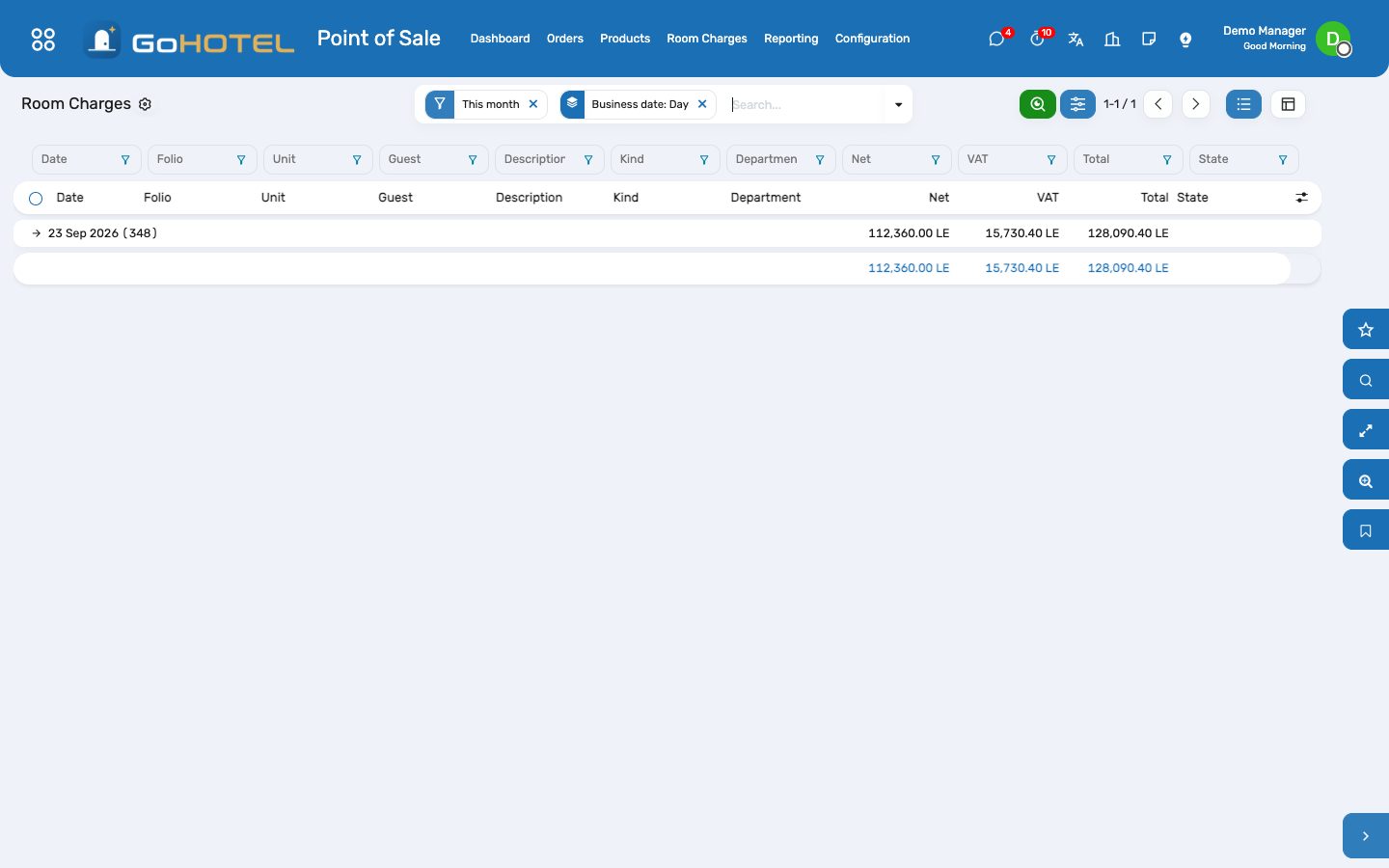
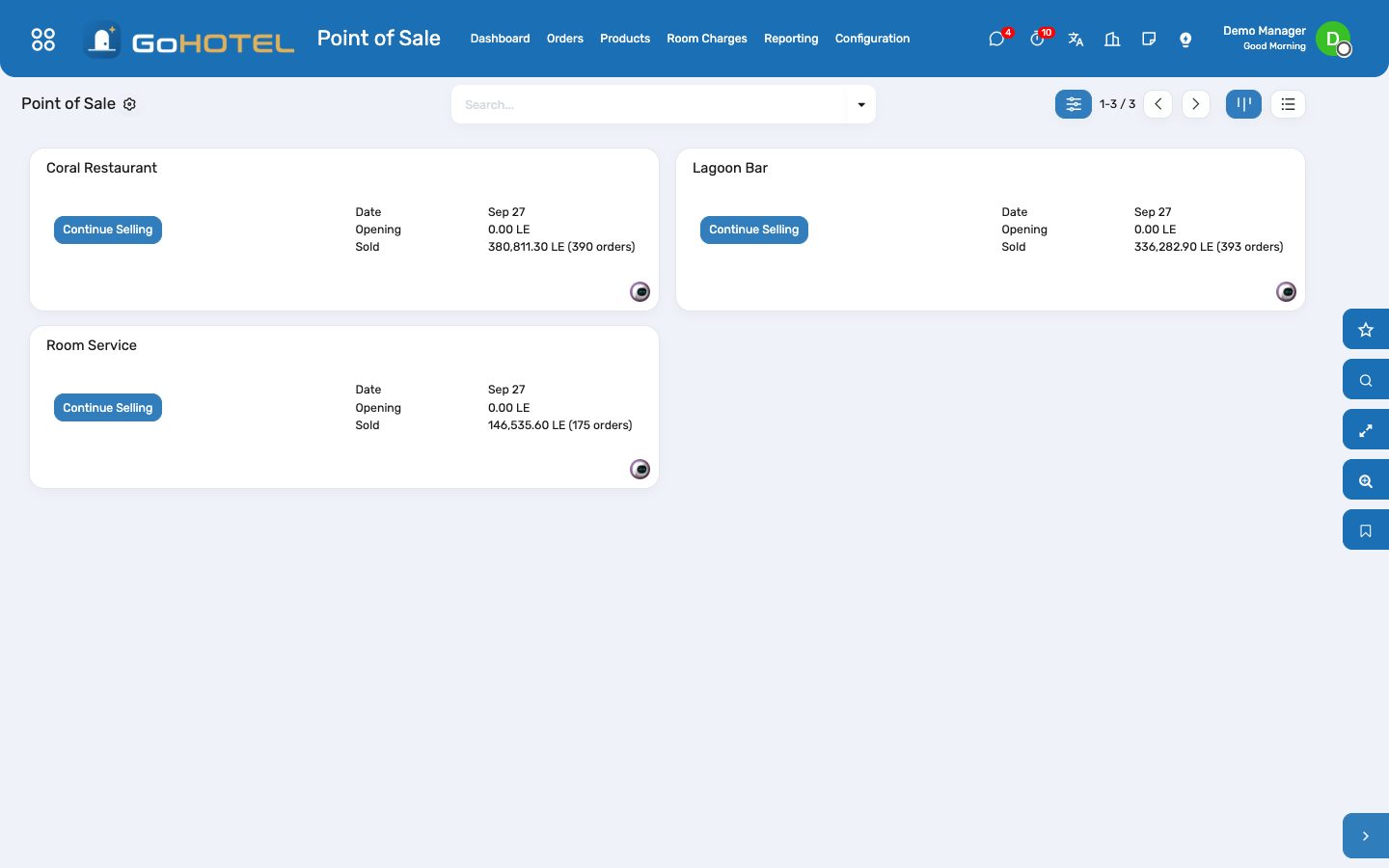
Every outlet is an Odoo Point of Sale tied to the property and a revenue department. A cheque is settled like any other — cash, card — or with Room charge, which finds the in-house guest by room number, name or reservation and posts the cheque to the folio; the guest settles it at check-out.
Where:Point of Sale › Dashboard (the outlet) · Point of Sale › Room Charges
Before you start
- The outlet
- Point of Sale › Configuration › Point of Sale: open the outlet, fill the Hotel group — property, revenue department, outlet type — and add the "Room charge" method to its payment methods.
- Prices and taxes
- Outlet products carry VAT (and the service charge, when it is a tax) as POS taxes; leave "Apply property fee rules" off unless the outlet prices are net.
How to
Charge a cheque to a room
- Take the order as usual and open Payment.
- Tap Room charge.
- Type the room number, the guest name or the reservation reference; pick the stay.
- The guest becomes the customer and the cheque shows "Charged to room …"; Validate.
- Print the receipt for the guest to sign; the folio now carries one line per cheque item.
Refund a room-charged cheque
- Orders › select the cheque › Refund.
- Pay the refund with Room charge and pick the same stay.
- The folio receives the negative lines; its balance drops.
See what an outlet charged today
- Point of Sale › Room Charges.
- Group by outlet or by business date; open a line to reach the folio.
Questions the desk asks
The guest is not in the list.
Only checked-in stays of the outlet's property appear. A guest who has not checked in yet, or who has checked out, cannot be charged — take another payment.
Validate says "Choose the in-house stay".
A Room charge line exists but no stay is chosen: tap the yellow line under the payments and pick the guest.
Is the sale booked twice?
No. The POS books the revenue and the VAT when the session closes; the folio line is marked "settlement only" and is never invoiced again — it only settles the amount at check-out.
Compliance — guest lists, licences and fee returns
Every check-in writes one registration row per occupant, spelled as the ID document spells them. The desk collects the rows into the list the authority wants — the daily tourism-police list and the monthly Ministry list in Egypt, Shomoos check-in and check-out in Saudi Arabia, the Dubai Police export in the UAE — exports the file, and records what came back. Licences warn before they lapse; fee returns sum the tourism, municipal and city-tax lines of the period.
Where:Compliance › Guest Registrations · Compliance › Lists & Batches · Compliance › Licences & Permits · Compliance › Fee Returns
Before you start
- Property › Properties: fill the Tourism Registration No. — it prints on every list.
- Compliance › Configuration › Settings: the retention window (years) and the default purpose of stay.
- Settings › Technical › Scheduled Actions: switch on “daily police list (Egypt)” to export yesterday's list every morning.
How to
Fix a registration the authority would reject
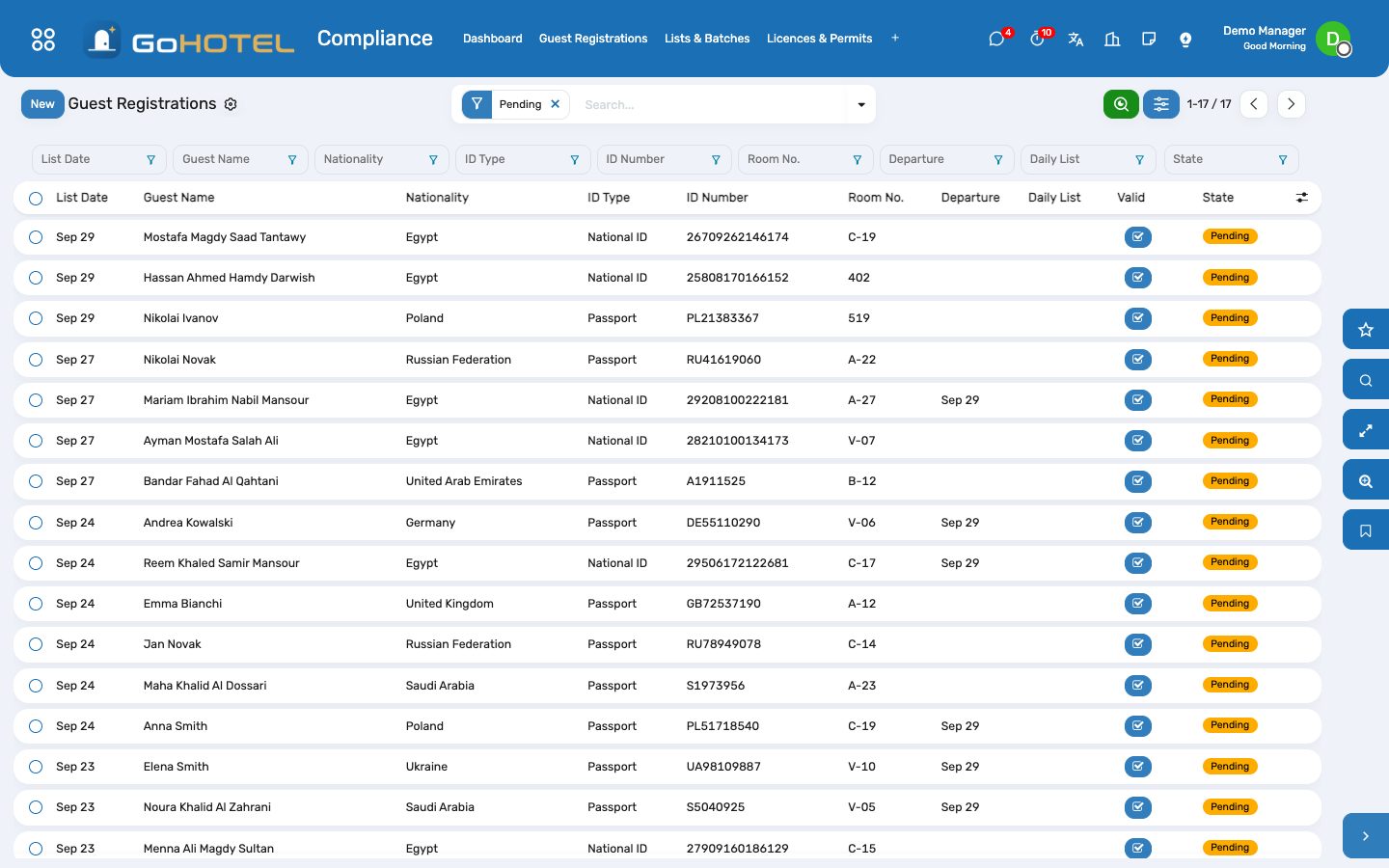
- Compliance › Guest Registrations, filter Invalid.
- Open the row: the red box says what is missing — a four-part name, a 14-digit national ID, a nationality, a date of birth.
- Open the guest profile from the smart button and correct it; the pending row refreshes itself.
- Rows already exported are frozen: correct the guest, then put the row Back to Pending so the next list carries the corrected data.
Send the daily police list
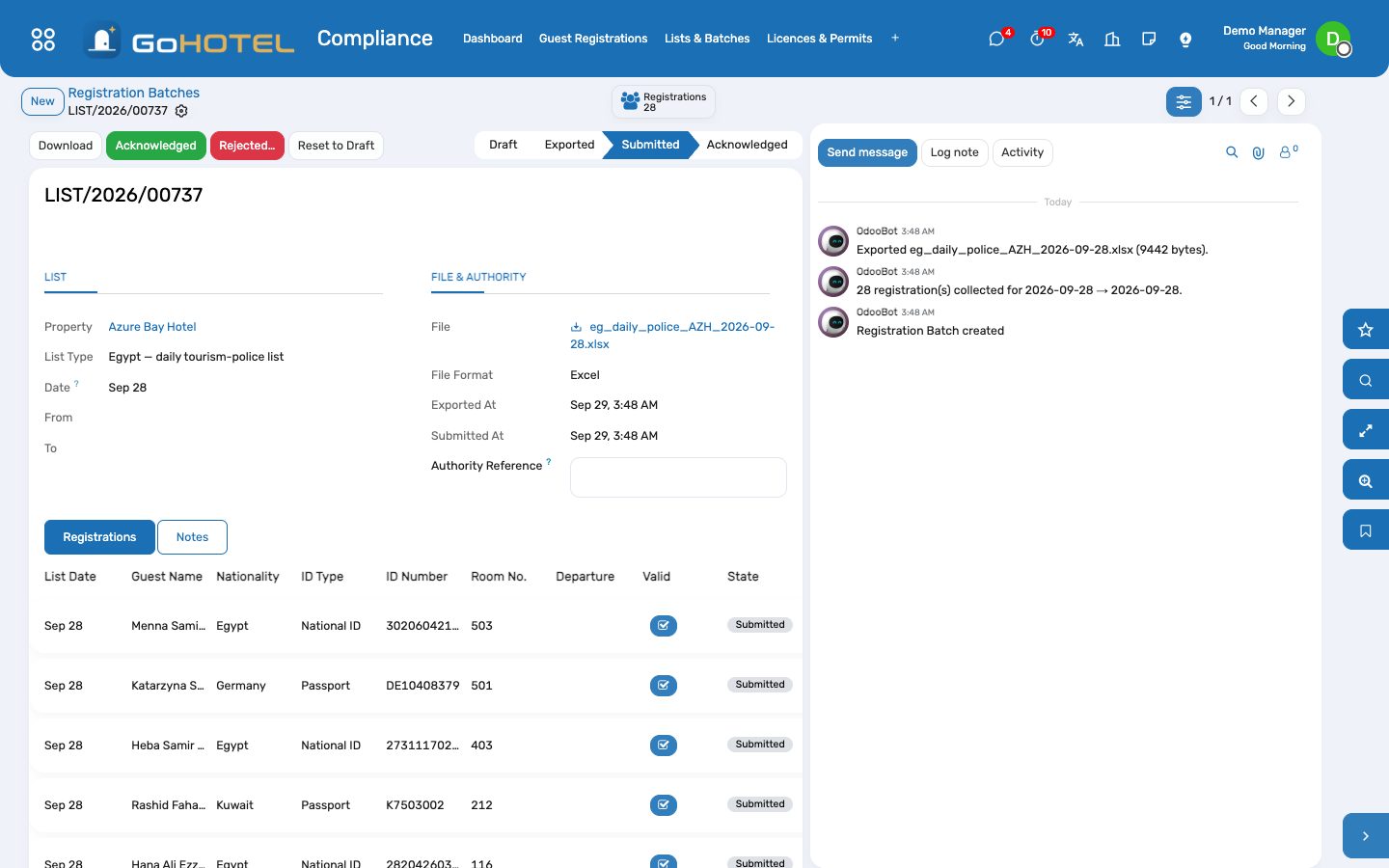
- Compliance › Lists & Batches › New; the list type follows the property's country.
- Pick the day and press Collect: every pending or rejected row of that day joins the batch.
- Press Export File, then Download, and upload it to the authority's platform.
- Press Mark Submitted; when the receipt arrives, press Acknowledged and note the reference. If it bounces, press Rejected… with the reason — the rows go back to pending and join the next list.
Report a check-out to Shomoos
- Compliance › Lists & Batches › New, list type “Shomoos check-out”.
- Collect: every departure of the day whose check-out was not yet reported.
- Export, upload, Mark Submitted.
Keep the licences from lapsing
- Compliance › Licences & Permits › New: type, number, authority, issue and expiry dates, the scan.
- Set “Remind before” — 60 days by default. Every night the state is recomputed and an activity is raised for a licence entering the window.
- When renewed, press Record Renewal: a new licence opens pre-filled from the old one.
File the city-tax or Tourism Dirham return
- Compliance › Fee Returns › New: pick the return type and the period (last month by default).
- Press Compute: the room nights, the base and the fee are summed from the folio fee lines of the period, broken down by fee rule.
- Export CSV for the portal, press Mark Filed with the filing reference, then Mark Paid.
Anonymise guests past the retention window
- Compliance › Configuration › Anonymise Guests.
- The list holds every guest with no stay in the retention window and no open folio.
- Press Anonymise: the name is replaced, identity and contact fields cleared, ID scans deleted, the profile archived. Lists already handed to an authority are kept as they are.
Questions the desk asks
Why does a guest with a valid passport show “The name must carry four parts”?
Only Egyptian nationals need the four-part name. Check the nationality on the guest profile.
Who can see an ID scan?
Front desk, reservations, guest relations and managers. Open it through “Open scan (logged)” — every view is written to Compliance › Configuration › ID Scan Access Log.
A list was exported with a wrong row. Can I redo it?
Yes — Reset to Draft on the batch (unless it was acknowledged), fix the guest, Collect and Export again.
See also: Front desk: arrivals, in house, departures Guests and accounts The dashboards
Rosters, service charge and staff credentials
The people side of the property inside the Employees app: a duty roster by shift with swap requests, the monthly service-charge pool split by points and days worked and pushed to payroll, tips, and the certificates the inspectors ask for — with reminders before they expire.
Where:Employees › Duty Roster · Employees › Shift Swaps · Employees › Service Charge Pool · Employees › Credentials
Before you start
- On each employee, Work tab › Hotel: the property, the outlet they work in, whether they share in the service charge and their points (1 line staff, 1.5 supervisor, 2 head of department).
- Payroll › Salary Structures: add the rule "Service Charge" (code SVC) to your structure once; the pool fills the SVC input of each draft payslip.
- The attendance app is the source of days worked; without it the roster counts, and without a roster every calendar day counts.
How to
Write next week's roster
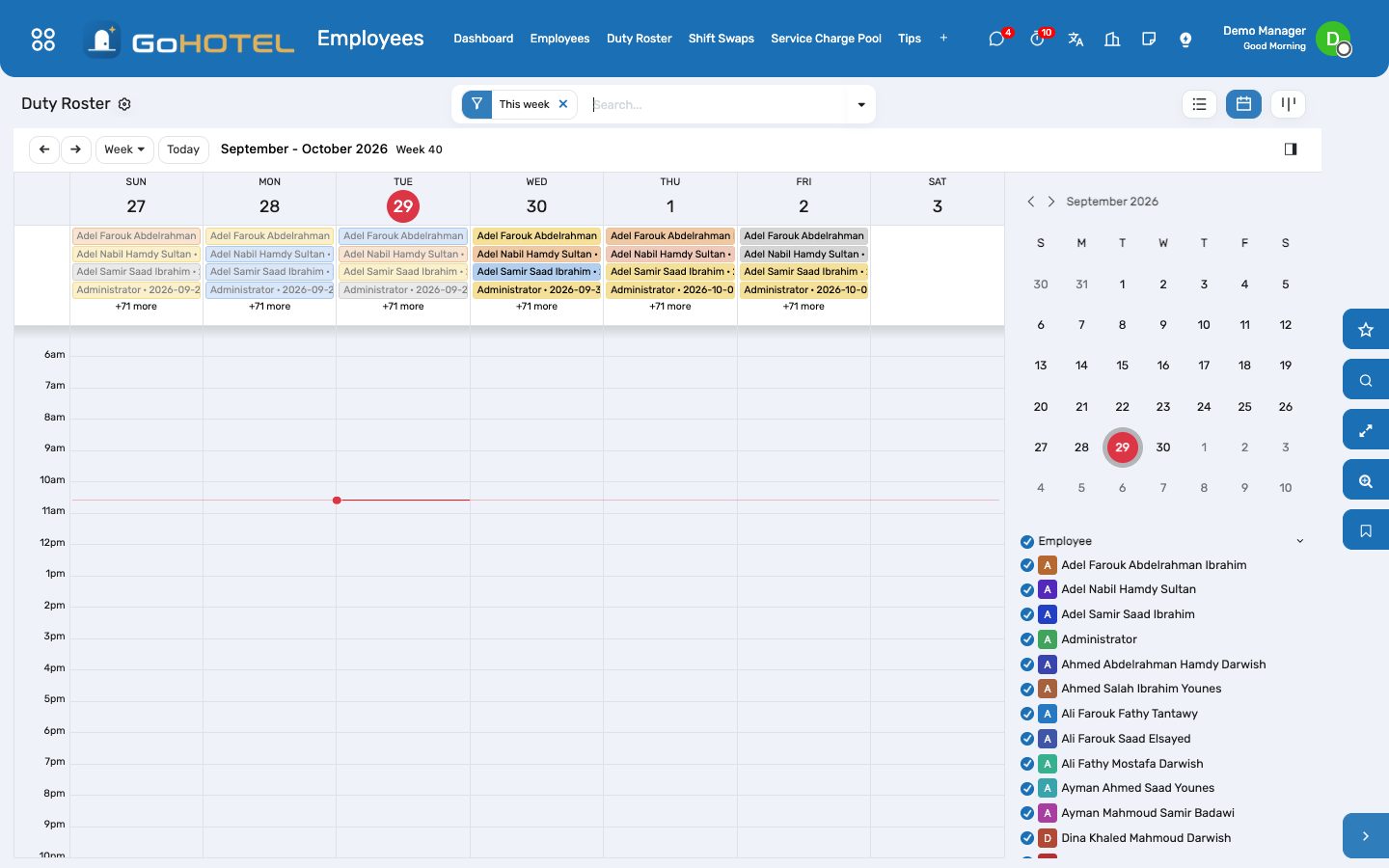
- Employees › Duty Roster › Generate.
- Pick the property, the week, and the outlet or the people.
- Set the shift of each weekday — the property's weekend days are off by default — or choose "Copy the previous week".
- Generate: one line per person and day; lines that already exist are left alone.
- Select the week and Confirm. Each night, confirmed lines become Worked or Absent from the attendance log.
Swap a shift with a colleague
- Employees › Shift Swaps › New (any employee can).
- Pick your shift, the colleague, and — for an exchange — the shift they give in return.
- The colleague opens the request and accepts.
- HR or the hotel manager approves: the roster is rewritten for both.
Distribute the month's service charge
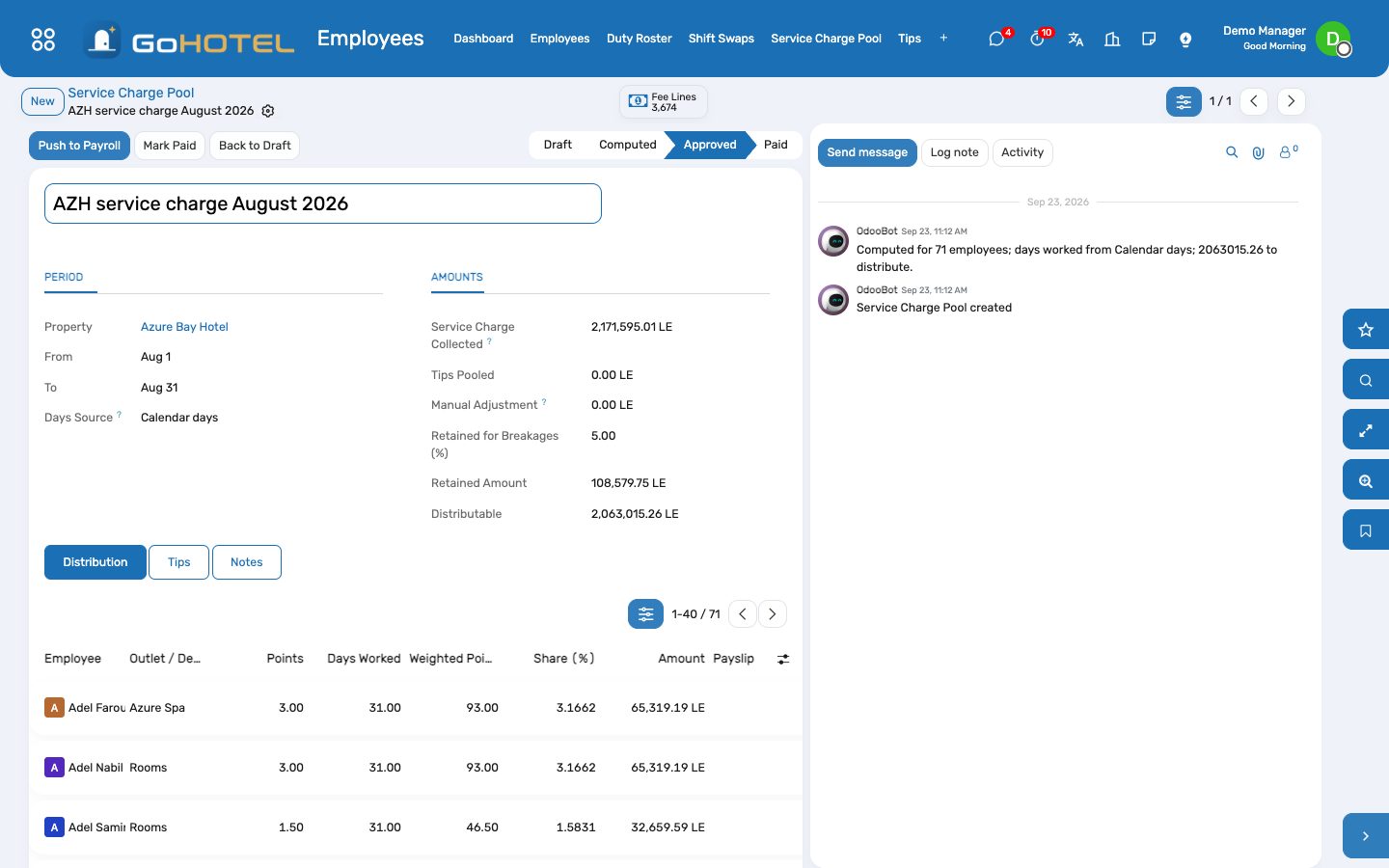
- Employees › Service Charge Pool › New: the property and the month.
- Collected shows the service-charge fee lines the folios posted; add tips or a manual adjustment, and the percentage retained for breakages.
- Compute: every eligible employee gets a line — points × days worked gives the share.
- Correct a line if needed, then Approve.
- Push to Payroll: each amount lands as input SVC on the person's draft payslip of the month; people without a draft payslip are listed in the chatter.
- Mark Paid once payroll is out.
Keep staff certificates current
- Employees › Credentials › New, or the Hotel HR tab of the employee.
- Enter the certificate, its number, the issuer and the expiry date; attach the scan.
- Thirty days before expiry (or the reminder you set) the status turns Expiring and the HR responsible gets an activity.
- Enter the new dates when it is renewed; the status follows.
Issue a uniform or a locker
- Employee › Hotel HR tab › Uniforms & lockers: the item, size, quantity and locker number.
- On departure, mark each line Returned, or Lost.
Questions the desk asks
Why is someone missing from the pool?
Their Service-Charge Eligible box is off, or they belong to another property. Employees with no property are included in every property's pool of their company.
The collected amount looks old.
The pool reads the folio charges when it is computed; press Refresh Amounts or Compute again after the night audit.
Can an employee see the whole roster?
Everyone sees their own lines and their own swap requests; HR users and the hotel manager see all of them.
The property website and online booking
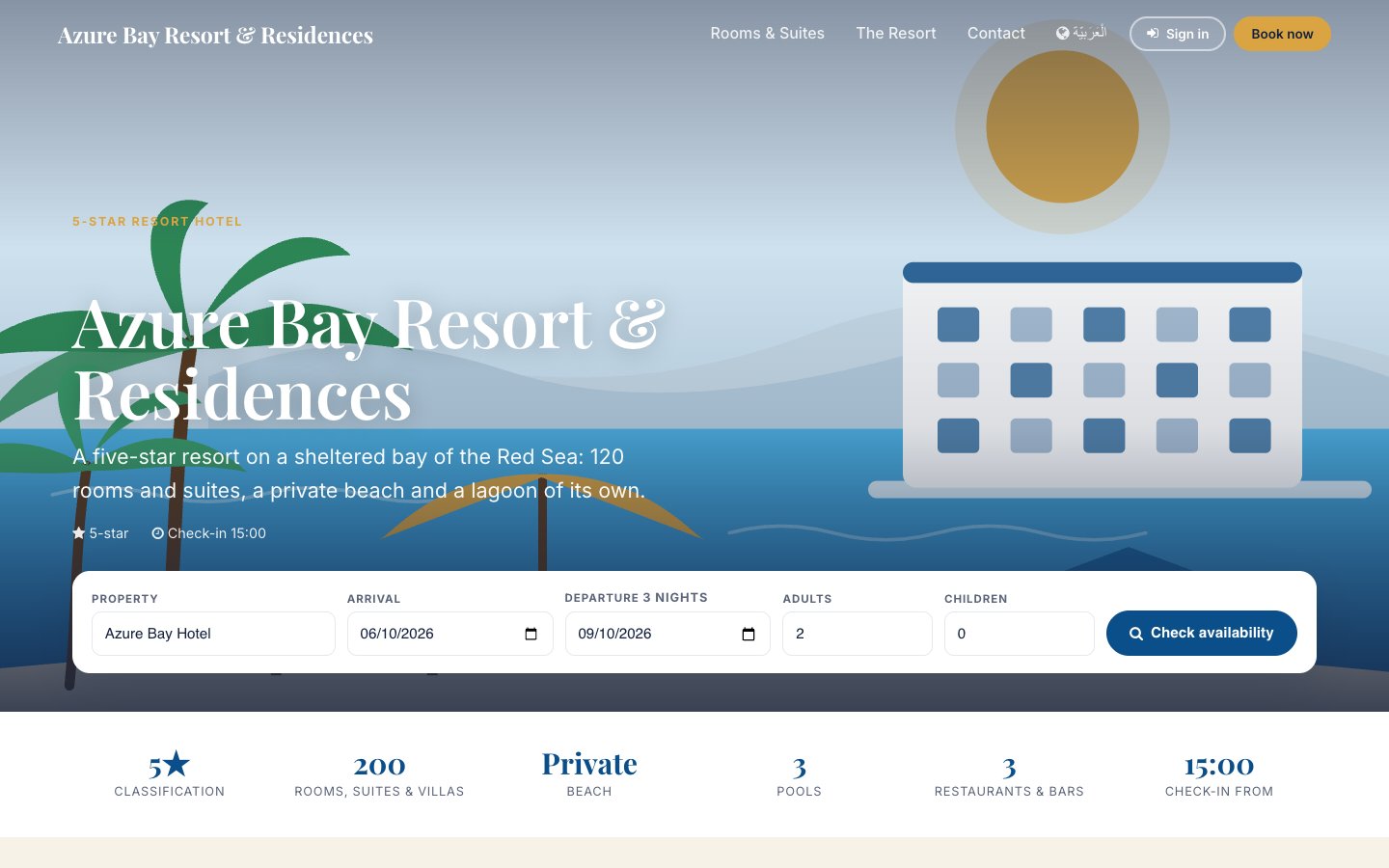
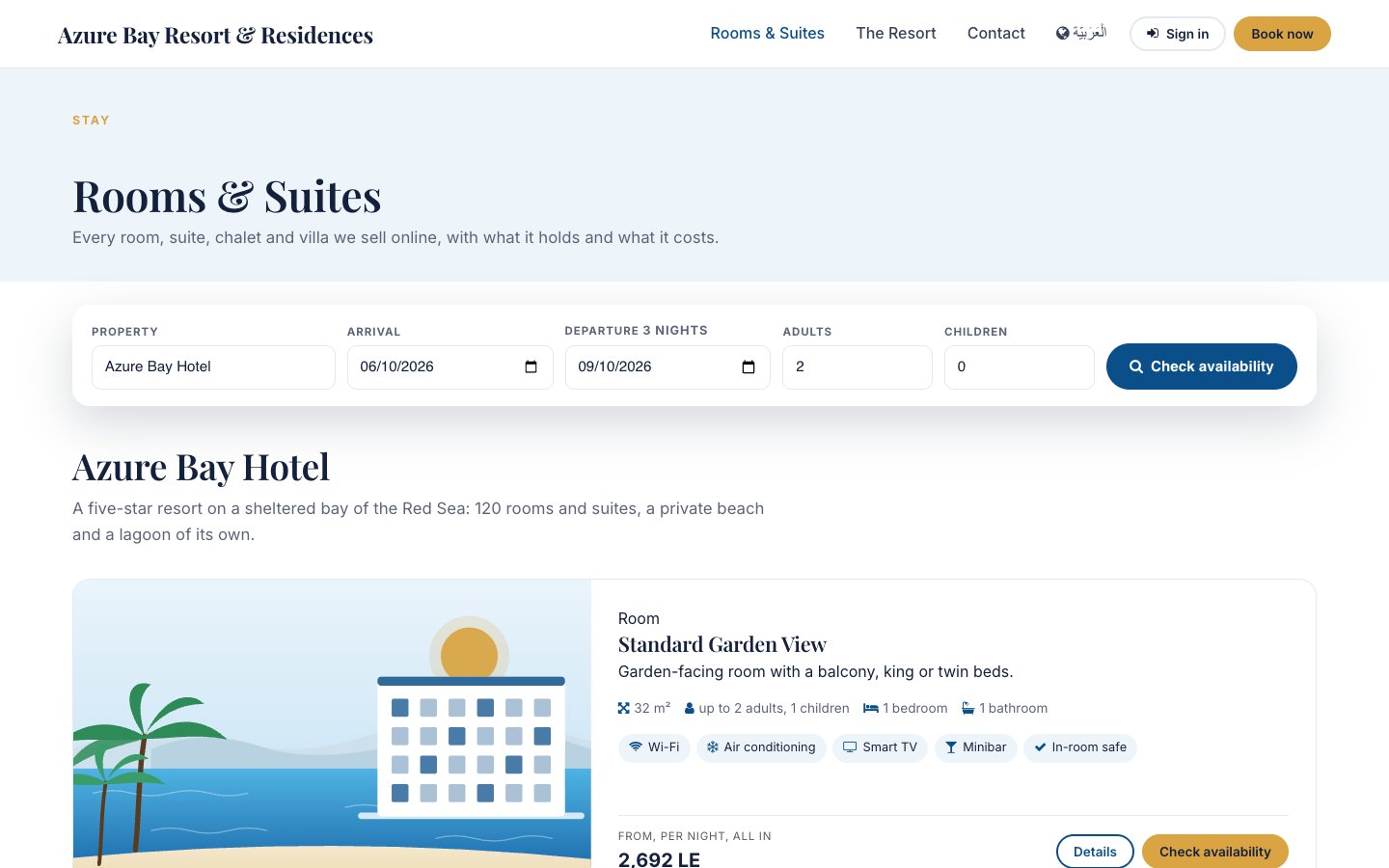
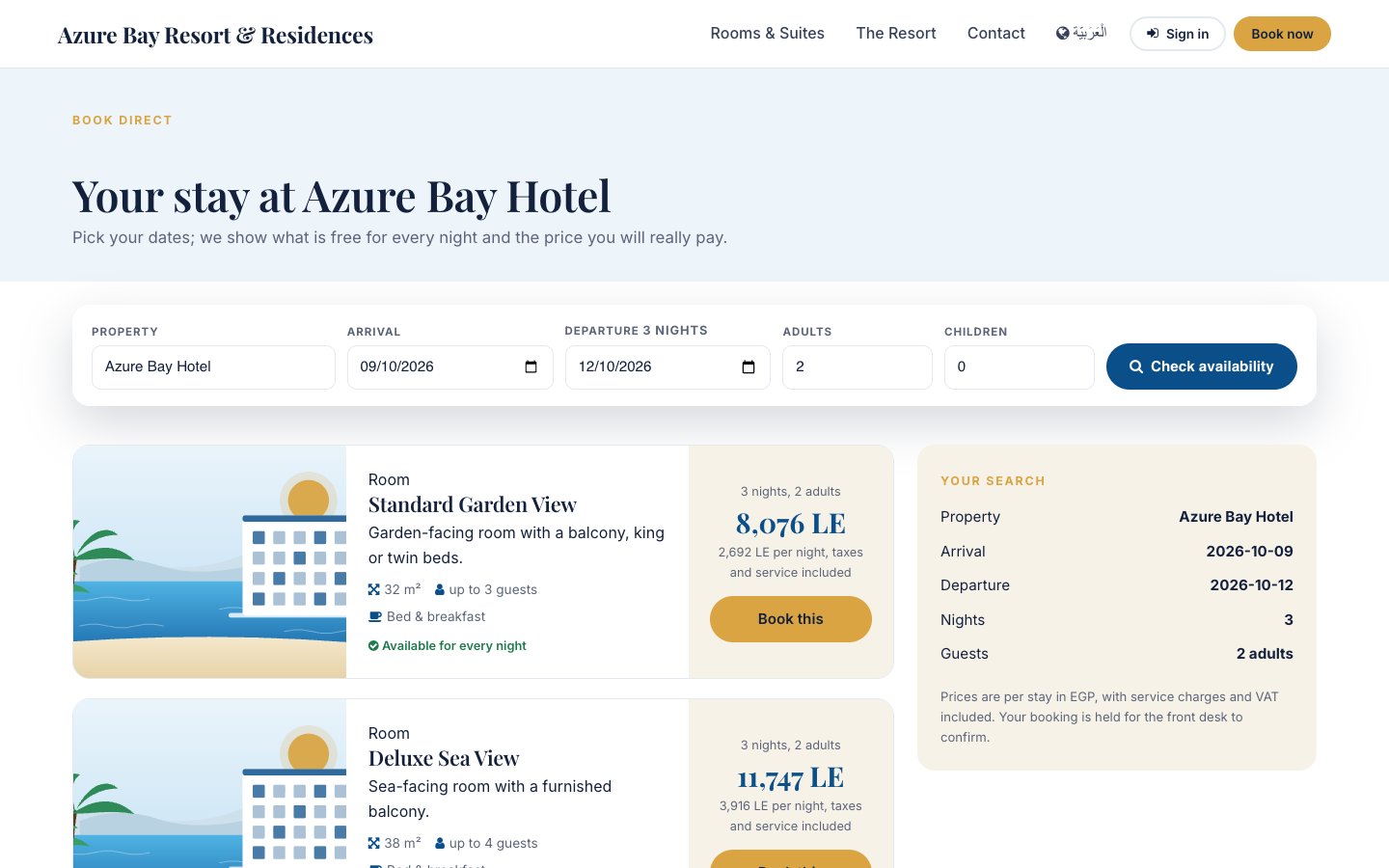
Every tenant has a public site at its own address, drawn from the records the property already keeps: the property's tagline, palette and contact, its unit types with their descriptions, amenities and prices, its published spaces and outlets. The booking page asks the same availability service and rate plans the front desk uses, quotes the total with service charges and VAT, and creates a real reservation the desk confirms — or confirms it on the spot when the property chooses so.
Where:Property › Properties › Website tab · Property › Unit Types (Sell online) · Property › Spaces (On the Website) · the site itself at /
Before you start
- On the property: tick On the Website, write the tagline and the intro, pick the two colours, choose Request to book or Confirm instantly, and the hold hours. A hero photograph and a logo are optional — without them the site draws its seaside illustrations.
- On each unit type: Sell online, a short description, the description, the amenities and an image. On each space you want shown: On the Website and a one-line blurb.
- A rate plan sold online (the default plan, or BAR): the site quotes its prices. Restrictions and minimum stays apply to the site exactly as to the desk.
How to
Publish the site
- Property › Properties › open the property › Website tab.
- Tick On the Website, fill the tagline, the intro and the map link, choose the colours.
- Open the site with the View Website button; every page is public at once.
Take a booking from the site
- The guest picks dates and guests, sees the unit types that are free for every night with the total, and fills in name, e-mail, phone and nationality.
- A reservation is created with source Website: a draft held for the hold hours (Request to book) or confirmed at once (Confirm instantly).
- The desk finds it under Reservations (filter by source Website, or the Web Bookings button on the property) and confirms it; the guest gets the reservation reference on a confirmation page they can bookmark.
Answer an enquiry
- The Contact page posts the message in the property's chatter and, when CRM is installed, creates a lead.
- Reply from the lead or the chatter; the guest's e-mail and phone are in the message.
Change what is sold online
- Untick Sell online on a unit type to take it off the site without touching the desk.
- Untick Sell online on a rate plan to keep it for agents; the site falls back to the next plan sold online.
- Close dates with a restriction: the site refuses them with the same message the desk sees.
Questions the desk asks
The site shows an illustration instead of our photos.
Upload the photographs: the hero on the property's Website tab, one per unit type (its image) and per space. The illustrations only fill the gaps.
Can guests pay online?
Not yet: nothing is charged on the site. The desk takes a deposit or a card on file when it confirms; card capture at booking arrives with the payment connectors.
We run two properties in one company.
Publish both: the site lists the accommodation of each, the booking widget lets the guest choose the property, and the first published property gives the site its colours and contact.
Where do web bookings show?
Reservations with source Website; the property form has a Web Bookings button. The chatter of each records who booked it and from where.
See also: Reservations and the tape chart Rate plans, rates, restrictions and allotments The property, its units and its fee rules
Events and banquets
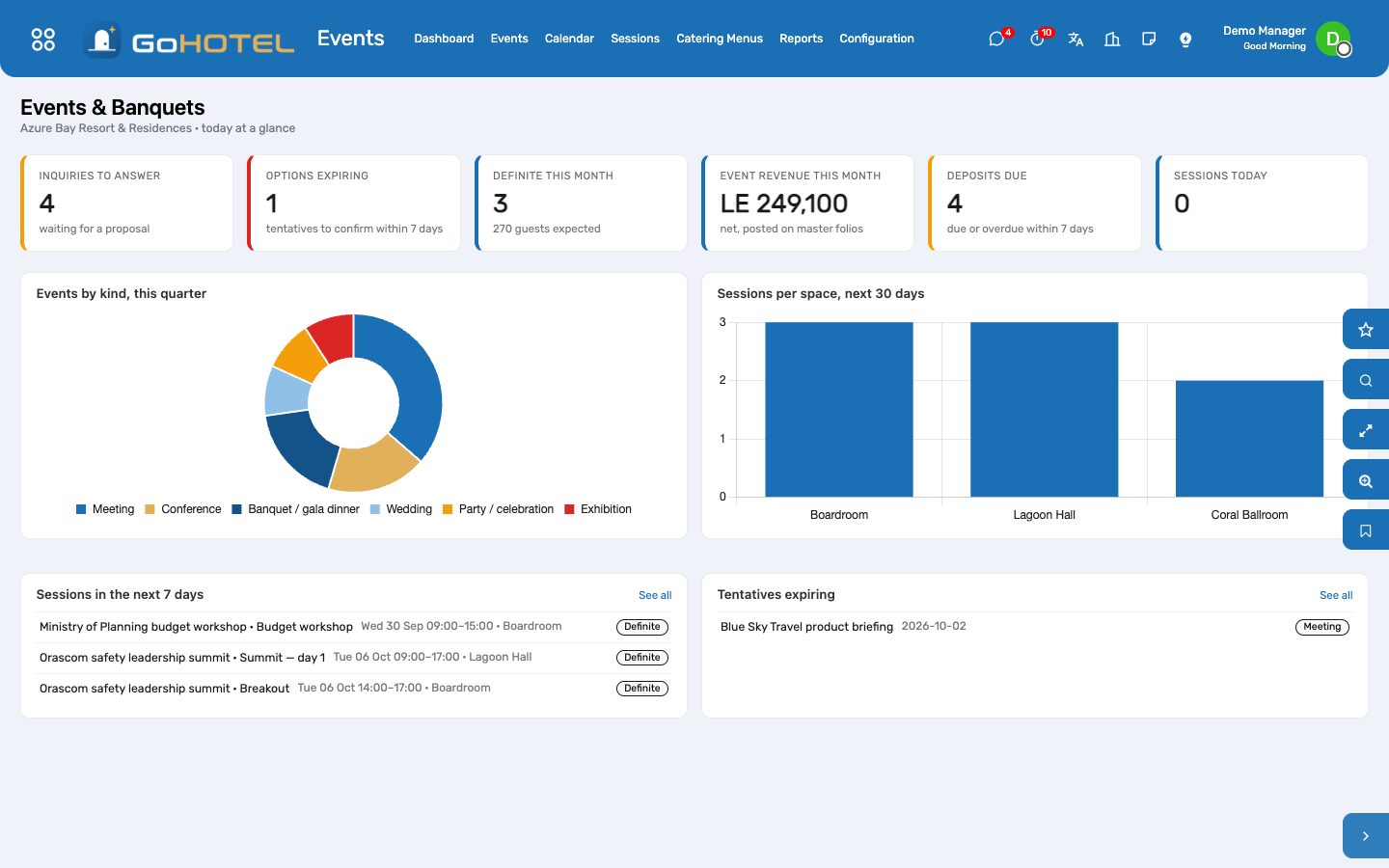
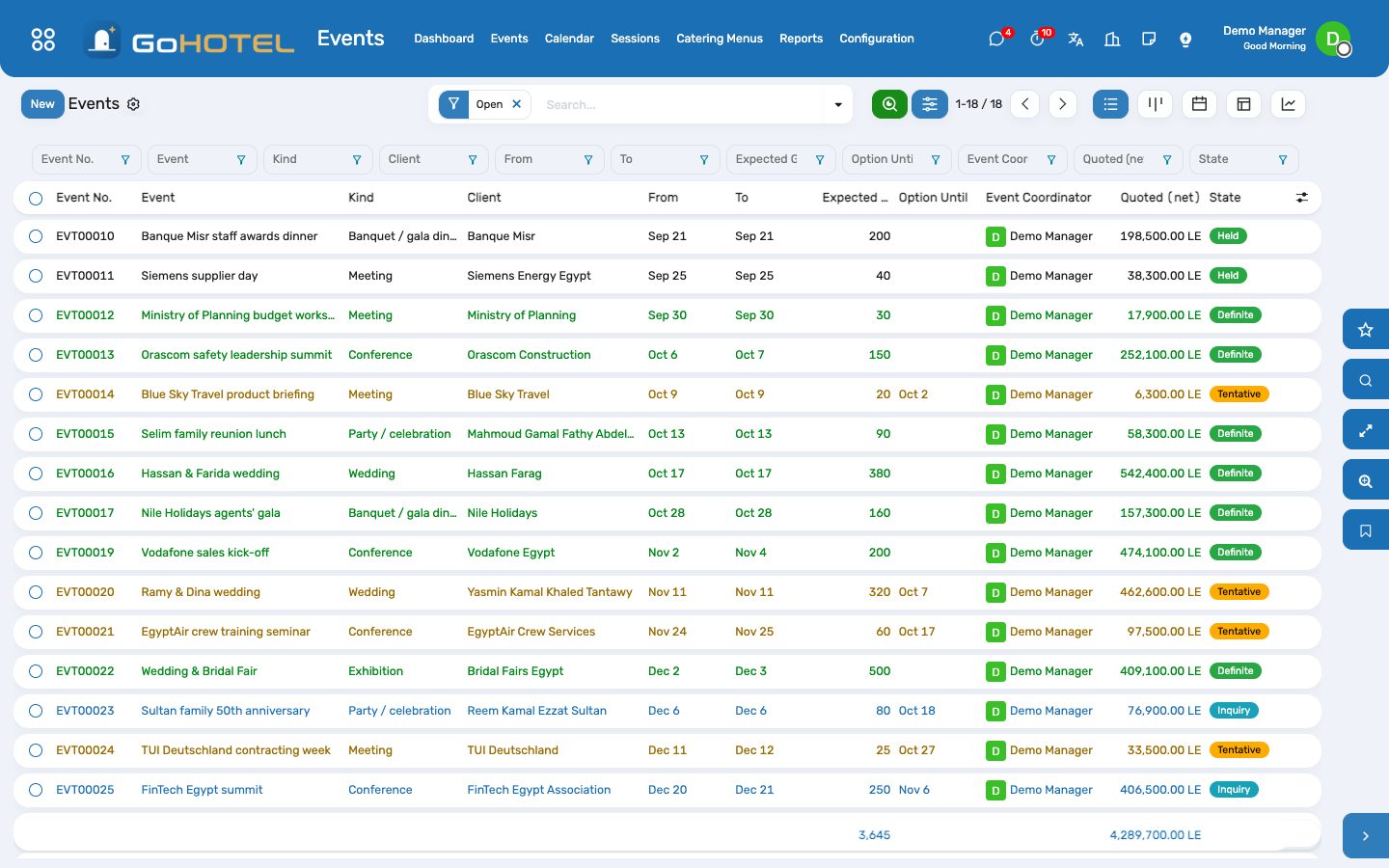
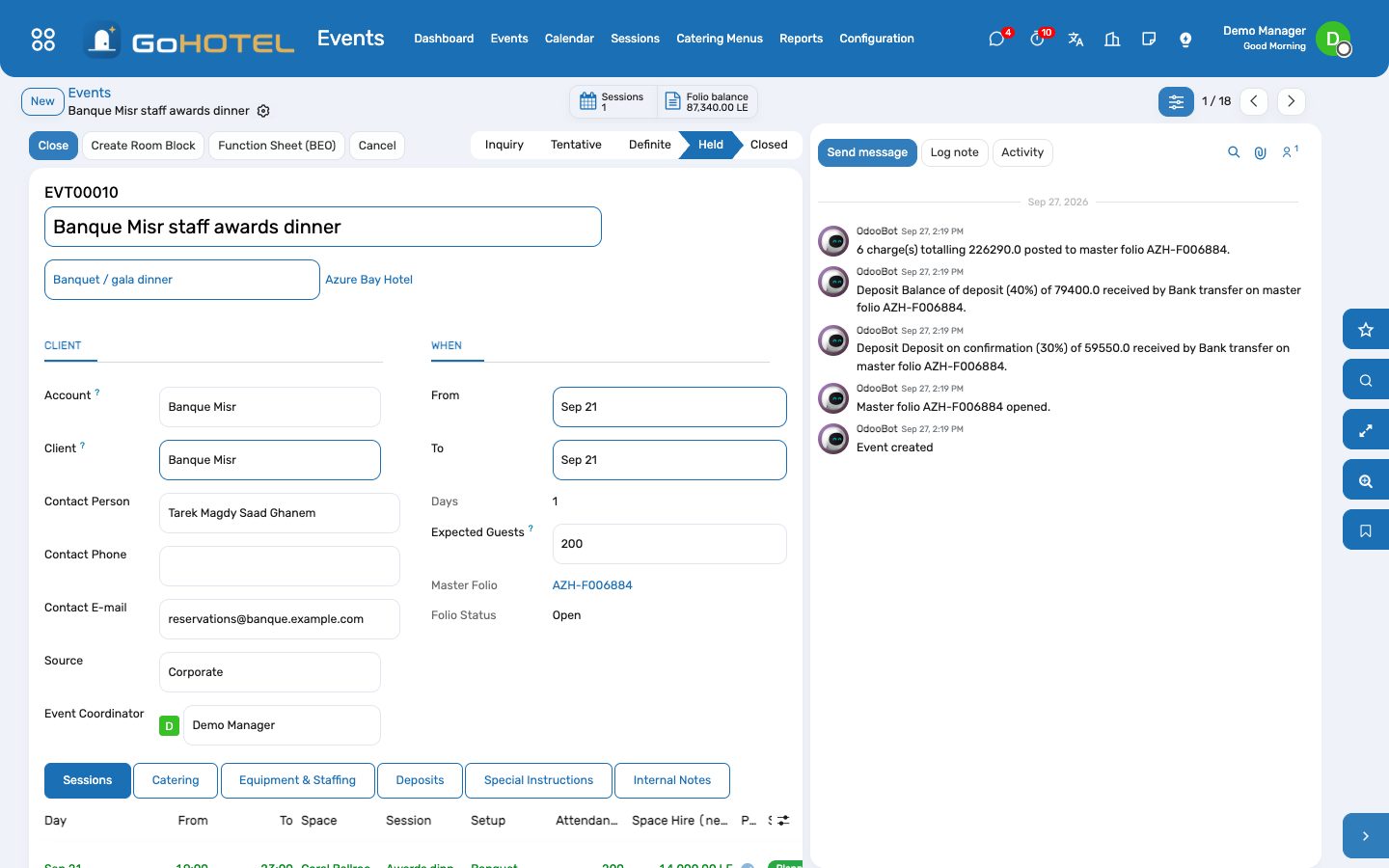
From the first phone call to the settled folio: an inquiry held as tentative with an option date, made definite with a master folio, its sessions booked in the function rooms with a setup and times, catering and equipment lines, a deposit schedule, the room block for the guests, the function sheet the kitchen and the set-up crew work from, and the close that invoices or bills back the folio.
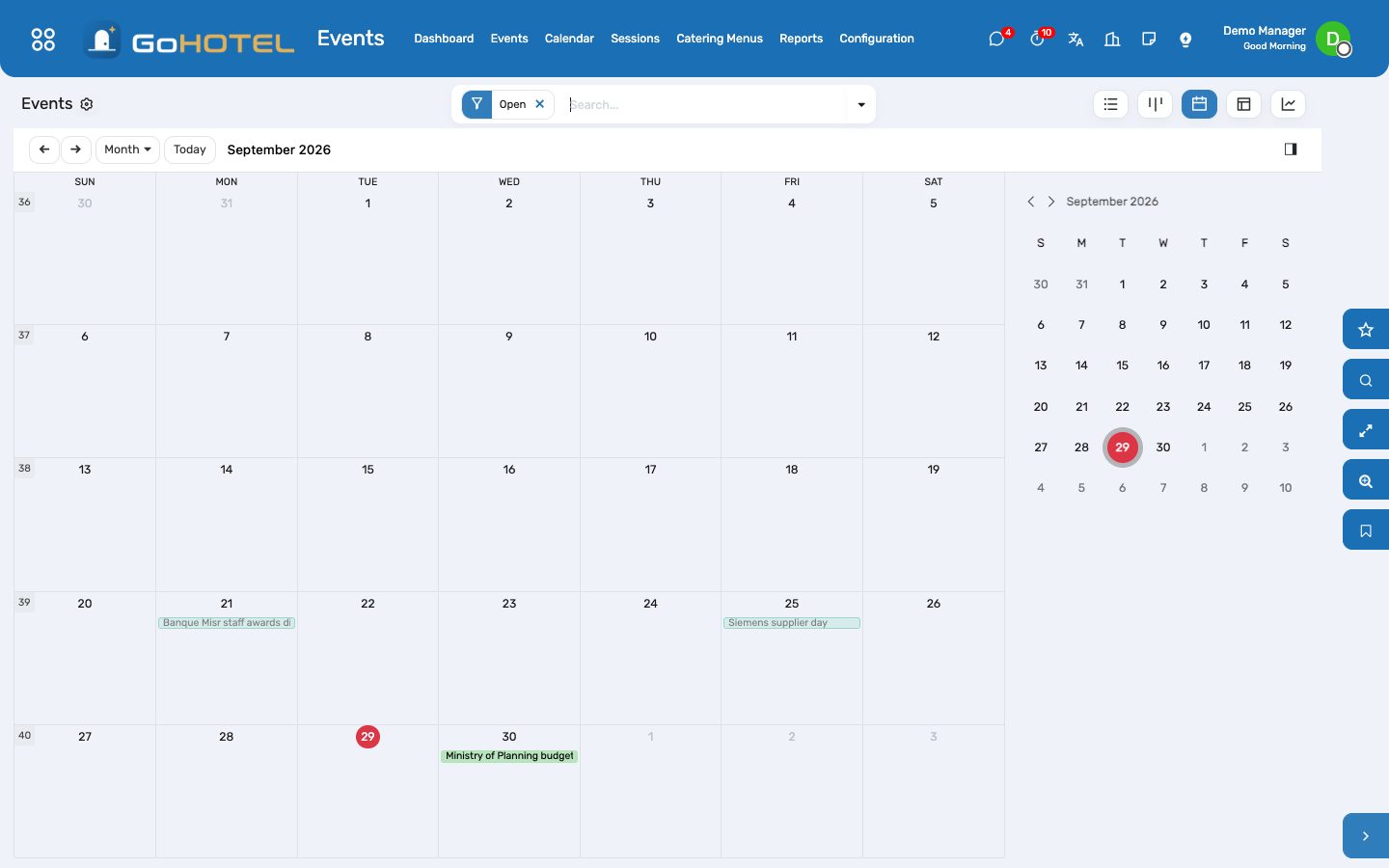
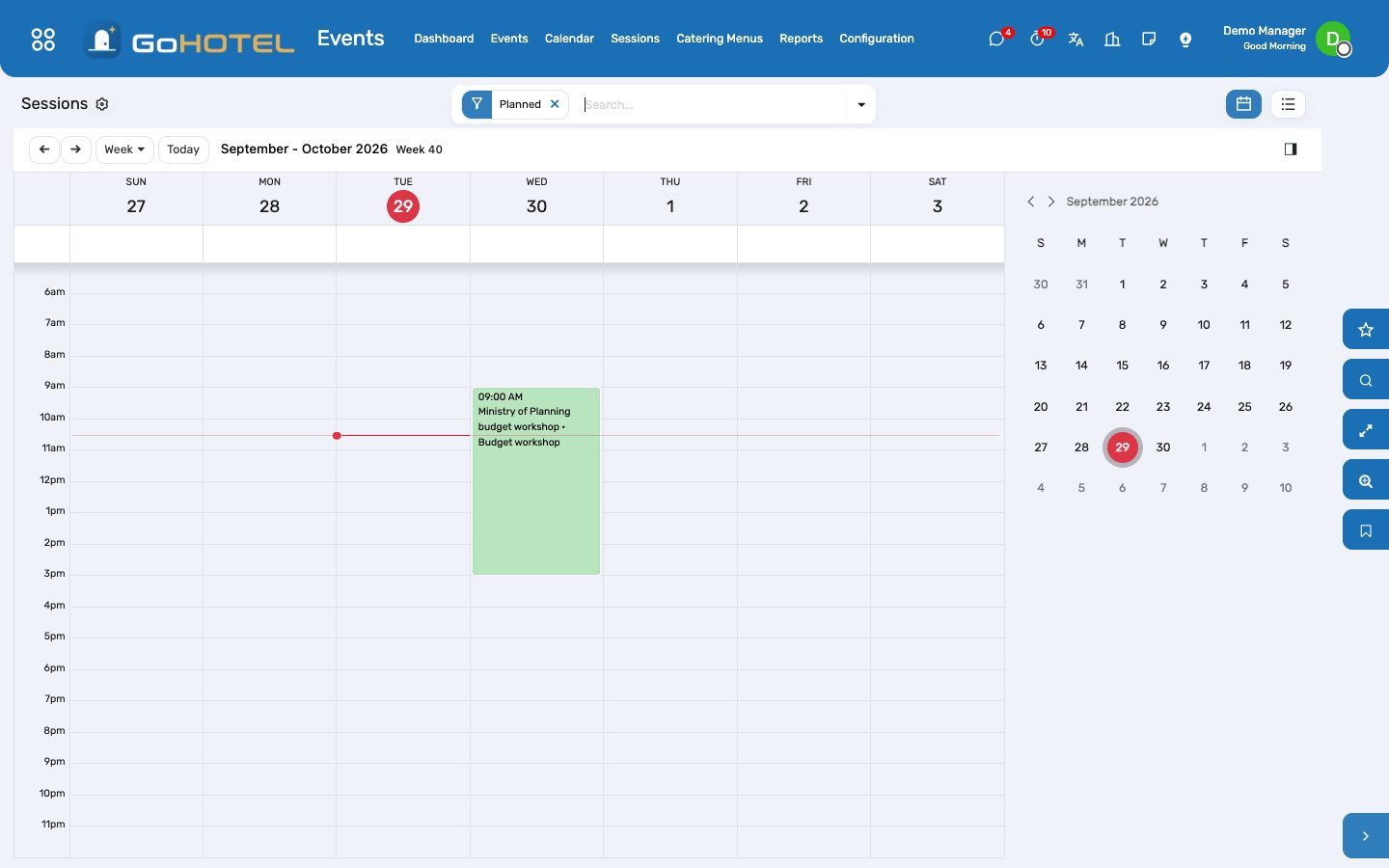
Where:Events › Dashboard · Events · Calendar · Sessions · Catering Menus · Reports · Configuration
Before you start
- Spaces
- Property › Spaces — every function room, meeting room, garden and restaurant that can be booked, with seated and standing capacity, the setups it offers and its hourly and daily rate. The rate is the suggested space hire on a session.
- Catering menus
- Events › Catering Menus — set menus, coffee breaks, beverage packages, cakes, audio-visual, staging and staffing are products in the Banquet category; prices are per person or per unit and carry the VAT of the product.
- Room setups
- Events › Configuration › Room Setups — theatre, classroom, banquet, U-shape, cocktail and boardroom are there; add your own.
- Department
- Events › Configuration › Departments — an Events & Banquets department is created for the property the first time a charge is posted; give it a cost centre so event revenue is reported on its own.
- Access
- Give the coordinators the Events & Banquets access right; reservations agents can already open and edit events.
How to
Answer an inquiry
- Events › Events › New: the event name, the kind, the client (a contact, or the corporate account and its contact person), the dates and the expected guests.
- Add the sessions: the day, the times, the space, the setup and the attendance; the space hire fills in from the space's rate.
- Add catering per session — per person lines default to the attendance — and equipment or staffing, fixed or per person.
- Print the Function Sheet (BEO) as the proposal; the quote at the bottom is before fees and VAT.
- Hold as Tentative when the client wants the date held: an option date is set two weeks out and the space is shown as held on the availability calendar.
Confirm the event and take the deposit
- Make Definite: the master folio opens, addressed to the client (or to the account's company).
- On the Deposits tab schedule the instalments: what is due, when, and how the client pays.
- When the money arrives, Receive on the line: a payment lands on the master folio in the method's journal, and the line shows the date it came in.
- Deposits due within seven days and options about to expire are on the dashboard every morning.
Book the rooms for the guests
- Create Room Block makes a group block prefilled with the event's dates, client and account, and opens it.
- Add the nights and unit types to hold, then Make Definite on the block; the rooming list is picked up in Reservations as names come in.
- The Room block button on the event and the Events button on the block move between the two.
The day itself
- Print the Function Sheet: sessions by day with setup and times, catering and equipment per session, the deposit schedule, special instructions and the signature lines for the client, the coordinator and the banquet manager.
- Mark as Held once the event has taken place: every space hire, catering and equipment line not yet posted is charged to the master folio with the property's fees and VAT.
- Post to Folio does the same on demand for what has been added since — extra guests, another coffee break.
Close and settle
- Close posts anything still pending and settles the master folio through its own actions: a paid folio is invoiced and closed; a balance on an account that allows bill-back is invoiced to the company on its terms and transferred to the city ledger.
- A balance the client still owes stops the close — take the payment on the folio (Folio balance button) first.
- Cancel asks for the reason, releases every session and cancels an untouched master folio; one with payments stays for billing to refund.
Questions the desk asks
The client wants a space we have not set up as bookable.
Property › Spaces: any function room, meeting room, garden, restaurant or "other" space of the property can carry a session; cabanas, courts and pools belong to Facilities.
Why is there no service charge on the event charges?
Event charges are posted with the kind "Events & banquets"; the fee rules of the property decide which kinds they apply to. Under the Egyptian preset the service charge and city tax apply to rooms and F&B; a rule set to "all charges" applies to events too.
Can a deposit taken on a reservation count?
Yes — pick it in the Reservation Deposit column of the instalment; the line shows as received on the deposit's date.
A session runs past midnight.
Enter it as it is — 19:00 to 01:00 — it ends on the following day and the calendar draws it across midnight.
Where does the revenue go?
On the master folio, in the Events & Banquets department, with the VAT of each product; the invoice carries the department's cost centre.
See also: Reservations and the tape chart Folios, charges, payments and the city ledger The property, its units and its fee rules The dashboards
Help desk: tickets from guests, owners and residents
One queue for everything a guest, an owner, a resident or a colleague asks for or complains about — at the desk, by phone or e-mail, from the portal, the app or WhatsApp. A ticket knows the property, the unit and the stay; its category hands the work to housekeeping, maintenance or the front desk and follows it to Resolved; every category has a response and a resolution target on a 24/7 clock, and the dashboard shows what is breaching.
Where:Help Desk › Dashboard · Tickets › Board · All Tickets · Configuration › Categories · Teams · SLA
Before you start
- Help-desk access rights for the people who work tickets (User: personal tickets, User: team tickets, User, Manager) — the GoHotel roles give them to the front office, guest relations, community and owner relations.
- Help Desk › Configuration › Teams: Front Office, Housekeeping, Engineering, Community Management and Owner Relations are there; add the members of each so tickets can be assigned to them.
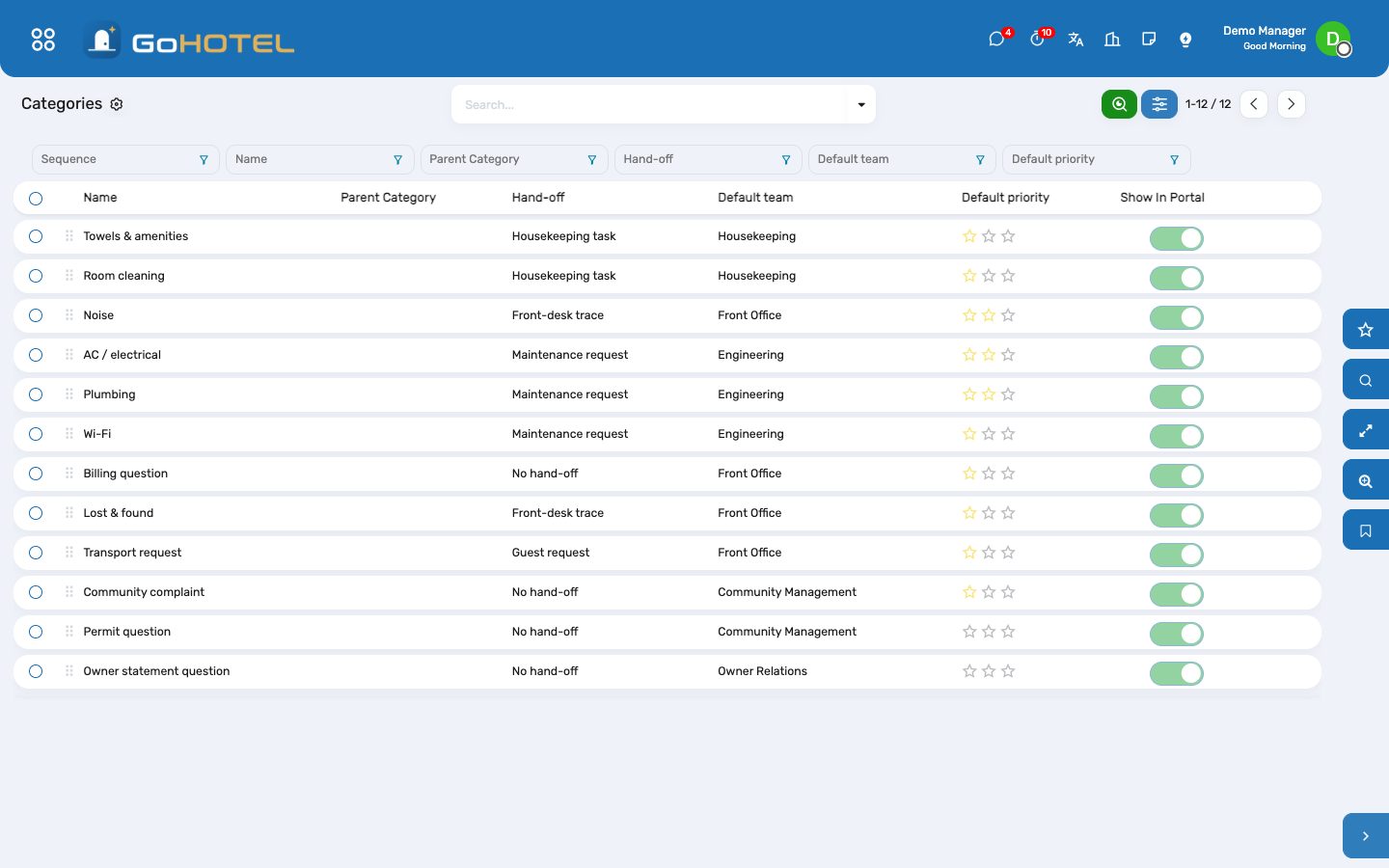
- Help Desk › Configuration › Categories: the twelve categories with their hand-off, default team and priority — rename, add or switch a hand-off off.
- Help Desk › Configuration › SLA: the response and resolution targets by category, measured on the 24/7 help-desk calendar.
How to
Raise a ticket at the desk
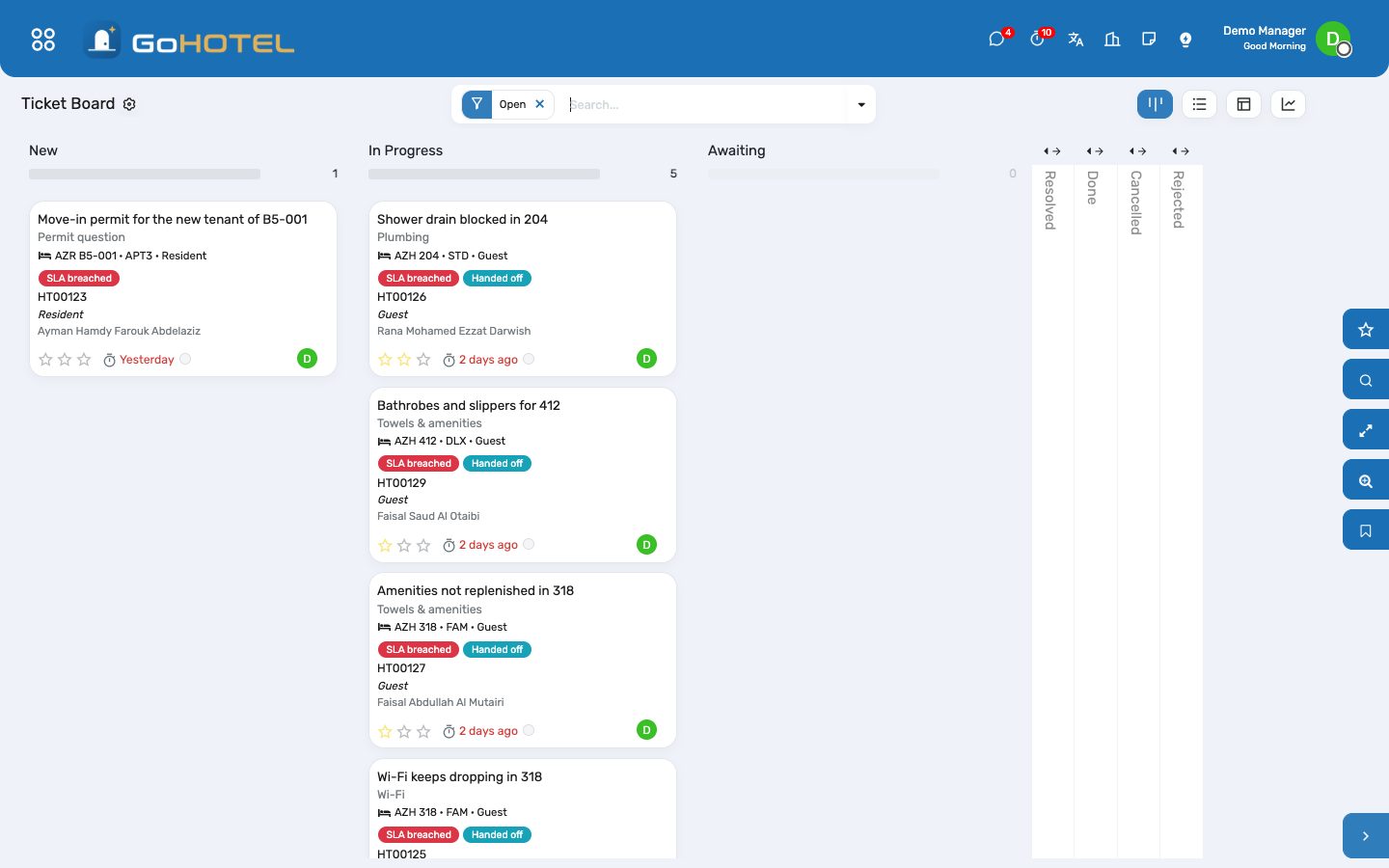
- Help Desk › Tickets › Board › New.
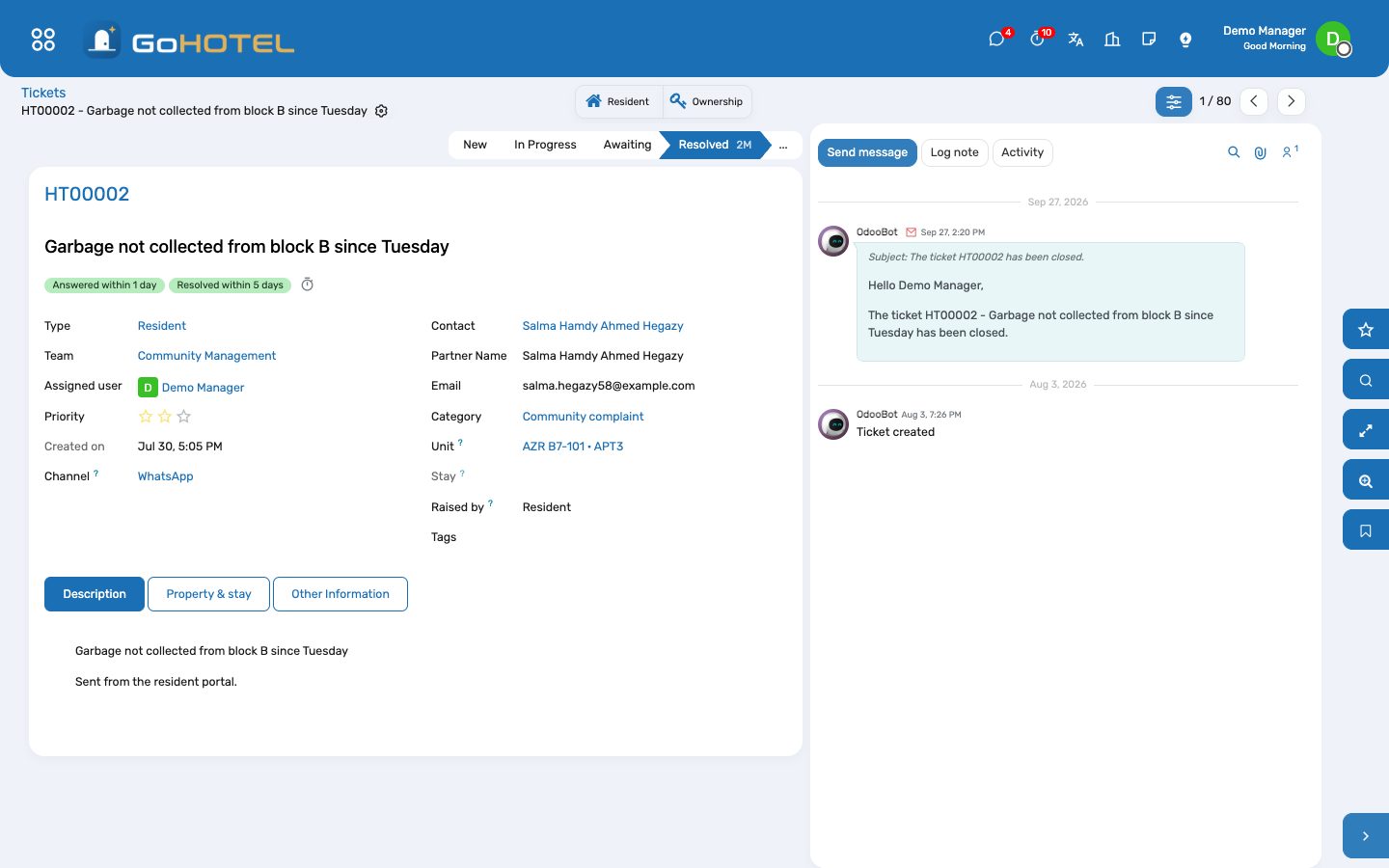
- Pick the contact — or the stay: the guest, the unit and the property fill in from it. For a resident or an owner, pick the unit.
- Choose the category: the team and the priority follow it; change them if the case asks for it.
- Write the title and the description the way the person said it; set the source (desk, phone, e-mail, portal, app, WhatsApp).
- Save. A category that hands work on creates the task, the work order, the trace or the guest request at once and moves the ticket to In Progress.
Hand the work to housekeeping, maintenance or the front desk
- Towels and room cleaning become a housekeeping task on the unit; AC, plumbing and Wi-Fi a maintenance request; noise and lost & found a front-desk trace; a transport request a guest request for the concierge.
- The smart buttons on the ticket open the record and show its state; the record shows the ticket it answers.
- When the task is done, the request repaired or the trace closed, the ticket moves to Resolved by itself with a note saying what closed it.
- A ticket whose category hands nothing on, or one created before the category was set, has a Hand off button: press it once the unit is known.
Answer within the target
- Every ticket carries its SLA lines: reach In Progress within the response target (one hour for towels, AC and plumbing; a day for a community complaint), reach Resolved within the resolution target (two hours for towels, eight for a work order, five days for an owner-statement question).
- The board and the list mark a breached ticket in red; the SLA breached filter and the dashboard card list them.
- A ticket handed on is answered the moment the record is created; a ticket worked by hand is answered when it is assigned or leaves New.
- Close a ticket as Resolved when the work is done and the person told, or as Done when the desk closes it after the person confirmed; both count as closed and stop the clock.
Tickets from the portal, the app and WhatsApp
- A guest, an owner or a resident with a portal login raises a ticket under My account › Tickets; it lands in New with the source Portal and is routed by its category like one raised at the desk.
- The app and the WhatsApp assistant use the same door — the person, the subject, the text, the unit or the stay and the category — so their tickets carry the unit, the stay and the hand-off too.
- A complaint the front desk records as a guest request becomes a ticket as well; the request and the ticket point at each other and close together.
Work the dashboard
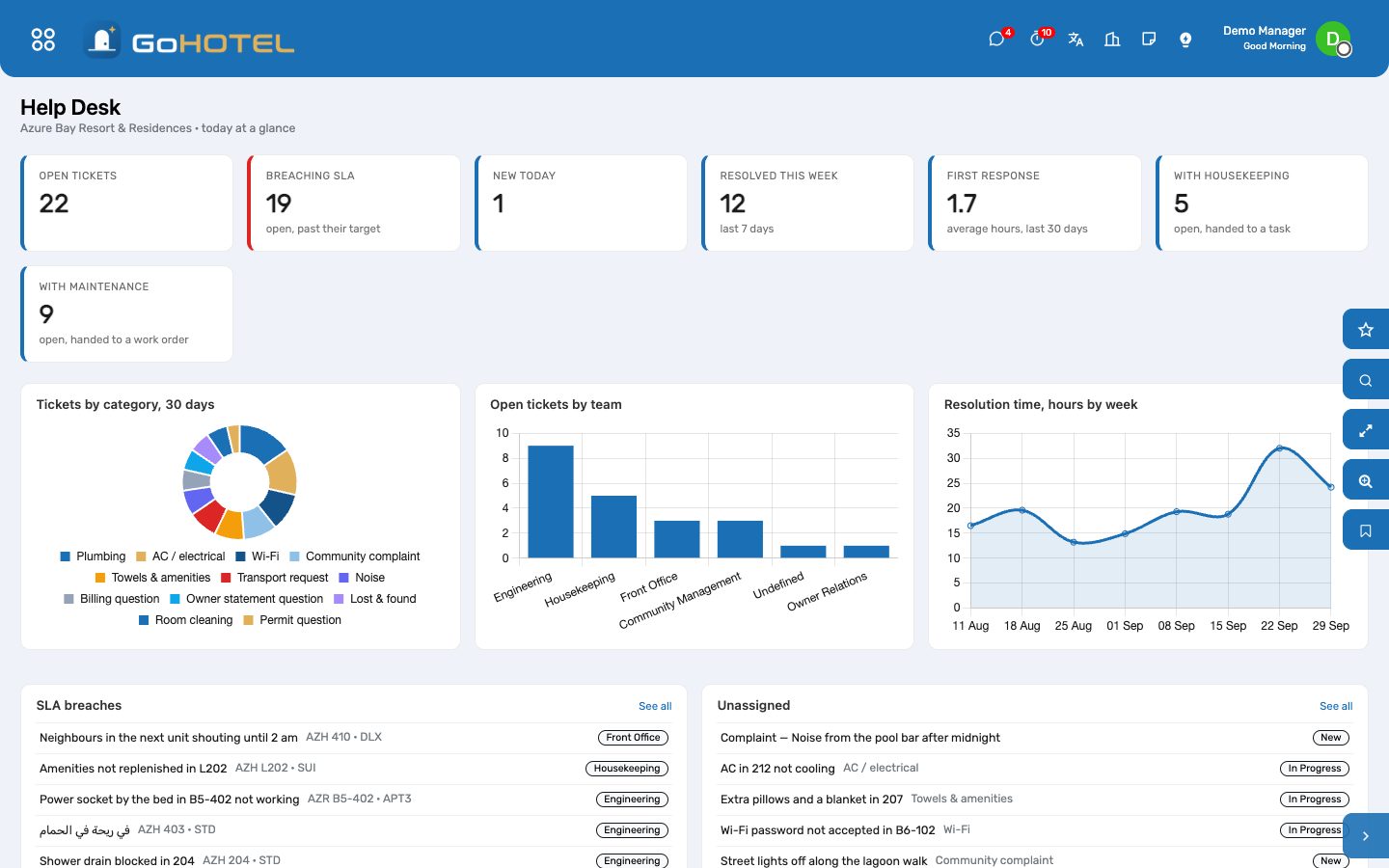
- Help Desk › Dashboard: open tickets, those breaching their target, new today, resolved this week, the average first response in hours, and what sits with housekeeping and maintenance.
- Tickets by category over 30 days and open tickets by team say where the pressure is; resolution time by week says whether it is getting better.
- The SLA breaches and Unassigned lists open the ticket in one click.
Questions the desk asks
The task is done but the ticket is still open.
The ticket resolves when the record is completed in its own app — the task marked Done, the request moved to Repaired, the trace ticked. A record closed some other way leaves the ticket to the desk: move it to Resolved by hand.
What is the difference between Resolved and Done?
Resolved is where a completed hand-off puts the ticket: the work is done and the person told. Done is the desk closing it after the person confirmed. Both are closed stages; a ticket already closed is never moved by a late task.
Who can see a ticket?
The help-desk access levels decide: personal tickets, the team's tickets, or all of them. Every internal user sees the tickets they raised or follow; a portal user sees their own.
A resident wrote on WhatsApp.
The assistant raises the ticket with the source WhatsApp and the resident as the contact; it is routed by its category and answered from the help desk like any other.
Can a category go to a different team in one property?
A team can be limited to a property (Configuration › Teams › Property); pick that team on the ticket, or make a category per property with its own default team.
See also: Front desk: arrivals, in house, departures Housekeeping Maintenance and engineering The dashboards
Facilities and club memberships
Courts, cabanas, pool slots, meeting rooms, the clubhouse lounge and gym classes are booked by the slot — for an in-house guest, a club member, a resident or an owner. The facility carries the rules: slot length, opening hours, capacity per slot, booking window, weekly quota and a price per audience. A guest's slot is charged to the folio, a member's, resident's or owner's slot is invoiced, a membership entitlement makes it free; a no-show posts the fee the same way.
Where:Facilities › Dashboard · Book a Slot · Bookings · Calendar · Facility Board · Memberships · Configuration
Before you start
- Spaces under Property › Spaces — a facility books a space (a class can share the gym with another class).
- A service product per price: the taxes on the product are the VAT on the charge and on the invoice (Facilities › Configuration › Products).
- The property's fee rules decide whether a service charge applies to facility charges — a rule that applies to "every charge" adds it, a rooms-and-outlets rule does not.
How to
Set up a facility
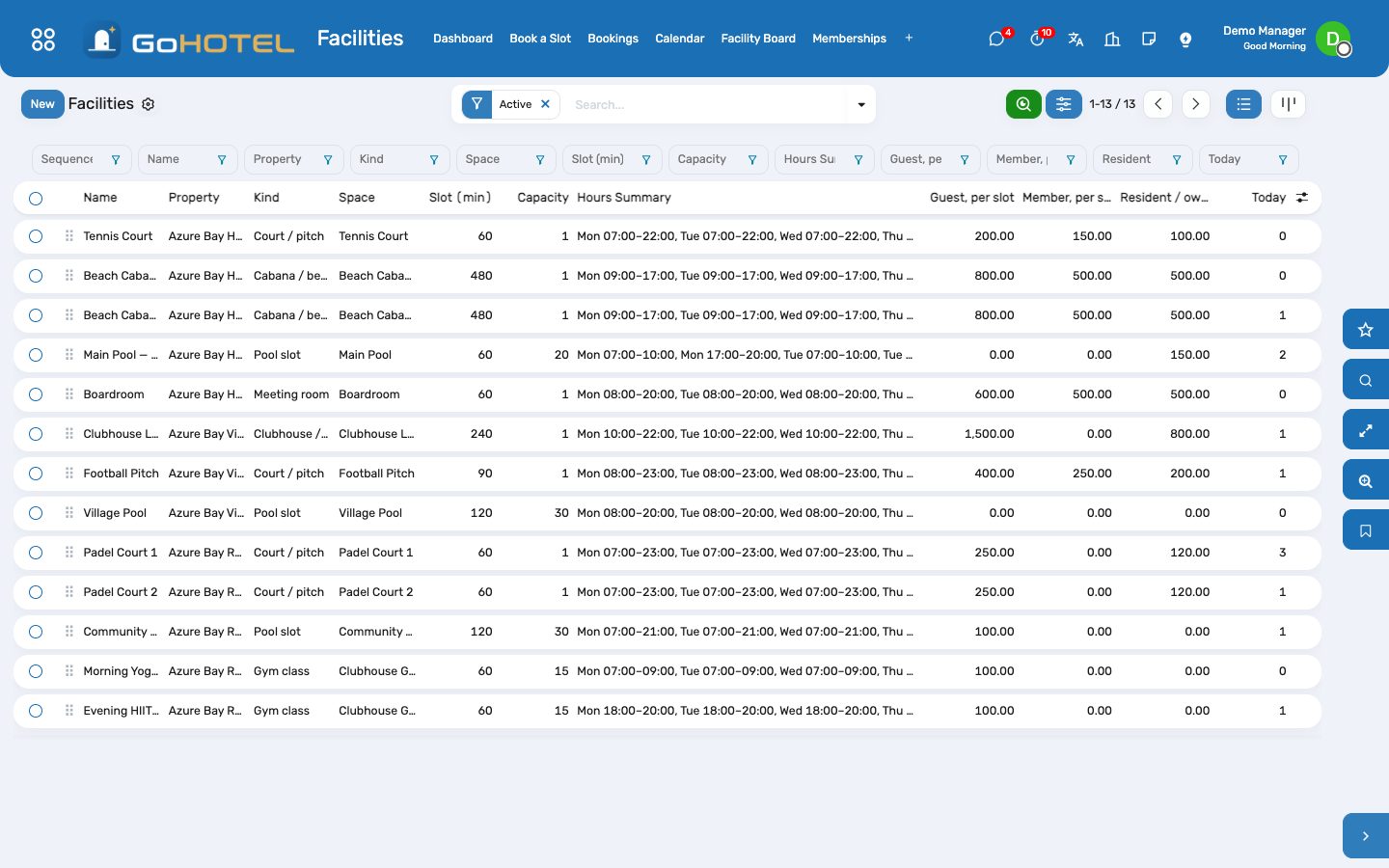
- Facilities › Configuration › Facilities › New: name, property, the space it books, the kind (court, cabana, pool slot, meeting room, clubhouse, gym class).
- Slots: the slot length in minutes; capacity per slot and whether it counts the facility as a whole (a court, a cabana, the boardroom) or people (a lap-swim slot, a class); the booking window in days ahead; whether a waiver must be signed.
- Opening Hours: one line per weekday and span — no lines means open all day, every day; a weekday without a line is closed. The slot grid steps the slot length through each span.
- Prices & Fees: the product a guest pays per slot, the one a member pays when no entitlement covers it, the one a resident or owner pays; a missing or zero-priced product means free. The deposit to collect and the no-show fee product.
- Weekly Quotas: how many slots one booker of each audience may hold per week (Monday to Sunday).
Book a slot
- Facilities › Book a Slot: pick the facility and the date; every slot of the day is listed with what is free and what it costs this booker.
- Say who it is for: the contact, and when it applies the in-house stay (the charge goes on its folio), the unit (a resident or an owner) or the membership. Typing the contact fills the rest when it can — an active membership, an in-house stay, an owned unit.
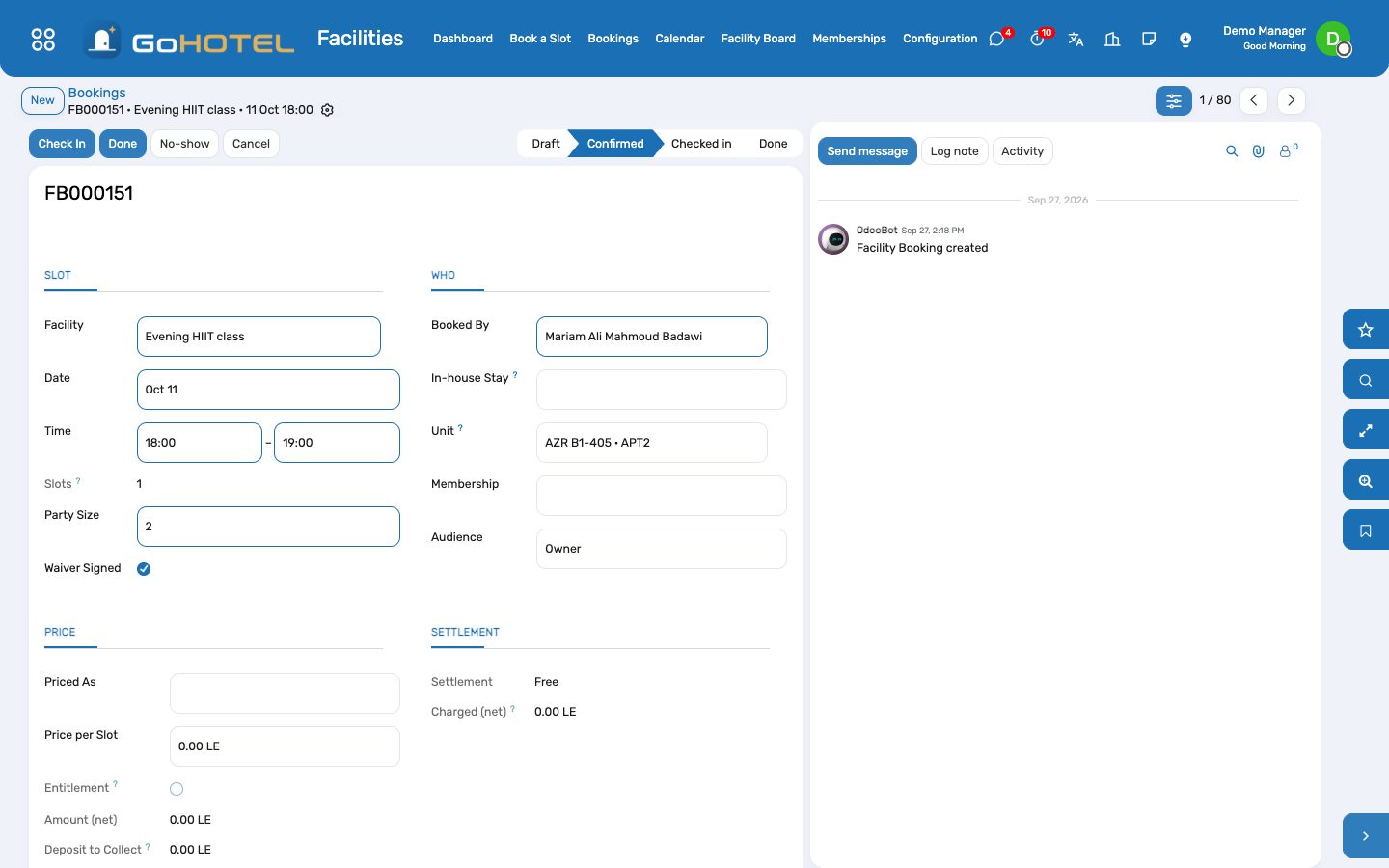
- Tick one or more free slots and click Book: each becomes a confirmed booking, settled at once — charged to the folio, invoiced, or free — and the booking opens.
- A slot outside the hours, beyond the window, over the capacity or over the audience's weekly quota is refused with the reason.
Run the day
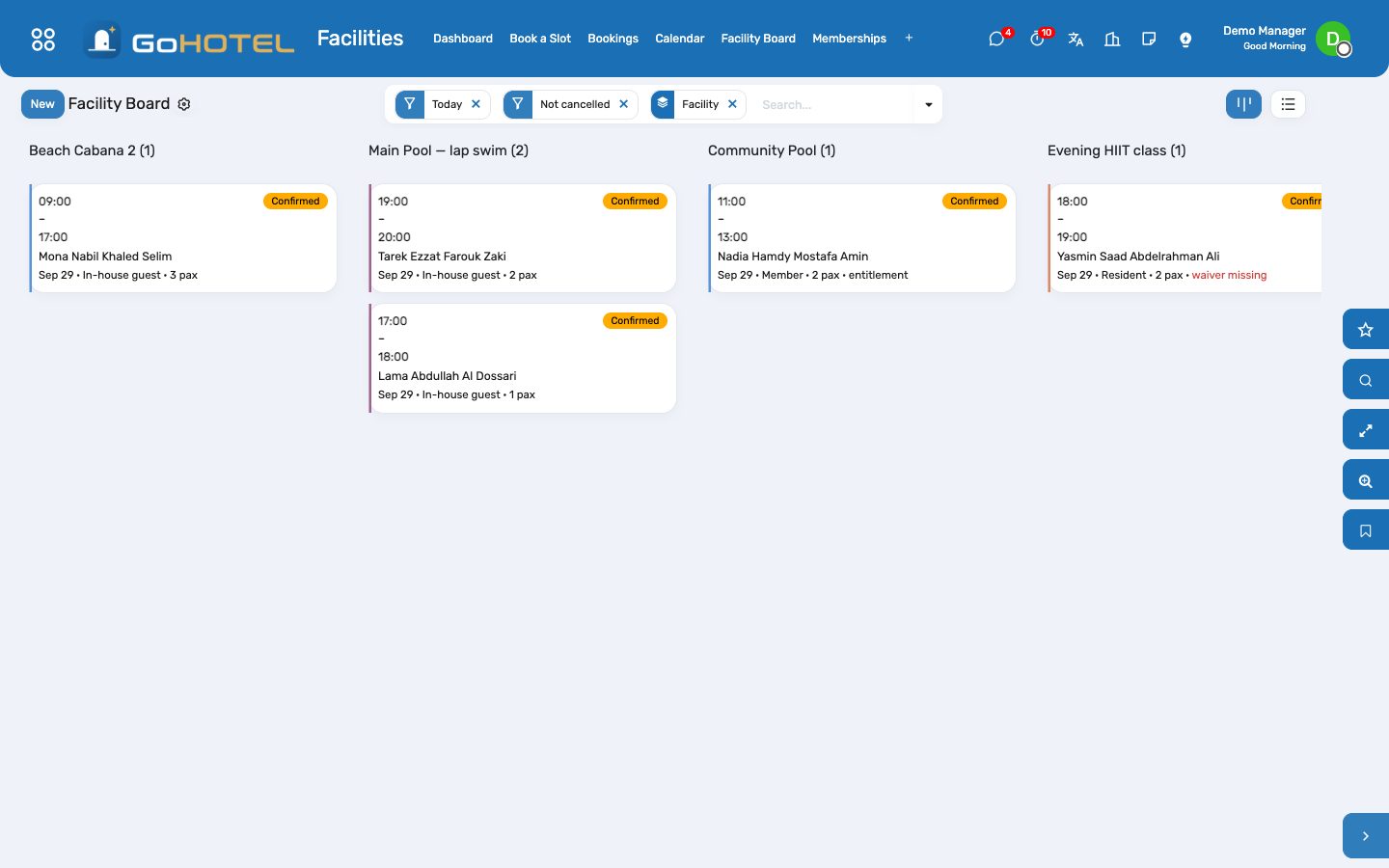
- Facility Board: today's bookings by facility. Check In when the party arrives (the waiver must be signed where the facility asks for one), Done when the slot is over.
- No-show: the booking is marked, the slot's own charge is withdrawn if it was never invoiced, and the no-show fee is posted to the folio or invoiced.
- Cancel withdraws what the booking posted: the folio charge is cancelled, a posted invoice gets its credit note.
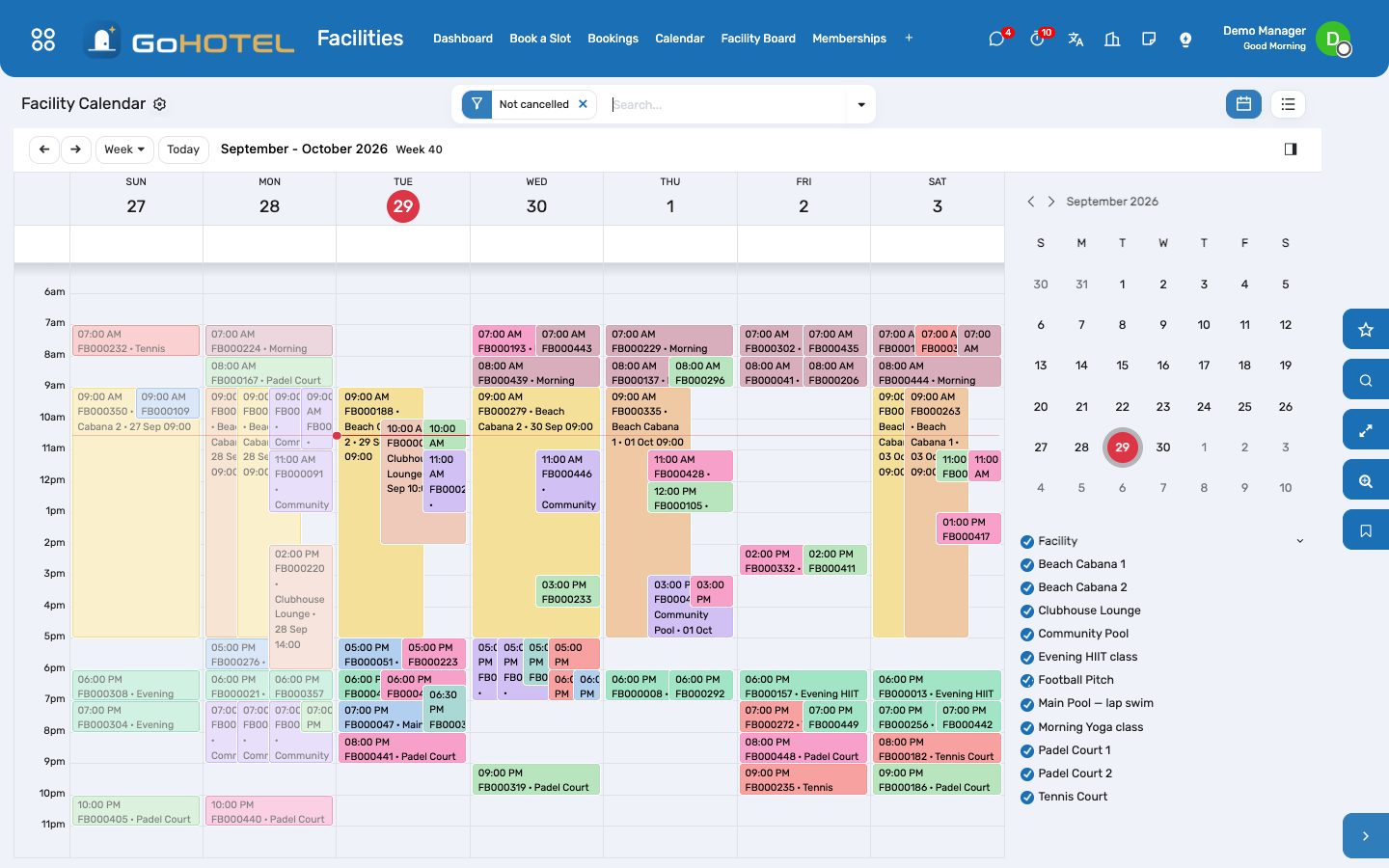
- Calendar: the week by facility, one colour each; drag is off on purpose — the checks run on the form.
Memberships
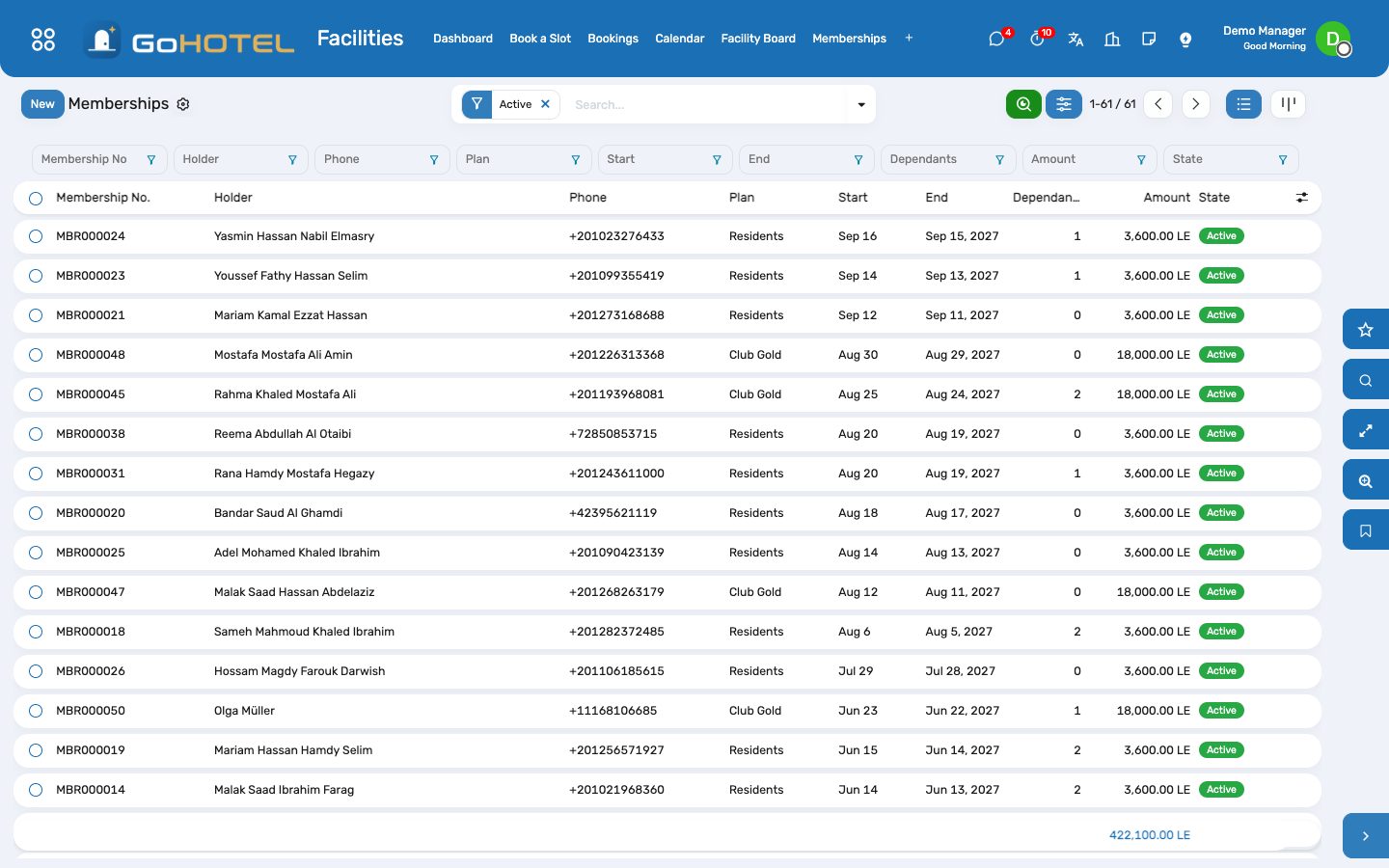
- Facilities › Configuration › Membership Plans: duration in months, the price product, entitlements (free slots per week or month on each facility; zero means unlimited), dependants allowed and the family flag (dependants use the entitlements too).
- Facilities › Memberships › New: the holder, the plan, the start (the end follows the duration), the dependants, the unit for a resident or owner. Activate issues the customer invoice for the plan and the card with its QR code — the number the desk scans.
- Find a Member looks a membership up by number, name, phone or e-mail; Book from there.
- Memberships expire by themselves at the end date (a daily job); Renew opens a draft on the same plan starting the day after.
Questions the desk asks
Why did the court booking carry no service charge?
Fees follow the property's fee rules. The Egypt preset applies the service charge to rooms and outlets; add a rule that applies to every charge, or one for the recreation department, and the engine adds it — the module never computes a fee itself.
Can two parties share a slot?
When the capacity counts people, yes — up to the capacity; a court or a cabana booked as a whole holds one party per slot.
A resident is not the owner of the unit.
Pick the unit anyway: a booker who is not the unit's owner is a resident and pays the resident price; when the Community pack is installed its resident register is read as well.
Where is the revenue?
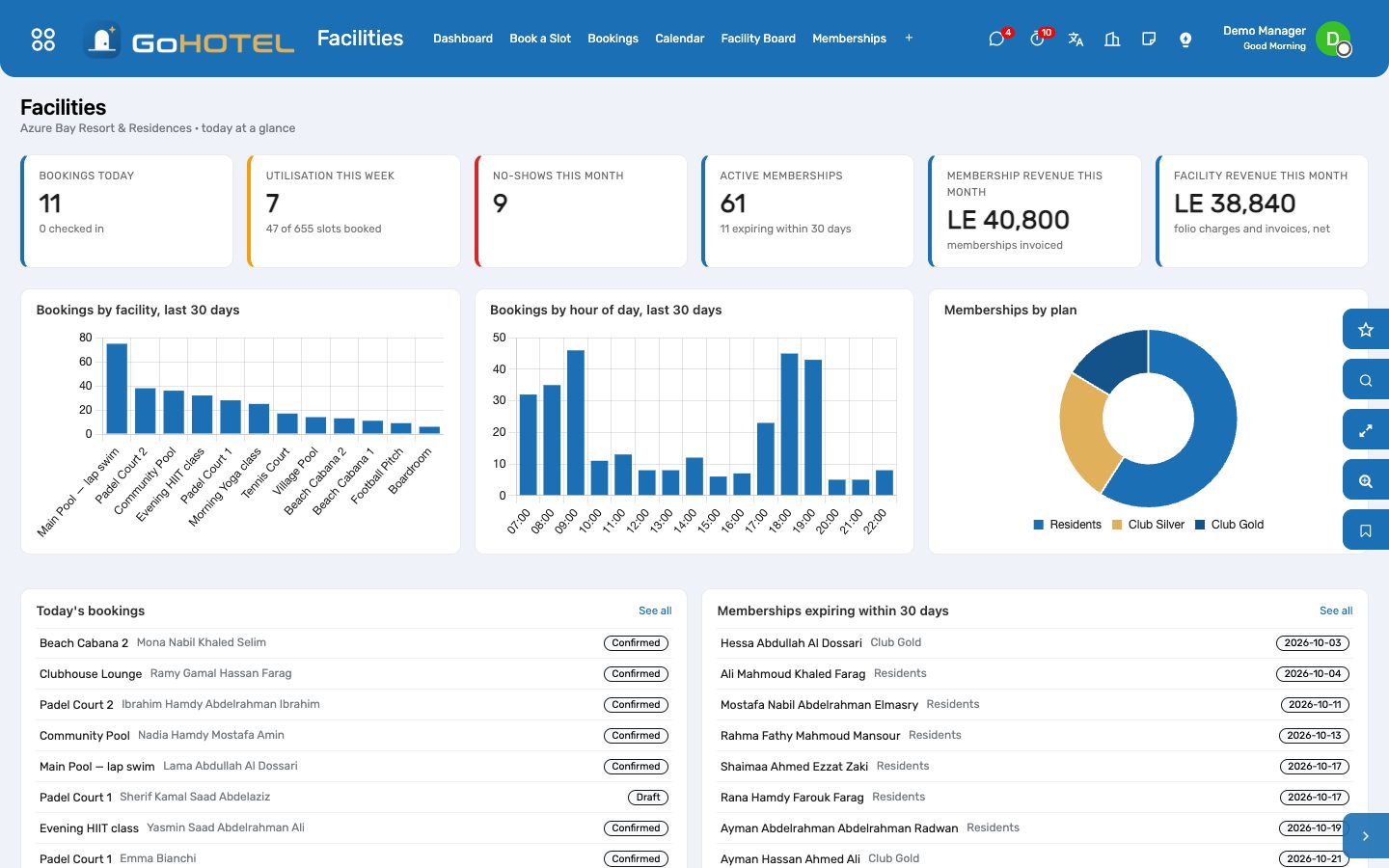
Facilities › Dashboard shows facility revenue (folio charges and invoices, net) and membership revenue for the month; Accounting has the invoices, and the folio charges reach the invoice at check-out under the Spa & Recreation department.
See also: Folios, charges, payments and the city ledger The property, its units and its fee rules
Guest experience: journeys, upsells, loyalty, complaints and satisfaction
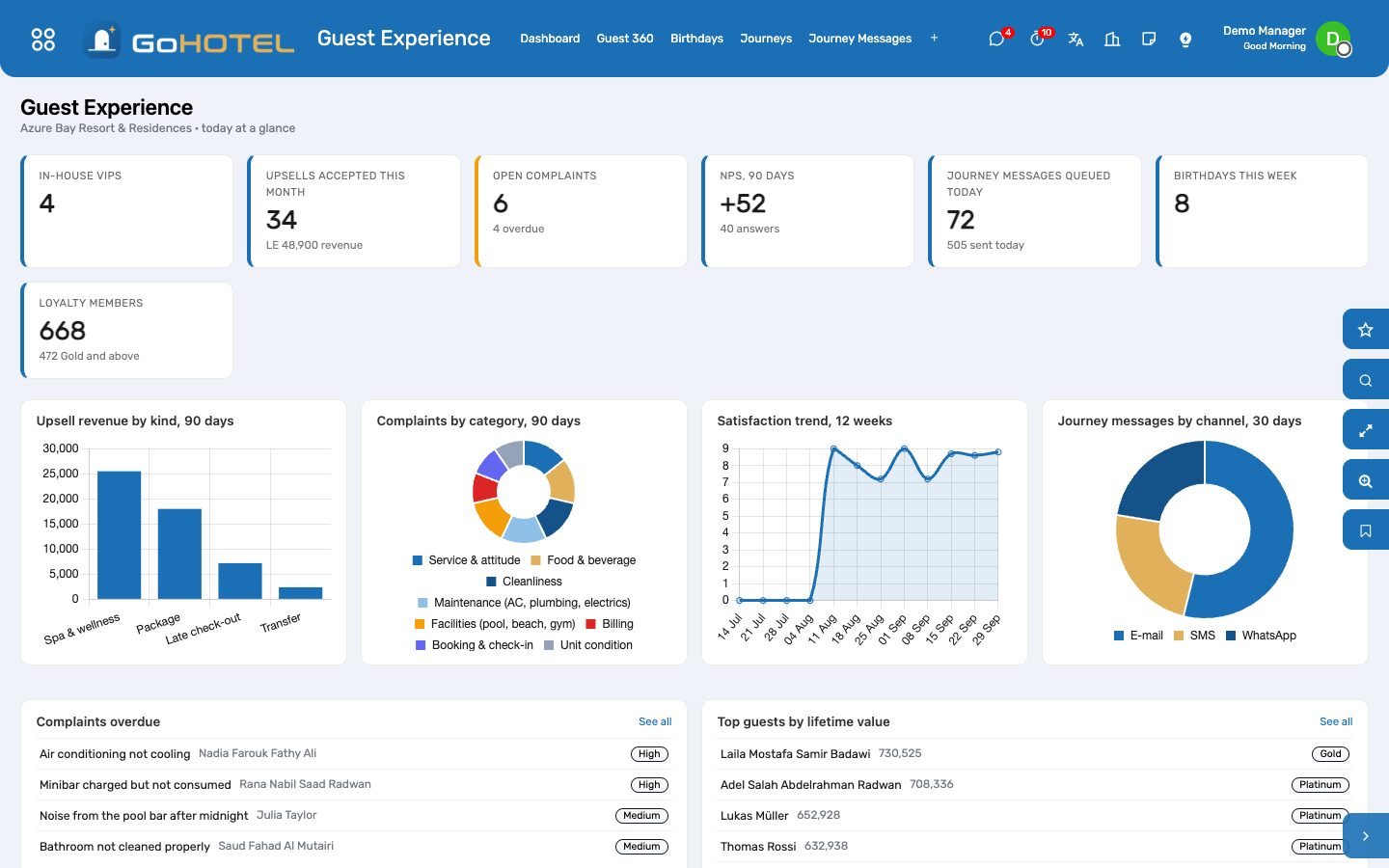
The guest seen whole — stays, nights, lifetime revenue, loyalty tier, satisfaction, next arrival — and everything the property does around the stay: the messages a guest hears before, during and after, the offers made on the way in, the points earned on the way out, the complaint that is owned and answered by a deadline, and the survey that turns into a score.
Where:Guest Experience › Dashboard · Guest 360 · Birthdays · Journeys · Journey Messages · Upsells · Complaints · Satisfaction · Loyalty Cards · Configuration
Before you start
- The property's e-mail address and phone (Property › Properties): they sign every message.
- For a dry run, tick Simulate Journey Sending on the property — messages are rendered and marked sent without leaving the property.
- The value of one loyalty point on the property (Value of One Point), used when points are redeemed.
How to
Read a guest at a glance
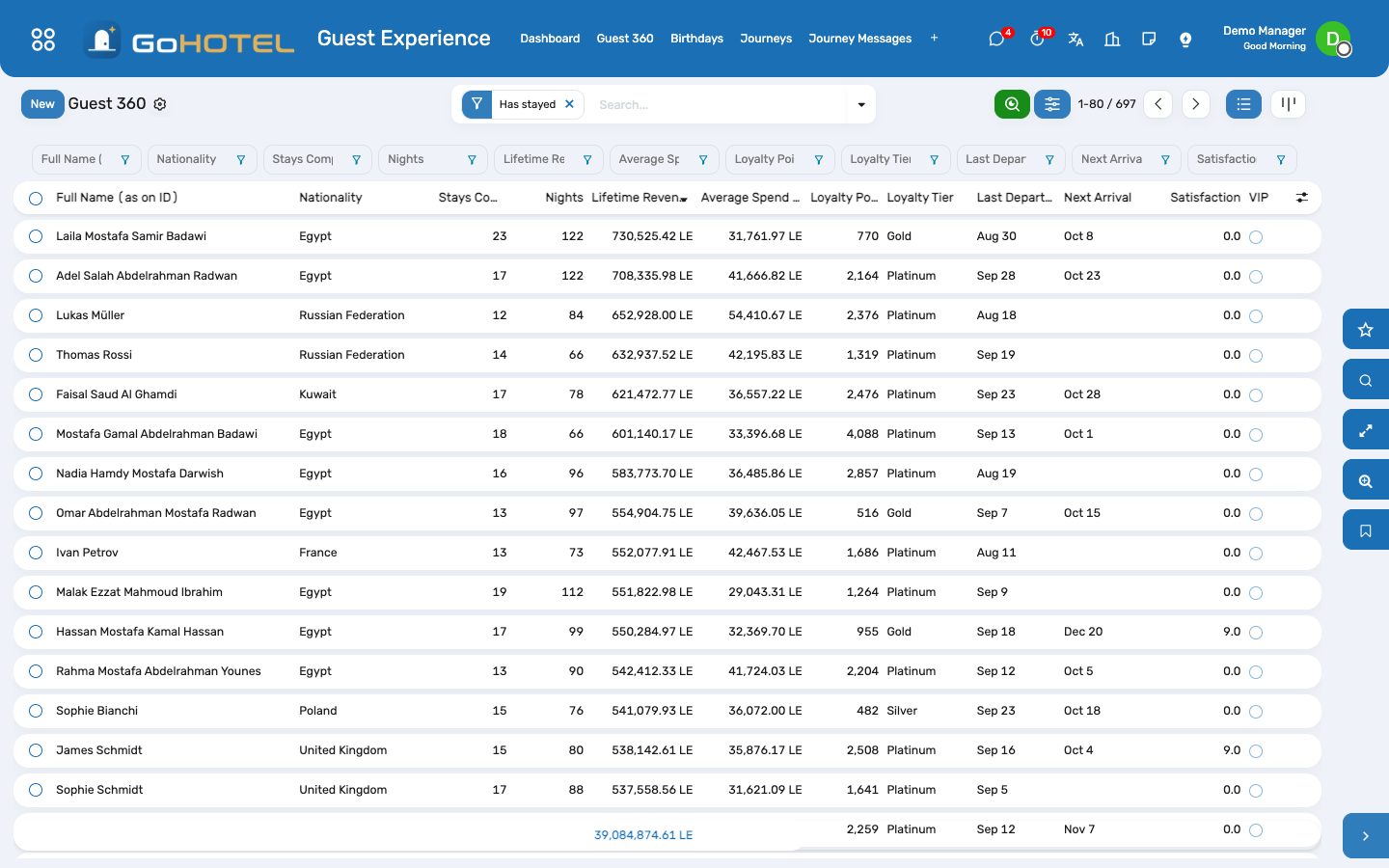
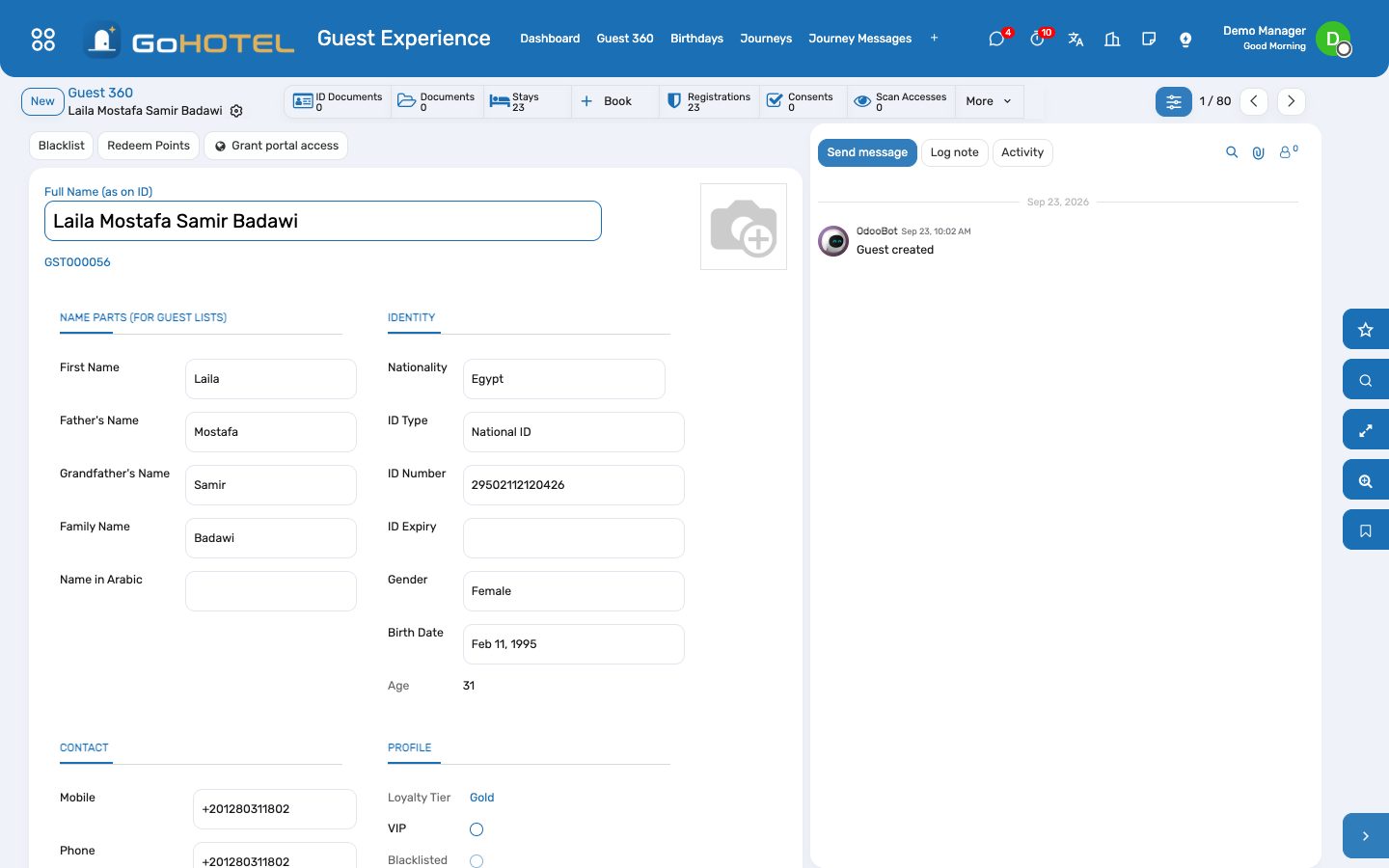
- Guest Experience › Guest 360: the list is sorted by lifetime revenue; filter VIP, Returning, In house, Arriving soon, Birthday this month, Loyalty members; group by tier or nationality.
- Open a guest: the 360 page shows stays, nights, last departure, next arrival, lifetime revenue, average spend per stay, points and tier, satisfaction and open complaints, with every stay listed underneath.
- The smart buttons open the guest's upsells, complaints, requests, journey messages, satisfaction scores and loyalty card.
Build a journey
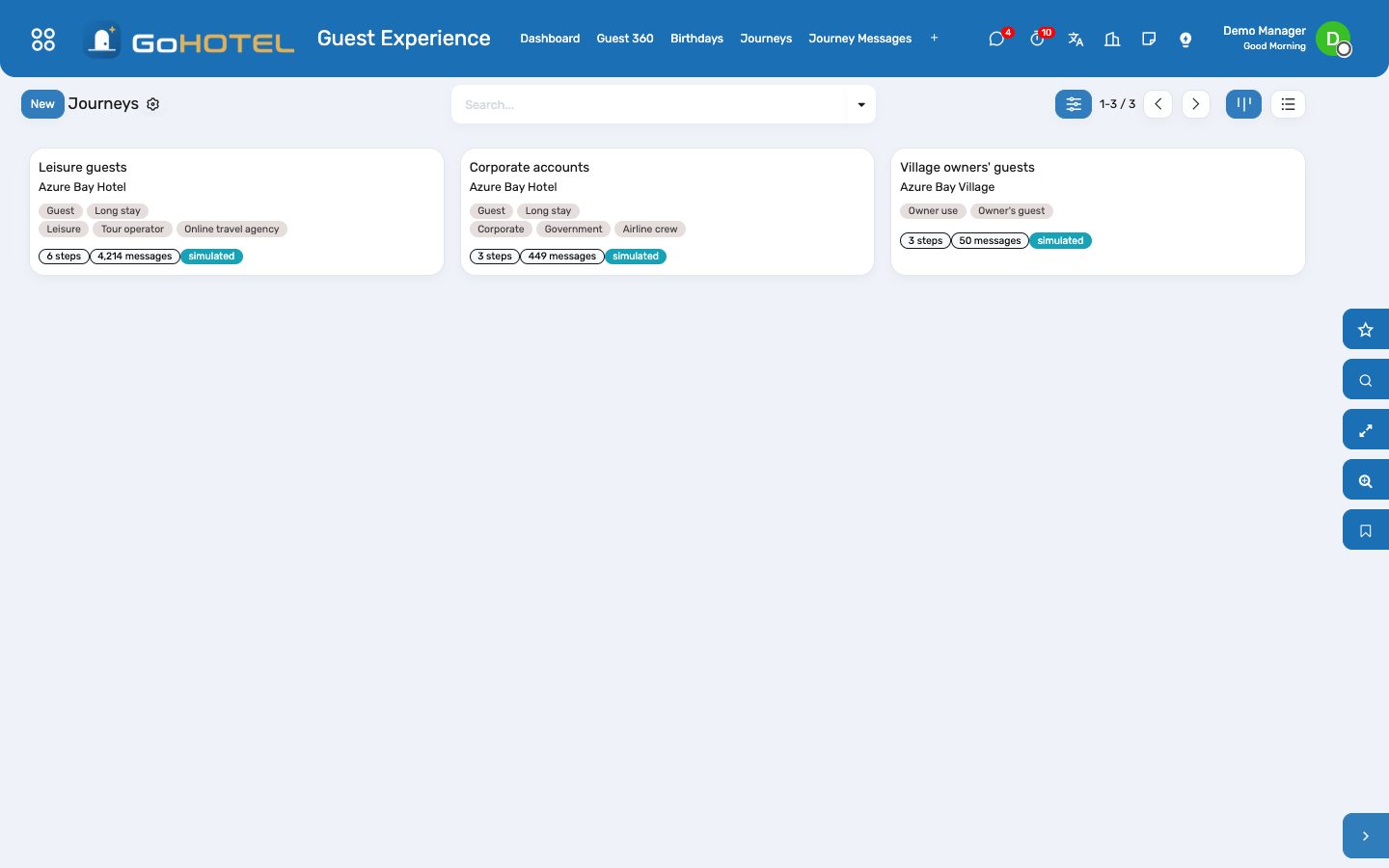
- Guest Experience › Journeys › New: the property, the reservation kinds and segments it applies to (empty means all).
- Add steps: when (N days before arrival, on confirmation, at check-in, N days after arrival, at check-out, N days after departure, with a local send time), how (e-mail with a template or a text, SMS, WhatsApp), and the text with its placeholders — {first_name}, {property}, {arrival}, {unit}, {checkin_time}…
- Mark a step Marketing when it is not about the stay itself: it is skipped for guests who did not give marketing consent.
- Apply to Current Stays schedules the journey for the stays already on the books; from then on reservations plan their own messages as they are confirmed, checked in and checked out, and the daily run sends what is due.
- Journey Messages shows the queue: sent, queued, failed (no address, no number) and skipped; Send Now, Skip and Queue Again act on one message; the calendar shows the week.
Offer and accept an upsell
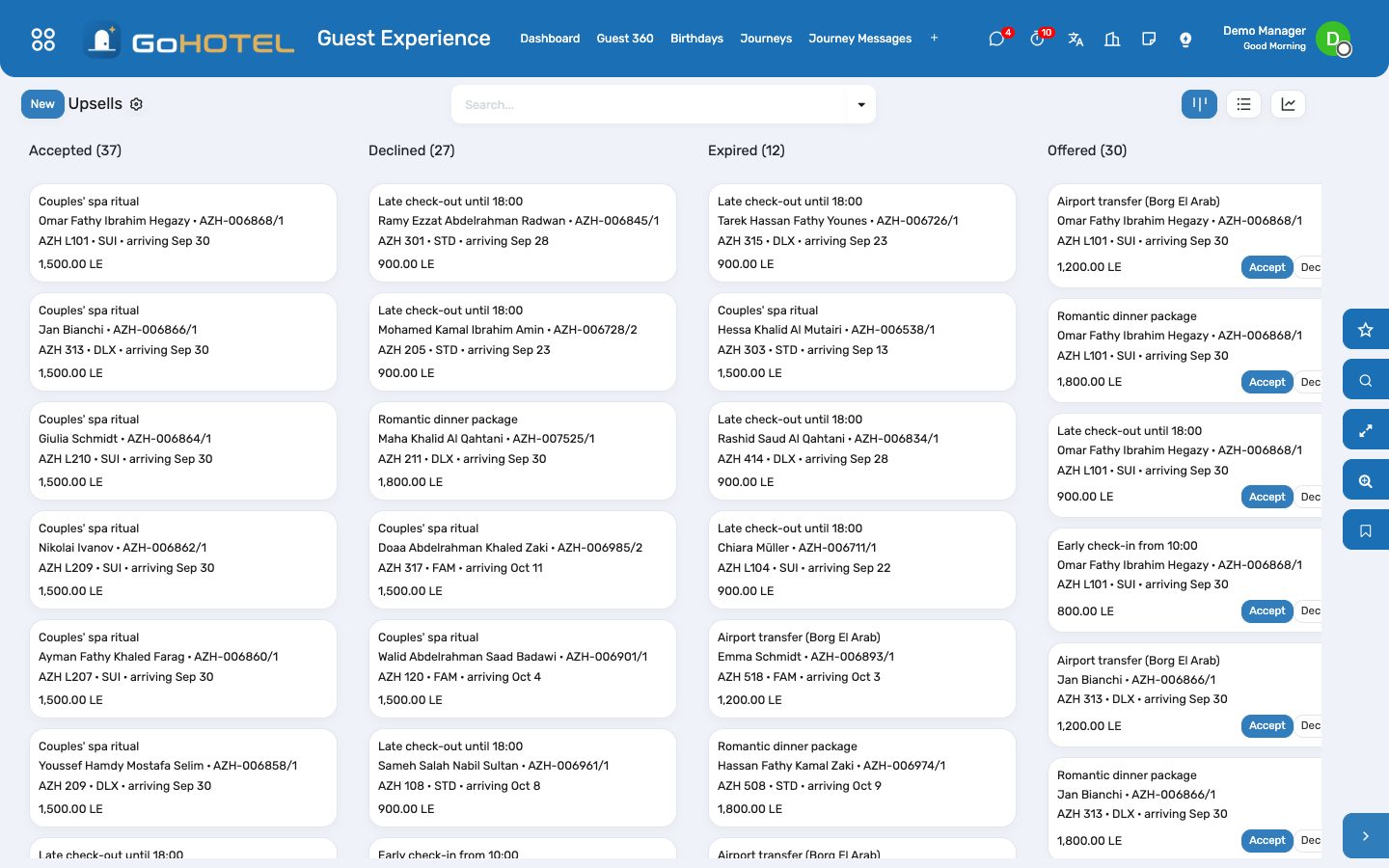
- Configuration › Upsell Offers: an upgrade (to which unit type), an early check-in or late check-out (at what time), a package, a transfer, a spa treatment — with its product, price (per stay, per night or per person), the unit types it applies to and the window around the arrival in which it is offered.
- On a stay, Offer Upsells creates every applicable offer; the Upsells board shows them offered, accepted, declined or expired (an unanswered offer expires after the hours set on the offer).
- Accept: the charge is posted on the stay's folio through the charge engine — the property's fees and VAT follow — and the offer takes effect: the ETA or ETD on the stay, or the move to the higher unit type at the contracted rate plus the supplement.
Loyalty points and tiers
- Configuration › Loyalty Program: the GoHotel Stays program earns points per night (the accommodation category rule) and per currency unit spent (the money rule); change the amounts there.
- At check-out the stay credits the guest's card: nights × points per night plus settled revenue × points per unit; the loyalty card's history keeps the statement.
- Configuration › Loyalty Tiers: Blue, Silver, Gold, Platinum with the points that reach them and the benefits the desk grants; Recompute Guests' Tiers after changing a threshold.
- Redeem Points on the guest posts a credit on an open folio at the property's value per point.
Own a complaint
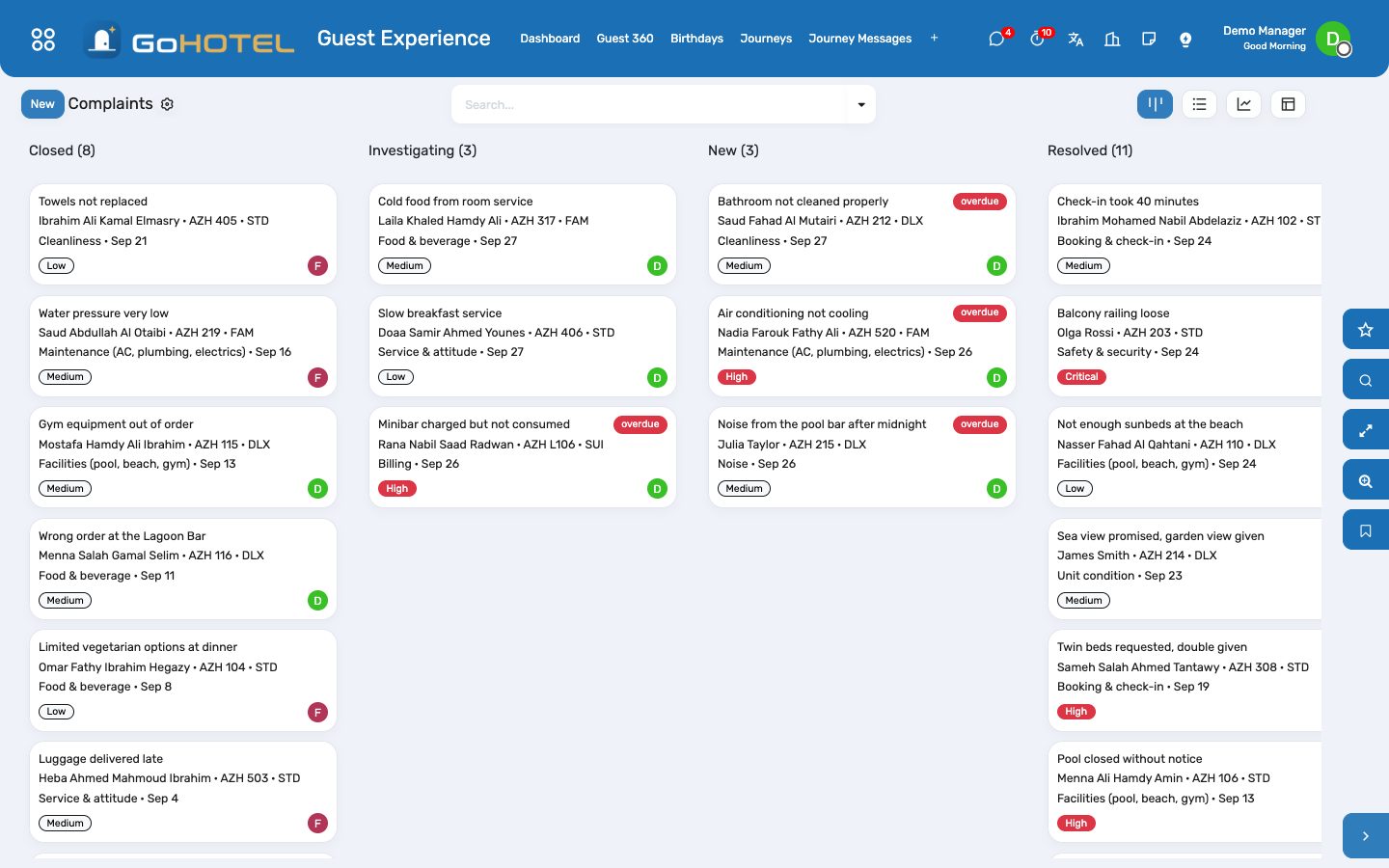
- Guest Experience › Complaints › New: the guest and stay (the unit fills in), category, severity — the SLA follows it: critical 4 hours, high 24, medium 48, low 72 — the owner and what the guest reported.
- Investigate, then Resolve with the resolution and the root cause; Close when the guest has heard back. Overdue complaints are flagged on the board and on the dashboard.
- Compensation: enter the amount and Post Goodwill Credit — a negative charge on the stay's folio with the Goodwill product, VAT adjusted, once.
Satisfaction and NPS
- Every check-out invites the guest to the post-stay survey (Configuration › Post-stay Survey: five questions, the first the 0–10 recommendation question); the invitation is a journey message of channel e-mail.
- An answered survey becomes a score under Satisfaction; a score heard at the desk or read in an online review is entered by hand.
- The dashboard shows the NPS of the last 90 days — promoters (9–10) minus detractors (0–6) over all answers — and the weekly trend.
Birthdays
- Guest Experience › Birthdays: guests with a birthday in the next 30 days, in-house ones highlighted; the dashboard counts this week's.
Questions the desk asks
A journey step was sent to a guest who cancelled.
It is not: cancelling or a no-show skips every queued message of the stay. A message already sent stays sent.
Does WhatsApp actually send?
The message is rendered and handed to the WhatsApp connector (state Handed to WhatsApp); the connector delivers it when installed and connected. In simulation it is simply marked sent.
The upgrade re-prices the whole stay.
It does not: the stay keeps its contracted nightly rate as an override; the supplement is the upsell charge.
Can a compensation go on a closed folio?
No — the credit needs an open or settled folio. After departure, refund the guest through a payment instead.
See also: Guests and accounts Front desk: arrivals, in house, departures Folios, charges, payments and the city ledger
Distribution: channel manager, OTA bookings and iCal calendars
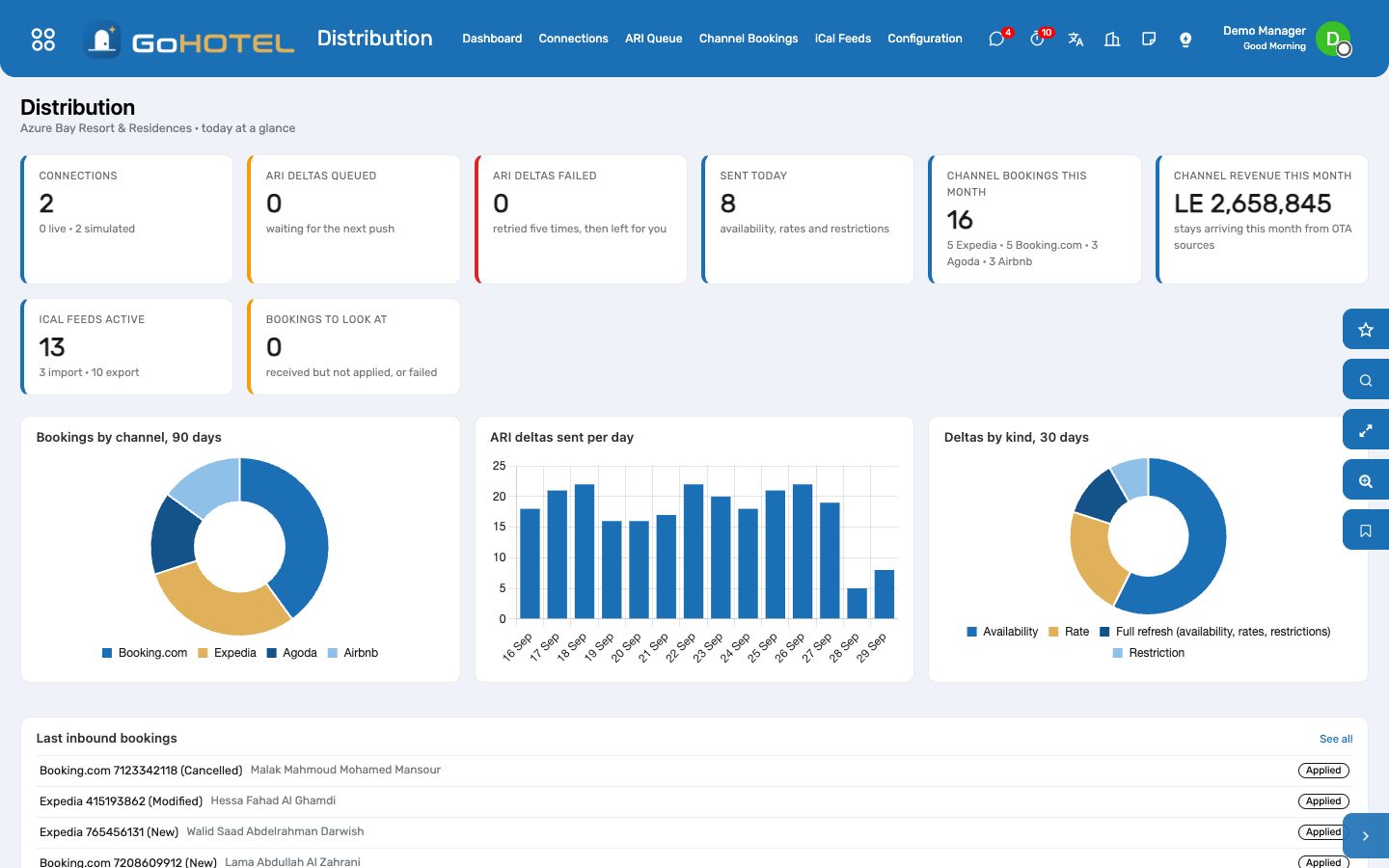
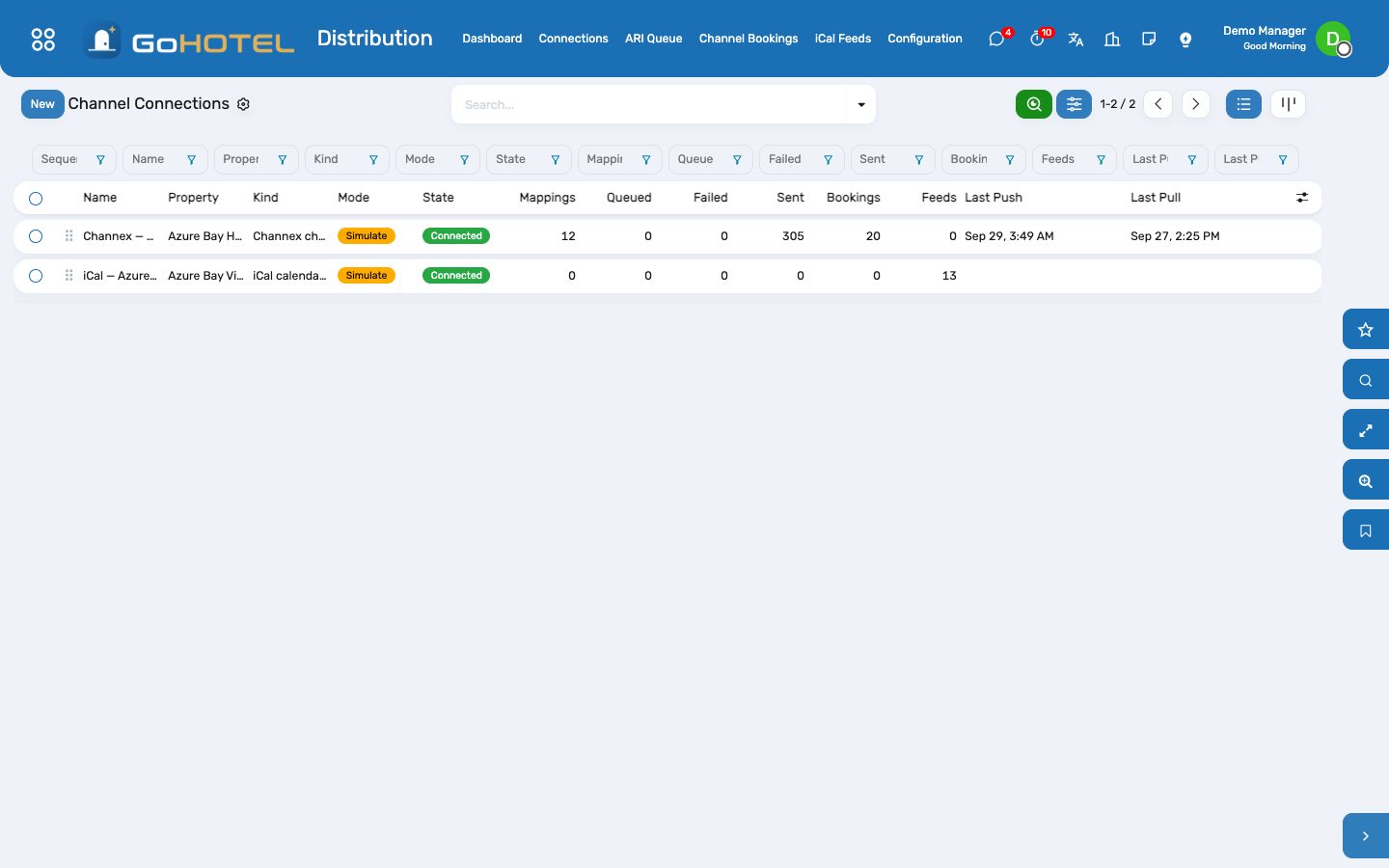
One connection per counterparty. The Channex connection pushes availability, rates and restrictions to Booking.com, Expedia, Agoda, Airbnb and the rest, and turns their booking revisions into reservations with the right source, account, rate plan, nightly prices and guarantee. An iCal connection trades a calendar per unit with Airbnb or Vrbo — the free tier for a village chalet. Simulate mode shows the whole flow before a single credential exists.
Where:Distribution › Dashboard · Connections · ARI Queue · Channel Bookings · iCal Feeds · Configuration
Before you start
- Unit types and rate plans under Rates.
- The OTA sources and accounts under Guests › Accounts (Booking.com, Expedia, Agoda…) with their commission.
- For a live Channex connection: the Channex API key and the property ID from the Channex back office.
How to
Connect a channel manager
- Distribution › Connections › New: name, property, kind Channex, mode Simulate to start (nothing leaves the server; every push is logged with the payload it would have sent), then Connect.
- Rate plans to distribute: the plans the OTAs sell (usually BAR and a non-refundable plan); the default plan is used for a booking whose plan is not mapped.
- Fetch / propose mappings: the channel's room types and rate plans are matched to your unit types and rate plans by name; confirm the proposed rows or pick the right unit type.
- Push everything now sends the next 365 days of availability, rates and restrictions for every mapped unit type; from then on every reservation, rate or restriction change queues a delta and the scheduled action sends the queue every five minutes.
- To go live: switch the mode to Live, enter the API key and the external property ID, Connect again and paste the Booking Webhook URL into the channel manager.
Follow the ARI queue
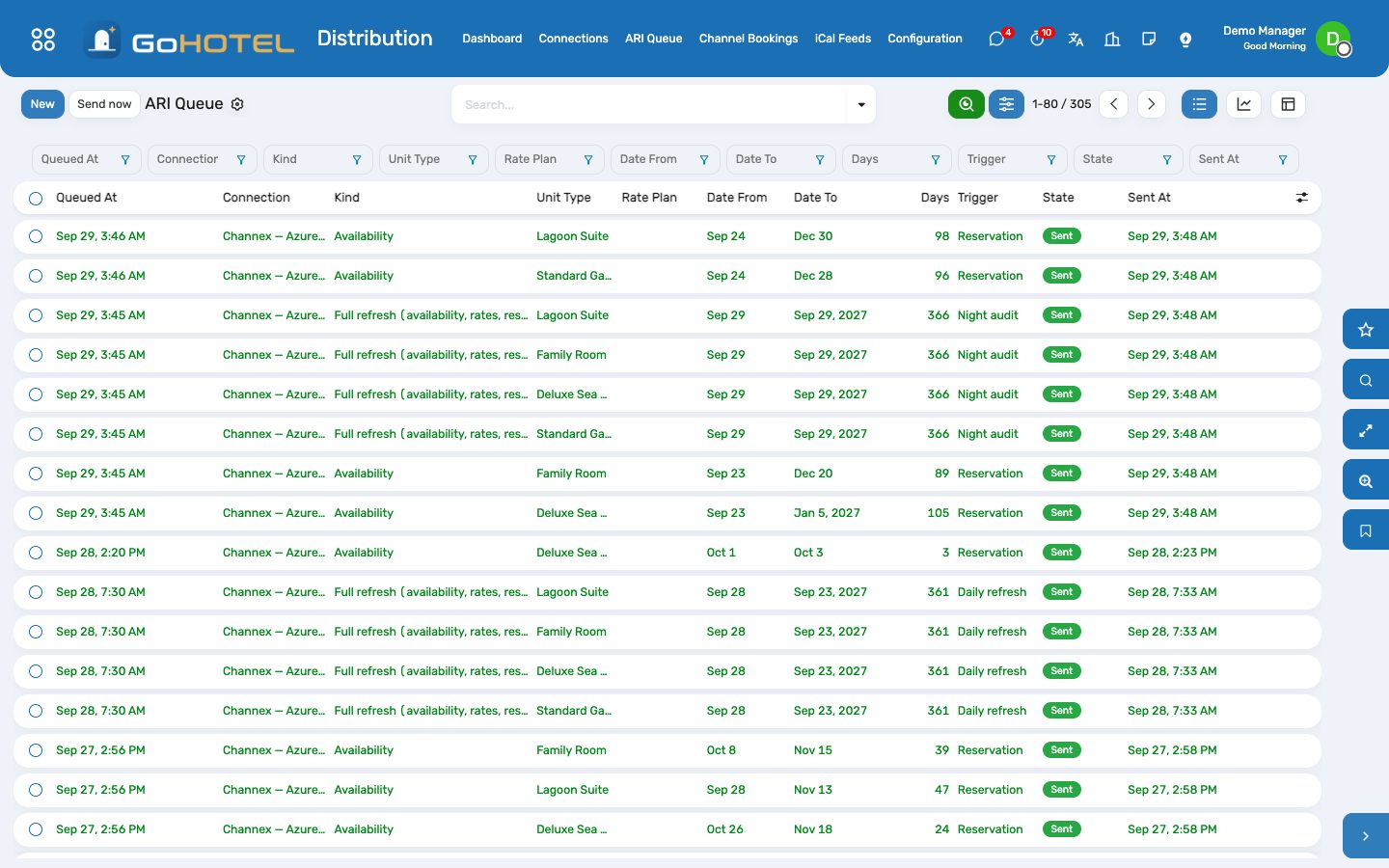
- Distribution › ARI Queue: one row per change — availability after a booking or a check-in, a rate after a price edit or a derived-plan change, a restriction after a stop-sell or a minimum stay, a full refresh after the night audit rolls the business date.
- A delta is queued, then sent (with the payload it carried) or failed with the channel's answer; failed deltas are retried five times and can be re-queued by hand.
- The connection's Log keeps every request and answer for ninety days.
Receive OTA bookings
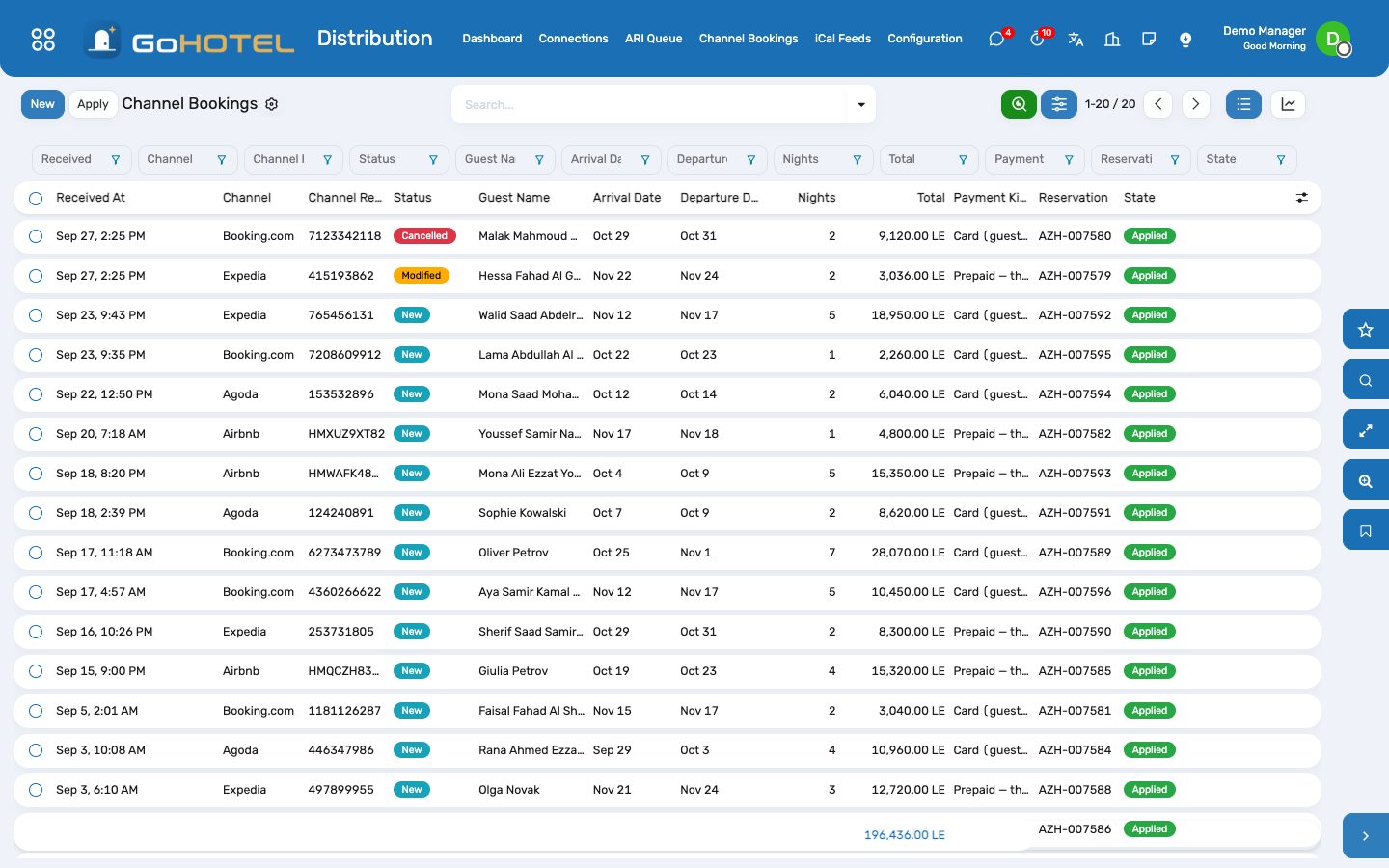
- The channel posts booking revisions to the webhook (or the connection pulls its feed); each revision lands under Channel Bookings as new, modified or cancelled.
- Applying a revision creates the reservation: the OTA source and account (commission follows the account), the mapped rate plan, the channel's price for every night, the guarantee (guest card, virtual card, prepaid) and the channel's reference; a modification updates the stay, a cancellation cancels it.
- A stay the property cannot honour (no availability, a restriction) is never refused: the reservation is created unconfirmed with the reason on it, and the booking shows "needs attention".
- Simulate an inbound booking (on the connection, or under Configuration) fabricates a revision and applies it — the demo's proof.
Trade iCal calendars per chalet
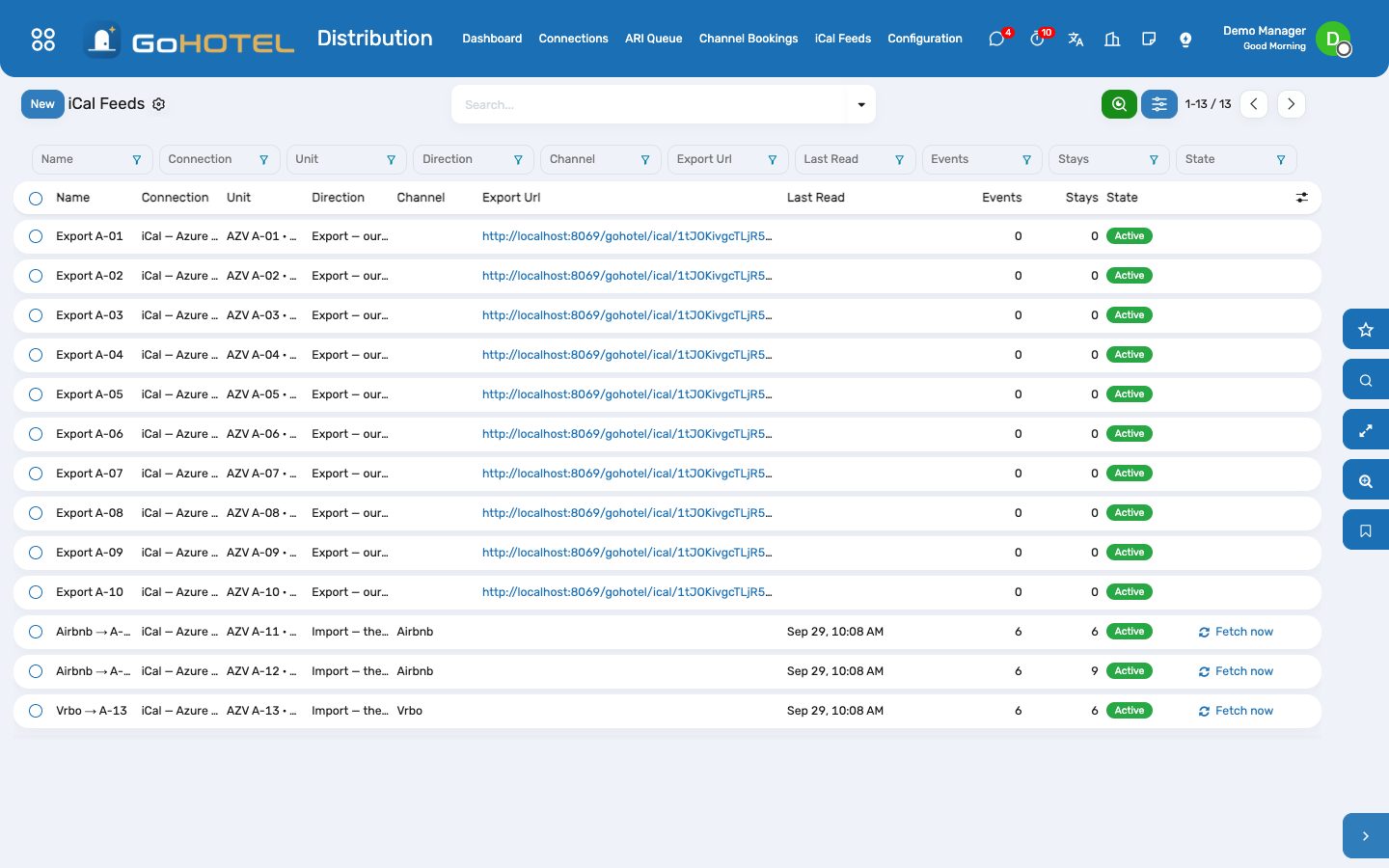
- Distribution › Connections › New: kind iCal calendars, the village, Connect; Create export feeds makes one calendar per unit — paste its URL into Airbnb or Vrbo as an imported calendar.
- For each channel calendar: iCal Feeds › New, direction Import, the unit, the channel name and the .ics address the channel publishes; Fetch now reads it, and the scheduled action re-reads it every hour.
- Each event becomes a confirmed stay of source iCal for a placeholder guest ("Airbnb guest") at price 0; a moved event moves the stay, a vanished event cancels it. Replace the guest at check-in.
Questions the desk asks
Which price does an OTA booking get?
The channel's price for each night, in the property's currency; the rate plan is only the fallback for nights the channel did not price.
Does a booking taken at the desk reach the OTAs?
Yes — every stay created, confirmed, moved, checked in, cancelled or no-showed queues an availability delta for its unit type and dates.
We have no worker for background jobs.
Leave Dispatch on "every five minutes, batched": the scheduled action sends the queue, applies received bookings and reads the calendars.
SiteMinder?
On the roadmap; the connection kind exists but cannot be connected yet.
See also: Rate plans, rates, restrictions and allotments Reservations and the tape chart The property website and online booking
Access & Security — passes, the gate, visitors, vehicles and patrols
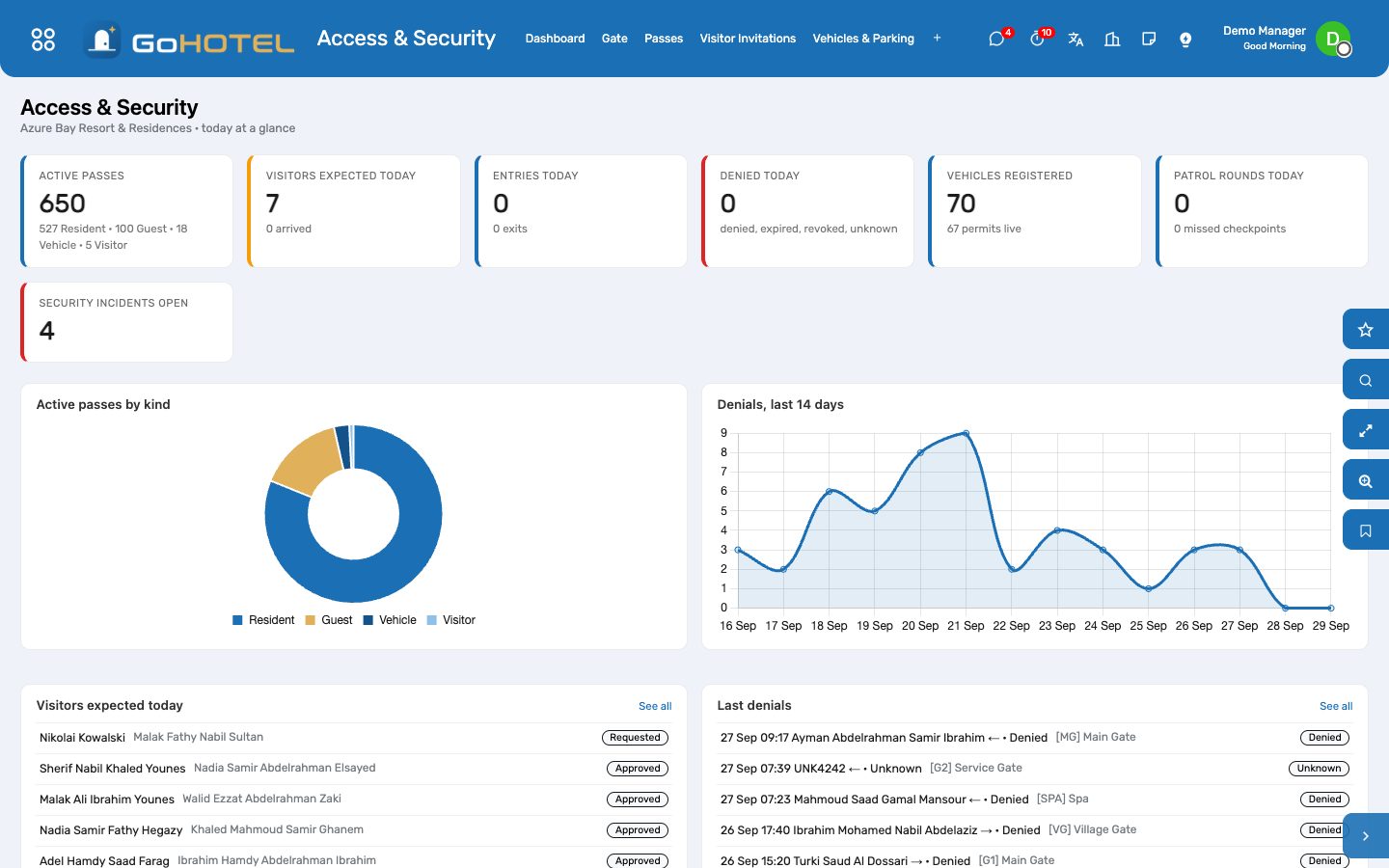
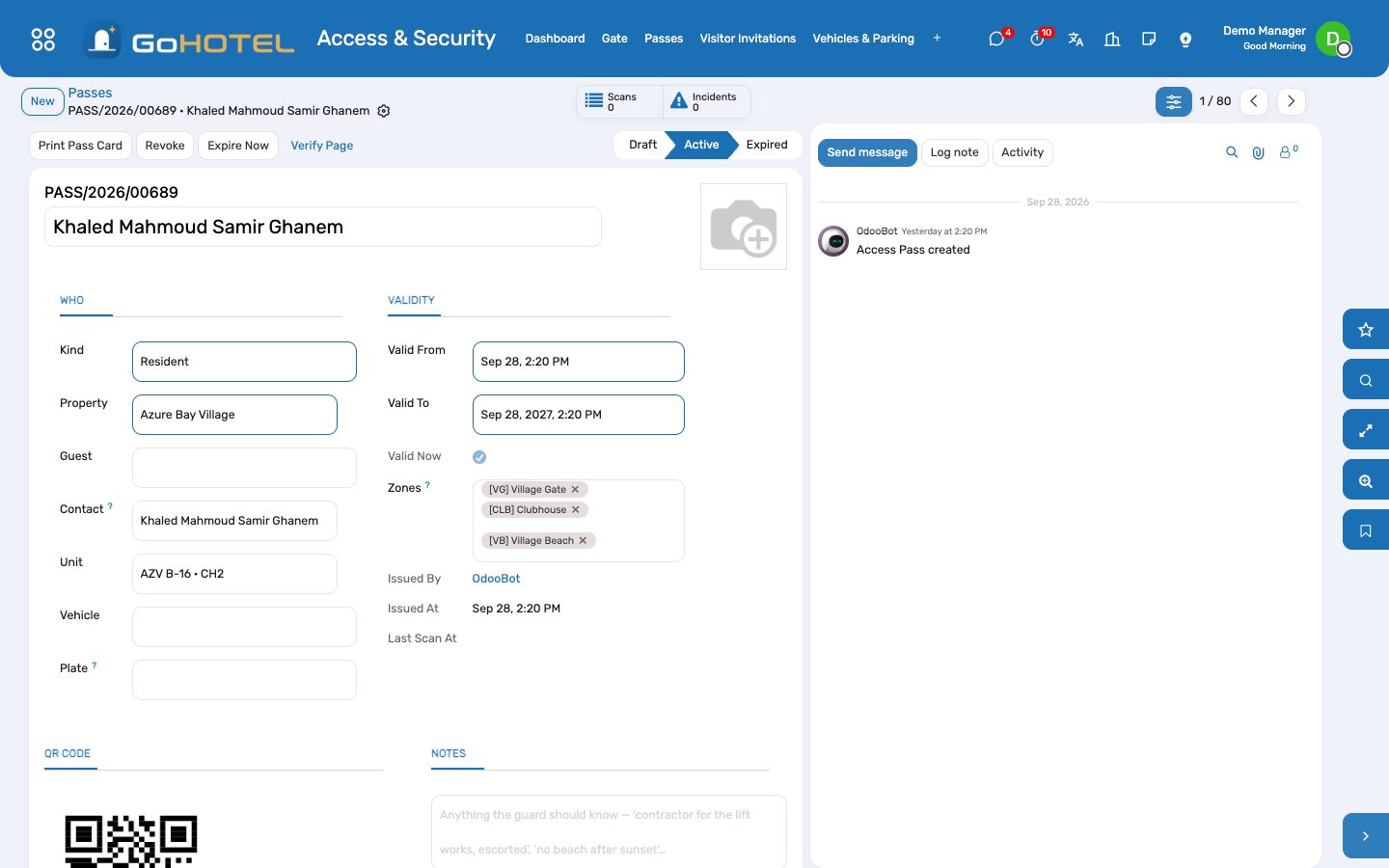
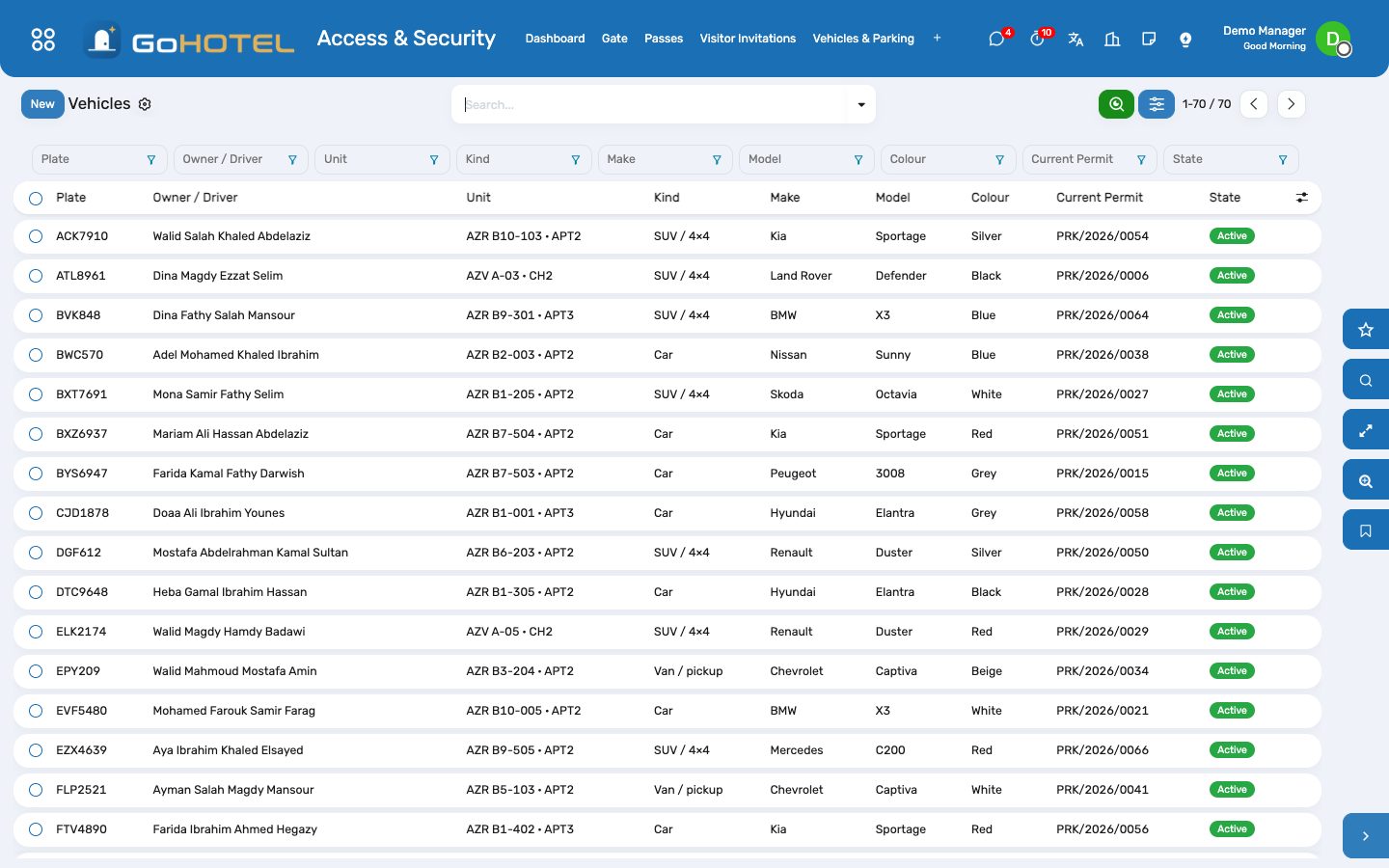
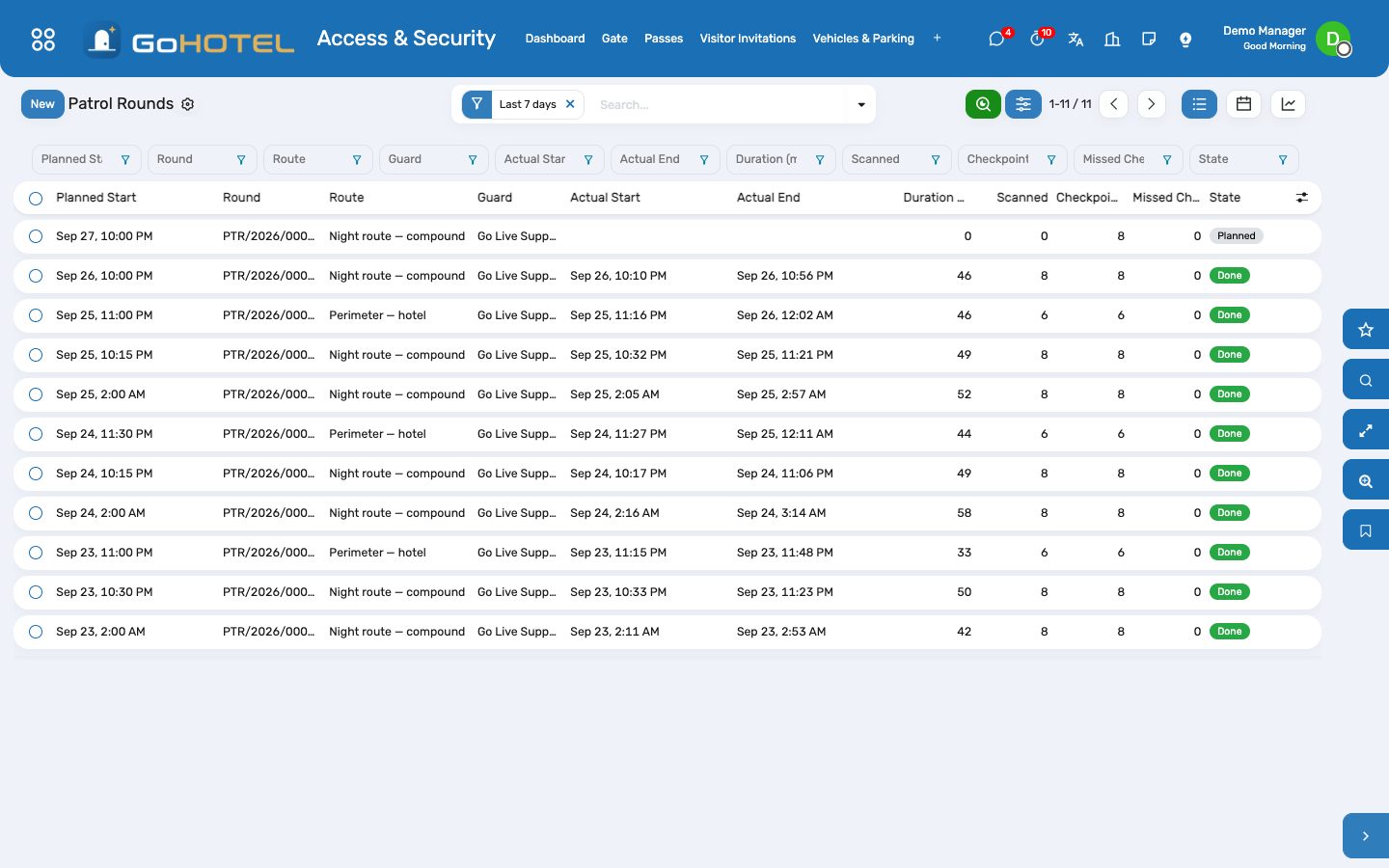
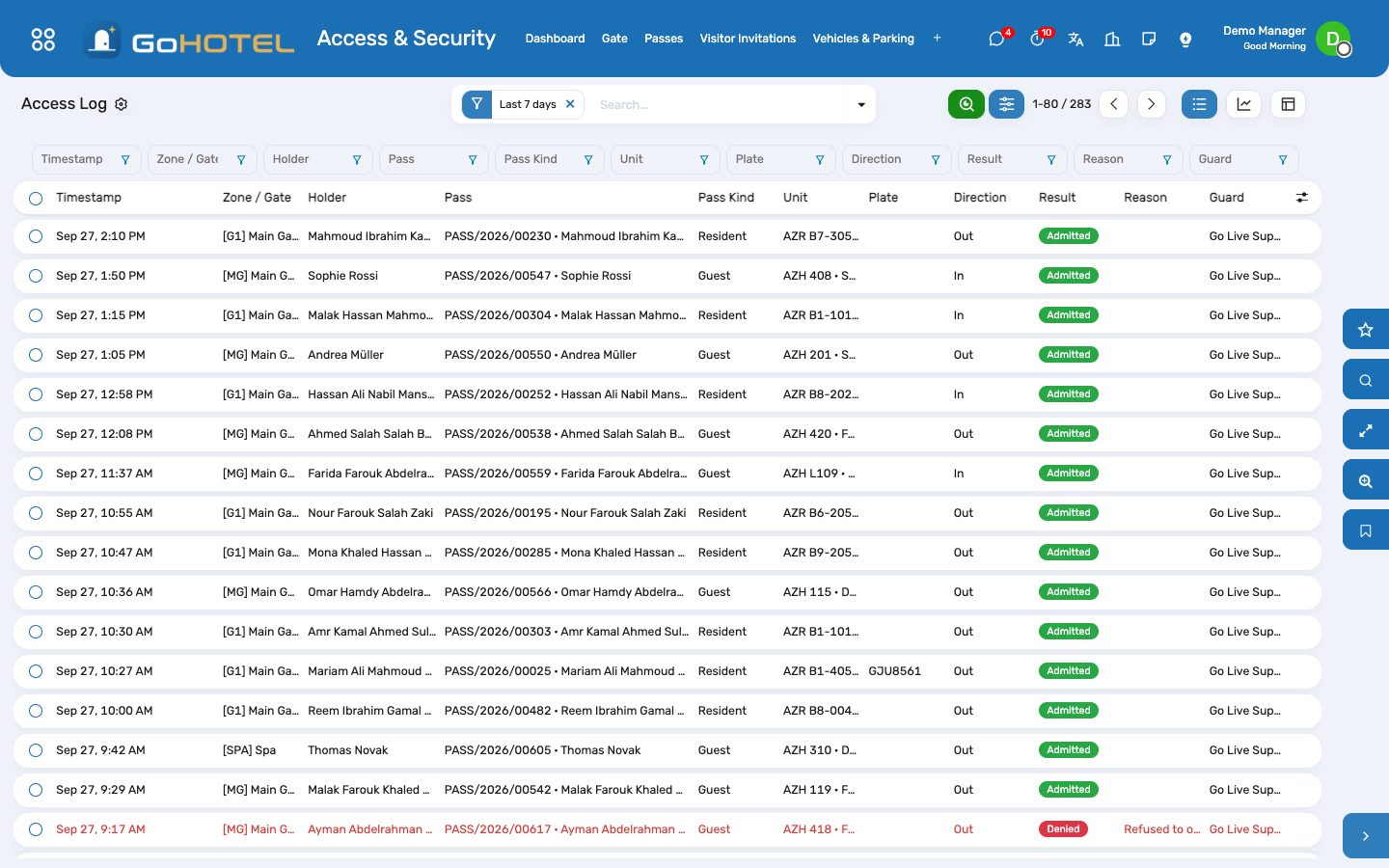
Every person and vehicle the gate lets in carries a pass: a QR token, a validity window and the zones it opens. Guest passes are issued at check-in and expire at check-out; resident passes are issued for every unit owner in one click; a visitor gets one when the host's invitation is approved. The gate screen scans, shows the holder with photo and unit, admits or denies, and writes the access log the dashboard reads. Vehicles and parking permits answer the plate lookup; patrol routes are walked checkpoint by checkpoint; what goes wrong lands on the incident register.
Where:Access & Security › Dashboard · Gate · Passes · Visitor Invitations · Vehicles & Parking · Patrols · Access Log · Incidents · Configuration › Access Zones
Before you start
- Access zones for each property (Configuration › Access Zones): the gates and everything a pass may open.
- On the property, the Access tab: the default guest zones (what a check-in pass opens) and the default resident zones.
- Guards, supervisors and front-office agents in the Security, Manager or Front Desk role.
How to
Work the gate
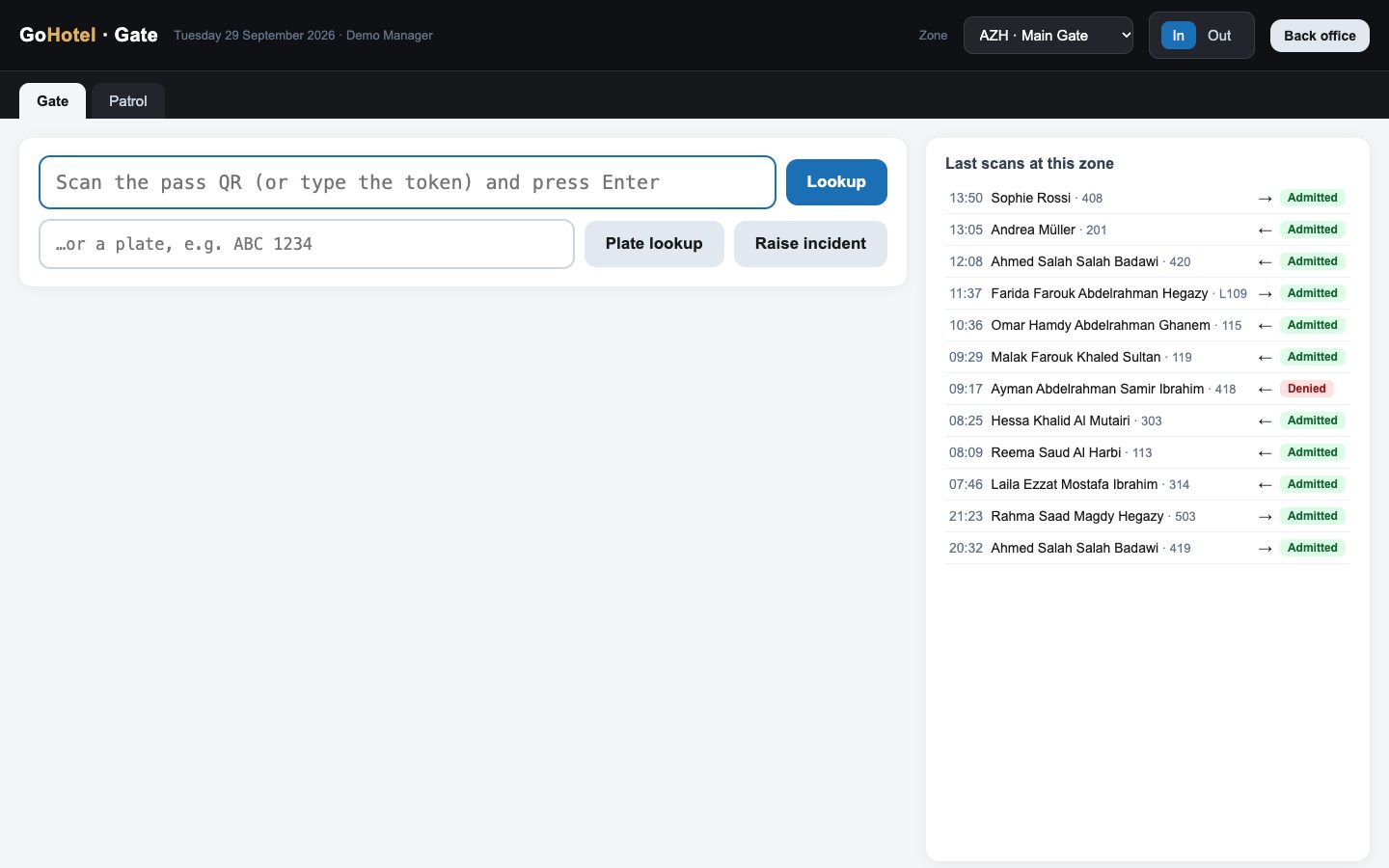
- Access & Security › Gate opens the scanning screen in the browser; pick the zone you are at (remembered for the session) and the direction, In or Out.
- Point the scanner at the pass — it types the token and Enter — or type a plate and press Plate lookup. The holder appears with photo, unit, validity, zones and a green Valid or a red reason: expired, revoked, not yet valid, wrong zone, blacklisted.
- Admit or Deny (Enter or F2 admits, Escape clears). Either writes the access log with the zone, the direction, the guard and the reason; a visitor pass admitted In marks the invitation as arrived.
- Raise incident opens a one-line prompt and files a security incident with the pass, the plate, the zone and the log entry attached.
Passes for guests and residents
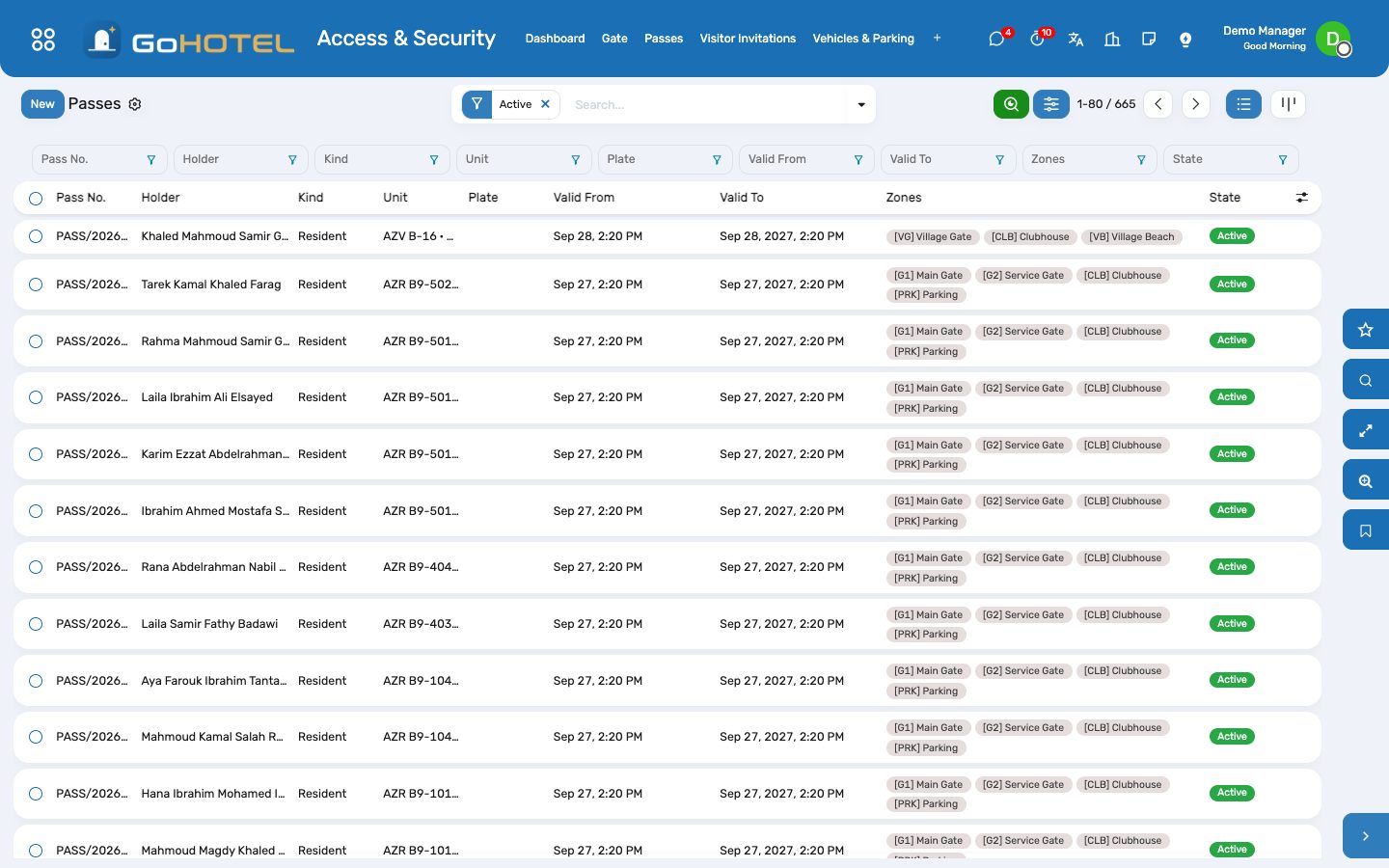
- Guest passes need nothing: check-in issues one per occupant with the property's default guest zones, valid until the departure day's check-out time; check-out expires them. The stay's Passes button shows them.
- Resident passes: on the property, Access tab, Issue resident passes — one active pass per unit owner (and per resident once the community pack is installed); owners who already hold one are skipped. Valid a year.
- Contractor, vehicle and wristband passes: Passes › New, name the holder or the plate, the validity and the zones, Activate. Print Pass Card gives a card with the QR; Verify Page is the public link a printed or e-mailed pass carries — it says valid or not valid and nothing else.
- Revoke stops a pass at once; Reissue after an expiry or a revocation gives a new token so the old card is dead.
Visitors
- Visitor Invitations › New: the host (owner, resident or the stay), the unit, the visitor's name, phone, e-mail, the day, the expected hour, the plate if they drive.
- Approve & Issue Pass creates a visitor pass valid that day; Send by E-mail queues the pass with its QR to the visitor. The gate marks the invitation Arrived when it admits the pass.
- Invitations whose day has passed expire overnight, with their passes.
Vehicles and parking
- Vehicles › New: the plate (stored without spaces, in capitals), owner or driver, unit, make, model, colour; Block refuses it at the gate whatever its permits say.
- Parking permits on the vehicle: the parking zone, the bay, the validity; Activate. The plate lookup at the gate answers with the permit — or "no permit", "expired", "blocked".
Patrols
- Patrols › Routes › New: the checkpoints in the order the guard walks them, where each label is fixed; Print Checkpoint Labels gives the QR labels.
- The guard opens the gate screen's Patrol tab and scans each label: the first scan starts the planned round of the night (or opens one), each scan is recorded with whether it came in order, the last scan closes the round.
- Rounds show the scans, the duration and the missed checkpoints; the dashboard counts today's rounds and what they missed.
Questions the desk asks
The scanner types the token but nothing happens.
The cursor must be in the scan box — click it, or press Escape to clear and refocus. A checkpoint label scanned on the Gate tab says so; use the Patrol tab.
Can a guard admit an expired pass?
Yes, with a reason: Admit always writes "admitted" and keeps the reason. Deny on an expired pass writes "expired", so the dashboard counts it honestly.
Who sees the gate screen?
Security, Front Desk and Manager roles; anyone else gets a refusal. The public verify page shows only valid or not valid.
See also: The property, its units and its fee rules Reservations and the tape chart Community: owners, residents and service charges
Transport & transfers
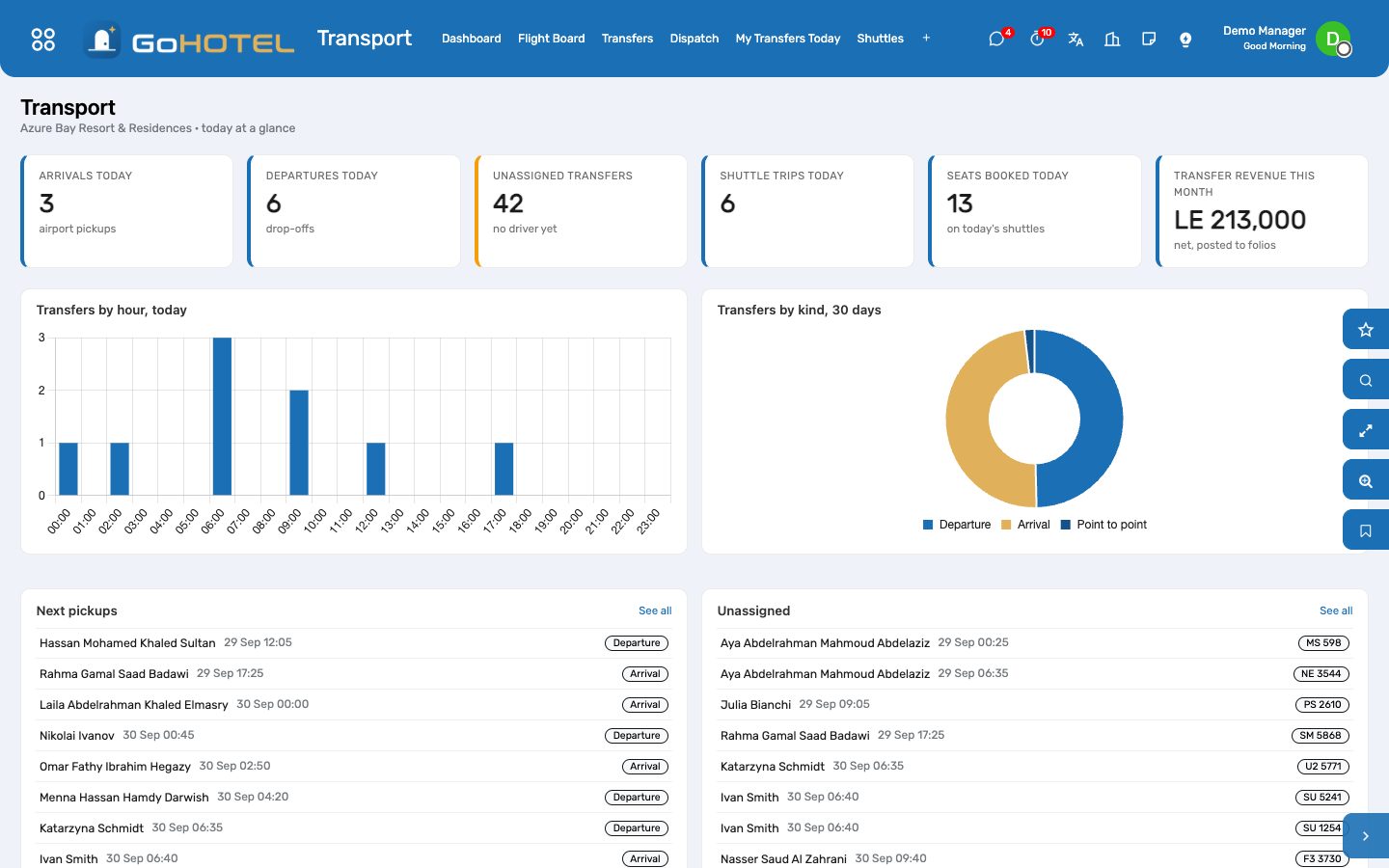
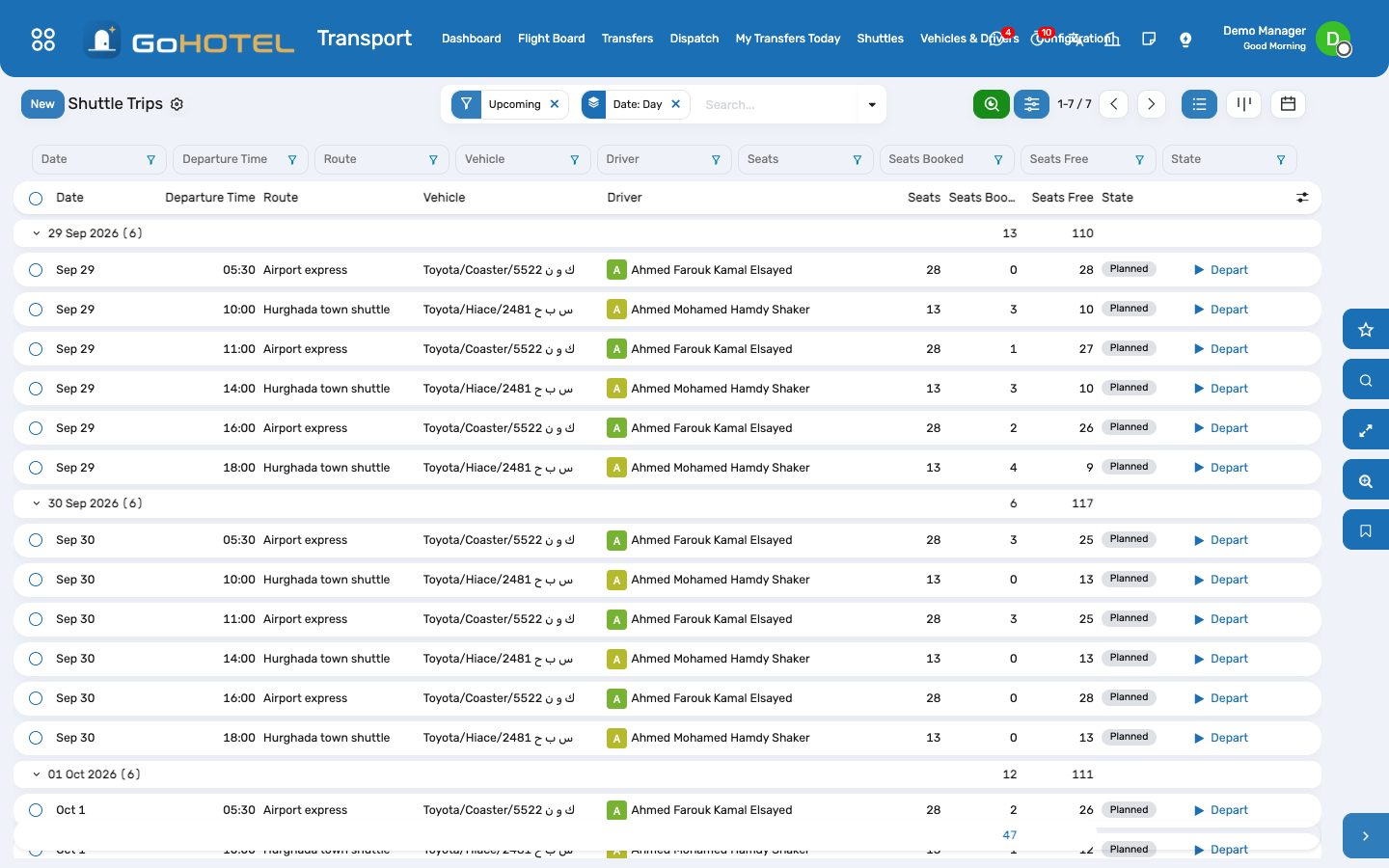
An arrival pickup, a departure drop-off or a private ride belongs to the stay: created from the reservation with the flight, dispatched to a driver, worked from the driver's phone, and charged to the folio when the ride is done — fees and VAT from the property's rules, nothing typed twice. Shuttles run on a timetable with seats guests book at the desk.
Where:Transport › Dashboard · Flight Board · Transfers · Dispatch · My Transfers Today · Shuttles · Vehicles & Drivers · Configuration
Before you start
- Places
- Transport › Configuration › Places: the airport (tick Default Airport), the port, the landmarks guests ask for. A new arrival or departure picks the default airport by itself.
- Transfer services
- Transport › Configuration › Transfer Services: the rides you sell — sedan, minibus, point to point — with their price and VAT. A transfer's price defaults from the service chosen.
- Vehicles
- Transport › Vehicles & Drivers › Vehicles: the fleet's cars with their property and kind (sedan, minibus, coach); seats limit what a ride can carry.
- Drivers
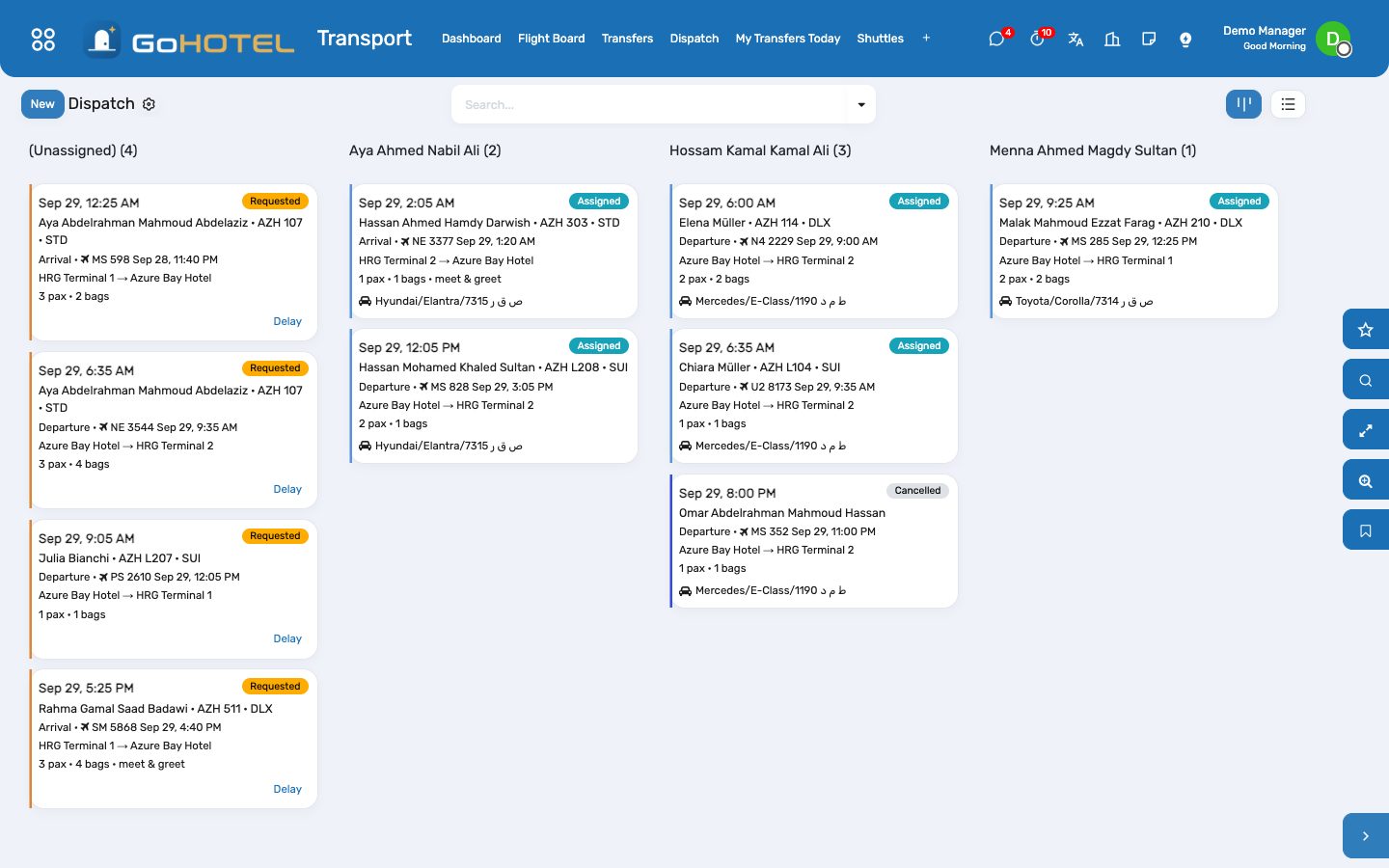
- Employees › open the person › Work tab › Transport: tick Driver. A driver with a login sees My Transfers Today; the desk drags rides onto them on Dispatch.
How to
Create the transfers of a booking
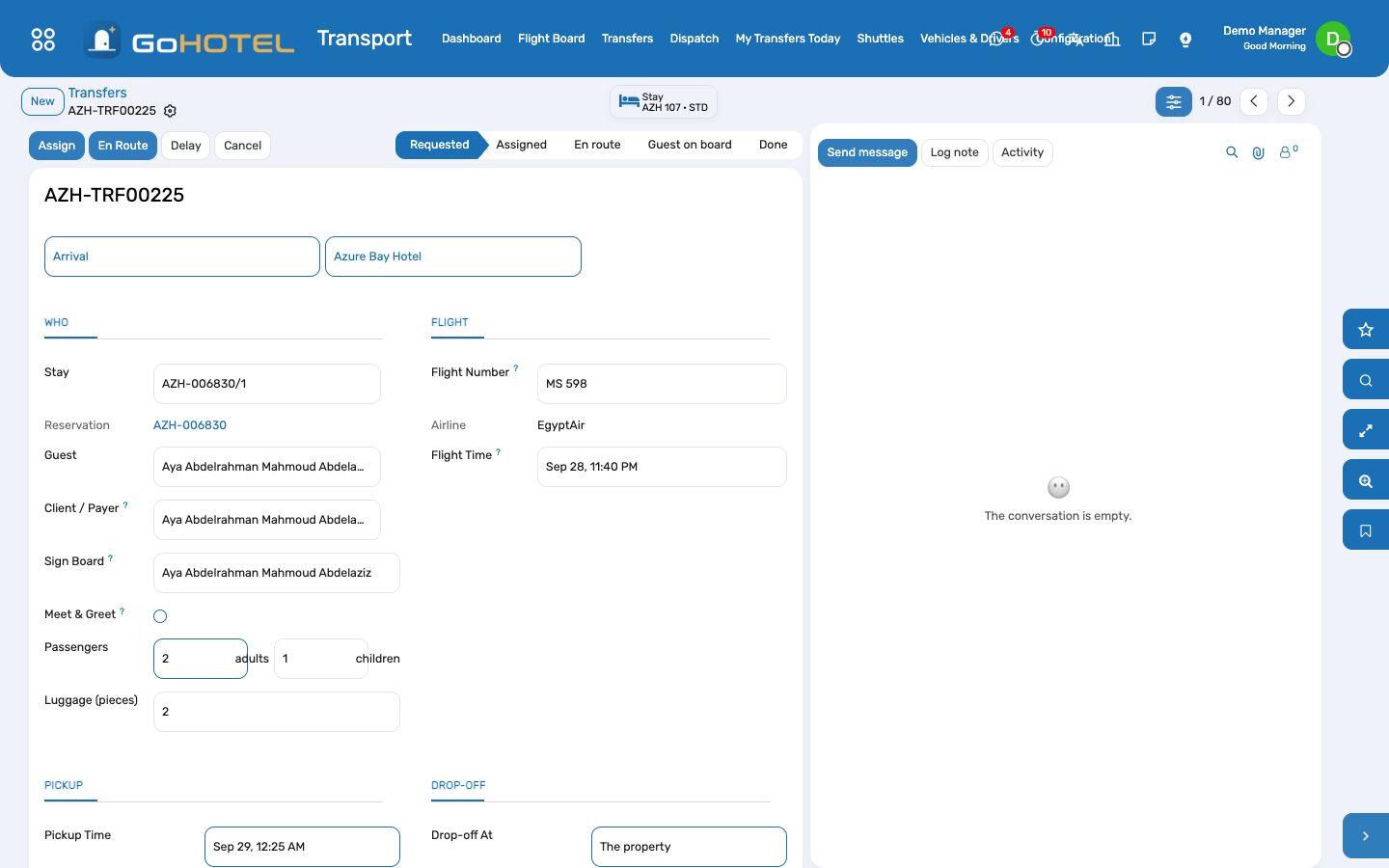
- Open the reservation and press Create Transfers: the arrival and departure flights, the service, meet & greet and the sign board; every stay of the booking gets its two rides.
- The pickup time is suggested from the flight — 45 minutes after landing, three hours before take-off — or from the stay's ETA / ETD when no flight is known. Change it freely.
- The Transfers smart button on the reservation lists what was created; a stay that already has a ride of that kind is skipped.
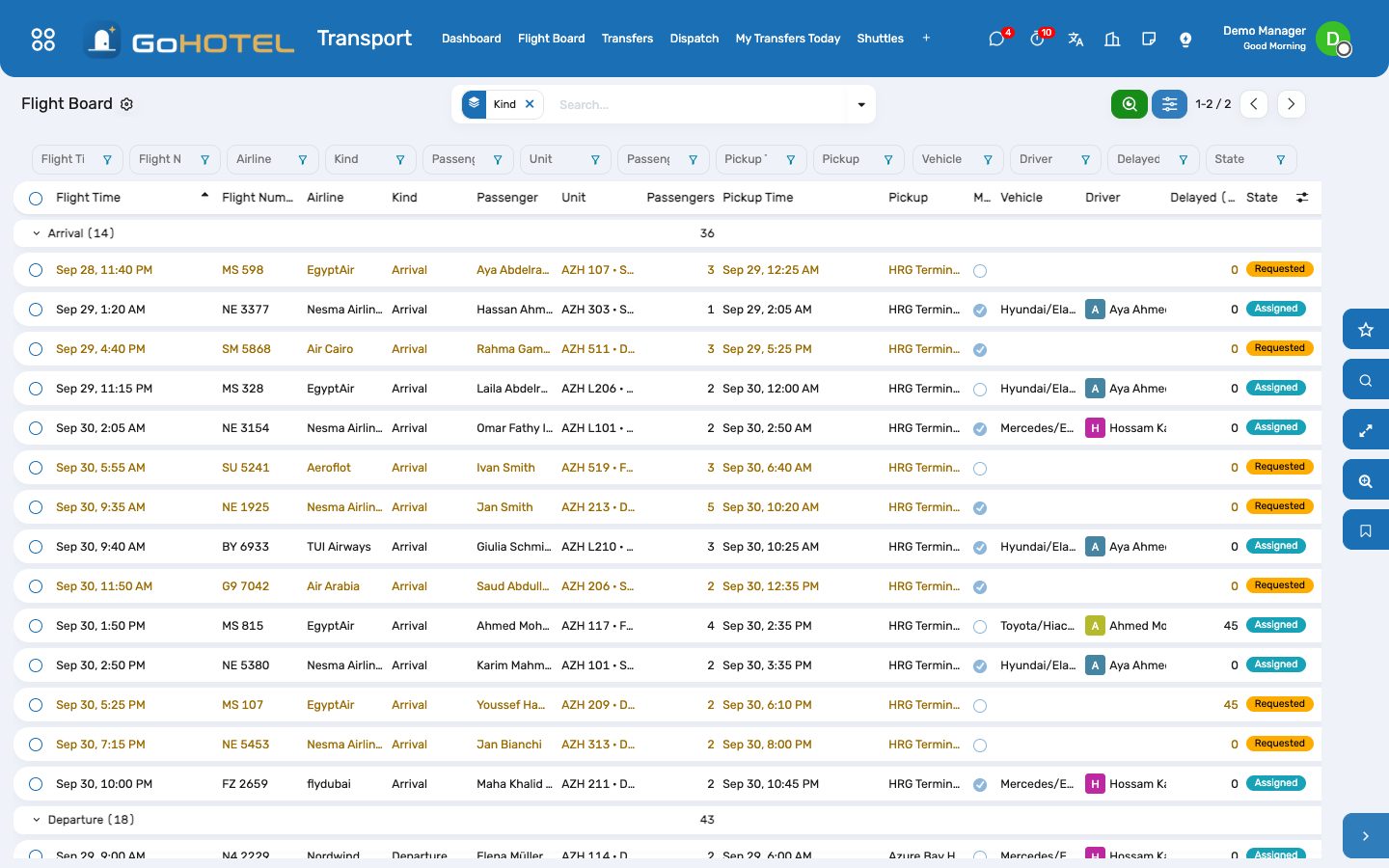
Work the flight board
- Transport › Flight Board shows today's and tomorrow's rides by flight time, arrivals and departures apart, with the passenger, the unit, the pickup and the driver.
- A flight is late: press Delay on the row, type the minutes — pickup and flight move together and the driver's card shows +30 min.
- Assign from the board: pick the driver and the vehicle on the form, or drag the card on Dispatch.
Dispatch the day
- Transport › Dispatch groups today's rides by driver; the leftmost column is what still has no car.
- Drag a card onto a driver: the ride becomes Assigned. A driver's usual vehicle is proposed when the ride is opened.
- A vehicle refuses more passengers than its seats; a coach ride is the group's, a sedan the couple's.
Drive: the phone board
- Transport › My Transfers Today, on the phone: the rides in pickup order with the flight, the terminal, the passengers and the sign board name.
- En route when you leave the property, Picked up when the guest is on board, Done at the drop-off; No show when nobody came — each step is timestamped.
- Done charges the ride to the guest's folio through the property's charge engine: service charge and VAT follow the fee rules, nothing to compute.
Run the shuttles
- Transport › Shuttles › Routes: the stops with their minutes after departure, the capacity, the usual vehicle and driver, and the Timetable tab — one line per weekday and hour.
- Trips for the coming week are generated every night at 04:00 (or press Generate This Week's Trips). Add a trip by hand for an extra run.
- Bookings: a stay or an outside passenger, the seats wanted, the stop they board at; the trip refuses more seats than it offers and shows what is left.
- On the day: Board each passenger as they climb in; Depart turns the rest into no-shows; Arrived closes the trip.
Questions the desk asks
The guest's flight was cancelled.
Cancel the transfer: a charge already posted and not yet invoiced is cancelled with it; an invoiced one needs a credit note from the invoice.
Who pays a tour operator's transfer?
Bill To on the transfer: the stay's folio, an invoice to a partner (the operator, dated the day of the ride), or not charged when the ride is in the package.
The driver has no login.
Dispatch and the driver's board both work from the desk; the driver's own board needs the employee linked to a user under Employees › HR Settings.
Can a ride be charged before the guest arrives?
A ride done before check-in is posted the moment the stay checks in and its folio opens; nothing is lost.
See also: Reservations and the tape chart Front desk: arrivals, in house, departures Folios, charges, payments and the city ledger
Revenue: KPIs, pace, forecast, budget and pricing
The night audit leaves one KPI row per property per business date — units available and sold, occupancy, arrivals and departures, revenue by department and by segment, ADR, RevPAR, TRevPAR. On top of it: what is on the books for every stay date against the same time last year, a forecast you can edit, the budget against the actuals, competitor rates beside your BAR, and pricing rules that suggest a price and wait for you to apply it.
Where:Revenue › Dashboard · Daily KPIs · Pickup & Pace · Forecast · Budget · Rate Shopping · Pricing Rules · Suggestions · Reports
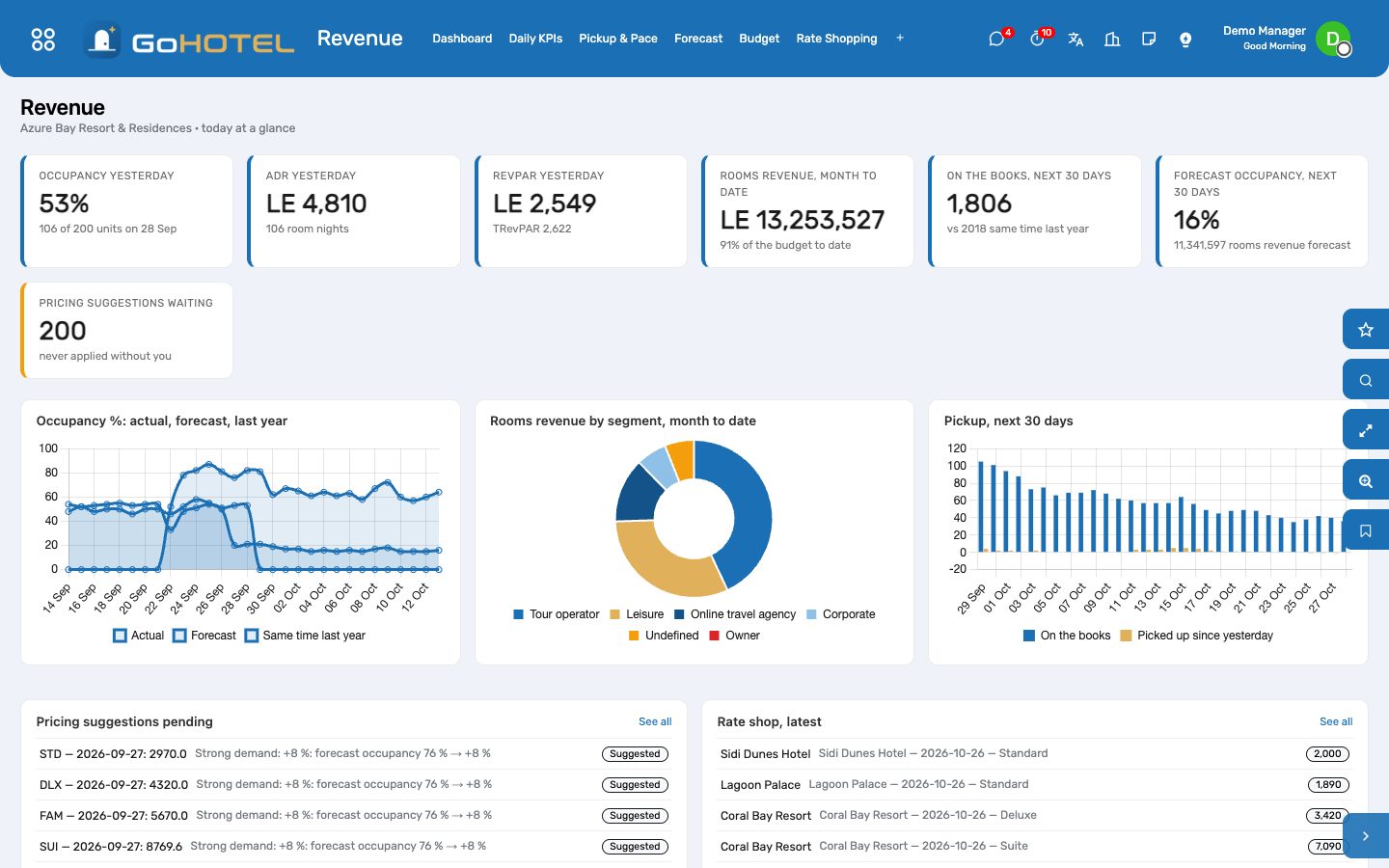
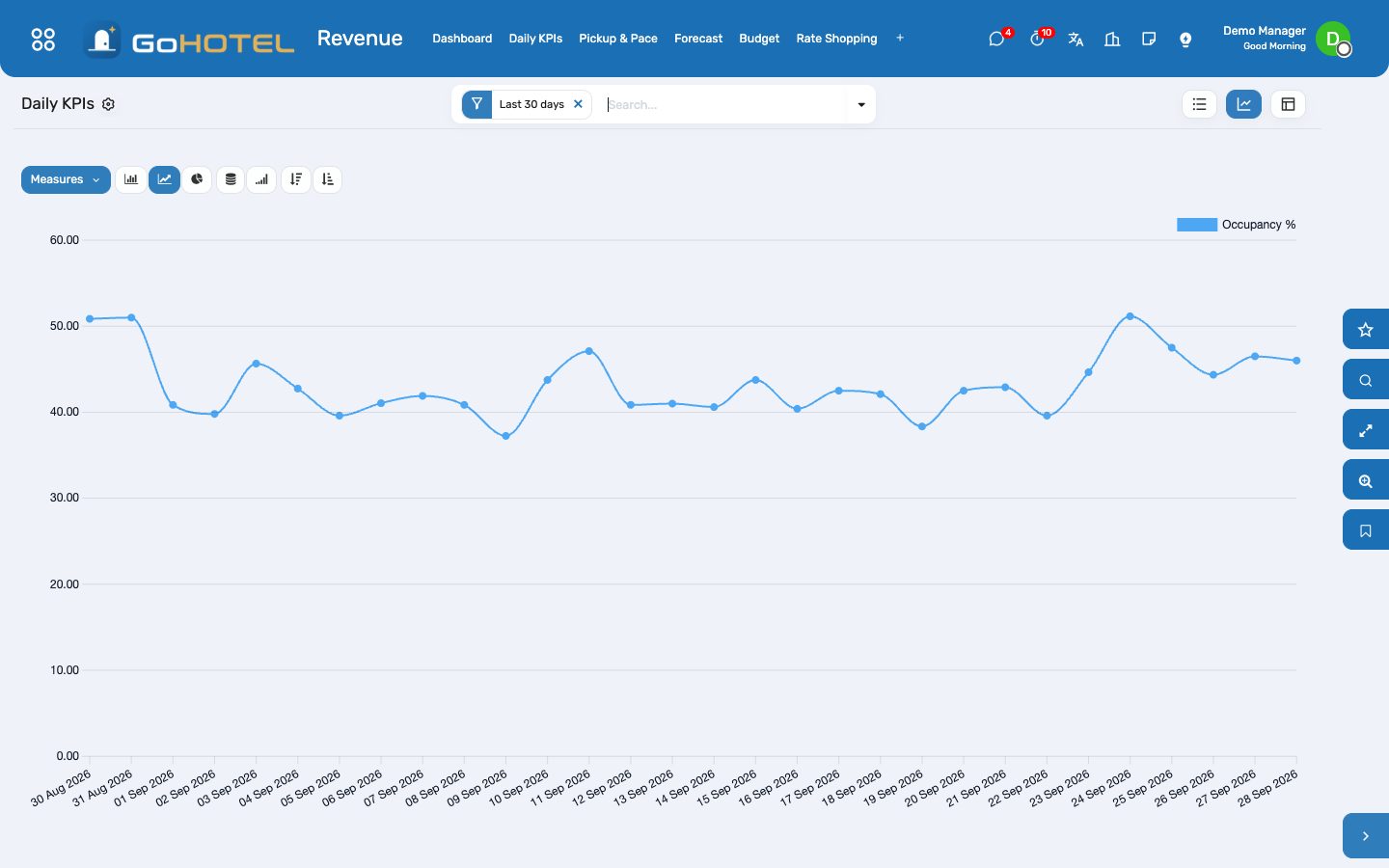
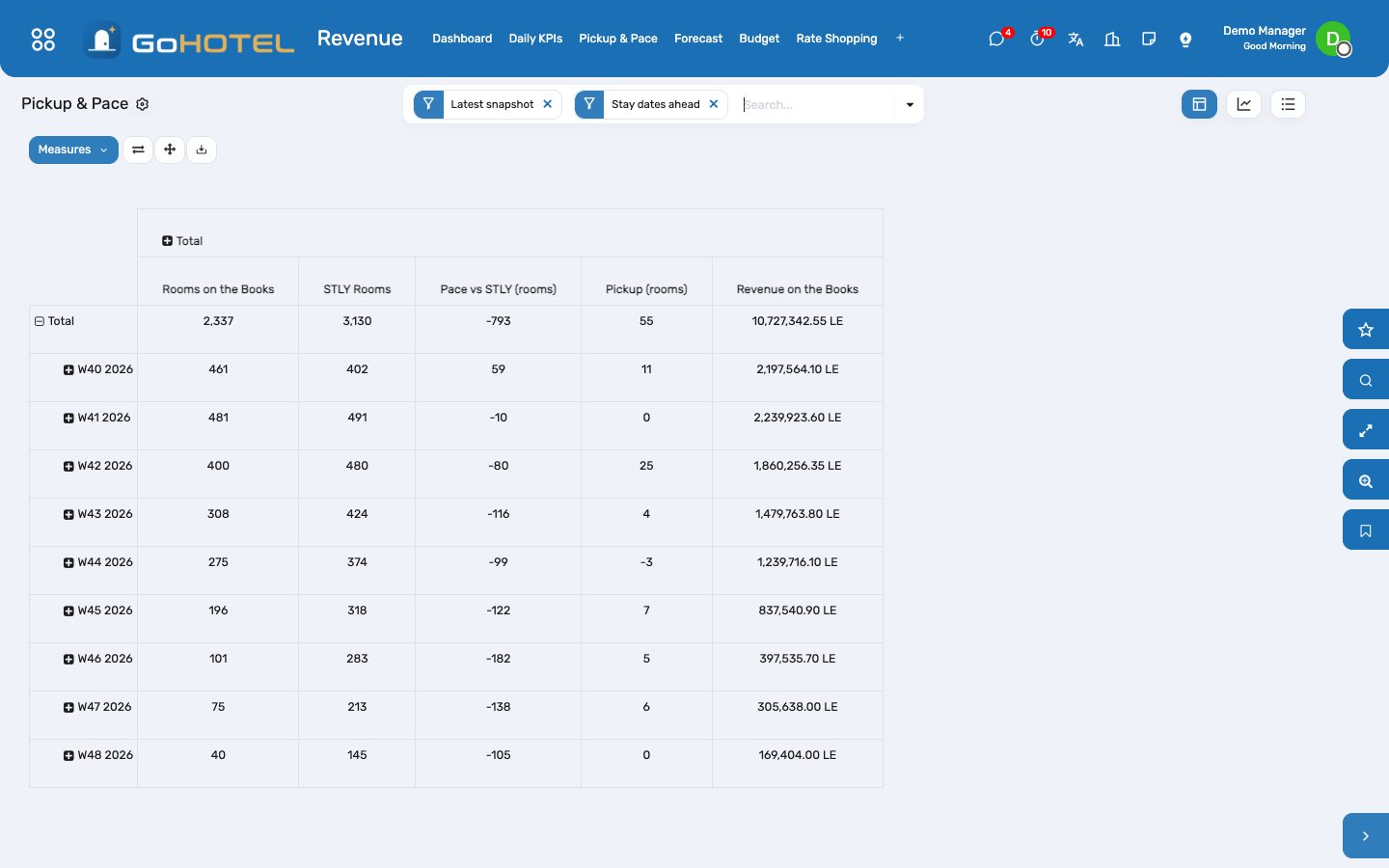
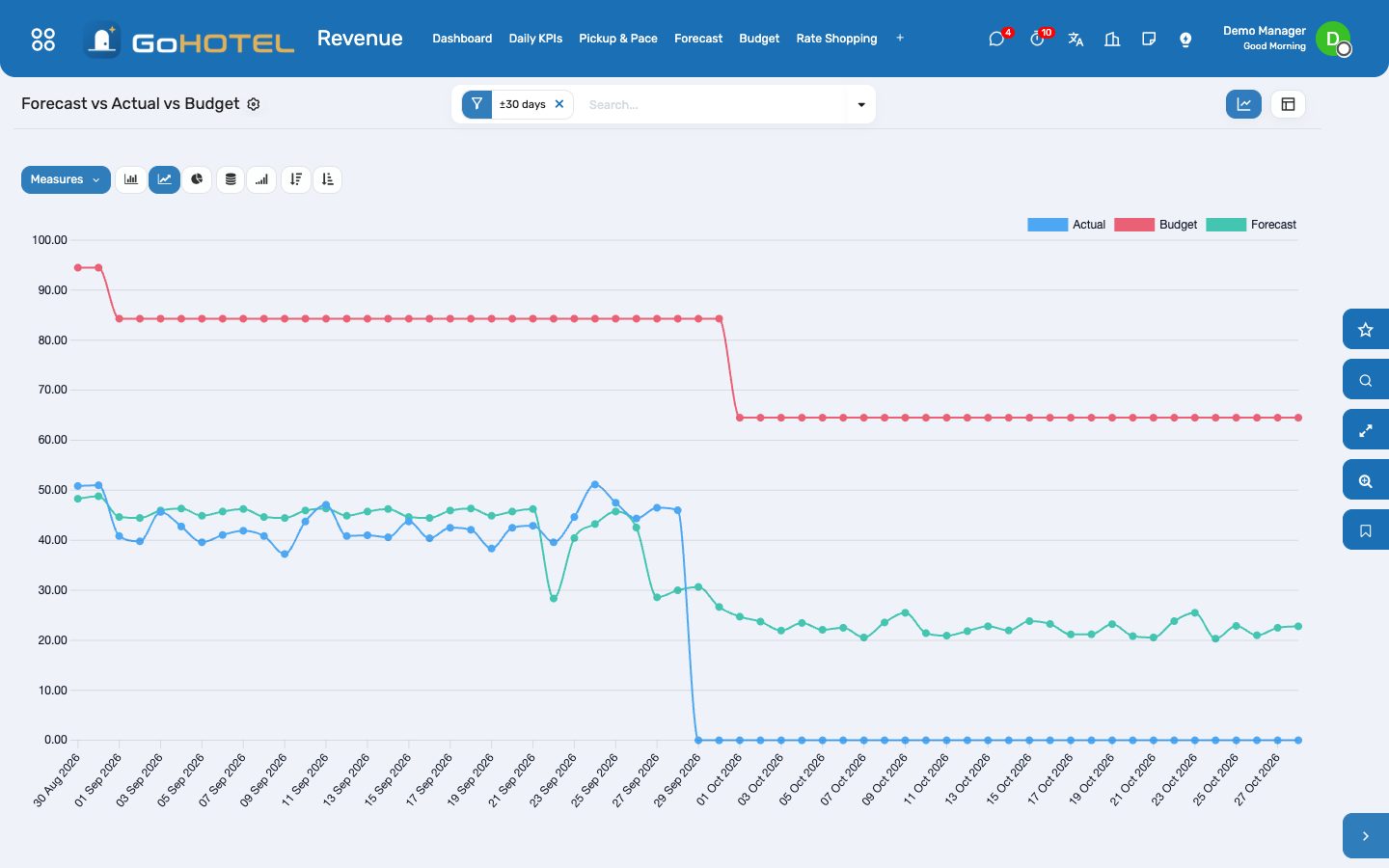
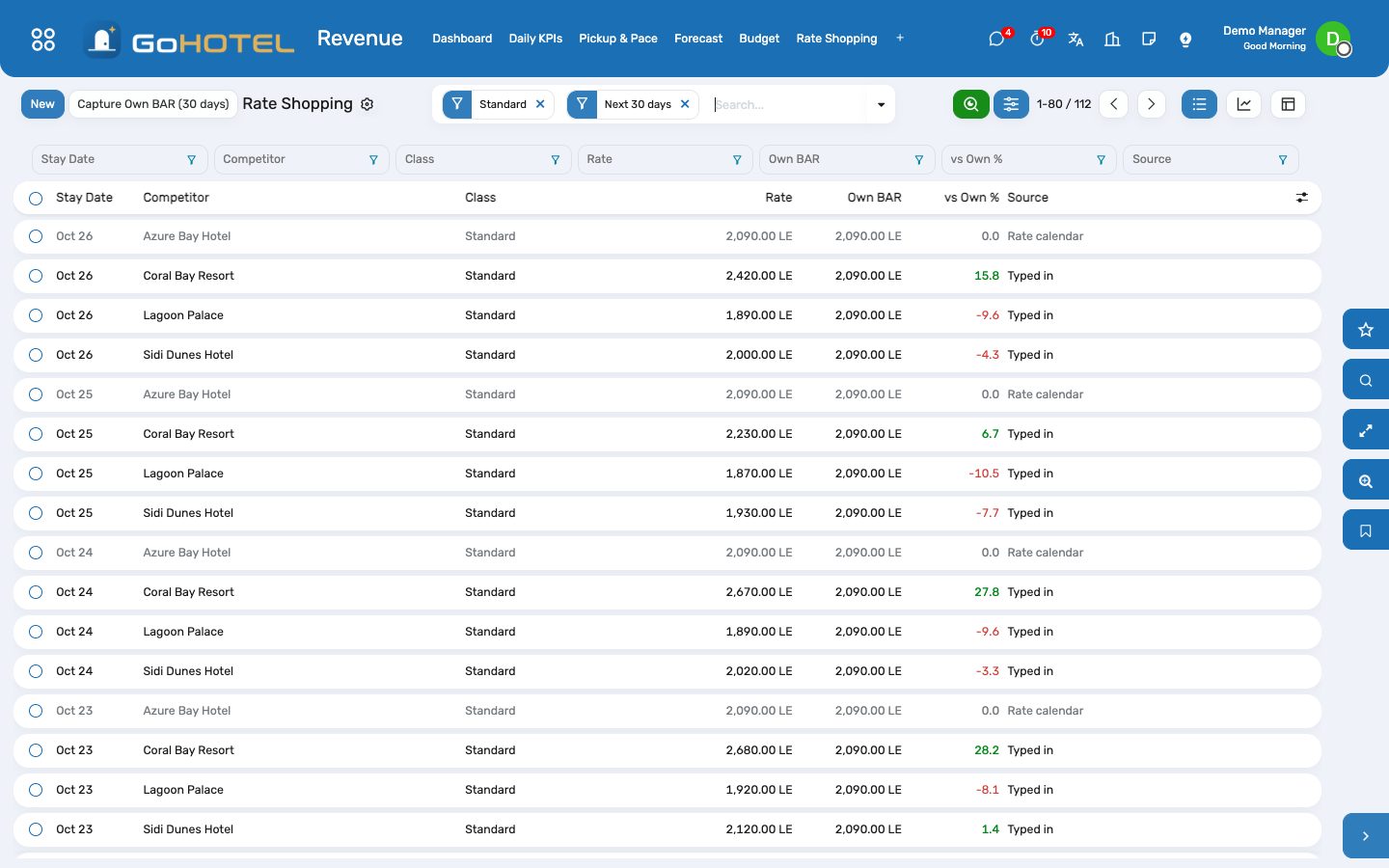
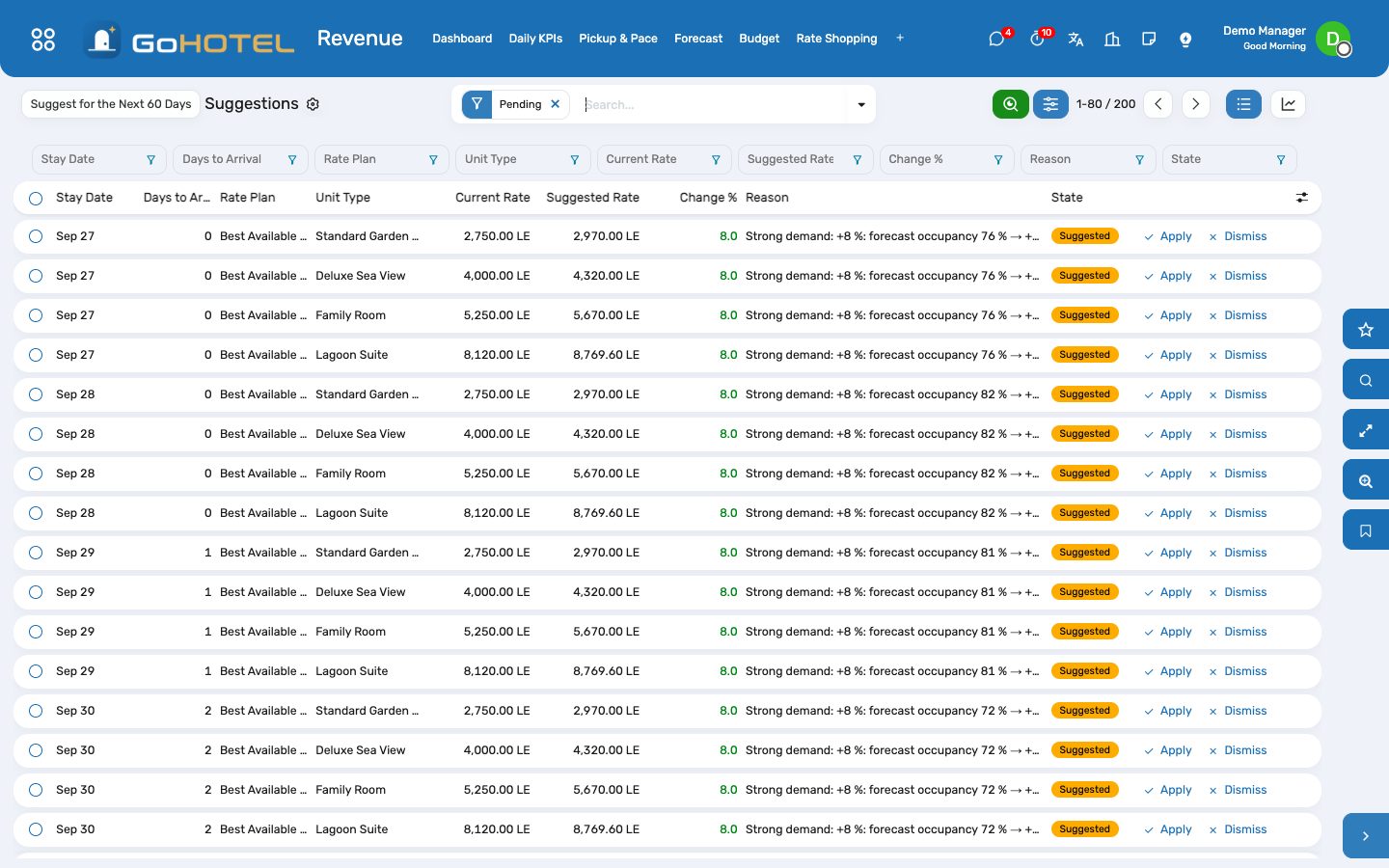
Before you start
- History
- Revenue › Configuration › Backfill KPIs & Pickup: once, after installing, to build the KPI rows of the audits already done and to reconstruct the pickup snapshots from the booking dates. From then on the night audit writes every day itself.
- Unit type classes
- Property › Unit Types: Rate Shop Class (standard, deluxe, suite) on each type, so a competitor's "deluxe" lines up with yours.
- Competitors
- Revenue › Configuration › Competitors: the three to five hotels a guest compares you with — name, stars, distance. The property itself appears as its own row.
- Budget
- Revenue › Budget › New: property and year; twelve months appear with the month's capacity filled in.
How to
Read the morning numbers
- Revenue › Dashboard: occupancy, ADR and RevPAR of the last audited night; rooms revenue month to date and how much of the budget that is; rooms on the books for the next 30 days against the same time last year; the forecast occupancy of the next 30 days; the suggestions waiting.
- Revenue › Daily KPIs: one row per night. The graph view draws occupancy and RevPAR; the pivot cuts the month by property or by day of week. Every row opens on its segment × source split.
- Revenue › Reports › Daily Flash: pick the property and the business date and print the manager's PDF — yesterday, month and year to date against budget and last year, pickup for the next 30 days, the top segments. Every KPI row also prints it from its Print menu.
Watch pickup and pace
- Revenue › Pickup & Pace opens on the latest snapshot, stay dates ahead: rooms on the books per stay week, the same time last year at the same lead time (STLY), the pace (difference) and the pickup since yesterday.
- Pace vs Last Year (the button on the list, or Revenue › Reports) draws rooms on the books and the same time last year as two lines by stay date; remove the "Latest snapshot" filter and group by "As of" to see how one stay date filled up day after day.
- A snapshot is taken every night by the scheduled action and at the end of every night audit. Snapshot Now takes one on the spot; Backfill rebuilds the past from the booking dates.
Forecast the next ninety days
- Revenue › Forecast › Generate Forecast: properties, first day, number of days. Each day starts from last year's actual for the same weekday a year ago — or, before there is a last year, from the average of the same weekday over the last eight weeks — and is adjusted by the pace, never below what is already on the books.
- The list is editable: type the occupancy or the ADR you know better and the row turns "Edited" and is left alone by the next generation; Back to Generated hands it back.
- Forecast vs Actual vs Budget (the button on the list, or Revenue › Reports) draws the three as lines on one axis; the pivot totals rooms and revenue per week. The By Segment tab splits the day by the segment mix of the last four weeks.
Enter the budget and follow it
- Revenue › Budget › New: property and year. On each month type rooms revenue, F&B revenue, other revenue and room nights; occupancy, ADR and RevPAR follow from the month's capacity.
- Approve the budget. Actuals fill in from the daily KPIs after every audit; Refresh Actuals recomputes them on the spot.
- Budget vs Actual (the smart button, or Revenue › Reports) is the month-by-month pivot: budget and actual for rooms, total revenue and occupancy, and the variance pro rata to the days that have actuals.
Shop the competition
- Revenue › Rate Shopping: one line per competitor, stay date and class — type the rate you read on the booking sites; the line shows your own BAR for the same date and class and the parity in %.
- Capture Own BAR writes your own prices for the next 30 days as rows of the property's own competitor record, so the graph draws you and them on one chart.
- To load a sheet, use Import on the list: columns Competitor, Stay Date, Class (standard / deluxe / suite), Rate, Currency. One rate per competitor, date and class — a second capture of the same day replaces the first.
Let the rules suggest, and decide
- Revenue › Pricing Rules › New: the property, the plan whose base price moves (BAR), the unit types (empty = all), a condition — forecast occupancy at least X %, rooms on the books at least N, days to arrival at most D — the change (± % or ± amount), a floor and a ceiling, and the priority. The first rule that matches a date and unit type wins.
- Suggest Prices runs the rules over the next 60 days and lists, per date and unit type, the current base price, the suggested price and the reason. Nothing is applied by itself; the scheduled action only refreshes the list every day.
- Revenue › Suggestions: Apply on a line (or Apply Selected) writes the price into the rate calendar as that day's override — the same cell edit you would make by hand — and marks the suggestion applied. Dismiss keeps a proposal out of the way.
Questions the desk asks
The KPI row for last night is missing.
The audit writes it in its "Other modules" step; if that step failed, run Revenue › Configuration › Backfill KPIs & Pickup for the date, or Rebuild from Audit on the list.
Why are the last-year columns empty?
They compare with the KPI rows 364 days earlier; a property that started this year has none yet. The forecast then uses the recent same-weekday average as its baseline and says so in the Baseline column.
Can a rule change prices without me?
No. Rules only write suggestions; a price changes when a person presses Apply, and the change is a one-day override in the rate calendar that can be edited or removed there.
Our village charges by chalet, not by room.
A unit is whatever the property sells a night of; occupancy, ADR and RevPAR are per unit, and the village has its own rows, budget and forecast.
See also: Rate plans, rates, restrictions and allotments Folios, charges, payments and the city ledger The property, its units and its fee rules
Quality, safety and standards
Audits against the brand standard, the five-star classification criteria, food safety, pool safety and the housekeeping standard — scored checkpoint by checkpoint with a photo where evidence is asked, a score in per cent and a PDF report. Failed checkpoints become corrective actions with an owner and a date; an engineering fix becomes a work order. HACCP points — every fridge and freezer, the pools, the kitchen close-down — are read on a schedule, a reading out of range alerts the department's manager at once, and the due-today list shows what is still to read. Drills are recorded against a yearly plan, and every incident gets a root-cause analysis.
Where:Quality & Safety › Dashboard · Audits · Corrective Actions · HACCP › Points · Logs · Due Today · Drills · Incidents (RCA) · Configuration › Audit Templates
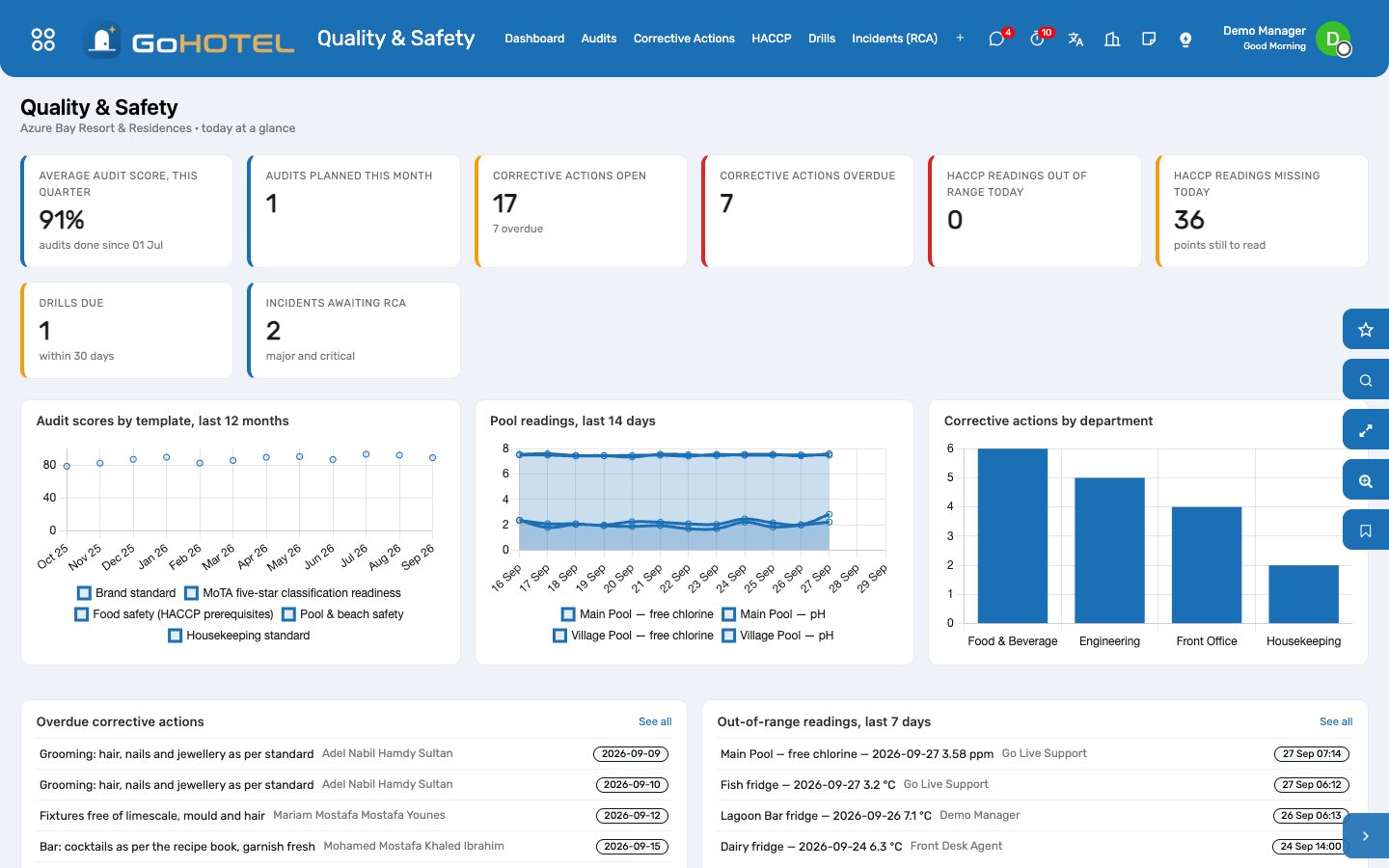
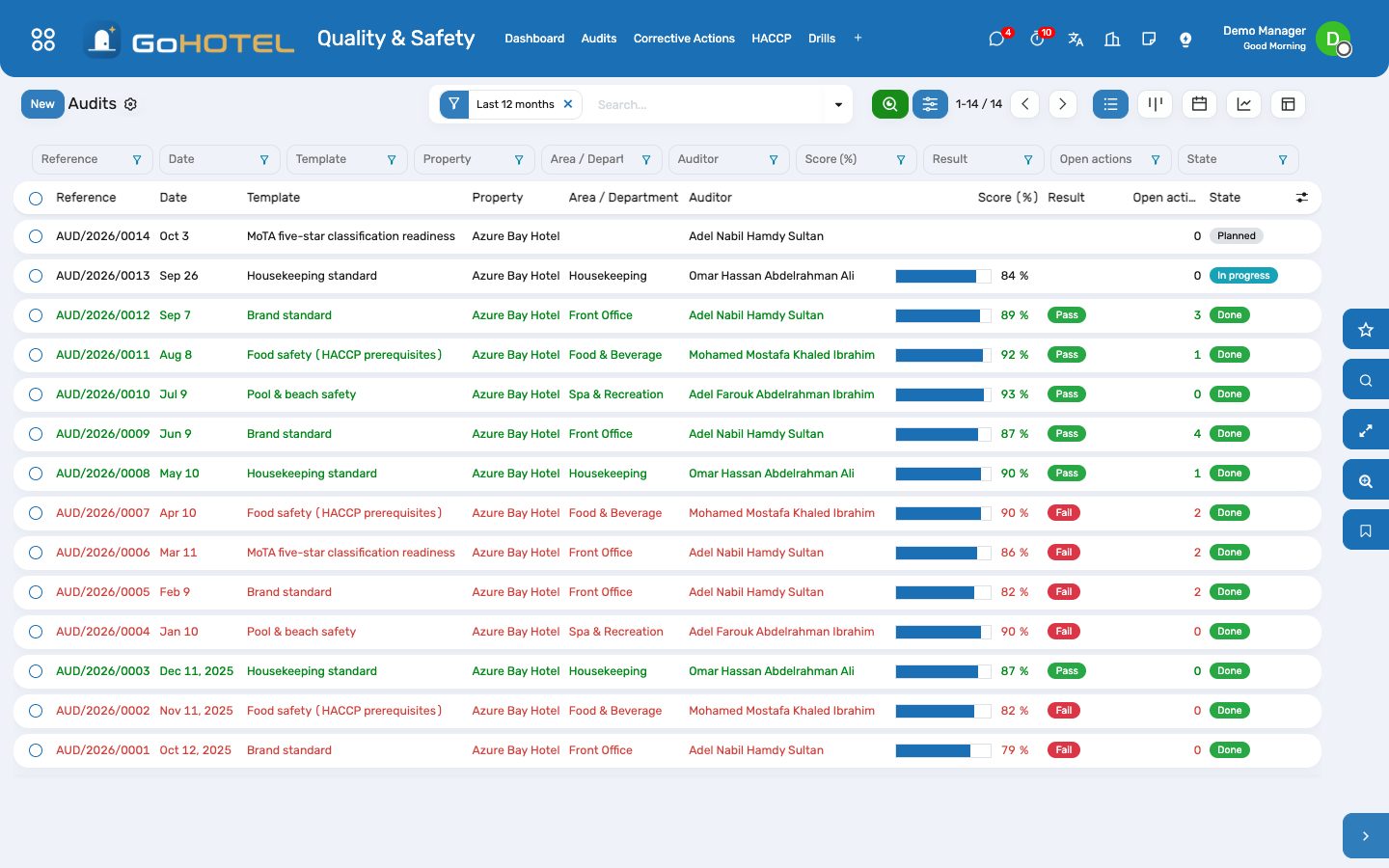
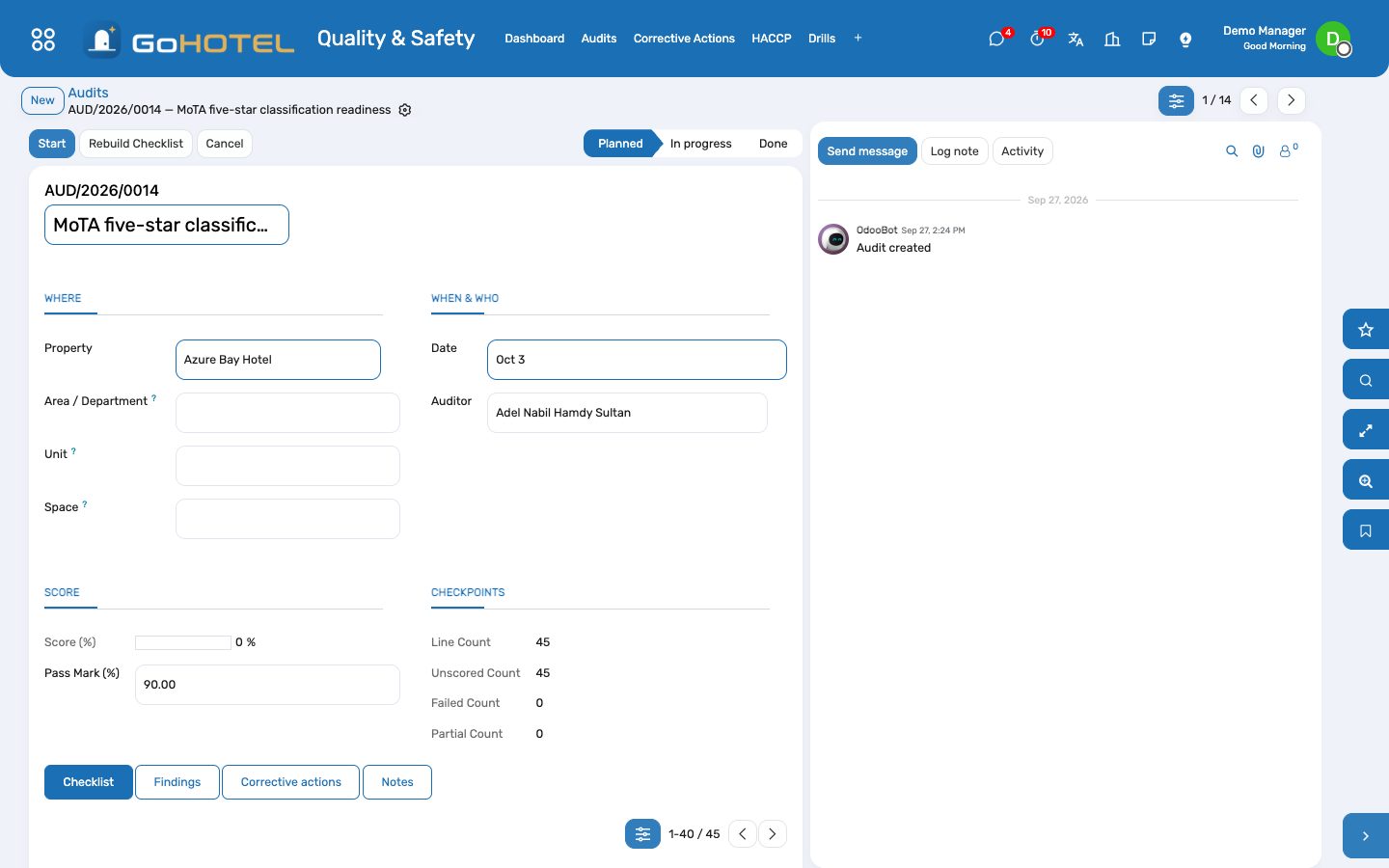
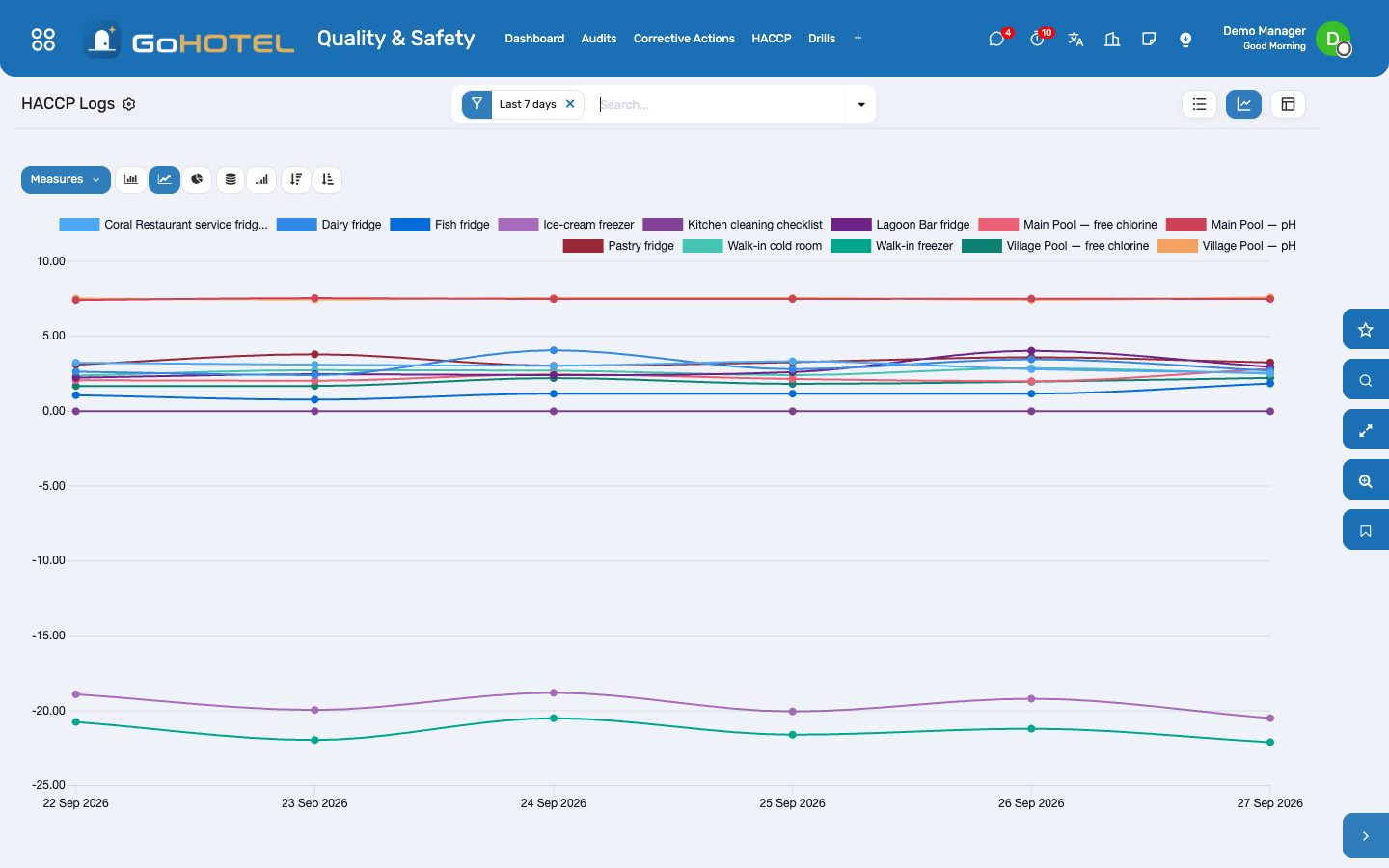
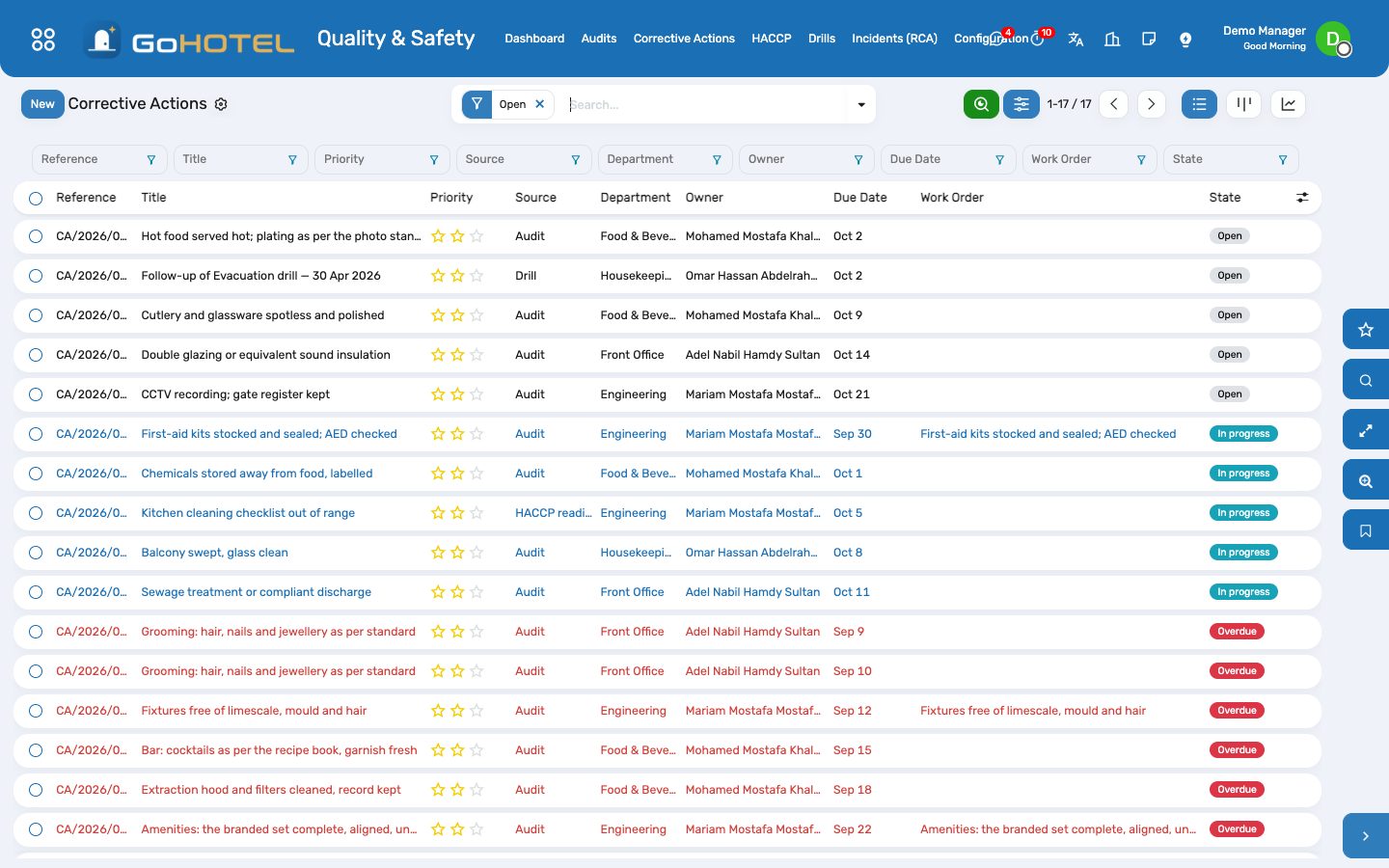
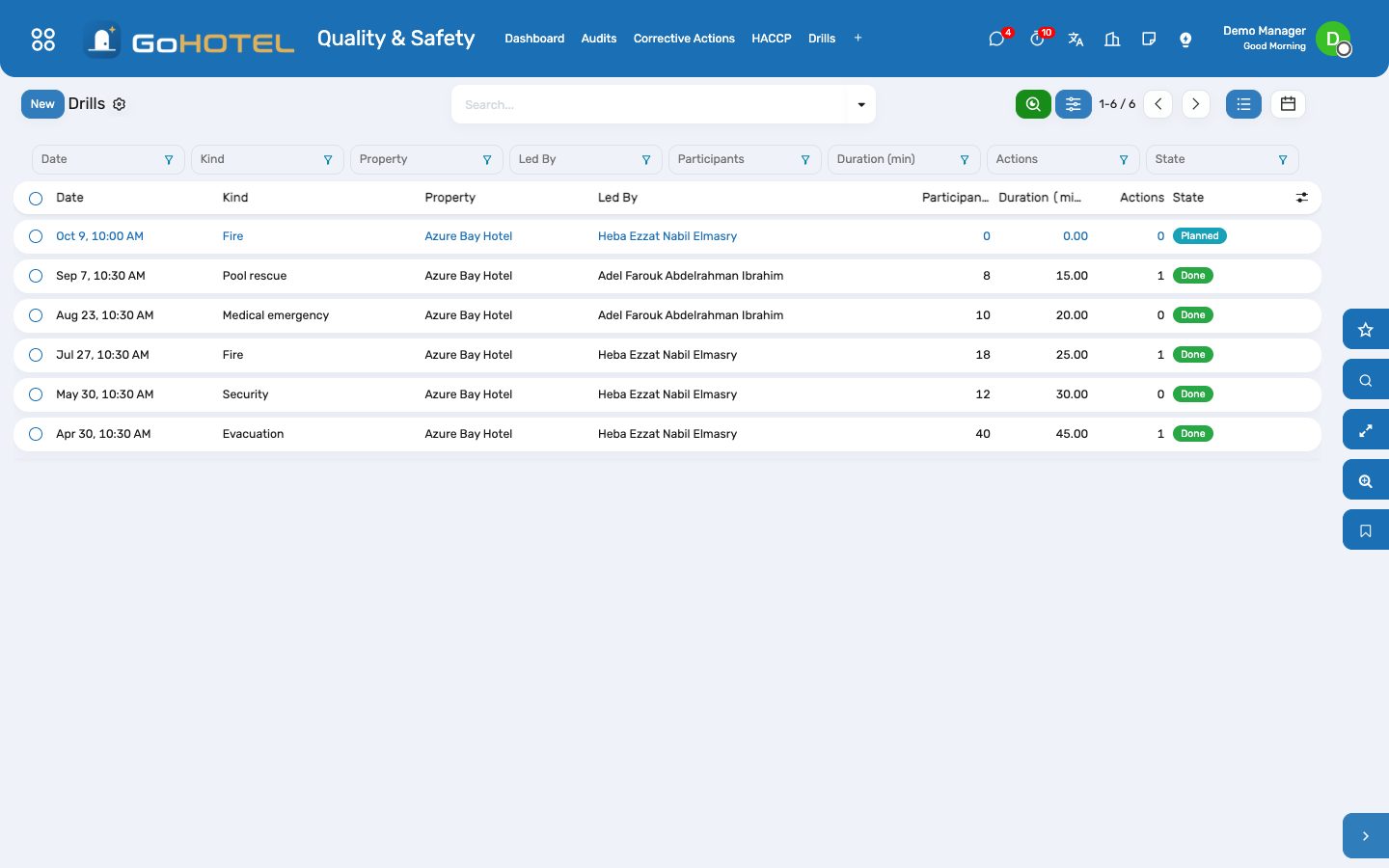
Before you start
- Quality & Safety › Configuration › Load Standard Templates: the brand standard, the MoTA five-star readiness check, food safety, pool safety and the housekeeping standard — 180 checkpoints to edit as you like.
- Quality & Safety › HACCP › Points: one point per fridge, freezer, pool test, cleaning checklist, water test and pest control visit — unit of measure, limits, readings per day, the responsible department and who is told when a reading is out of range.
- Quality & Safety › Drills › Drill Plan: one plan per property and year, one line per kind of drill with its frequency.
- Employees › Departments: name the department manager — an out-of-range reading and an overdue action go to that person.
How to
Run an audit
- Quality & Safety › Audits › New: pick the template, the property, the area or department, the date and the auditor. The checklist is built from the template.
- Press Start and walk the property with the checklist on a tablet: score each checkpoint Pass, Partial, Fail or Not applicable, write a comment and take a photo where evidence is asked.
- Press "Pass the rest" when everything else was in order — an audit is scored by exception.
- Press Complete: the score, the pass or fail against the pass mark and the findings are written; a failed critical checkpoint fails the audit whatever the score.
- Print Report gives the PDF for the department head to sign.
Follow a corrective action to the end
- Quality & Safety › Corrective Actions: every action from audits, incidents, readings and drills, with its owner, due date and priority; overdue ones are red.
- Open the action, name the owner and the department, set the due date and the kind.
- An engineering fix: press Create Work Order — a corrective maintenance request opens for the technicians, linked to the action; when it reaches Repaired the action closes itself.
- Anything else: press Start when the work begins and Mark Done when it is finished, with a closing note.
- The state is computed every morning: an action past its due date turns Overdue and its owner gets an activity.
Log the HACCP round
- Quality & Safety › HACCP › Due Today: the points still to read today, with the readings taken so far.
- Press Log a reading on the point (or add a line at the bottom of HACCP › Logs): the value in the point's unit of measure, or Done / Not done for a checklist; the time is now.
- A reading outside the limits turns red, asks for the corrective note — what was done at once — and raises an activity for the department's manager.
- When the cause needs more than a re-check, press Corrective Action on the reading.
- The graph view of the logs shows each point over the days; group by point or by day for the weekly review.
Hold a drill
- Quality & Safety › Drills › Drill Plan: the line of the drill shows the last one done and the next due; press "Plan the next drill" to schedule it.
- On the day, open the drill: who led it, the participants, the duration and — for fire and evacuation — the time to muster.
- Write the scenario, the findings and the actions agreed, then Mark Done; the plan moves the next due date forward.
- Press Corrective Action to hand a finding to an owner with a date.
Find the root cause of an incident
- Quality & Safety › Incidents (RCA): the incidents whose root-cause analysis is still pending.
- Open the incident, tab Root cause (RCA): the cause category, the five whys one line each, the contributing factors and the preventive action.
- Press Corrective Action: the preventive action becomes an action with an owner and a date, linked to the incident.
- Press RCA Done; the incident is closed as usual from its own buttons.
Questions the desk asks
The template changed after the audit — is the audit rewritten?
No. An audit copies the checkpoints when it is planned; edits to the template apply to the next audits only.
Who is told when a reading is out of range?
The user named "Escalate to" on the point — filled from the department manager's user, editable — gets a to-do activity at once; without one it goes to the administrator.
Why does the score leave out some checkpoints?
Not applicable checkpoints carry no points either way; the score is the points earned over the points at stake.
Can a corrective action live without an audit?
Yes — type it directly, or raise it from an incident, an HACCP reading or a drill; the Source shows where it came from.
See also: Maintenance and engineering Compliance — guest lists, licences and fee returns Housekeeping The dashboards
The assistant
Ask the property a question in plain words, in Arabic or English, in a chat with the assistant in Discuss — how full are we next week, who arrives today, what does room 214 owe, revenue this month, which units are dirty, what is out of order, who owes us on the city ledger, tonight's rate, did the night audit run — and get the answer from the property's own data, with the rights you already have. A connected language model can put the same tools together for harder questions; without one, the assistant still answers these ten from the data.
Where:The GoBot bubble on every screen · Discuss › your chat with GoBot · AI Assistant › Dashboard · Conversations · Chat (developer) · Configuration › Property Tools · Providers
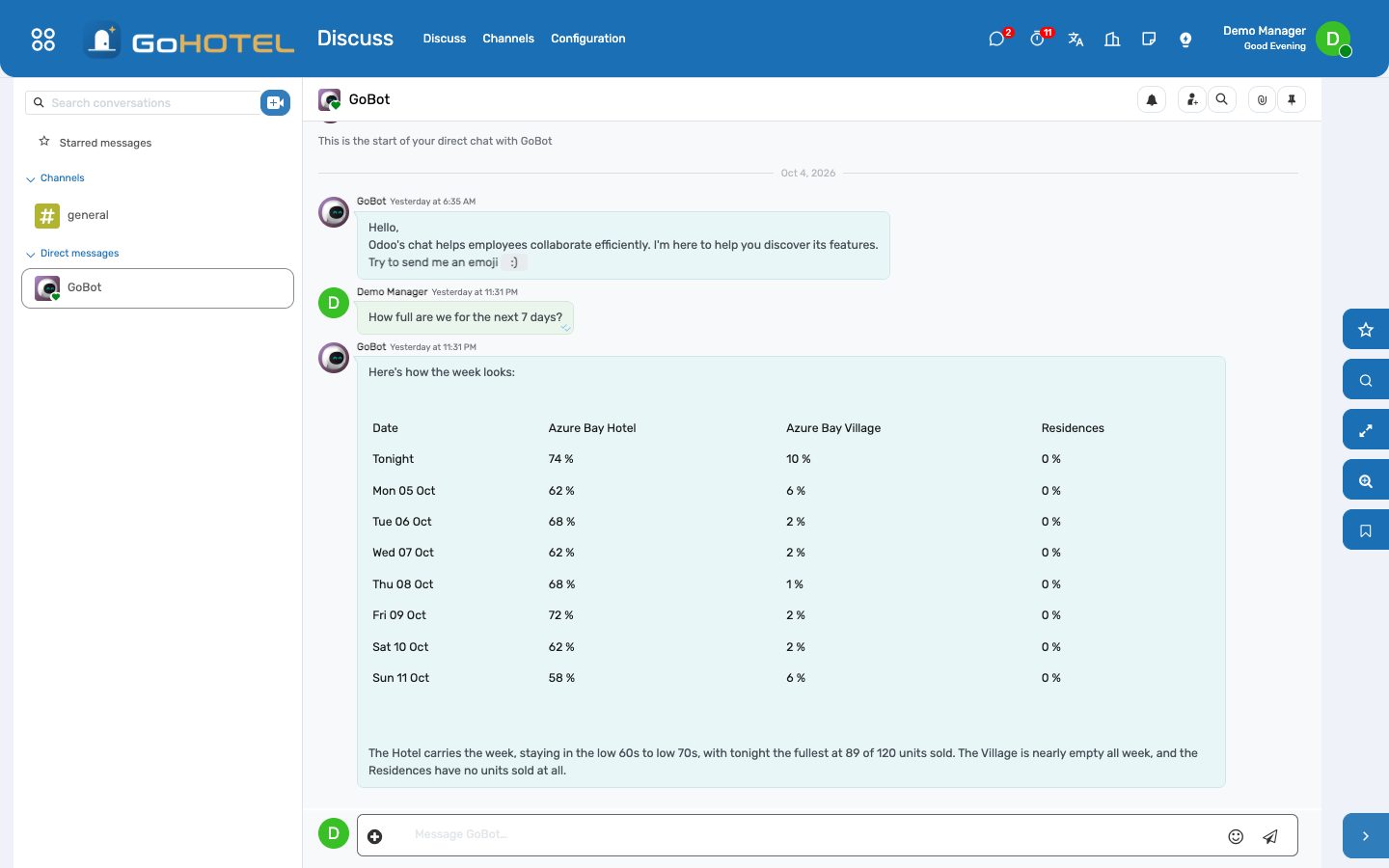
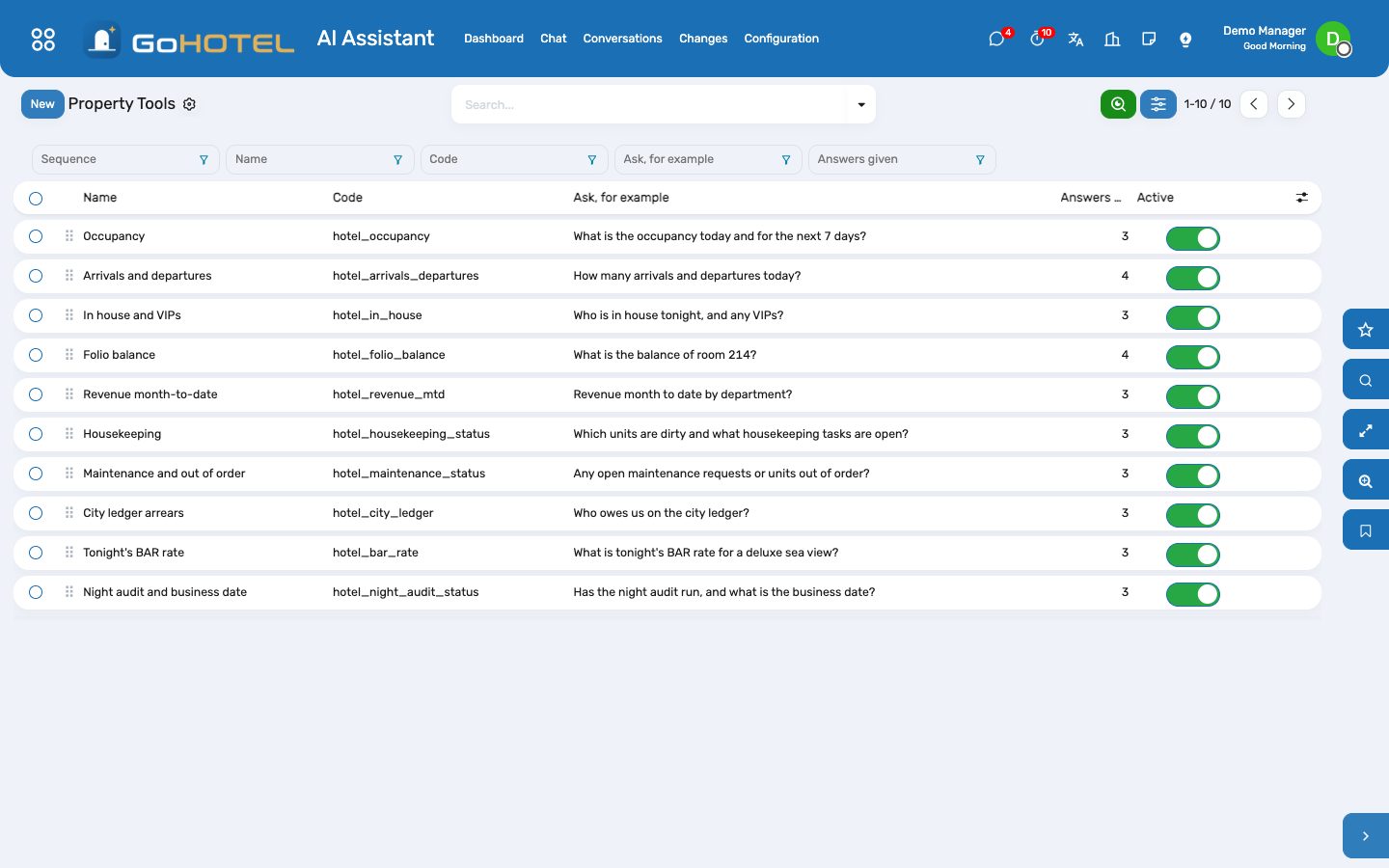
Before you start
- Nothing, to start: the ten property tools are switched on at install and answer without any AI provider (Configuration › Providers is empty or unreachable — the assistant then matches your question to a tool by its keywords).
- To let a language model combine the tools and answer free questions about the whole database: Configuration › Providers — an OpenRouter key with a model chosen from its list (see Connect a language model), an OpenAI or Anthropic key, or a self-hosted Ollama that supports tool calling; mark one Default and Test Connection.
- Rights: every internal user can chat. Guests' names are given to front-desk, reservations, guest-relations, billing, night-audit and manager roles; other roles get counts. The city ledger needs a right on invoices; the night audit its own.
- Questions sent to a language model are capped per person per hour, so a shared login cannot run up the bill: Settings › Technical › System Parameters › gl_ai_agent.messages_per_hour (0 removes the cap). Assistant administrators are not capped, and answers read straight from the property's data never count.
How to
Ask a question
- Click the GoBot bubble in the bottom corner of any screen — or Discuss › your chat with GoBot under Direct messages. Write the question as you would say it — "How many arrivals today?", "ما رصيد الغرفة 214؟", "occupancy next week", "who owes us on the city ledger" — and send it.
- The answer arrives in the same chat when it is ready — seconds when it is read from the data, up to a minute when a language model puts tools together — so carry on meanwhile. It is one or two sentences and, where several figures belong together, a small table; amounts are in the property's currency and dates carry the weekday.
- Name the property when you run more than one — "in the village", "at the hotel", "AZR" — otherwise every property you may see is answered together.
- The assistant answers only in your own chat with it, never in a group channel, and your conversation is yours alone; AI Assistant › Conversations keeps every question and answer.
The ten questions the property always answers
- Occupancy tonight and the coming days per property, with units sold and stays in house.
- Arrivals and departures today — expected, already checked in or out, and who they are with unit and nights.
- In house tonight — stays, adults and children, the VIPs with their units.
- A folio balance by unit number or by the guest's name: charges, paid, deposits held, balance due.
- Revenue month-to-date by department, net of VAT, with fees and VAT stated separately.
- Housekeeping — dirty, clean, inspected and out-of-order units, today's open tasks by type, the dirty units.
- Maintenance — open work orders with the urgent ones first, and the units out of order or service with the reason and the return date.
- City-ledger arrears — what each company, agent or tour operator owes and how much is overdue.
- Tonight's BAR rate per unit type (or one type, or another date) on the property's rate plan.
- The night audit — the business date, the last audited date with its occupancy, revenue and exceptions, and whether tonight's audit still has to run.
See what was read
- AI Assistant › Conversations › open the conversation: each answer with the tool that produced it and exactly what it returned — the way to check a figure rather than trust it.
- In developer mode, AI Assistant › Chat (developer) is the older chat panel, with the same trace under each answer.
- AI Assistant › Dashboard counts questions per day and answers per tool for the property.
Teach the assistant a word
- AI Assistant › Configuration › Property Tools › open the tool. Keywords are what picks the tool when no language model is connected: add the words your people use — "chalets", "الشاليهات", "the house count".
- A phrase of several words outweighs a single word, so "outstanding balance" goes to the folio balance and "outstanding" alone to the city ledger.
- Try it runs the tool on a question of your choice with your own rights, so you see exactly what a colleague would get.
- Switch a tool off to keep it from the assistant altogether — the model is not offered it and the keywords no longer match.
Connect a language model
- Configuration › Providers › New, type OpenRouter, paste the key, then Load Models: Choose a Model lists every model that can use the property tools, with its price per million tokens in and out and its context size — search by name or vendor, or open Models and filter Free or Paid.
- Test Connection checks the key and, for OpenRouter, shows what is left on it. Mark the provider Default.
- Keep more than one: when the provider answering a question fails, the next active provider in the list answers it — put a hosted model first and a workstation model last.
- Settings › Technical › System Parameters: gl_hotel_ai.mode is "auto" — a model answers when a provider is usable and the property tools answer otherwise; "online" always sends; "offline" never does.
- With a model connected, the Morning briefing skill (AI Assistant › Skills) reads the five morning tools in order and writes the day in five lines; the model may also propose changes, which wait for your approval under Changes.
- If no provider answers, a hotel question is still answered from the data and the answer says so.
Questions the desk asks
The assistant says it could not find a tool for my question.
Without a language model it only answers the ten property questions. Rephrase with one of the words on the tool, or add your word to the tool's keywords under Configuration › Property Tools.
It answered "Refused".
The tool reads with your own rights: the city ledger needs a right on invoices, the night audit the night-audit or manager role. Ask your administrator, or ask something within your role.
Can it change a reservation or post a charge?
No. Every property tool reads only. A connected model can propose a change, which waits under Changes until a person applies it with their own rights.
Is anything sent outside the property?
Only when a language model answers, and only the conversation: the question and what the tools read go to the provider that answers it. A model on a server you run keeps them in your network; a hosted service — OpenRouter, OpenAI, Anthropic — receives them. In offline mode, nothing leaves.
Which "today" does it use?
The calendar date in your timezone for arrivals, departures and tasks — the same as the front-desk boards; the property's business date for tonight's rate and the night audit.
It says I have used my questions for this hour.
Questions to a language model are capped per person per hour, so a shared login cannot run up the bill. A hotel question past the cap is still answered from the data; ask your administrator to raise gl_ai_agent.messages_per_hour if the cap is too low for your team.
See also: Front desk: arrivals, in house, departures Folios, charges, payments and the city ledger The night audit and the business date
Spa, activities and rentals
Treatments, boat trips, classes and bike rentals are sold from one catalogue. Each service knows how long it takes, what it costs a guest and a member, how many people one slot holds and what it needs — a therapist and a room, a boat, an instructor, a bike from the pool. Book finds the free start times from the resources' working hours and the bookings already taken; the booking is charged to the guest's folio when it is done (or invoiced to a visitor), a no-show costs the fee on the service, and the therapist earns her share.
Where:Spa & Activities › Book · Schedule · Bookings · Today · Services · Packages · Resources · Waivers · Commissions
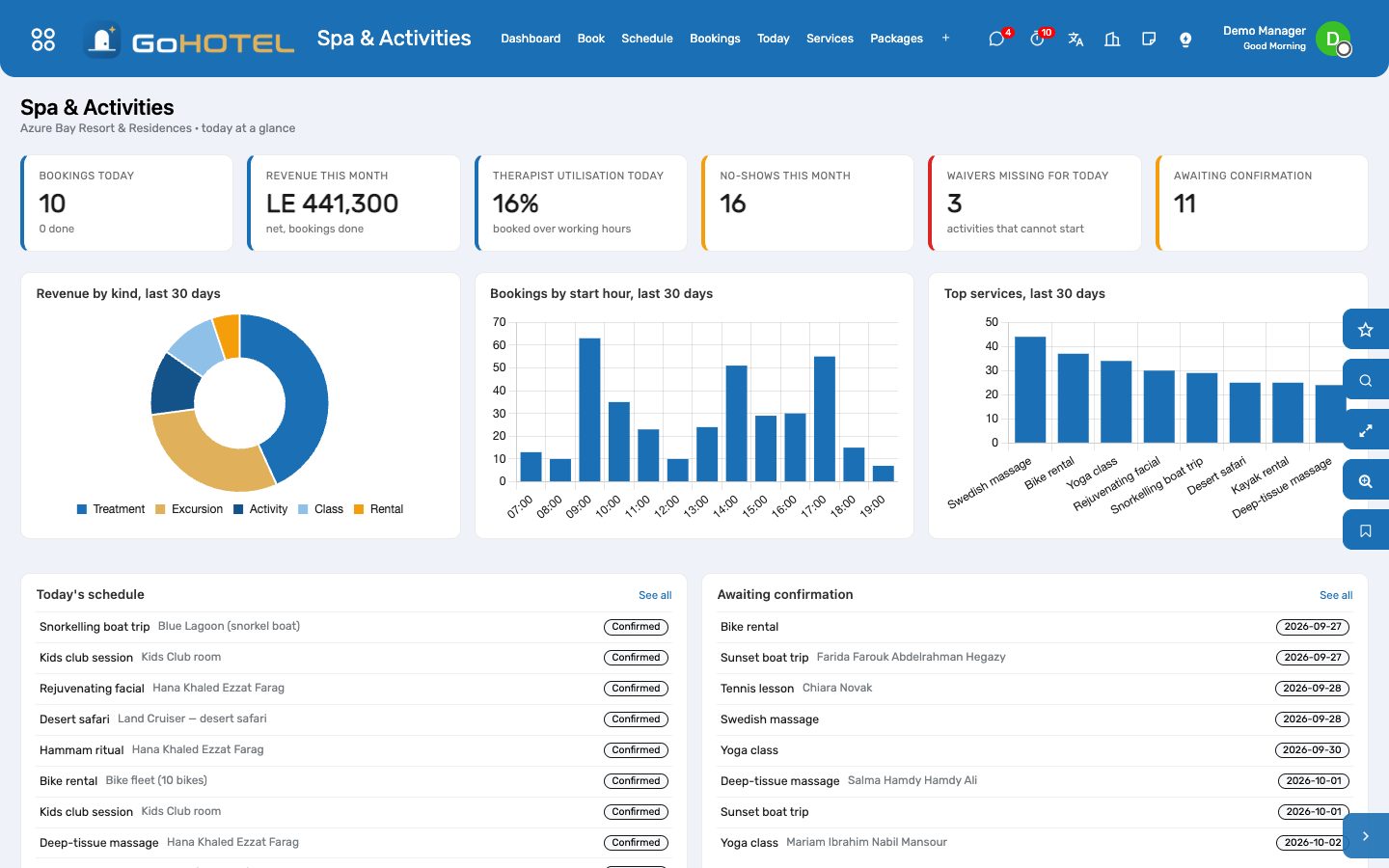
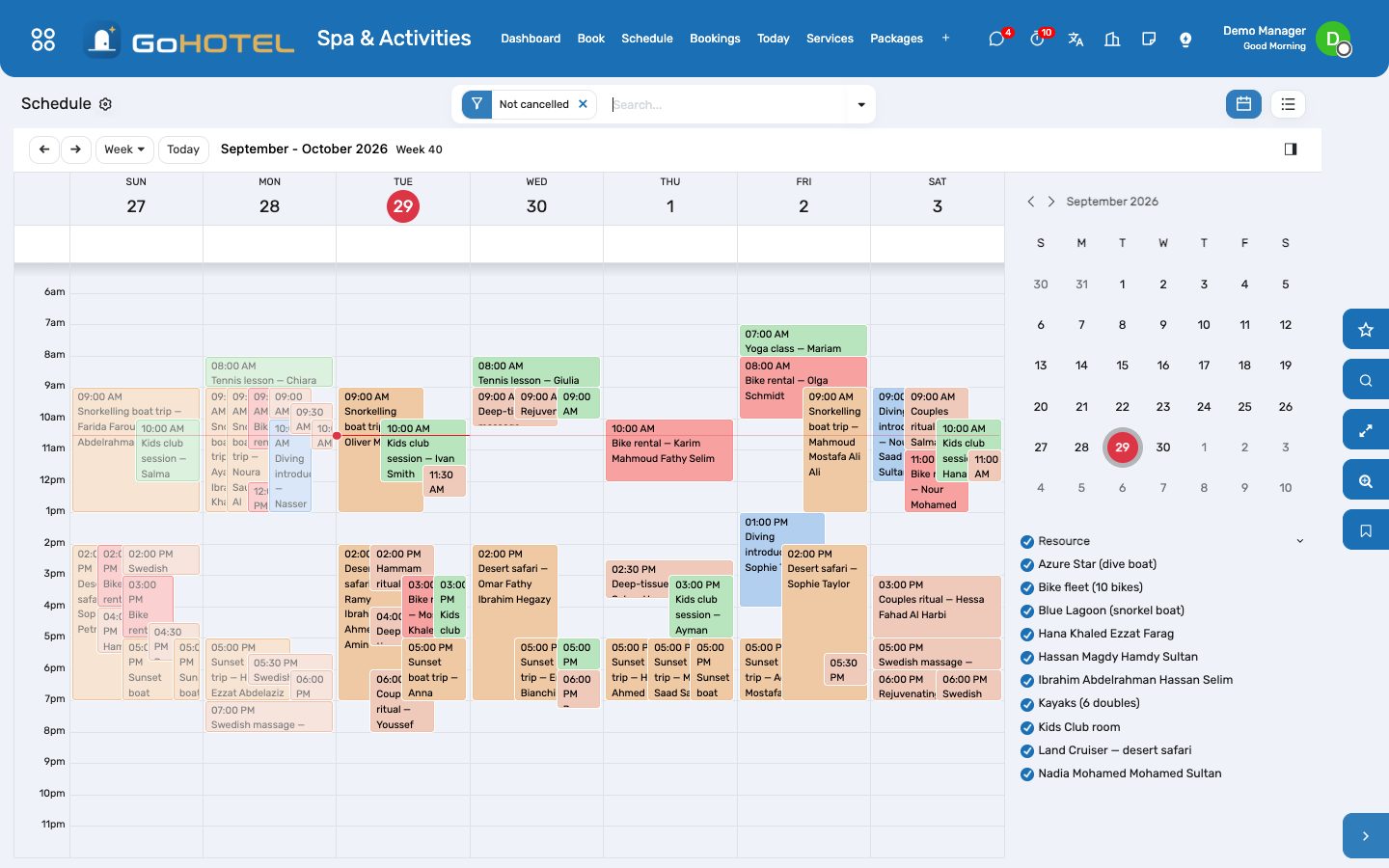
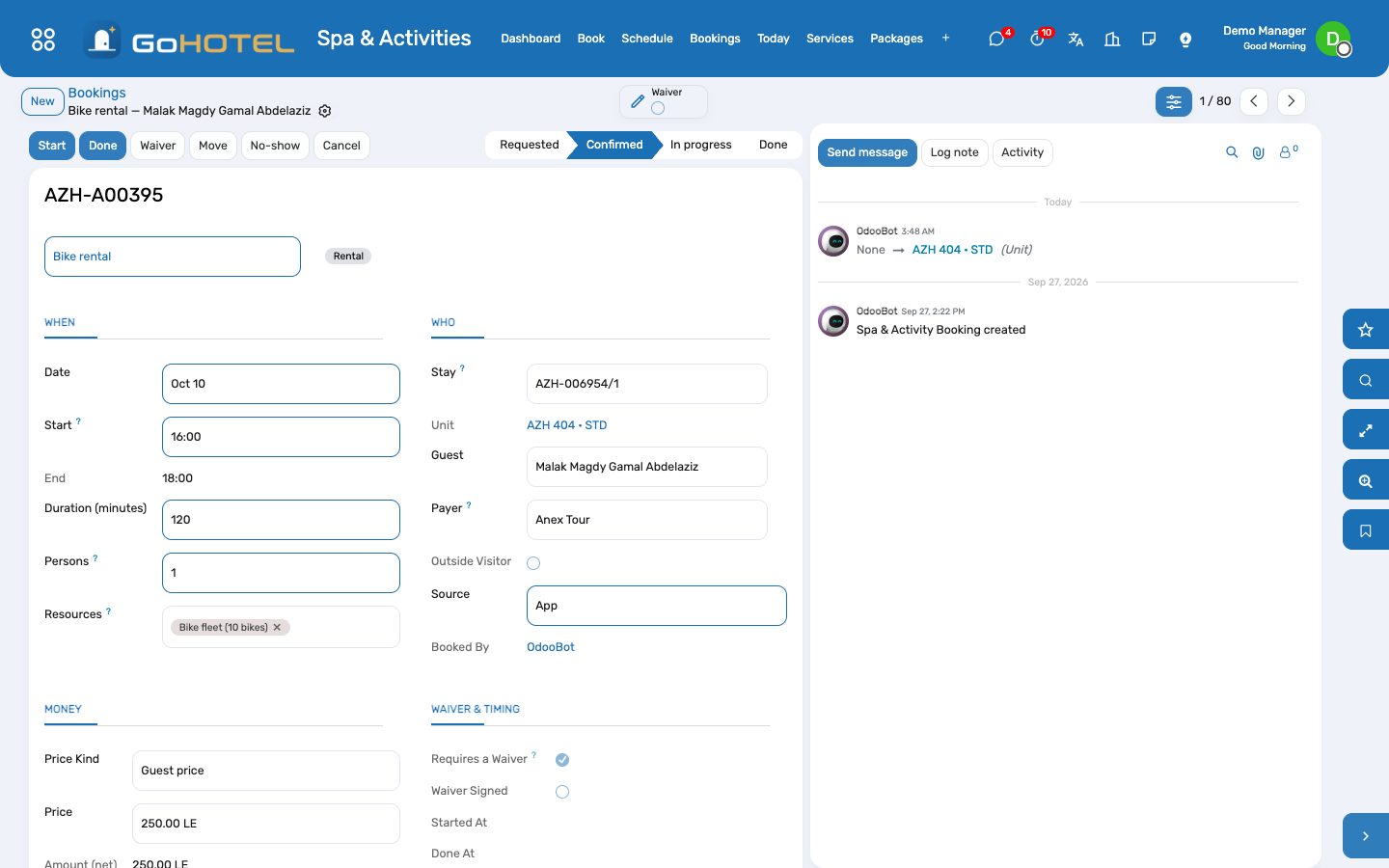
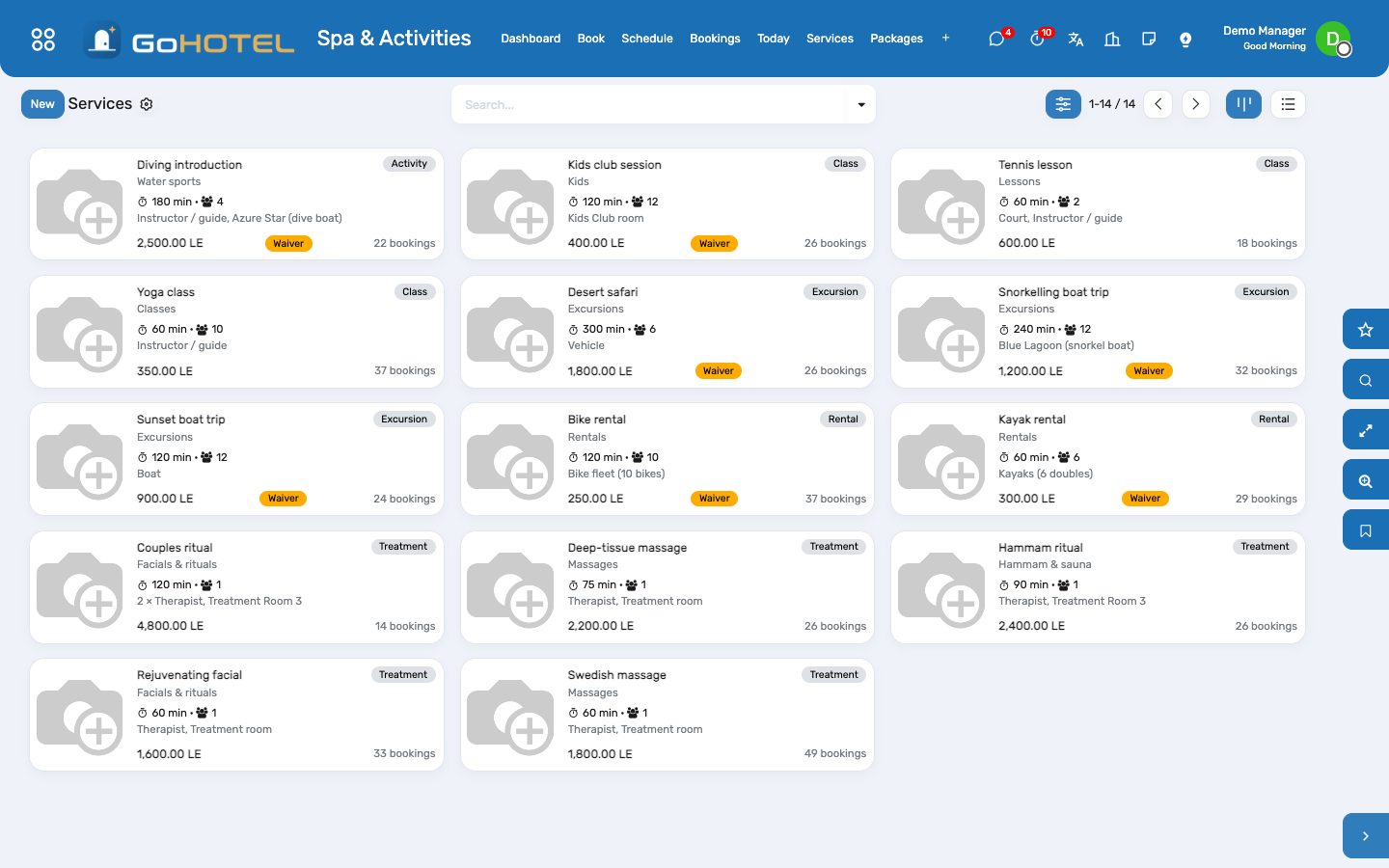
Before you start
- Resources
- Spa & Activities › Resources: one line per therapist and instructor (linked to the employee, with a commission %), per treatment room and court (linked to the space), per boat and vehicle, and one line for pooled equipment with its capacity (ten bikes as one resource). Give each its working hours; the company calendar is the default.
- Working hours
- Spa & Activities › Configuration › Working Hours: calendars such as "Spa 09:00–21:00 every day" or "Water sports 07:00–19:00". A leave on a calendar takes the resource out of the slot search for those days.
- Services
- Spa & Activities › Services: name, kind, category, duration, preparation and cleanup minutes, capacity (1 for a treatment, the boat or the class for a group service), guest and member price, per booking or per person, the resources needed (a therapist and a room; two therapists for a couples ritual; the snorkel boat by name), the no-show fee, and whether a waiver is required with its text. A service product is created for the charge.
- Charging
- On the property (Spa & Activities tab): Charge activities on confirmation for a prepaid operation; off, the charge is posted when the booking is done.
How to
Book a treatment for an in-house guest
- Spa & Activities › Book: pick the service and the day; pick the stay (or the guest — the in-house stay fills in), the number of persons; optionally a preferred therapist or room.
- Search: every free start time is listed with the resources it would take and, for a group service, the places left. A slot that other guests already hold shows "Joins a group".
- Book on the line you want: the booking is created with its resources and confirmed (untick Confirm at once to leave it as a request).
- The stay's form and the guest's form carry an Activities button with everything booked for them.
Book a visitor who is not staying
- Leave the stay empty and pick the visitor (a chalet owner, a day guest, a company) as the payer.
- The booking is settled by invoice: when it is done, a customer invoice is posted to the payer with the product's VAT.
- Member price: tick it on the booking (or let the facilities app's membership pick it).
Run the day
- Spa & Activities › Today: the day's bookings grouped by therapist, room, boat and court; Schedule shows the week as a calendar.
- A booking that requires a waiver shows a warning until it is signed: open Waiver, let the participant read and sign on the tablet (or tick Signed on paper), Mark Signed.
- Start when the guest arrives, Done when it ends: the charge lands on the folio through the charge engine — the property's fee rules and the product's VAT apply — and the therapist's commission accrues.
- No-show when the guest never came: the no-show fee of the service is posted the same way; nothing is charged when the service has no fee.
- Cancel a booking that was charged in advance and the charge is cancelled with it.
Sell a package
- Spa & Activities › Packages: a package is several services with quantities and one price.
- Packages › Package Sales › New: the package, the stay or the payer, Charge — one folio charge (or one invoice).
- Book each service of the package as usual and set the package on the booking: the price is zero and the sale counts it down.
Pay the therapists
- Spa & Activities › Commissions: one accrued line per done booking and person with a commission %; grouped by therapist by default.
- Mark Paid when the payroll has taken them; the pivot gives the month per person.
Questions the desk asks
Why is a start time missing from the search?
One of the resources the service needs is not working then (its calendar or a leave), or is held by another booking — including that booking's preparation and cleanup minutes — or the group slot is full.
Two guests want the same boat trip at 09:00.
Book each on the 09:00 line: the trip is a group service, so the second booking joins the first and takes the same boat until the twelve places are gone.
The guest wants the same therapist as last time.
Choose her under Prefer before searching; only her free times are listed.
Where is the service charge on a spa treatment?
The property's fee rules decide: a rule that applies to accommodation and F&B only leaves a treatment with VAT alone; a rule for every charge adds the service charge to treatments and activities too.
Can a guest book from the website or the app?
Bookings arriving through the guest channels come in as requests; the desk confirms them from the dashboard's Awaiting confirmation list.
See also: Front desk: arrivals, in house, departures The dashboards Folios, charges, payments and the city ledger
Community: owners, residents and service charges
The compound or the village as a community: an ownership account per unit that owes the service charge, the people who live there, the leases and their rent, the budget by fund invoiced to every owner per period, the reminders and late fees that collect it, the permits at the gate, the fines, the notice board and the general assembly where owners vote by share.
Where:Community › Dashboard · Ownership Accounts · Arrears · Residents · Leases · Service Charges · Permits · Violations · Announcements · Assemblies · Configuration
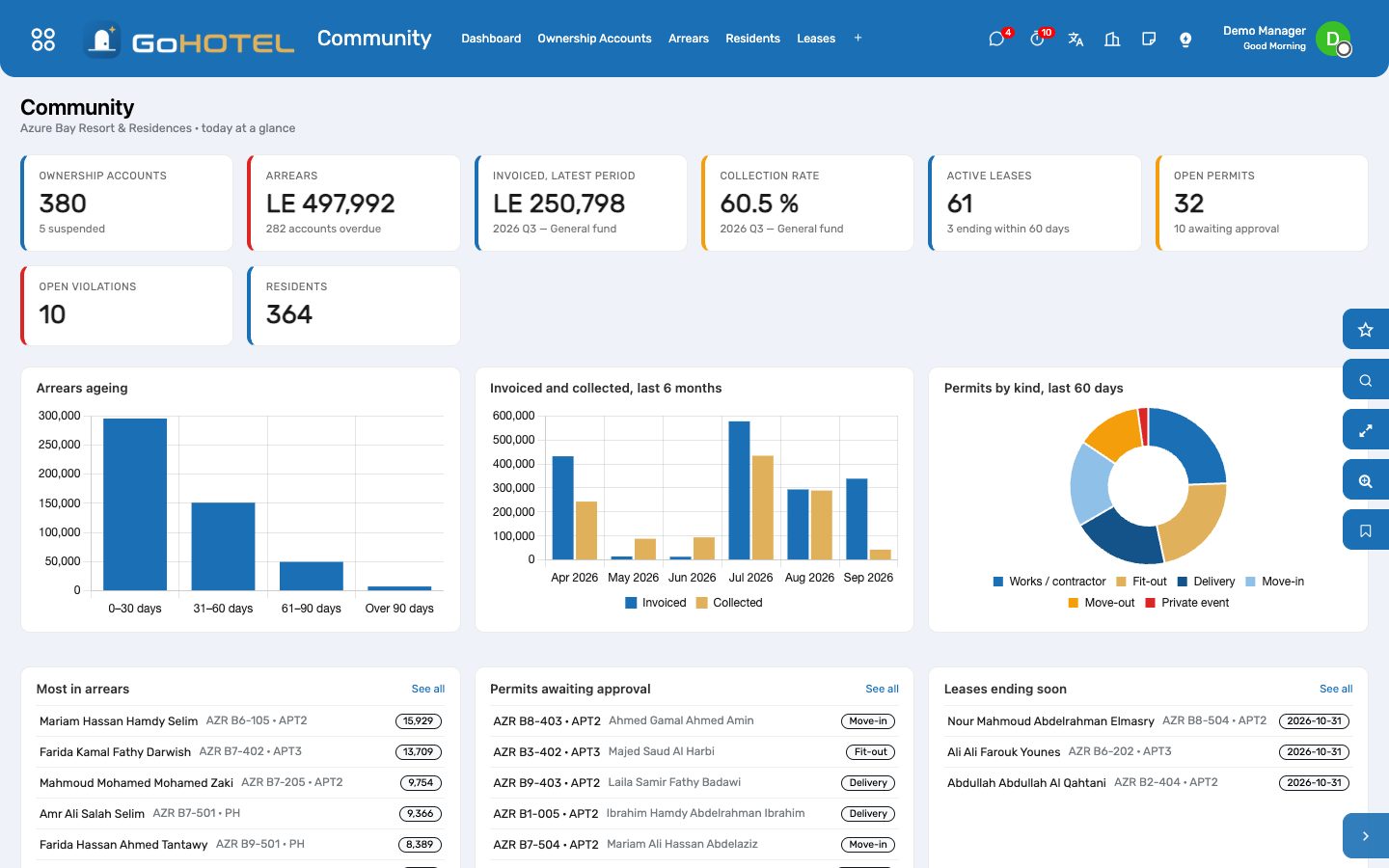
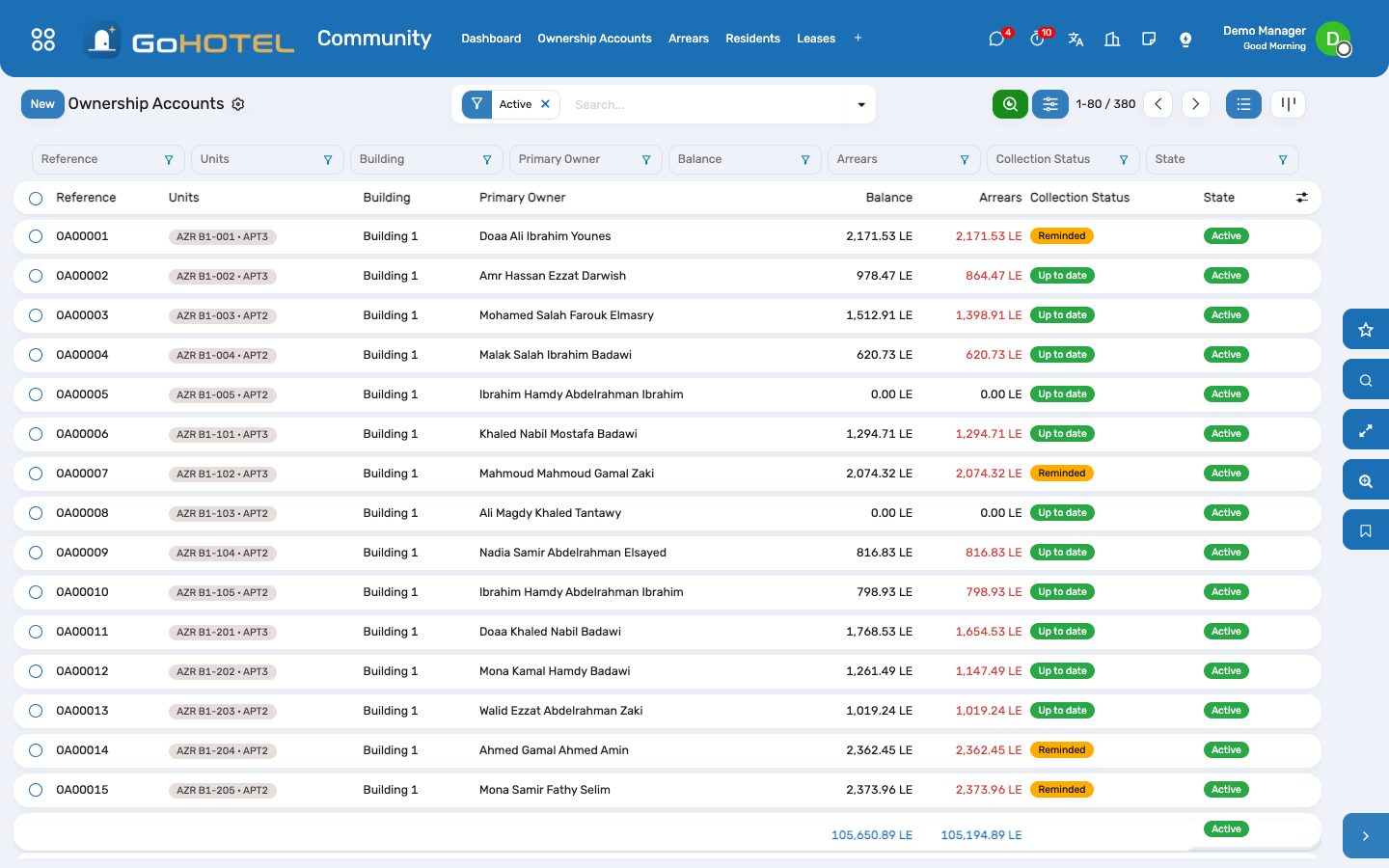
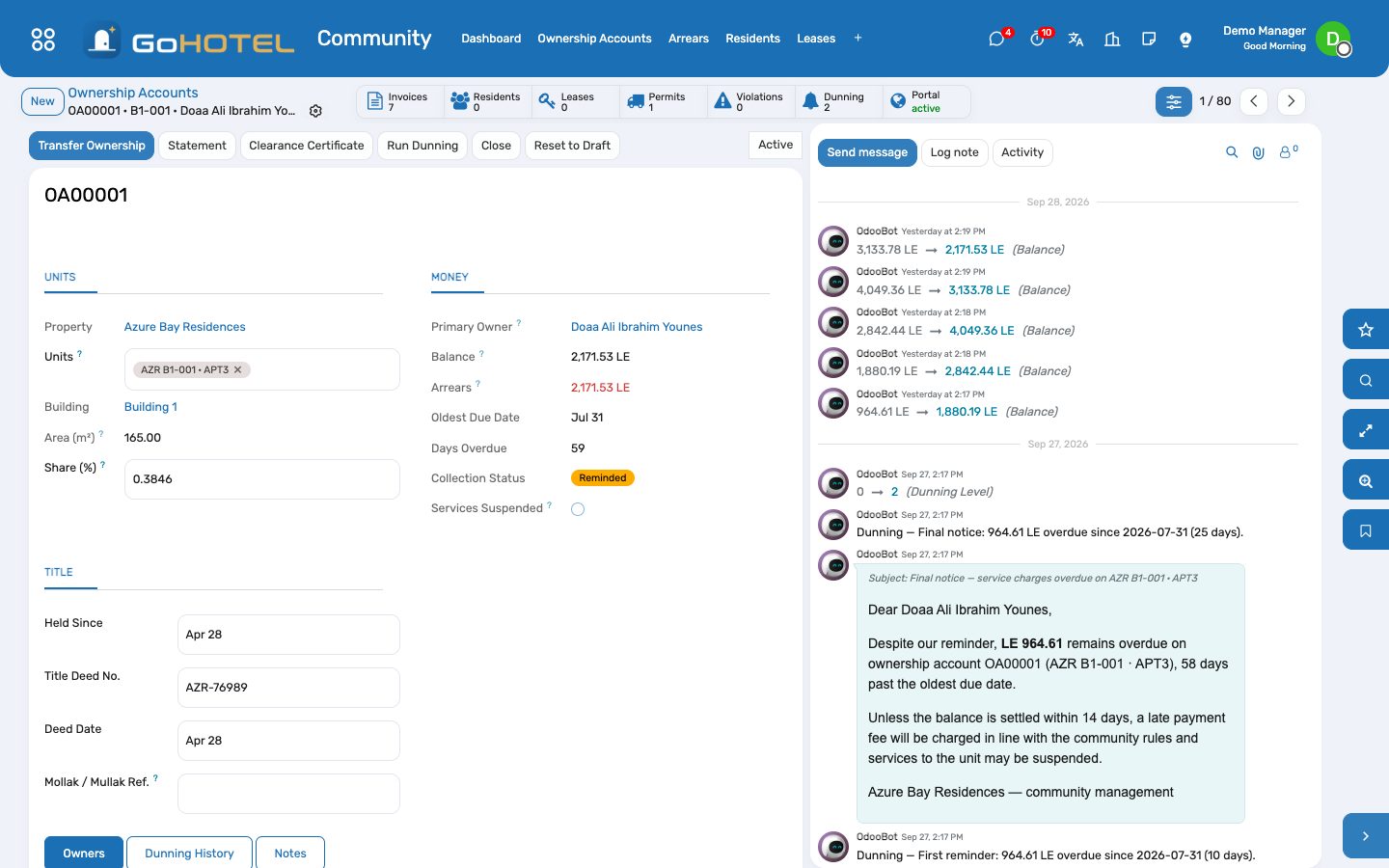
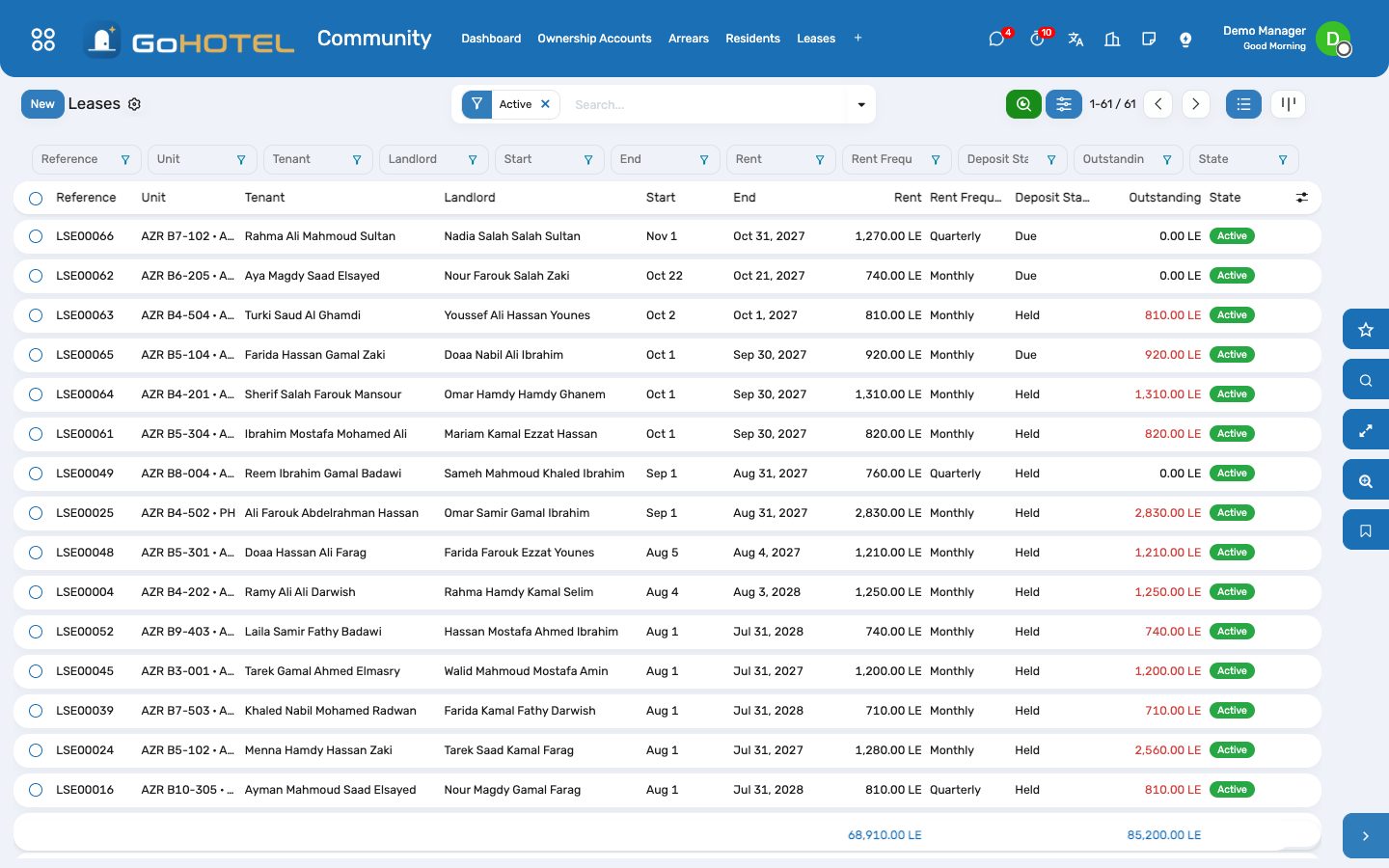
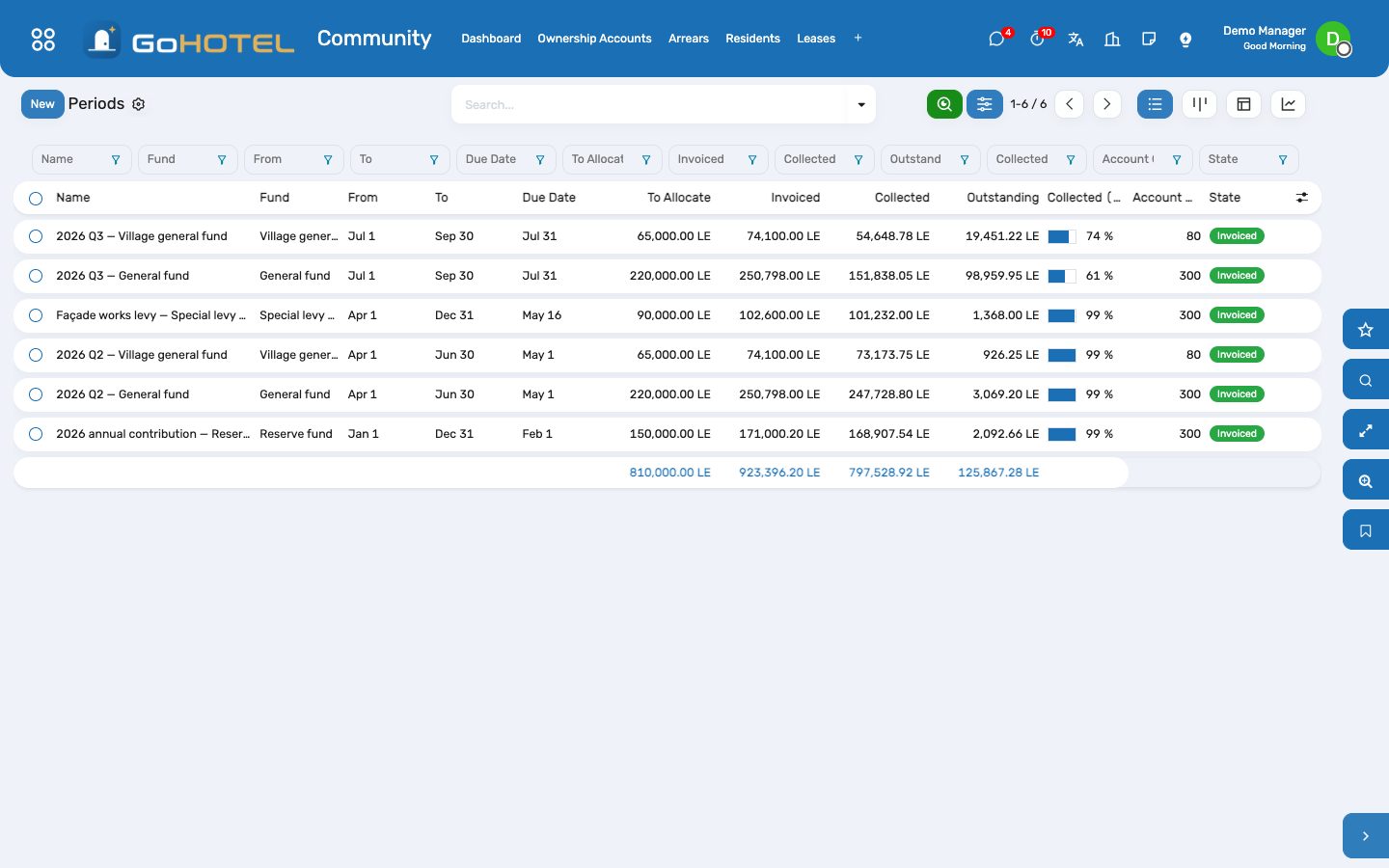
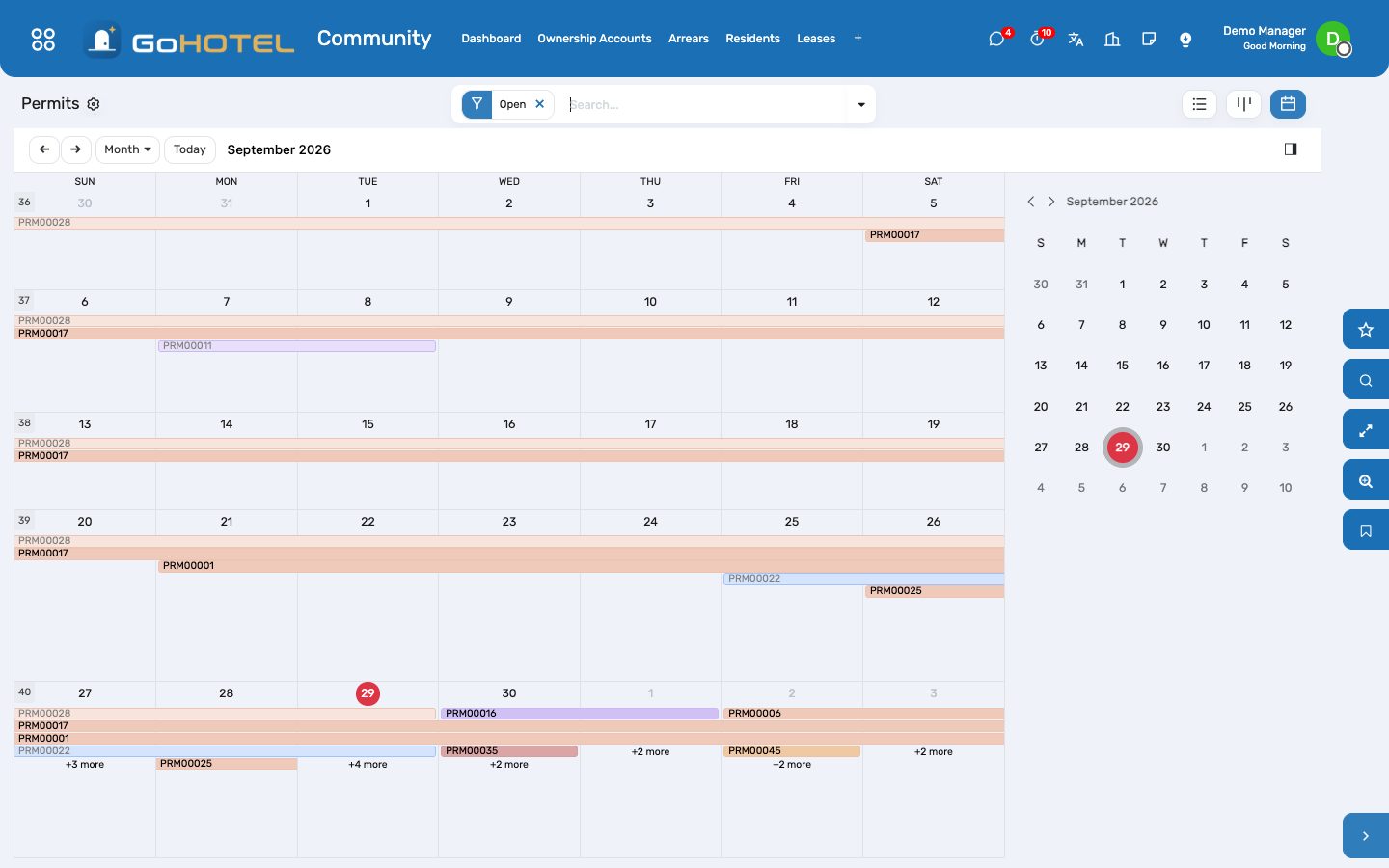
Before you start
- Units flagged Owner-held with their owner, under Property › Units.
- A sales journal, a bank and a cash journal in Accounting.
- The community products (Community › Configuration › Products): one per fund, the rent, the late fee, the permit fee, the fine — with their taxes.
- Funds and the dunning ladder under Community › Configuration.
How to
Open the ownership accounts
- Community › Ownership Accounts › New: the property, the unit (or the units one owner holds together), then the owners on the Owners tab with their shares and who is primary — the primary owner is the one invoiced.
- The share of the community fills itself from the area of the units; type over it when the register says otherwise. Add the title deed number and the Mollak / Mullak reference.
- Activate. The unit now shows this owner as its owner of record; every service charge, levy, late fee and fine to the owner is invoiced through the account and its balance and arrears read from Accounting.
Register the residents
- Community › Residents › Residents › New: the contact, the unit, the role (owner living in, tenant, family, domestic staff), the move-in date, the ID details, the vehicle plate and the access card.
- Group a family under Households with a head of household; the gate and the announcements read from here.
- Move Out closes the record with the date; the history stays on the unit.
Sign a lease and invoice the rent
- Community › Leases › Leases › New: unit, tenant, start and end, the rent per period and its frequency, the deposit, the Ejar / Ejari / Tawtheeq reference.
- Generate Schedule turns the term into rent instalments (a last partial period is prorated); Activate opens the tenant as a resident.
- Receive Deposit posts a real receipt on the tenant's ledger. Record the move-in handover with the meter readings, keys and condition.
- Rent is invoiced by the daily scheduled action a week before each due date; Invoice Due Rents does it now. Rent Schedule lists every instalment with its invoice and what is still owed.
- A renewal activity is raised 60 days before the end; End Lease moves the residents out and frees the deposit for return or forfeit.
Budget the year by fund
- Community › Service Charges › Budgets › New: property, year, fund (general, reserve, special levy, master-community levy), the basis the total is split on — share %, area or per unit — and the lines by category.
- Approve it, quoting the assembly resolution or the Mollak / RERA approval. Create Quarterly Periods makes the four quarters, each due 30 days after it starts; a one-off levy is a single period with a share of the year of 1.
Invoice a period and follow the collection
- Community › Service Charges › Periods: open the period and Invoice the Period. One customer invoice per active ownership account is posted, allocated by the basis, with the fund's product and its taxes, due on the period's due date.
- Payments are registered in Accounting as usual — bank, cash, card — and the period's collected amount, outstanding and collection rate follow.
- Invoices & Collections pivots every invoice by period, fund and building; Arrears lists the accounts behind, by collection status.
Let the dunning ladder run
- Community › Configuration › Dunning Ladder: the rungs and their days overdue — first reminder at 7, final notice at 21, late fee (2 % of the arrears, minimum 25) at 60, suspension of services at 120. Rungs without a property apply everywhere; a property's own rungs override them.
- The daily scheduled action climbs one rung per account per day as the oldest unpaid invoice ages: the reminder e-mails go to the primary owner, the late fee is a posted invoice on the account, the suspension flags the account so that permits are refused.
- Run Dunning on an account does the same by hand. When the arrears are settled the ladder resets and the log says so.
Transfer a unit to a new owner
- On the active account, Transfer Ownership: the date, the new owners and their shares, the new deed number.
- With a balance outstanding the transfer is refused unless Transfer despite the balance is ticked — the certificate then states the arrears carried over instead of a clearance.
- The old account turns Transferred with the clearance certificate number and prints it; a new active account opens on the same units and the unit shows the new owner.
Permits at the gate
- Community › Permits › New: move-in, move-out, fit-out, works, delivery or event; the unit, the applicant, the contractor, the days and hours, the vehicle, the workers to expect and any instruction for the gate.
- Fit-outs and works carry a fee: approving the permit posts the fee invoice to the applicant. An account suspended for arrears cannot get a permit except a move-out.
- The calendar shows the week the gate will have; Start when they arrive, Close when they are done.
Violations, fines and appeals
- Community › Violations › New: the rule broken (Configuration › Community Rules carries the fine and the fine on repeat), the unit, the resident or owner, the date and the evidence.
- Notify sends the notice; Issue the Fine posts the fine invoice; an appeal is recorded and either dismissed (the unpaid fine is credited) or closed.
Announcements and the general assembly
- Community › Announcements › New: title, category, audience (owners, residents or both), the notice; Publish puts it on the board, Send by E-mail mails everyone in the audience.
- Community › Assemblies › New: date, place, quorum, the agenda with the majority each resolution needs. Convene publishes the notice with the agenda to the owners.
- Open the Meeting, then record the ballots — one per ownership account and item, weighted by the account's share; proxies are flagged. The result of each item and the quorum are computed as the ballots come in. Close the meeting with the minutes.
Questions the desk asks
An owner holds three apartments — three accounts or one?
Either. One account with three units is invoiced once per period for the sum of the three; three accounts give three invoices and three balances. Choose what the owners' register does.
Where do the payments go?
To Accounting, like every customer payment: Register Payment on the invoice, or reconcile the bank statement. The account's balance, the period's collection rate and the dunning ladder all read from the invoices.
Can the service charge carry VAT?
It carries whatever taxes the fund's product carries. Set them on the product under Configuration › Products; a rent or a fine with no taxes is a product with none.
The tenant's rent is not the owner's debt, is it?
No. Rent invoices go to the tenant and are tagged with the lease, never with the ownership account; the owner's balance holds only what the owner owes the community.
A suspended owner needs to move out.
A move-out permit is the one kind a suspended account can still get; everything else waits for the arrears to be settled, at which point the daily run resets the ladder.
See also: The property, its units and its fee rules Guests and accounts
SMS: the local gateway, one-time codes and the WhatsApp fallback
Every text the property sends — the pre-arrival and welcome messages of the journeys, "Send SMS" on a record, the one-time codes of the guest portal and the app — goes out through a local gateway: SMS Misr in Egypt, Unifonic in Saudi Arabia, or any gateway with an HTTP interface. Numbers are put in international form first, every message is logged with the gateway's answer and its delivery report, and a message the gateway refuses can go to the guest on WhatsApp instead. Simulate mode shows all of it before a single credential exists.
Where:Guest Experience › SMS › Dashboard · SMS Log · One-time Codes (OTP) · Send a Test SMS · Send an OTP · Guest Experience › Configuration › SMS Gateways
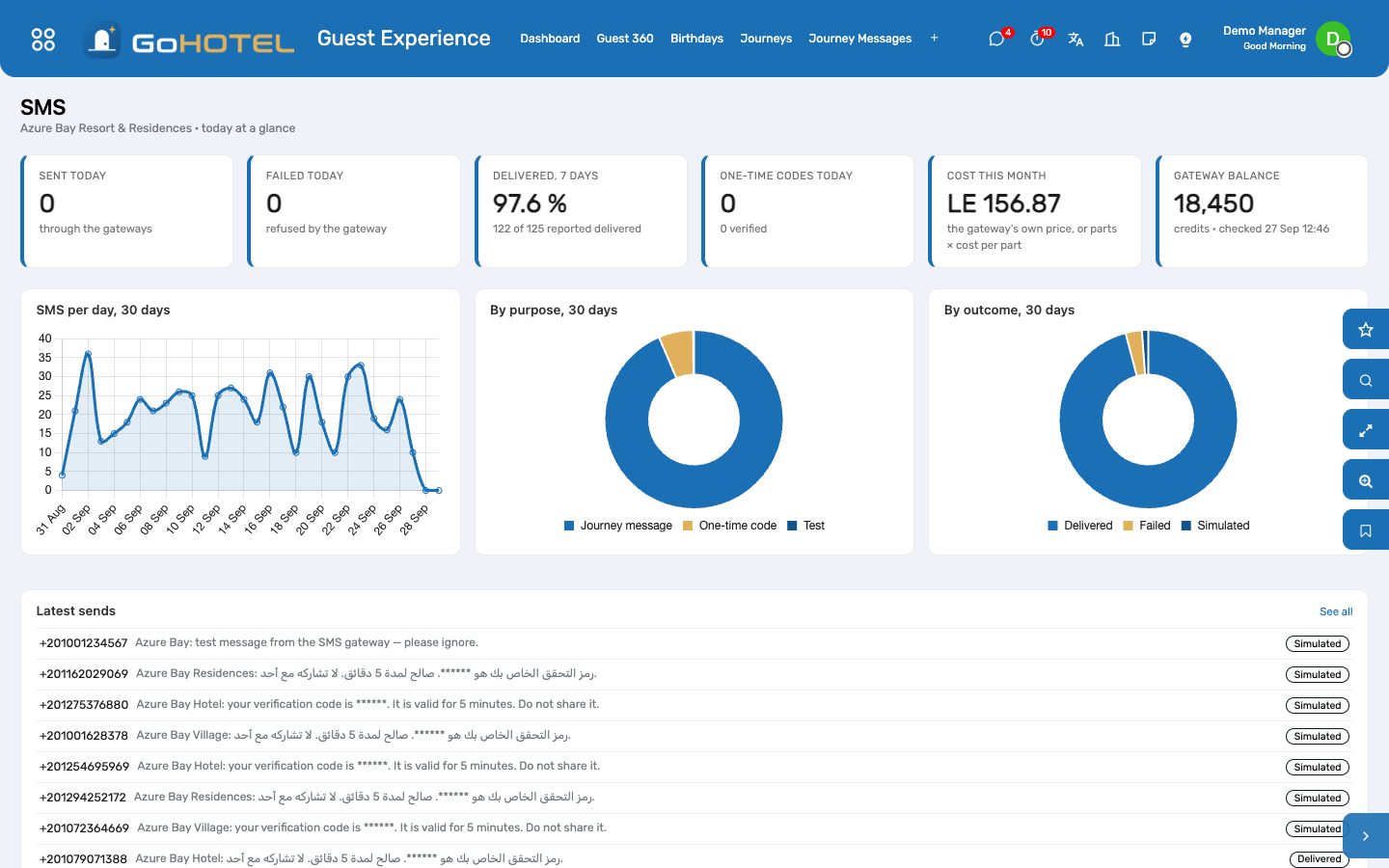
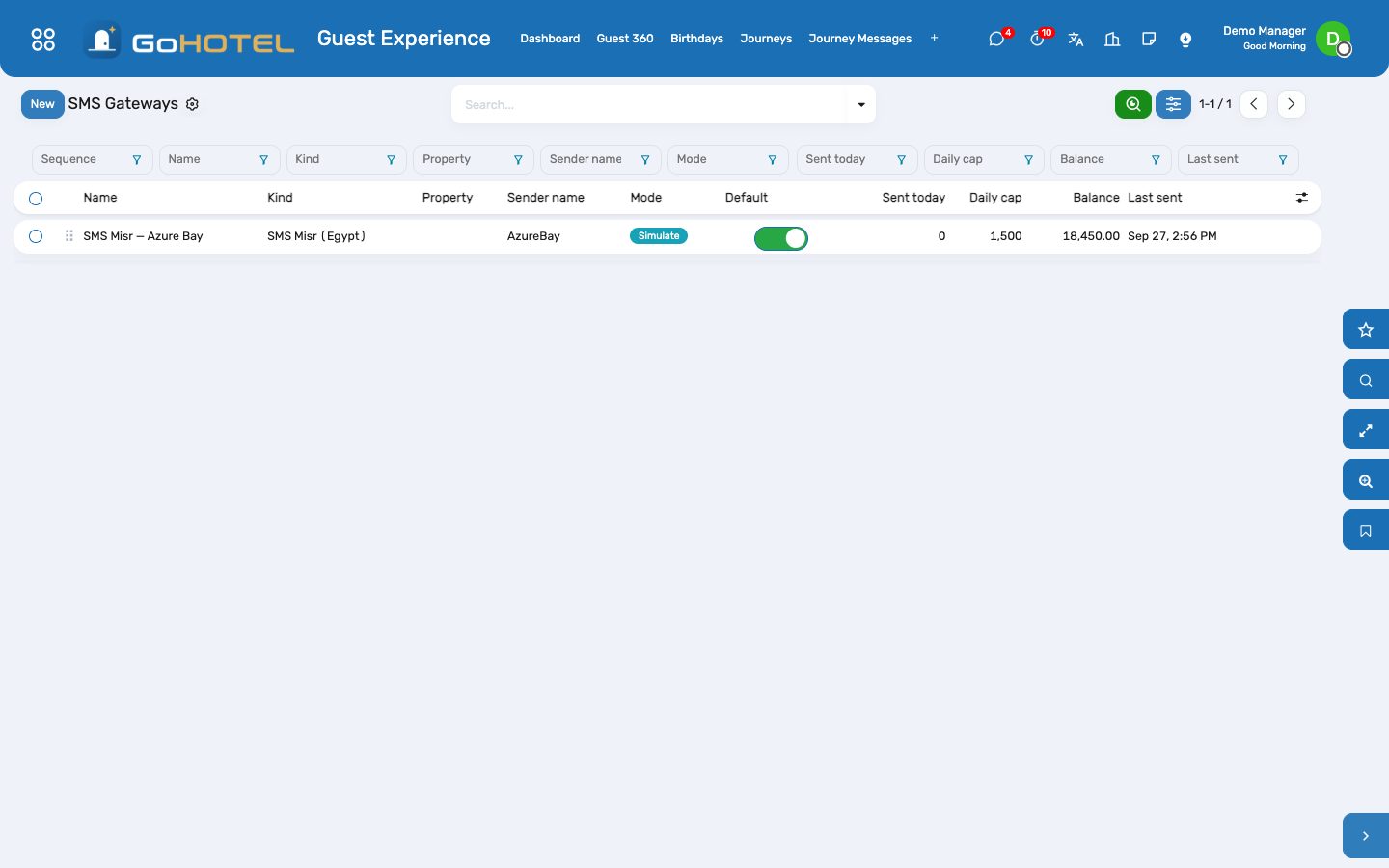
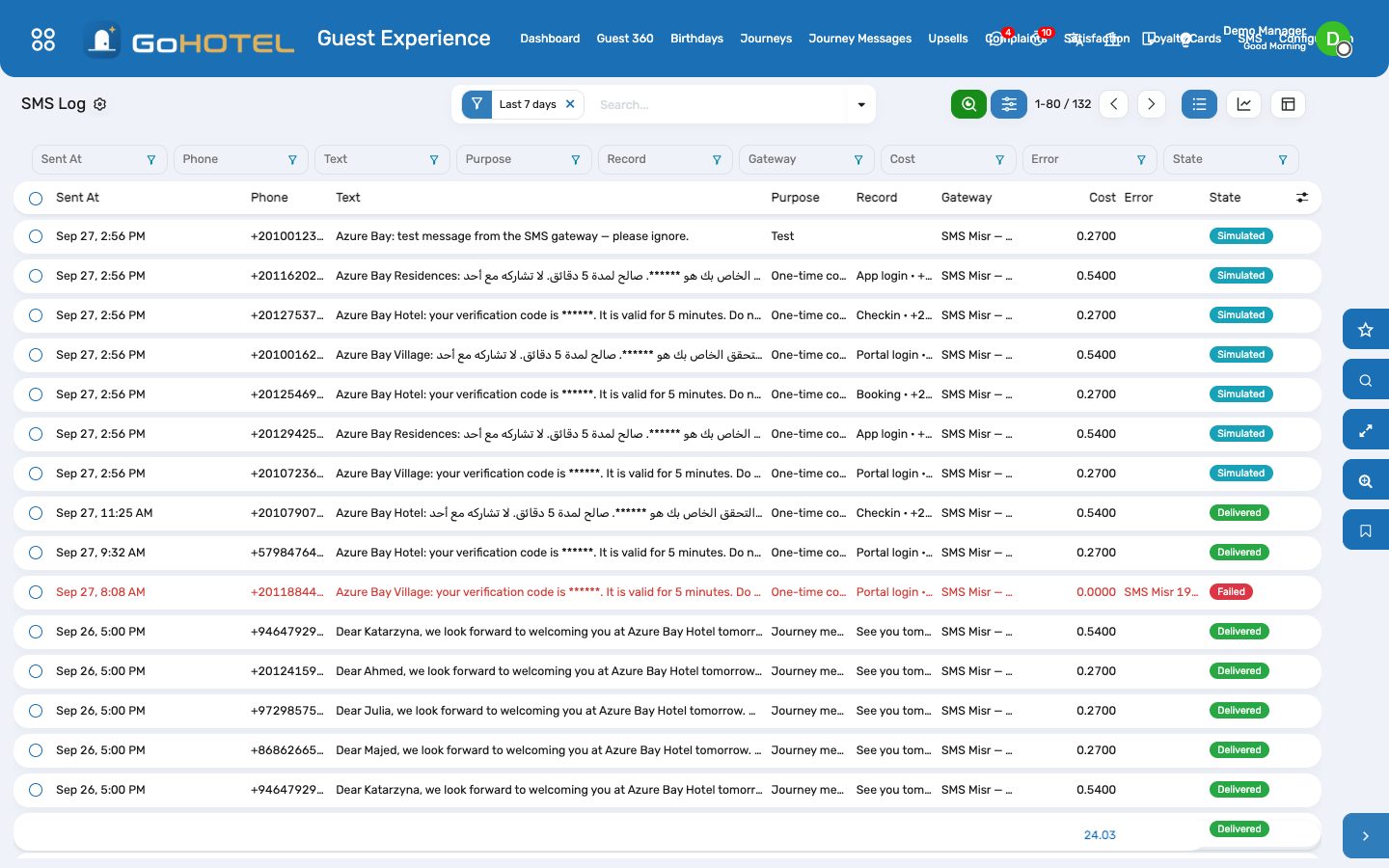
Before you start
- An account with the provider: for SMS Misr the username, the password and the sender token of an approved sender name; for Unifonic the AppSid and an approved sender ID.
- The sender name registered with the provider — up to 11 letters and digits, e.g. AzureBay.
- Without any gateway, Odoo's own SMS credits (IAP) are used, as before.
How to
Set up the gateway
- Guest Experience › Configuration › SMS Gateways › New: a name, the kind (SMS Misr, Unifonic or Generic HTTP), the sender name, Default ticked. Leave Property empty to serve every property of the company, or pick one to give that property its own sender.
- Start in Simulate: nothing leaves the server, and every message is logged with the number as it would have been sent. Use Send a test to see it.
- Credentials tab (managers only): the username, password and sender token for SMS Misr, or the AppSid for Unifonic. They never appear in a log line or an error message.
- Delivery & cost tab: give the provider the Delivery-report URL so it can report delivered and failed messages; enter the cost per part to see the month's spend; set a daily cap if the account needs one.
- Switch the mode to Live. The gateway refuses to go live while a credential is missing.
Know where a message goes
- A message that belongs to a property — a journey message, a stay, anything with a property — goes through that property's own gateway if it has one, otherwise through the company-wide gateway, otherwise the default one.
- Numbers are read in the gateway's default country and sent in international form: an Egyptian mobile 010 1234 5678 becomes +20 10 1234 5678, a Saudi mobile 050 123 4567 becomes +966 50 123 4567.
- A message the gateway refuses is marked failed with the gateway's own words (SMS Misr 1906: insufficient credit, for example) — the journey or the screen that sent it carries on.
- When the WhatsApp connector is installed and Fall back to WhatsApp is ticked, a refused message is handed to WhatsApp instead and the log says Handed to WhatsApp.
Follow the SMS log
- Guest Experience › SMS › SMS Log: the number as sent, the first 160 characters, the parts, the purpose (journey, one-time code, test, notification), the record it belongs to, the gateway's message id, the cost and the state — Sent, Delivered, Failed, Simulated or Handed to WhatsApp.
- Filters for today, the last seven days, failed and delivered; group by day, purpose, gateway or property; the graph and pivot views show volumes and cost per week.
- Open the record from the log entry to see the stay or the journey message behind it.
One-time codes (OTP) for the portal and the app
- The guest portal and the app ask for a six-digit code by SMS, in Arabic or English; it is valid for five minutes and five wrong attempts close it. Only a salted hash is kept — nobody, not even an administrator, can read a code.
- Guest Experience › SMS › One-time Codes (OTP) lists every request: the number, what it was for, when it expires, the attempts and whether it was verified.
- Send an OTP sends a code to your own phone and lets you type it back — the same two steps the guest goes through. In simulate mode the code is shown in the window, since nothing was sent.
Questions the desk asks
Why not Odoo's own SMS credits?
A local gateway costs a fraction per message, sends from your own sender name, and answers in the local operators' terms. Odoo's credits are still used when no gateway is configured.
A guest says the text never came.
Search the SMS log for the number: Failed shows the gateway's reason, Delivered shows when the handset received it, Sent means the delivery report has not arrived yet.
Can two properties send under different names?
Yes — one gateway per property, each with its own sender name; a company-wide gateway covers the rest.
Do the codes appear in the log?
No. The text of a one-time code is masked in the log and in Odoo's own SMS list; only the guest's phone ever sees the digits.
See also: Guest experience: journeys, upsells, loyalty, complaints and satisfaction The assistant Compliance — guest lists, licences and fee returns
Card payments: cards on file, holds, captures, no-shows and refunds
A card on file for the booker lets the stay pay itself. At arrival the property holds the nights its policy says (plus a margin for incidentals) on the card; at departure the folio balance is captured from the hold, the rest is released and anything above the hold is charged to the same card — the money lands on the folio as a card payment, like a swipe at the desk. A booking that never arrives can be charged its first night, a refund goes back to the card and onto the folio, and the website can take a deposit (or just a card) right after the guest form. Paymob keeps the card: the property only ever sees its last four digits.
Where:Billing › Card Payments › Dashboard · Transactions · Cards on File · Provider — and the reservation, folio and property forms
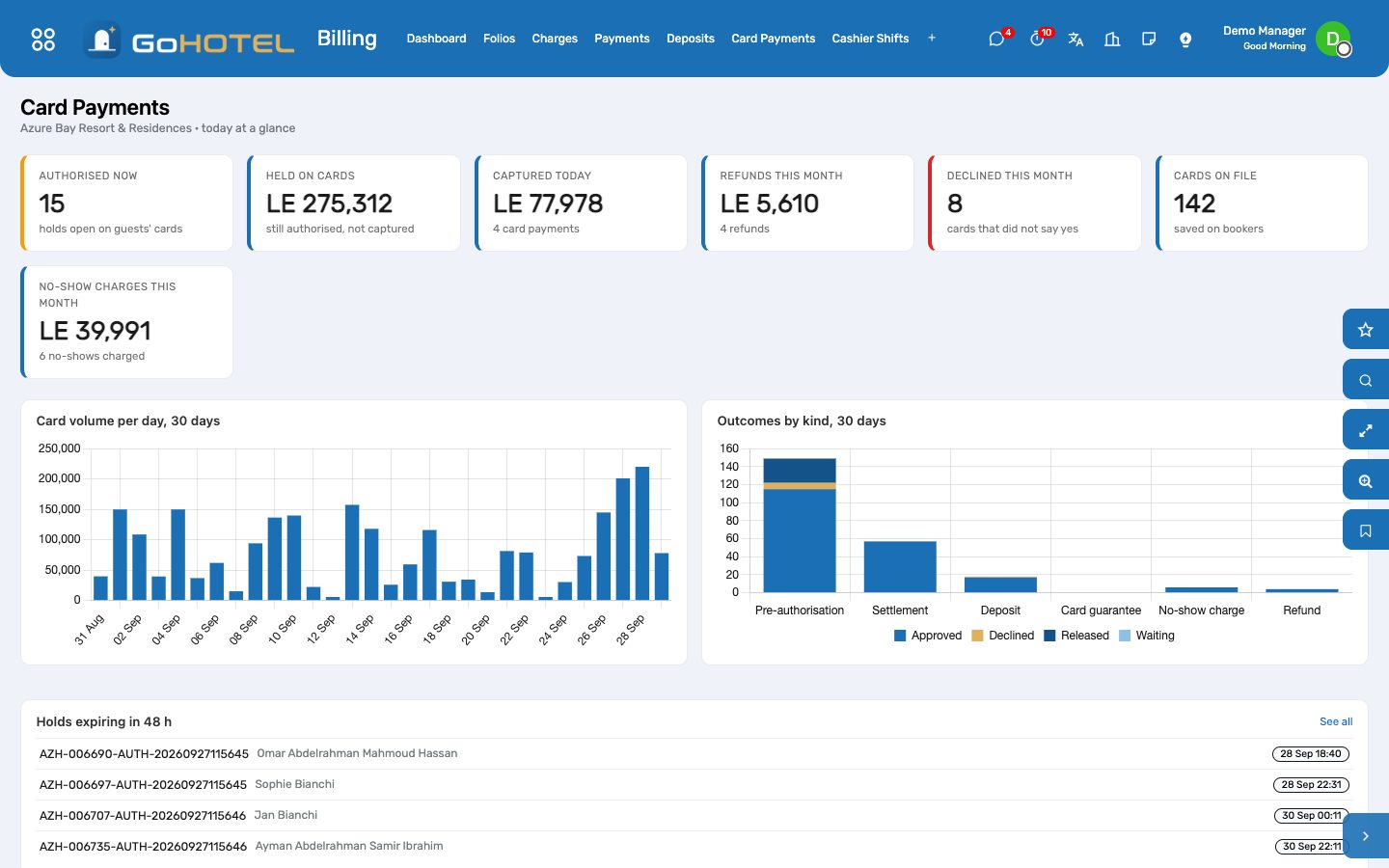
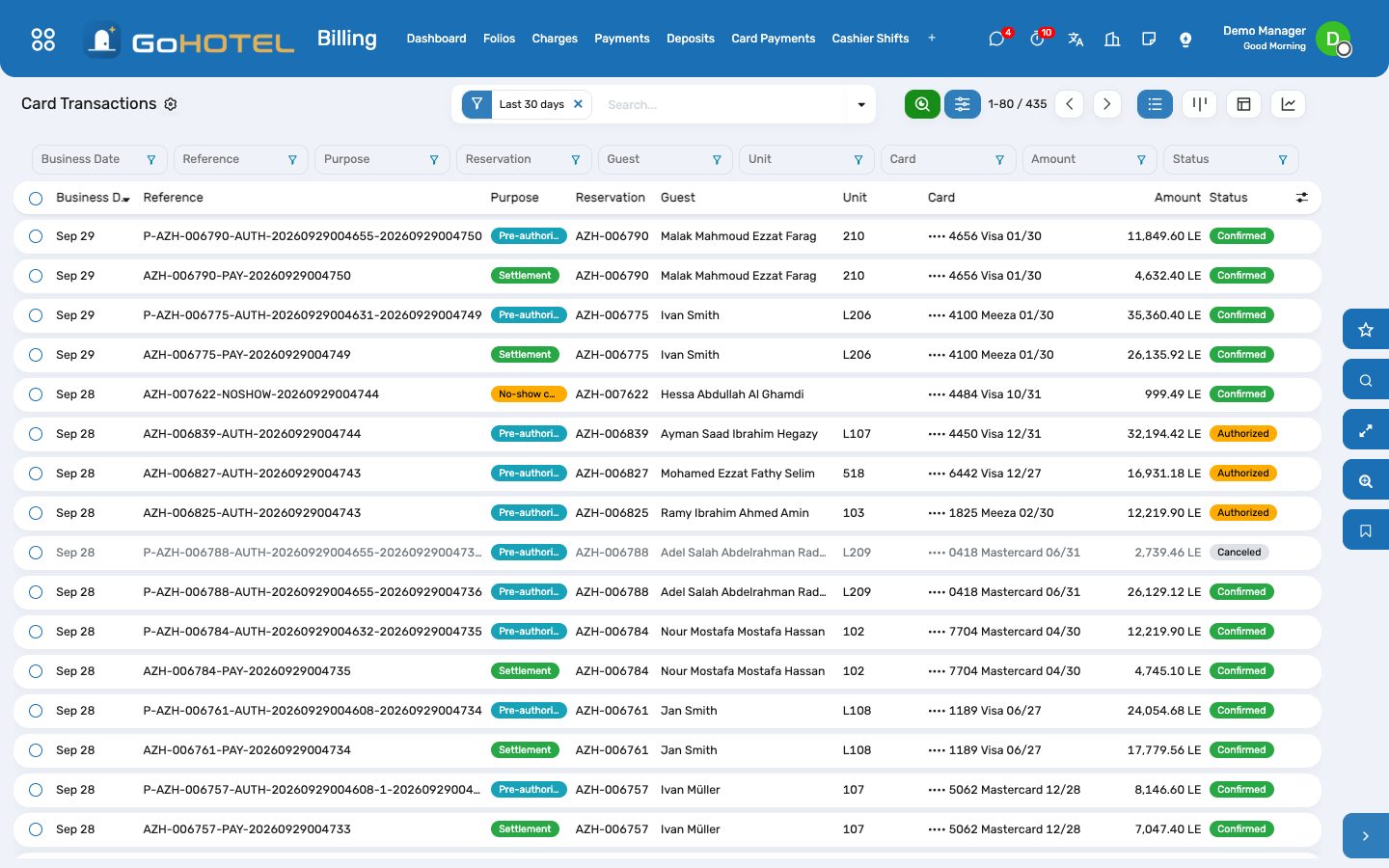
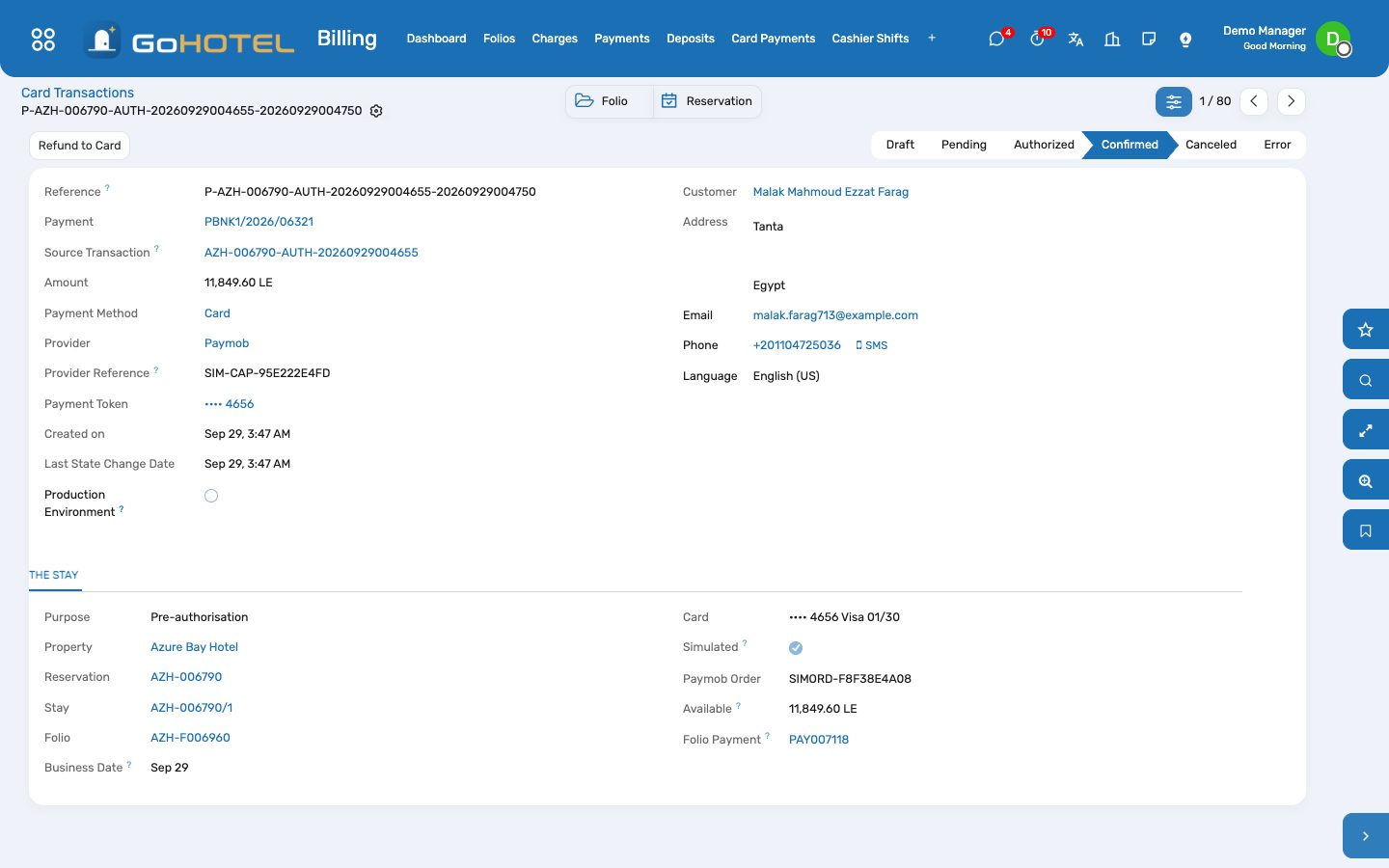
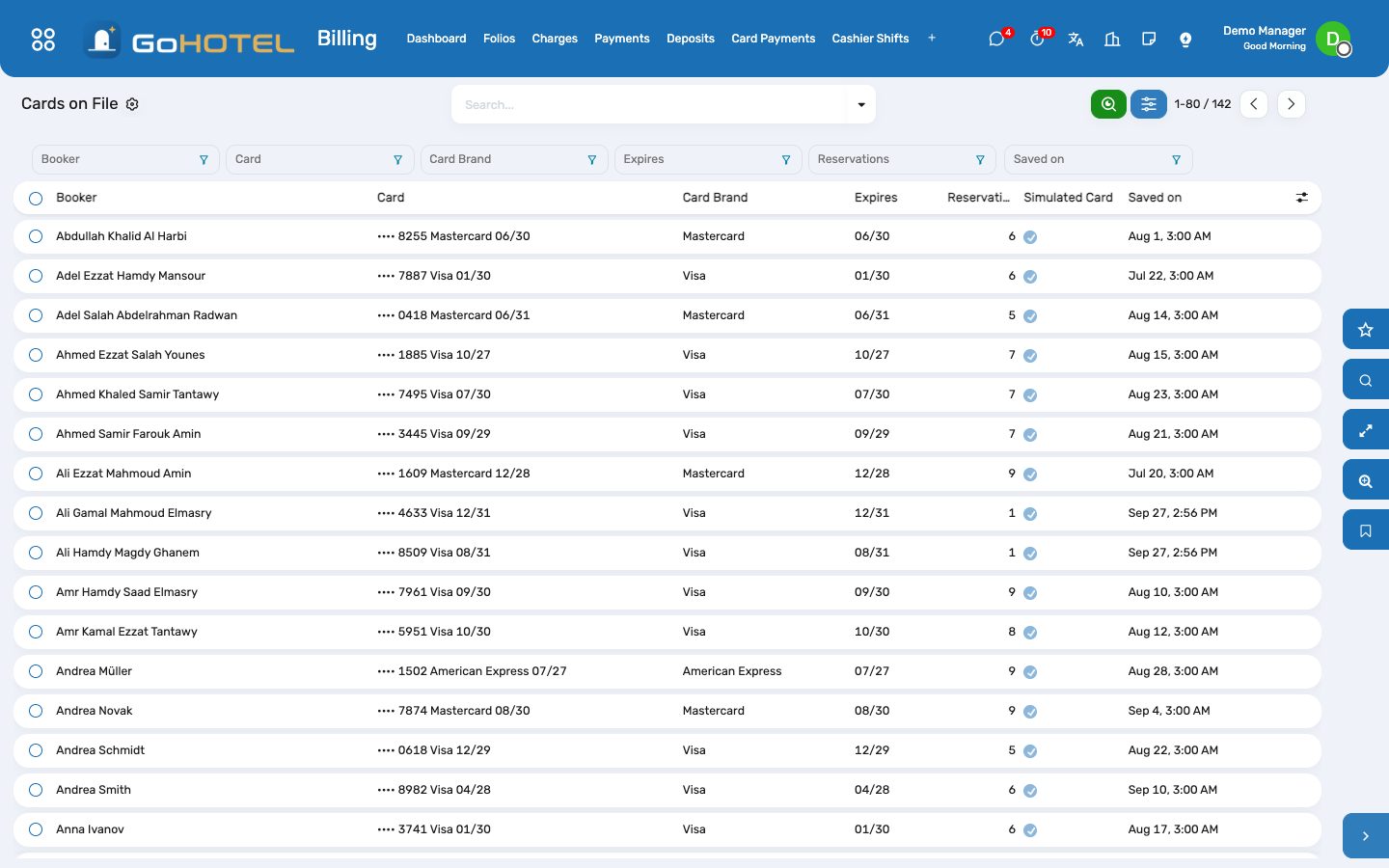
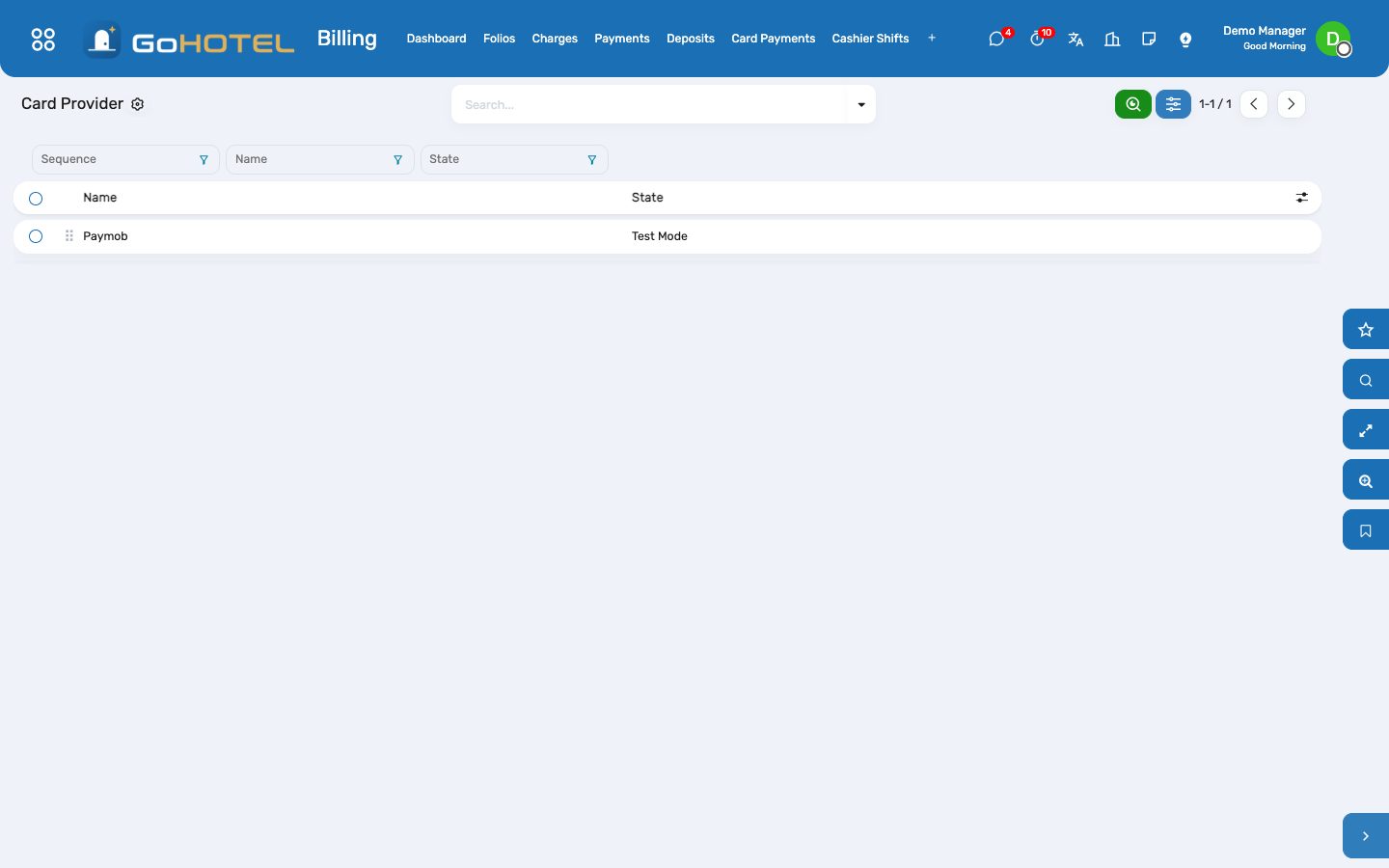
Before you start
- The Paymob payment provider (Billing › Card Payments › Provider): state Test or Enabled, published.
- Folio payment methods "Card" and "Online payment" with the bank journal the gateway pays into (Billing › Configuration › Payment Methods).
- For live cards: a Paymob account in the property's country with a card integration for online payments, one for authorise-and-capture, and one allowed to charge a saved card (MOTO), and the property's currency on that account.
How to
Switch card payments on — simulate first
- Billing › Card Payments › Provider › Paymob. On the GoHotel tab choose Simulate: every hold, capture, release, refund and saved card is answered in GoHotel with a plausible reference and nothing reaches Paymob. Put any placeholder in the keys on the Credentials tab, set the state to Test Mode and publish the provider.
- Train the desk in simulate mode: a simulated card answers the way it was saved — Approve, Decline or 3-D Secure — so the team sees what a refusal looks like before a real one happens.
- To go live: enter the Paymob API, secret, public and HMAC keys on the Credentials tab, the two card integration IDs (authorise / capture and saved card) on the GoHotel tab, paste both callback addresses into every integration on the Paymob dashboard, choose Live, then Test Connection.
Set the property's card policy
- Property › the property › Card Payments tab.
- Pre-authorise nights: how many nights to hold at arrival (2 is common; 0 switches holds off); Incidentals: the margin for minibar, restaurant and spa, as a percentage of the nights held.
- Capture at check-out: settle the folio from the hold (and the card) when the guest leaves.
- No-show charge: nothing, or the first night.
- Website deposit: the share of the stay the site takes by card after the guest form; with 0 %, tick Card required online to ask for a card without charging it. Hold validity: how many days the bank keeps a hold (7 by default).
Take a card for a reservation
- Open the reservation, Take a Card. In simulate mode type any card number, the expiry and the answer to simulate; Save the Card saves it on the booker and guarantees the booking (guarantee "Card on file").
- In live mode Send the Card Link e-mails the booker a secure page: they add the card on Paymob's own form, nothing is charged, and the card appears on the booking. Without an e-mail on file the link is shown to send by WhatsApp or SMS.
- The Card on File button on the reservation shows the card as •••• 4242 Visa 12/28; click it for every card of that booker.
Arrival: the hold
- Check in as usual. When the booker has a card and the property holds nights, the hold is taken at once: nights × the nightly total (fees and VAT included) × the incidentals margin.
- The folio shows it under Balance as "Held on card" — it is not a payment and the balance does not move.
- A refused card never stops the check-in: the transaction is marked Error with the bank's reason, the dashboard lists it under Failed transactions today, and the desk asks for another card or a deposit.
- For a guest who gave a card after arrival, Hold on Card on the reservation takes the same hold by hand.
Departure: capture, release, charge
- Check out as usual. The folio balance is captured from the hold; what is left of the hold is released at once; if the bill is larger than the hold, the difference is charged to the same card first.
- Each capture or charge is a folio payment of method Card with the transaction reference, in the gateway's bank journal, on your cashier shift, matched with the folio invoice — exactly like a card swiped at the desk.
- If the card refuses the difference, the check-out stops with the bank's reason: take another payment, or transfer the balance to the city ledger, and check out again.
- On the folio: Charge Card settles the balance from the hold and the card now; Capture Hold captures up to the hold only (take the rest in cash); Release Hold gives the whole hold back.
No-shows
- When a booking with a card on file is marked no-show (by the desk or by the night audit), the first night — with its service charge and taxes — is posted on the folio and charged to the card, the folio is invoiced and closed.
- If the booking's policy already posted a no-show fee, that fee is what is charged; nothing is posted twice.
Refund to the card
- On the folio (or the transaction) choose Refund to Card: the amount (up to what the card paid), the reason, and Credit the Folio.
- The refund goes back to the same card and lands on the folio as a negative payment (a payment row in state Refunded and an outbound payment in Accounting).
- With Credit the Folio an allowance of the same amount keeps the folio settled; on a folio already invoiced it is issued as a credit note and matched with the refund at once. Untick it when the refund simply returns an overpayment.
- A deposit paid by card goes back to the card from the deposit's own Refund button.
Website deposits and card guarantees
- When the property takes a website deposit, the booking page's last step asks for the card: in live mode Paymob's secure form, in simulate mode a Simulated card box with Approve and Decline.
- An approved deposit is a reservation deposit received through the Online payment method; the booking is confirmed and guaranteed, and the card stays on file for the hold at arrival. The confirmation page says "Deposit of … paid by card •••• 4242".
- At check-in the deposit moves onto the stay's folio and reduces the balance the card is charged at departure.
- A refused card leaves the booking as it was (a held request or a confirmed booking without guarantee) and the guest can try another card.
Questions the desk asks
Does GoHotel store card numbers?
No. Paymob keeps the card; GoHotel keeps Paymob's reference to it and the last four digits. Card pages are Paymob's own; in simulate mode no card goes anywhere.
Why is the hold not on the folio as a payment?
A hold is money reserved on the guest's card, not money received: it becomes a payment only when it is captured, and only for what the guest owes.
How much is held?
The nights the policy says (never more than the stay), priced as the guest will pay them — rate, service charge, taxes — plus the incidentals margin. A two-night hold at 3,542 a night with 15 % incidentals is 8,146.60.
The hold was smaller than the bill.
At check-out the difference is charged to the same card first, then the hold is captured in full.
A card was refused at check-in.
The stay goes ahead; ask for another card (Take a Card, then Hold on Card) or a cash deposit. The refusal stays on the dashboard for the day.
What does "simulated" mean on a transaction?
It was answered by GoHotel in simulate mode and never reached Paymob — used for training and the demo.
Can a refund be partial?
Yes, any amount up to what that card payment still holds; several partial refunds are allowed.
See also: Folios, charges, payments and the city ledger Front desk: arrivals, in house, departures Reservations and the tape chart The property website and online booking The night audit and the business date
WhatsApp: guests, owners and residents talk to the property
The property's WhatsApp number answers the questions people actually ask — my booking, my balance, towels, a late check-out, a leak in the bathroom, where are you, my fees, a gate pass for a visitor — in Arabic or English, from the person's own stay, and hands the rest to a colleague. A number on a guest or owner record is recognised at once; anyone else is asked for the booking reference and the phone on the booking before hearing a word about a stay. Every message is kept, with what answered it: a rule, the assistant or a person.
Where:WhatsApp › Dashboard · Conversations · Messages · Rules · Simulate · Configuration › Accounts
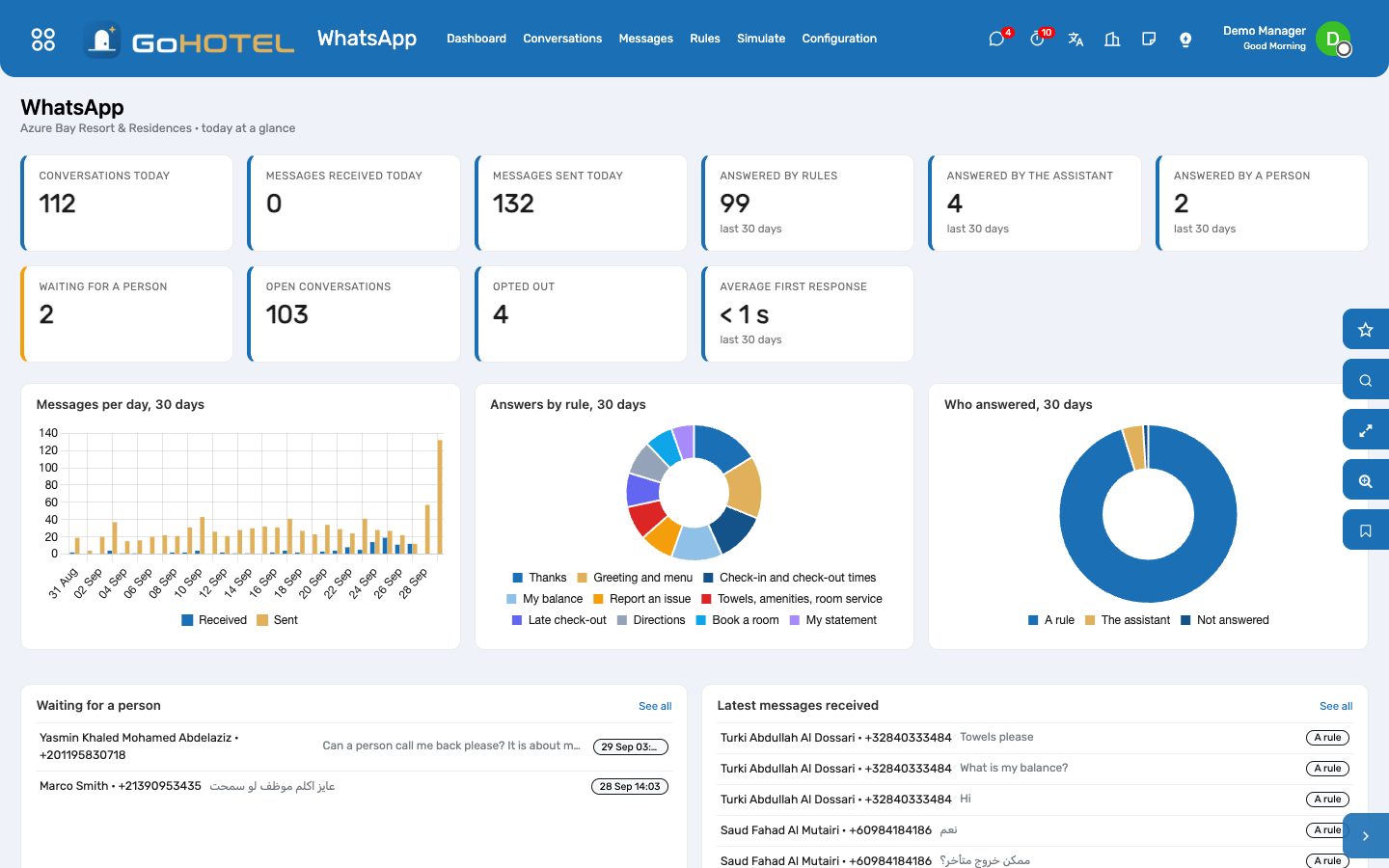
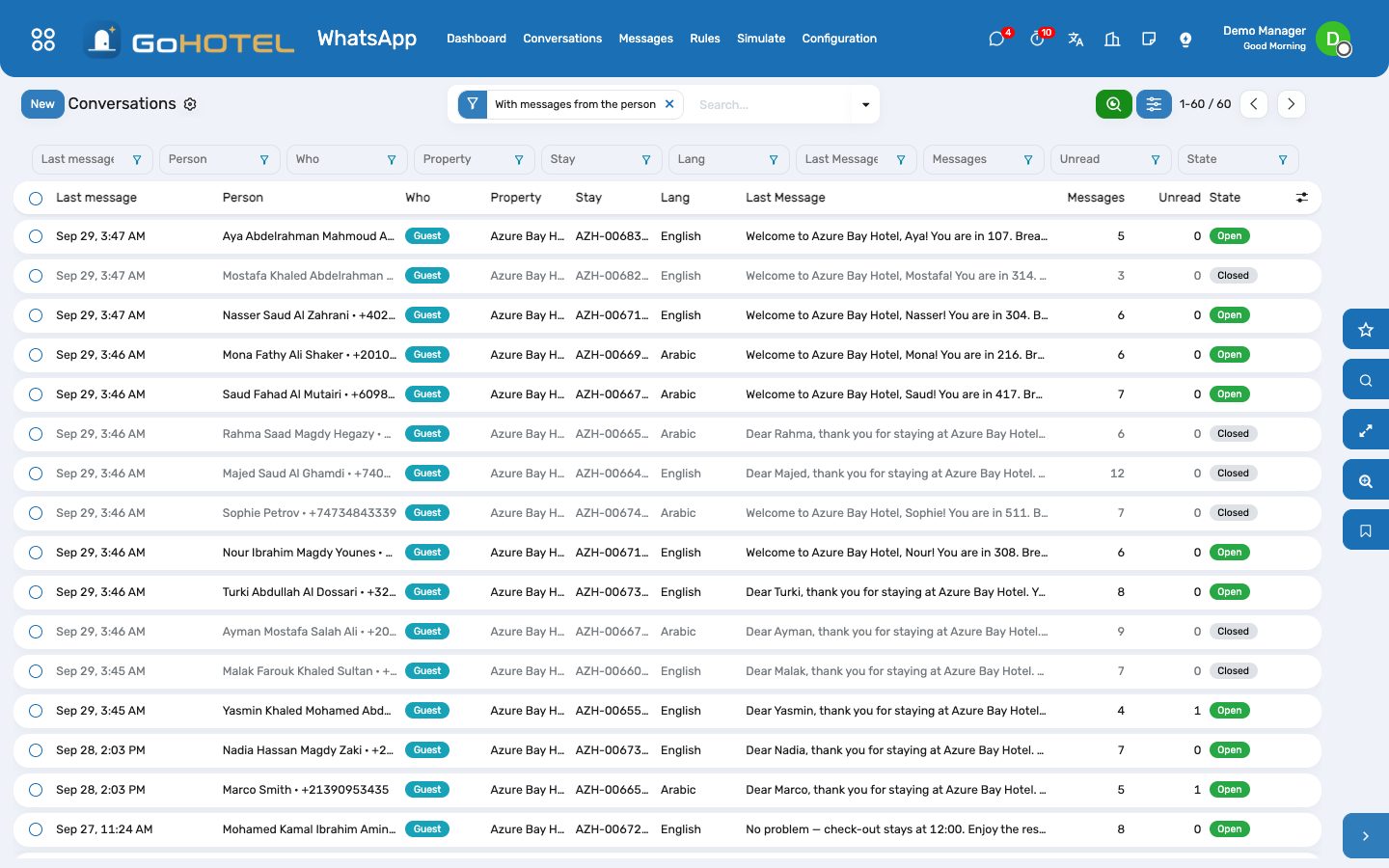
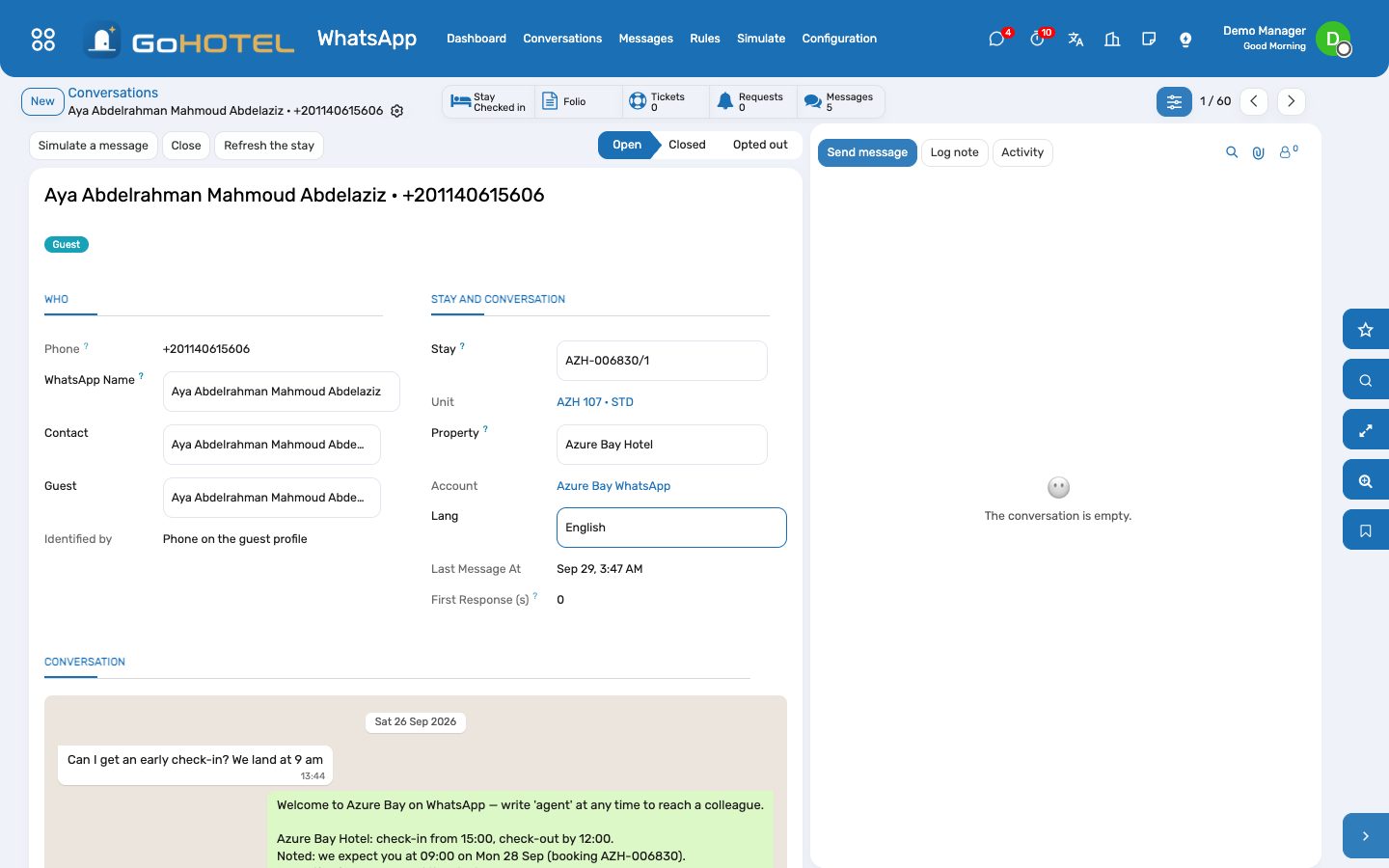
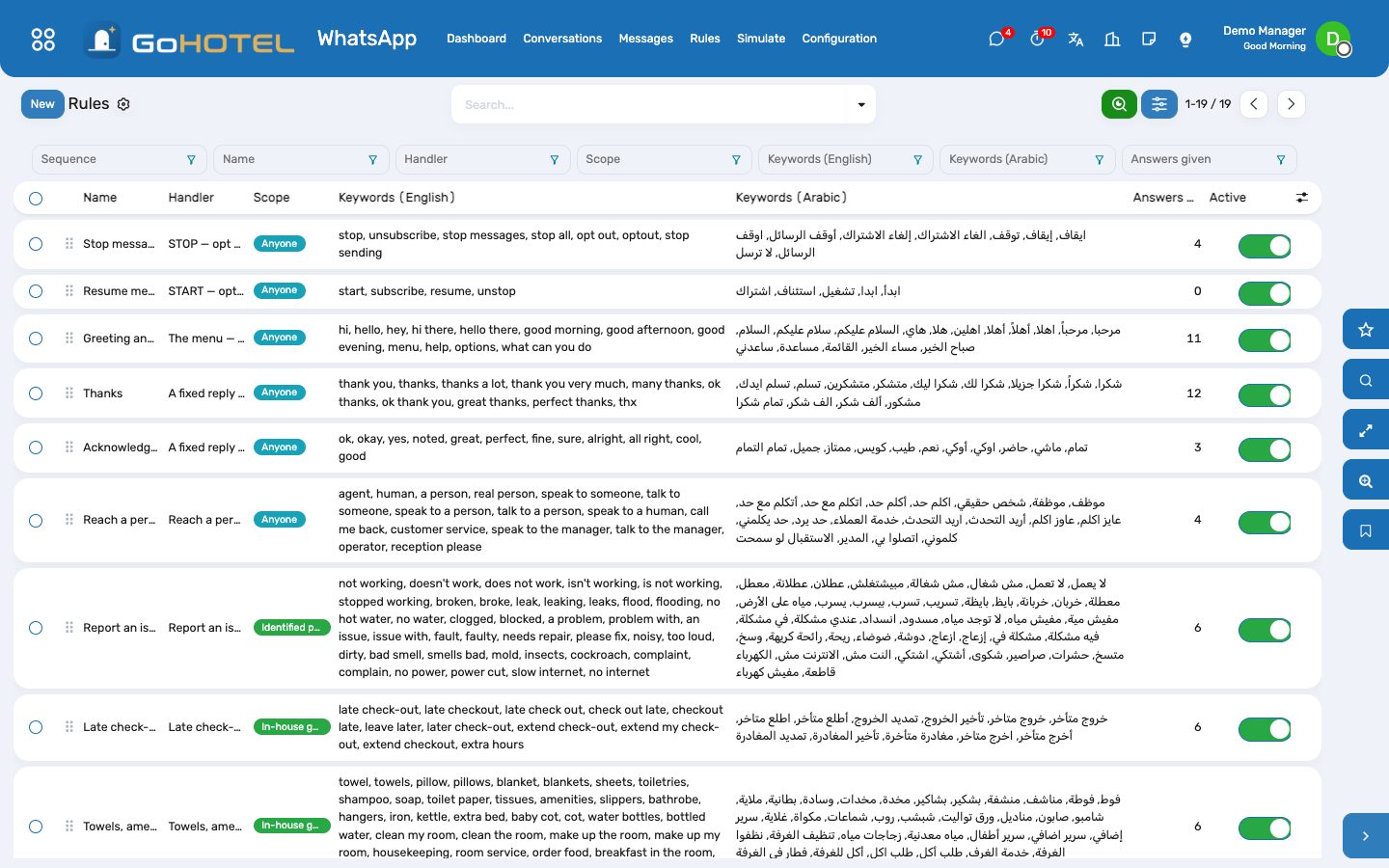
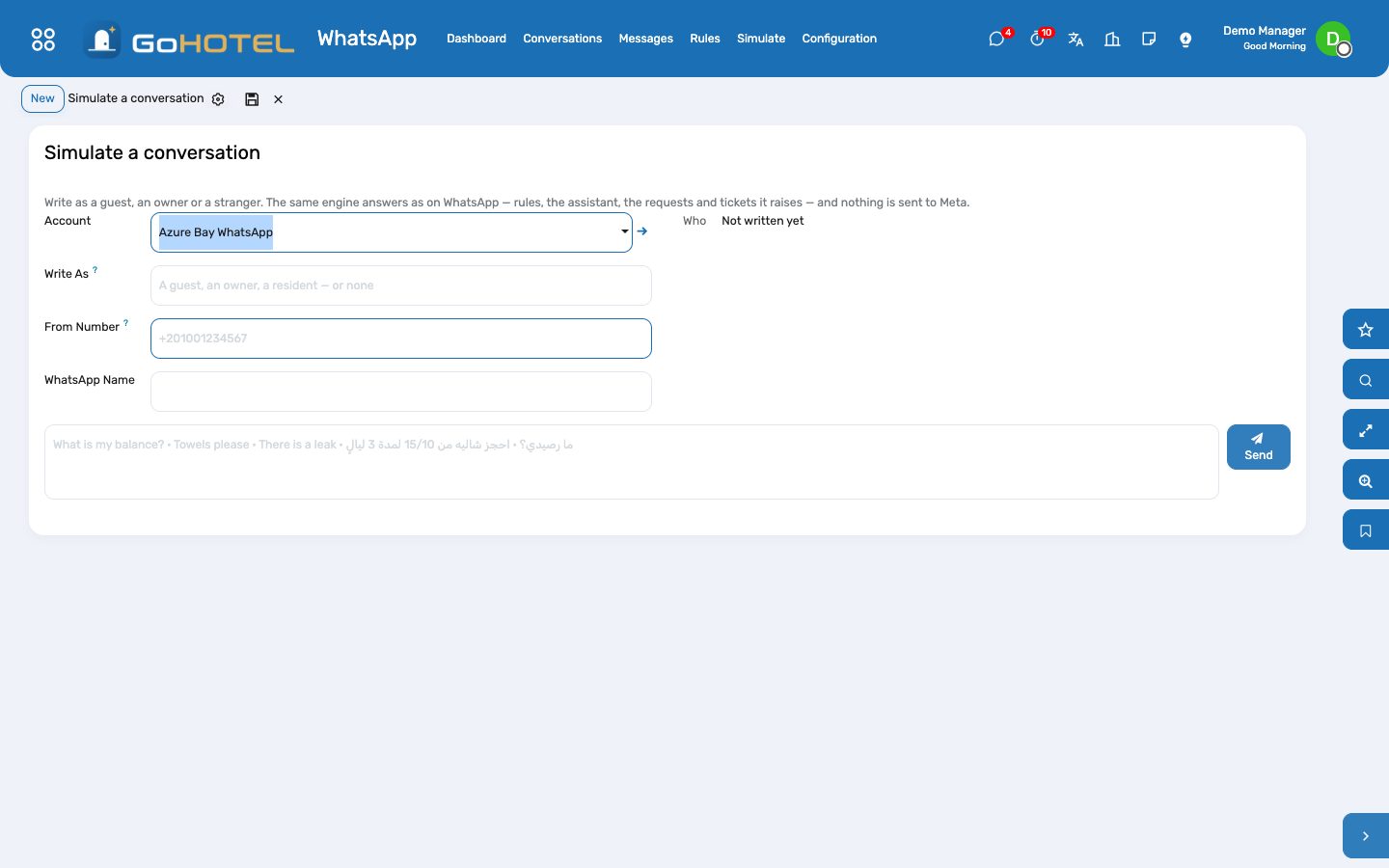
Before you start
- WhatsApp › Configuration › Accounts: one account per number. Leave Property empty for a number that answers for every property (hotel, village and compound), or pick the one it belongs to.
- Start in Simulate mode: rules, the assistant and the simulator work without a Meta account, and nothing is sent.
- Set the Home Country (a number typed as 010… is read as an Egyptian number), the default language, the opening message in both languages, the directions and the map link.
- Hand-offs To: the colleague who gets the to-do when someone writes "agent". Empty: a guest-relations user.
- Going live: in Meta Business, create the WhatsApp number and a permanent system-user token; paste the Phone Number ID and the token on the account; in Meta › Webhooks paste the Webhook URL and the Verify Token shown on the account and subscribe to "messages"; paste the app secret so every call is checked; press Test connection; switch the account to Live.
- Journey steps on WhatsApp (Guest Experience › Journeys) are delivered through the account. Outside the 24 hours after the guest last wrote, Meta accepts only an approved template: put its name in the step's WhatsApp Template.
How to
Understand who is writing
- WhatsApp › Conversations: every number that wrote or was written to. "Who" says guest, owner, resident or unidentified; "Identified by" says how — the phone on the guest profile, the phone on the contact, or the booking reference and phone the person sent.
- A number that matches exactly one guest or contact is identified at once. Several matches or none: the person is asked for the booking reference (e.g. AZH-000123) and the mobile number given when booking, and identified when both match the same booking. After five wrong tries the conversation goes to a colleague.
- An unidentified person only gets the public answers: where we are, check-in and check-out times, and "book" to ask for a room. Nothing about any stay, bill or unit.
See what the number answers
- In house: my balance (the folio, charges, payments and what is due), towels, amenities or room service (a guest request on the stay, handed to housekeeping), late check-out (the property's offer — YES posts it to the folio with its service charge and VAT — or a request to the desk when no offer applies), a problem in the room (a help-desk ticket on the unit, routed to engineering or housekeeping by its category).
- Arriving: my booking (reference, dates, unit type, status), check-in time — "arriving 18:30" writes the ETA on the stay for the desk — and directions.
- Owners and residents: my statement, my fees (from the ownership account when the Community pack is installed; otherwise a polite "the owners' office will send it"), a gate pass for a visitor (a visitor invitation for the unit, for security to approve), a problem in the unit.
- Anyone: "book" with dates and guests makes a reservation inquiry (source WhatsApp) held like a website request, with the online price when the dates are bookable; "agent" hands the conversation to a colleague.
Answer as a colleague
- The dashboard lists the conversations waiting for a person; the colleague in Hand-offs To also has a to-do.
- Open the conversation, read the thread, type in "Reply as a colleague" and press Reply. It goes out on WhatsApp, counts as answered by a person, and closes the to-do.
- The smart buttons open the stay, the folio, the tickets, the requests and the booking inquiries the conversation raised. Refresh the stay after a check-in or a room move.
Teach the number your own words
- WhatsApp › Rules: each rule has a handler (what it does), a scope (anyone, identified, in house, owners, residents), and keywords in English and Arabic. The first active rule in sequence whose keywords are in the message answers.
- Add the words your guests use ("chalet", "الشاليه", "مناشف") to the right rule; one spelling is enough — أ إ آ, ة and ى are folded and Arabic-Indic digits read as digits. A rule with exact matching fires only when the whole message is a keyword (hi, thanks, STOP).
- A fixed reply (breakfast hours, Wi-Fi) is a rule with the handler "A fixed reply" and its texts in both languages; {first_name}, {property} and {phone} are filled in.
- A question no rule picks goes to the assistant for an identified person: it may only use the tools about that person — their folio, their booking, tonight's rates — and an answer that did not come from a tool is thrown away. "How full is the hotel?" from a guest gets the menu, not the occupancy.
Try it before going live
- WhatsApp › Simulate: pick a guest, an owner or a resident in "Write as" (or type any number to write as a stranger), type the message, press Send. The answer, and the whole conversation, appear below.
- The same engine answers as on WhatsApp — requests, tickets, gate passes and inquiries are really raised — so use a test guest when you try a request.
Opt-outs
- STOP (or إيقاف) opts the number out at once: no answer, no journey message and no reply by a colleague until it writes START. When Someone Sends STOP chooses between a last confirmation and silence.
- Opt in again on the conversation is for the rare case the person asked in writing; the button asks you to confirm.
Questions the desk asks
Does the demo send anything to WhatsApp?
No. The account is in Simulate mode: every answer is stored on its conversation, marked "simulated". Only a Live account posts to Meta.
A guest writes from their spouse's phone.
The number is not on the booking, so the bot asks for the booking reference and the mobile number given when booking; with both it knows the stay and answers.
Why did the bot not answer a message?
The number opted out, or it sent more than the account's messages-per-hour limit (30 by default) — the refusal is logged and shown on the message.
Can the assistant tell a guest who else is in house?
No. On WhatsApp it only runs the tools about the person writing; every other tool is refused, and any answer that is not a tool's answer is discarded.
Where do the requests go?
Towels and room service become guest requests (Front Desk), problems become help-desk tickets handed to engineering or housekeeping, gate passes become visitor invitations (Access), bookings become reservation inquiries (Reservations), a late check-out YES becomes a folio charge.
See also: Guest experience: journeys, upsells, loyalty, complaints and satisfaction Help desk: tickets from guests, owners and residents The assistant Front desk: arrivals, in house, departures Access & Security — passes, the gate, visitors, vehicles and patrols
Owner Programme: rental contracts, the owner ledger, statements and payouts
When the operator lets owners' chalets, villas or apartments for them, every night sold on a unit under contract is credited to its owner by the night audit, less the operator's commission and the owner's part of the channel commission; cleaning, linen, repairs, the management fee and the utilities come off; a rental pool shares its revenue by points and days. At month end each owner gets a statement — on paper, by e-mail and on the owner portal — and a payout, by bank transfer or set against the service charges the owner still owes.
Where:Owners › Dashboard · Contracts · Ledger · Pool Periods · Statements · Payouts · Owner Stays · Work Orders for Owners · Configuration
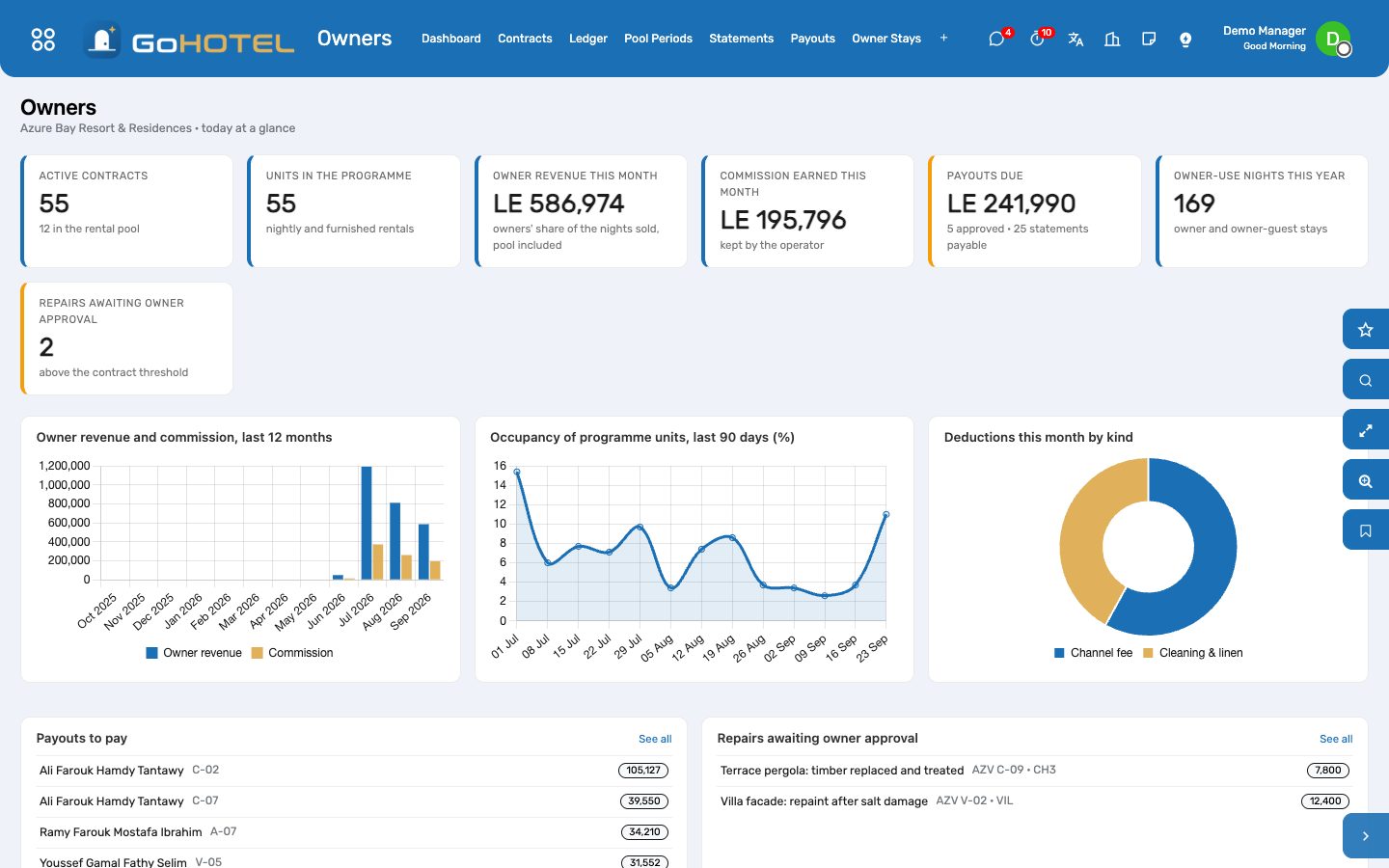
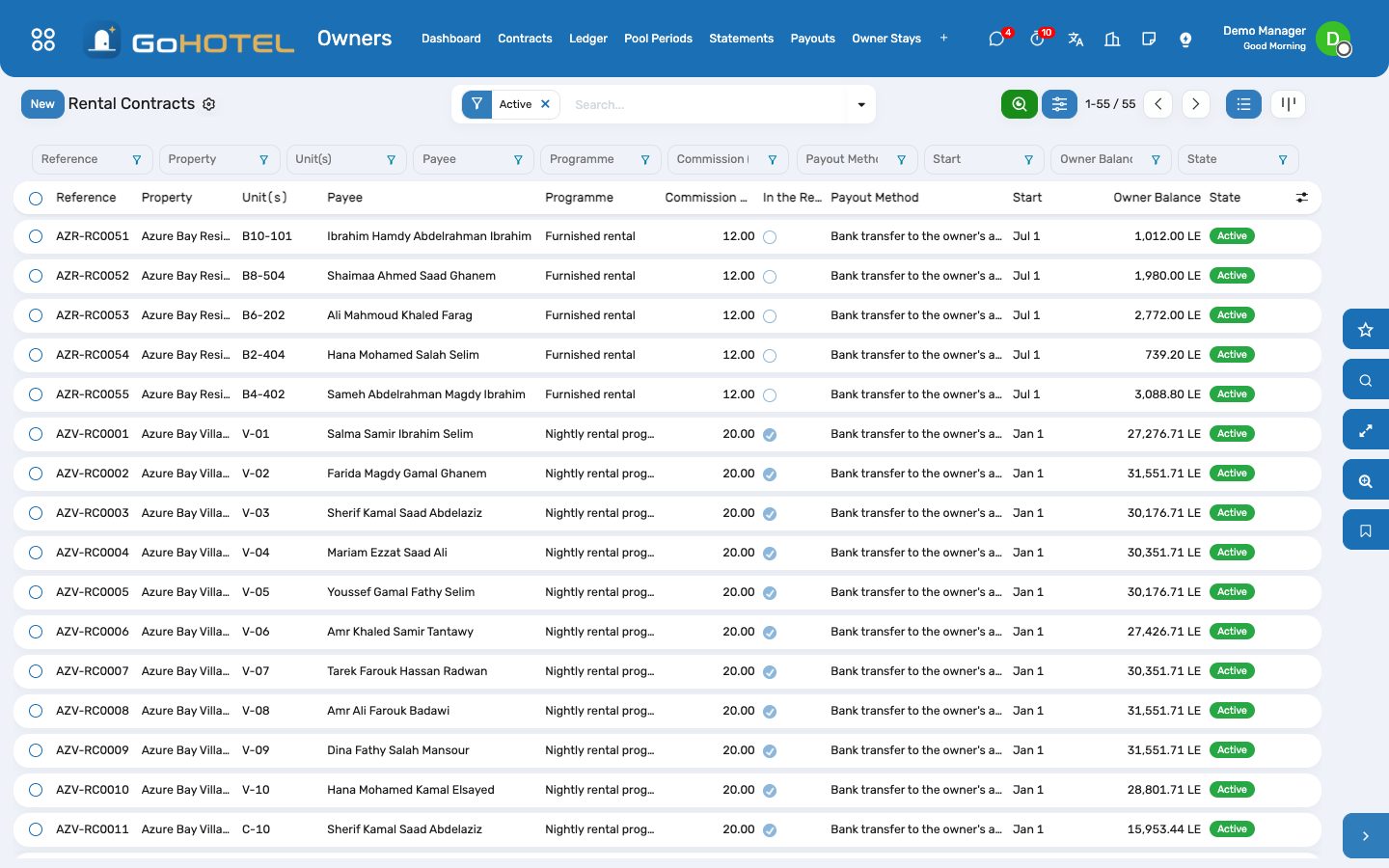
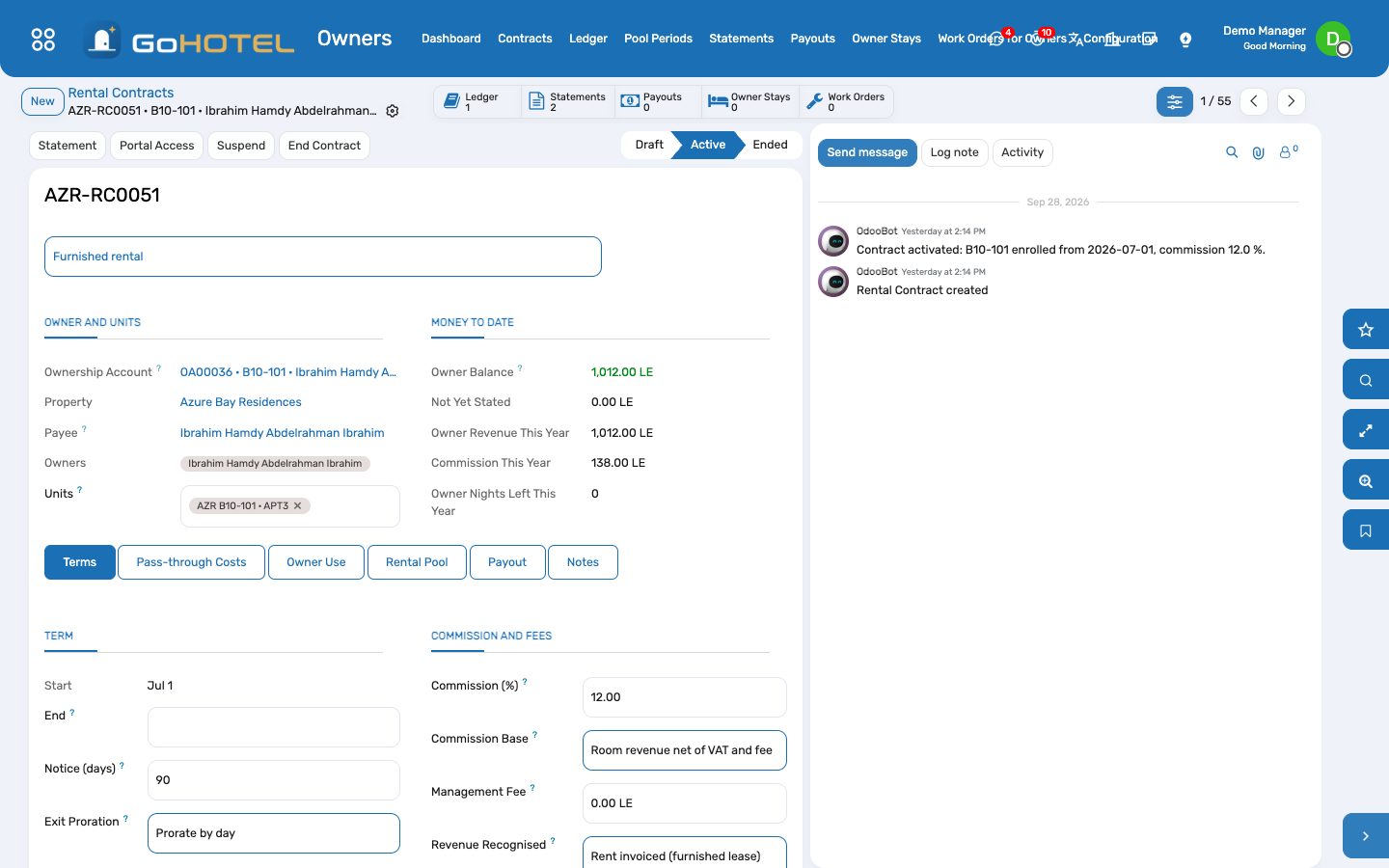
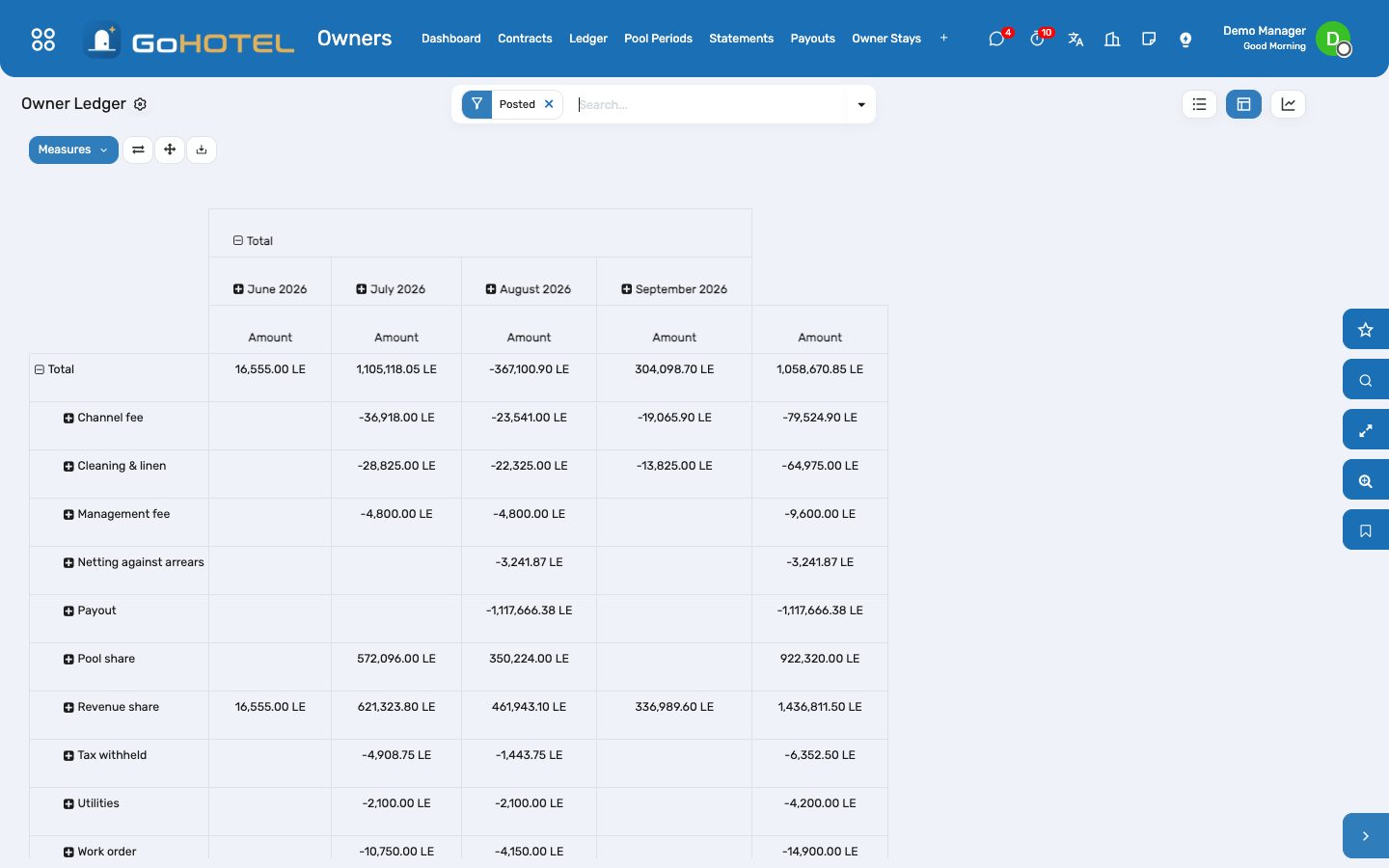
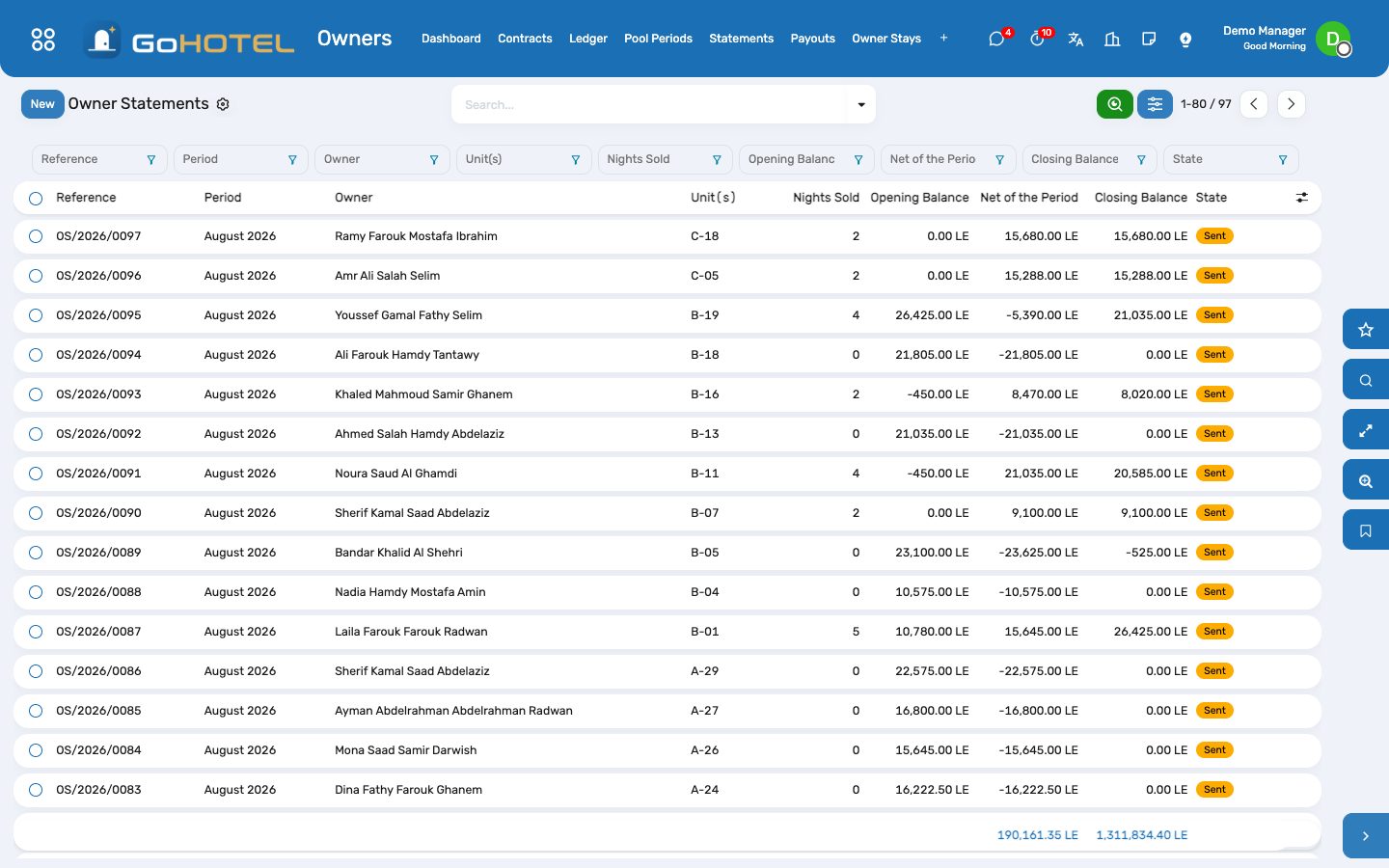
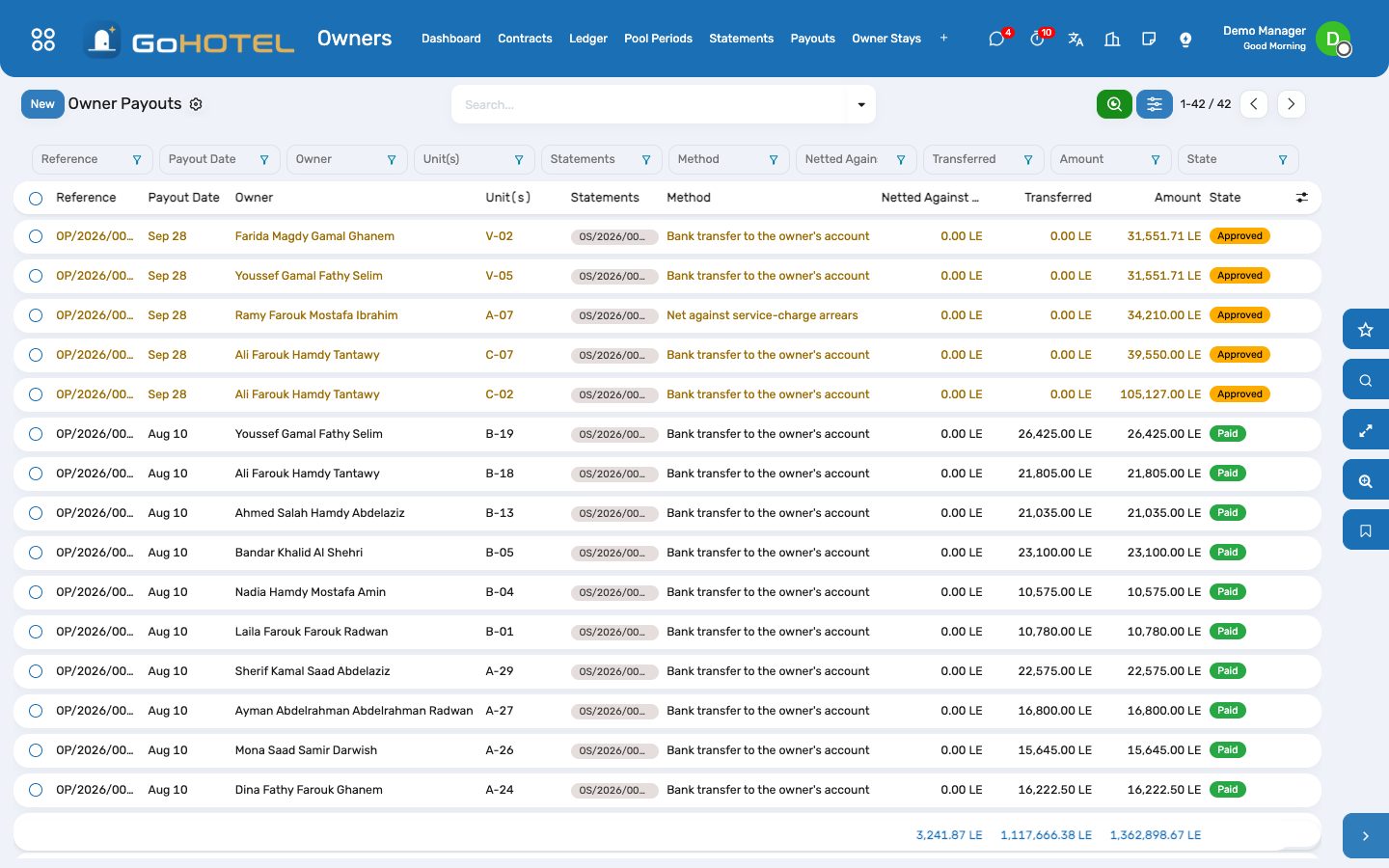
Before you start
- The units flagged Owner-held and an active ownership account for each (Community › Ownership Accounts).
- A bank journal in Accounting; the Owner funds (trust) journal and the Owner payouts account are created on the first payout, or chosen under Owners › Configuration › Settings.
- The owner-use rate plan of the property (kind Owner use, zero rate) — created the first time an owner stay is booked.
- Blackout dates and pool points by unit type under Owners › Configuration.
How to
Enrol a unit in the programme
- Owners › Contracts › New: pick the ownership account — the unit, the owners and the payee (the primary owner) follow.
- Programme: Nightly rental programme for a unit sold night by night; Furnished rental for an apartment let on a lease, where the owner earns the rent.
- Terms tab: start and end, notice, the commission and its base (room revenue net of VAT and fees, or gross), an optional monthly management fee, how revenue is recognised (nightly at the night audit, at check-out, or the rent as it is invoiced), the tax to withhold if any, and the repair cost above which the owner must approve.
- Pass-through Costs tab: who bears the channel commission, the cleaning and the linen after each stay, and the utilities — the owner, the operator, or shared with the owner's percentage.
- Activate. A unit can be in one live contract at a time.
Let the ledger fill itself
- Nothing to type: the night audit's Other modules step credits every night sold on a contracted unit — the room revenue on the contract's base, less the commission — and charges the owner their part of the channel commission when the stay came through Booking.com, Expedia or another channel or agent.
- At check-out the cleaning and linen of the stay come off by the contract's split; on the at-check-out basis the whole stay is credited then instead of night by night.
- Furnished rentals are credited from the lease's rent invoices; the management fee, the utilities and the tax withheld are written when the month's statements are made.
- Owners › Ledger: every line with its date, kind, source and statement. The pivot shows kinds by month; the graph the months stacked. Add an Adjustment and Post it for anything else the owner should see (a goodwill credit, a correction).
Share the rental pool
- Tick In the rental pool on the contracts that pool, with their entitlement points (filled from the unit type's pool points under Configuration, or the area in m²).
- A pool contract's nights go to the pool, not to its owner: each night's revenue less commission and the owners' part of channel fees.
- Owners › Pool Periods › New (or the month-end run on the first of the month): pick the property and the month, Compute — the pooled revenue is shared by points × days in the pool — check the shares, then Post the Shares to the owners' ledgers.
Make and send the statements
- On the first of the month the month-end run posts last month's pool and drafts the statements; Owners › Statements › Generate Statements does the same for any period and any contracts.
- Each statement opens with the previous closing balance, lists the lines, and closes with opening + lines: positive is due to the owner, negative is carried forward. The Units tab gives nights sold, owner nights, occupancy, ADR and room revenue per unit.
- Send by E-mail queues the owner's e-mail with the PDF on the property's letterhead; the statement also appears on the owner's portal page. Mark as Sent when you hand it over another way.
Pay the owners
- On a sent statement with a balance due, Create Payout (or select many and Create Payouts). The amount is the closing balance; a quarterly contract is paid on the quarter's last statement.
- Approve, then Pay: a vendor bill to the owner is posted in the Owner funds (trust) journal — the owner's share on the Owner payouts account, the tax withheld on its liability account — and paid through Accounting's own Register Payment from the bank journal.
- Netting: when the owner has signed the consent (Payout tab of the contract: tick the consent; the date is kept), a payout with the Net against service-charge arrears method first settles the owner's open service-charge, levy and late-fee invoices — one entry per invoice in the trust journal, reconciled to that invoice — and transfers the rest.
- The payout writes Payout and Netting lines on the ledger and turns the statements paid.
Owner stays
- From the contract, Book Owner Stay (or Owners › Owner Stays › Book an Owner Stay): the unit, the owner or the owner's guest by name, the dates.
- The stay is checked against the owner's nights left this year, the blackouts of the contract and of the property, the booking notice and the unit's availability, then confirmed at the zero owner-use rate.
- The contract's cleaning charge for owner stays is scheduled on the ledger and posted when the owner leaves; a cancelled or missed stay takes it back.
- A manager can tick Book outside the terms to override the allowance, the blackouts and the notice — never availability.
Repairs charged to owners
- A work order on a contracted unit with Chargeable To = Owner shows the contract and its approval threshold.
- Above the threshold the repair waits: Owner Approval is Pending and the work order cannot move past New Request until the owner approves — on the owner portal, or Owner Approved on the work order when the owner says so by phone.
- Below the threshold no approval is needed. When the work order is done its total cost is a Work order line on the owner's ledger.
Give owners their portal
- On the contract, Portal Access opens Odoo's portal invitation for the owners of the account.
- At /my/owner the owner sees the units, the balance and this year's revenue; a month calendar per unit with guest stays (no names), their own stays, blackouts and out-of-order days; Block my unit; the statements with their PDF; the repairs waiting for approval with Approve and Decline; the payouts.
- An owner sees their own contracts, statements, payouts, ledger and units, and nothing of anyone else's.
Questions the desk asks
Is the owner paid on what the guest paid, or on the room rate?
On the contract's commission base: room revenue net of VAT and fees (the usual base), or gross with fees and VAT. Food, spa and extras never enter the owner's revenue.
Who pays the Booking.com commission?
The contract says: the owner, the operator, or shared with the owner's percentage. The channel's commission on the booking is used when the booking came through the channel manager; otherwise the agent or OTA account's commission %.
The owner owes more than the month earned.
The statement closes negative and the balance is carried to the next one; no payout is made until the balance is due to the owner again.
Can we pay an owner by setting it against the service charge?
Only with the owner's consent recorded on the contract. The payout then settles the open service-charge invoices one by one and transfers what is left.
Where is the money in Accounting?
Guests' money is on the folios and their invoices, owners' money on the vendor bills of the Owner funds (trust) journal and their payments, the community's money on the service-charge invoices. Nothing mixes them.
A night was accrued by mistake.
Post an adjustment for the amount on the owner's ledger with a note; the next statement carries it.
See also: Community: owners, residents and service charges The night audit and the business date Maintenance and engineering
The portal — guests, bookers, owners and residents online
One login per person, on the property's own site at /my, and the pages that person needs: a guest sees their stays, checks in online with a photo of the ID and a signature, follows the folio, asks for towels, accepts an offer; a company booker sees the account's bookings and statement; an owner or a resident sees the service charges and the statement, the household, permits, visitors and their QR pass, the facilities and the general assembly. What the portal asks for waits for the desk or the office in the state that record uses for "asked": a pre-check-in is applied with one button, a permit waits in Requested, an invitation in Requested. Every action lands in Portal Requests, and the Portal dashboard shows what came in.
Where:Guests › Portal › Dashboard · Pre-check-ins · Portal Requests · Portal Users; the Grant portal access button on a guest, an ownership account and a resident; the Guest Portal tab of the property
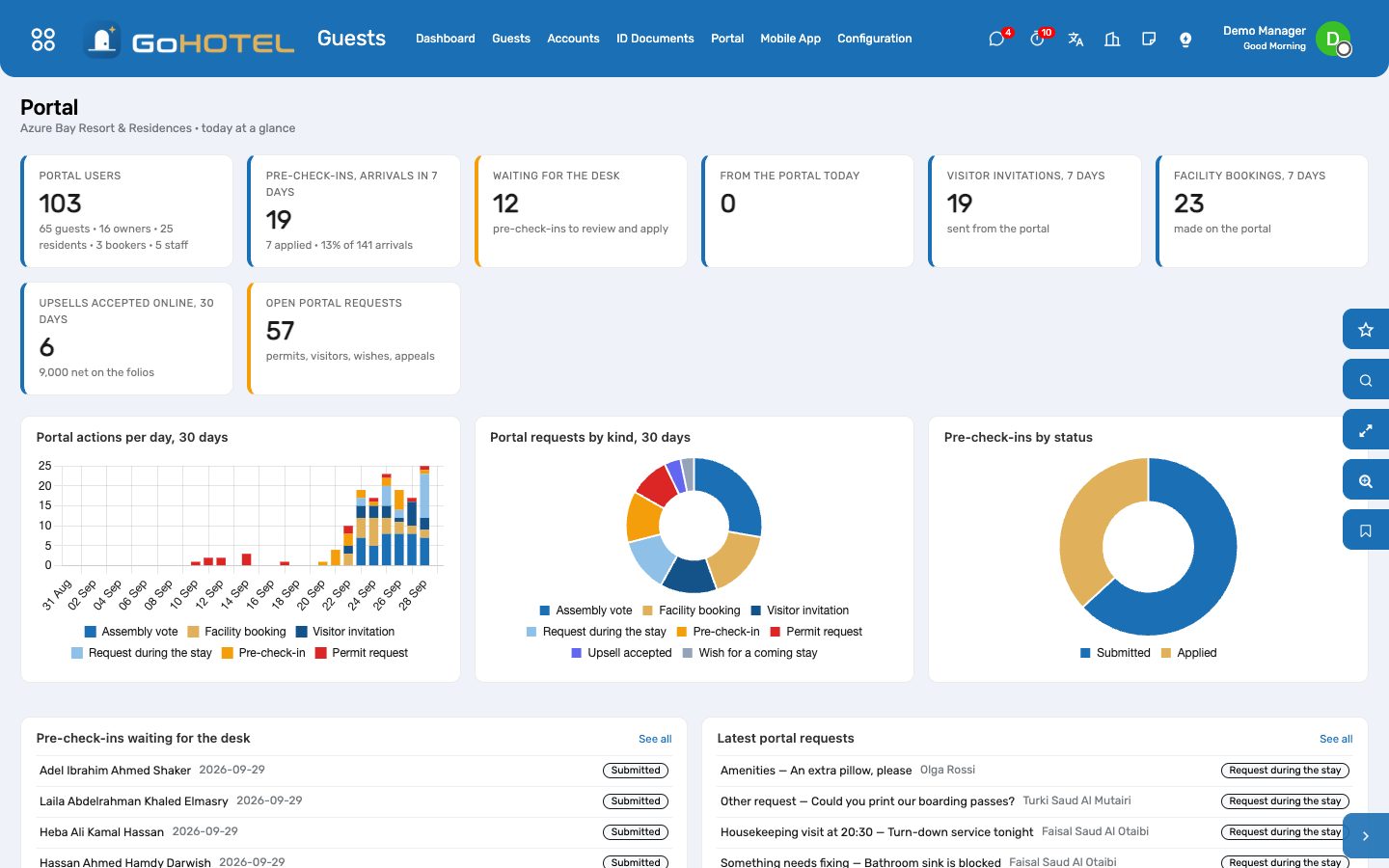
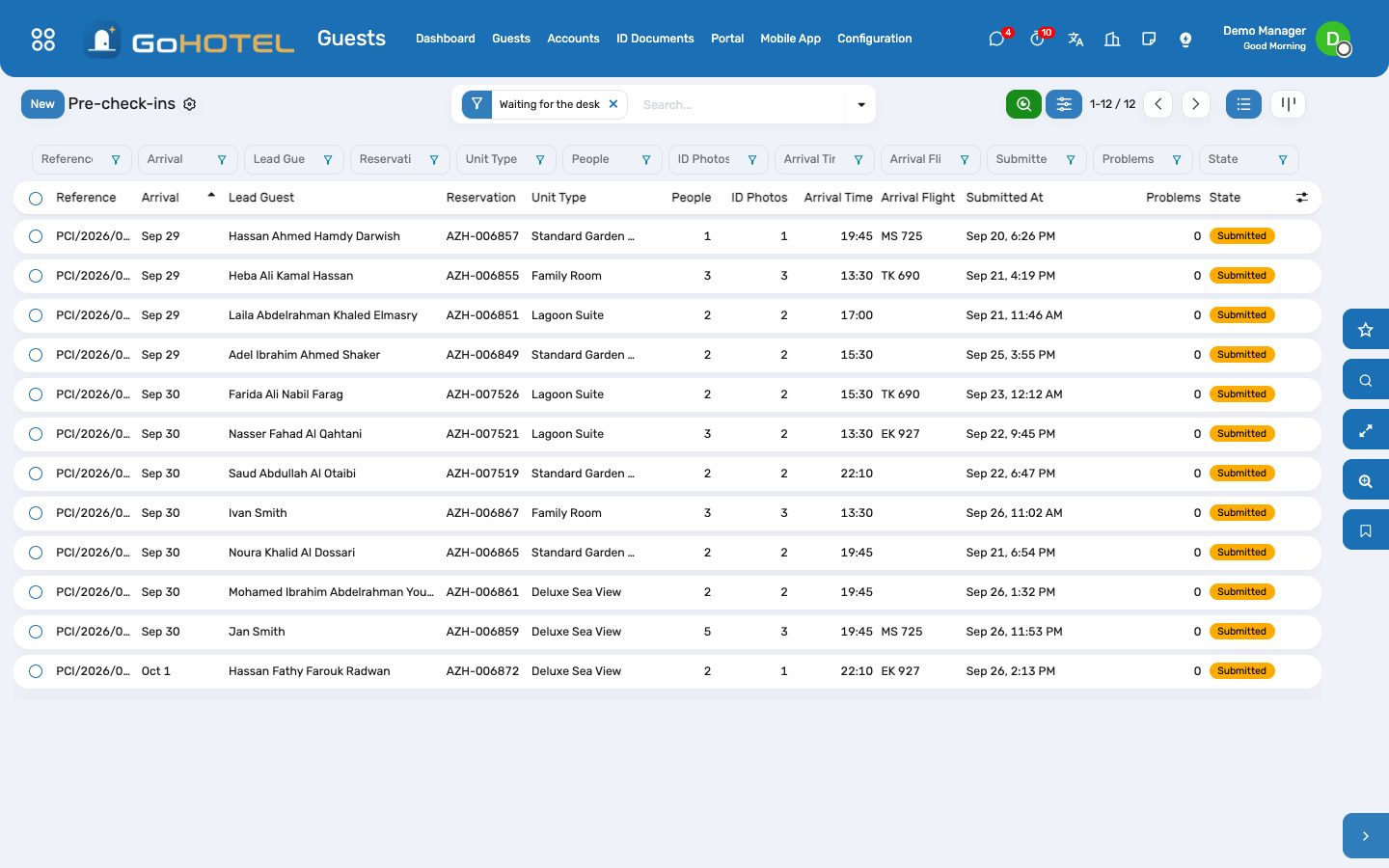
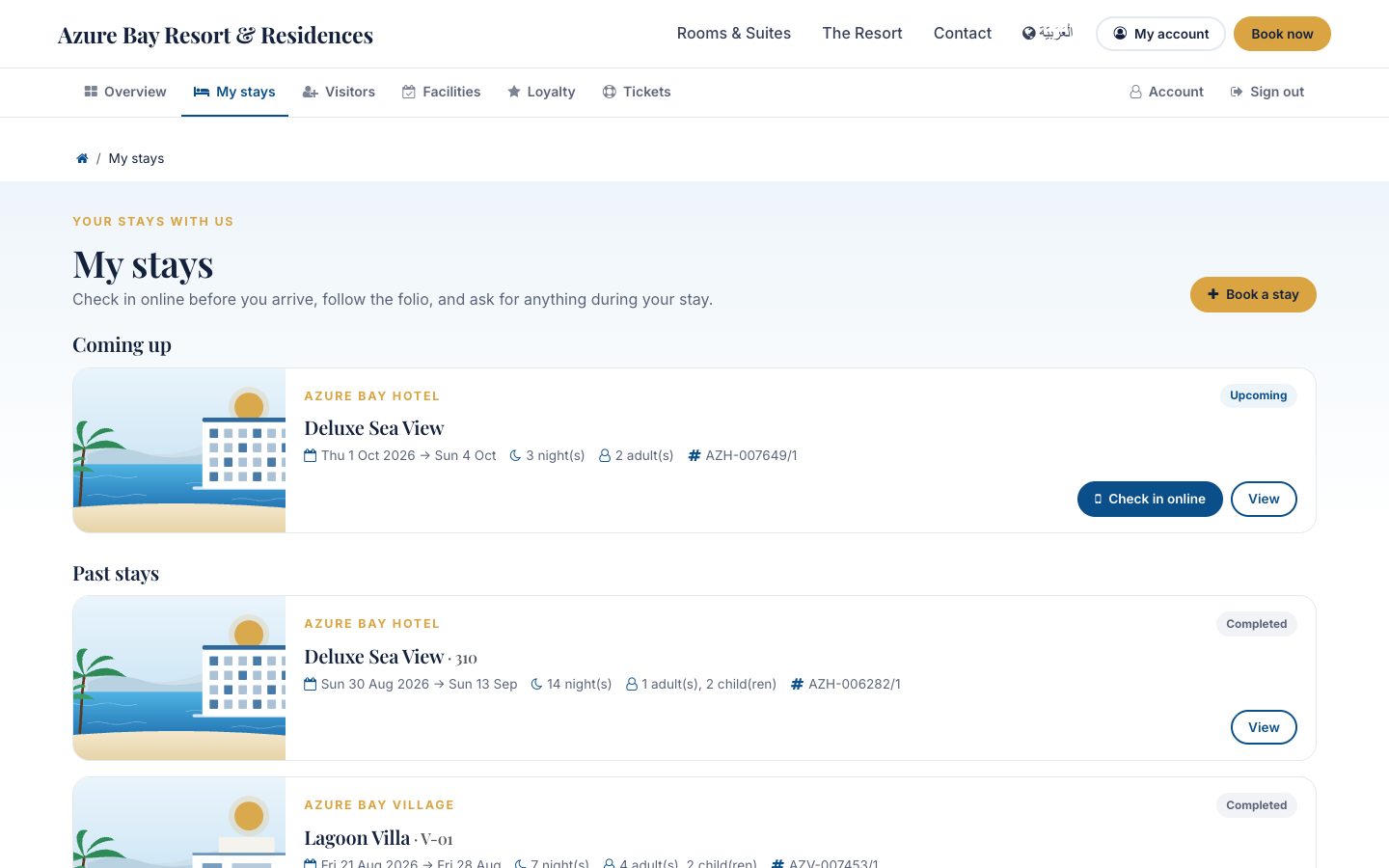
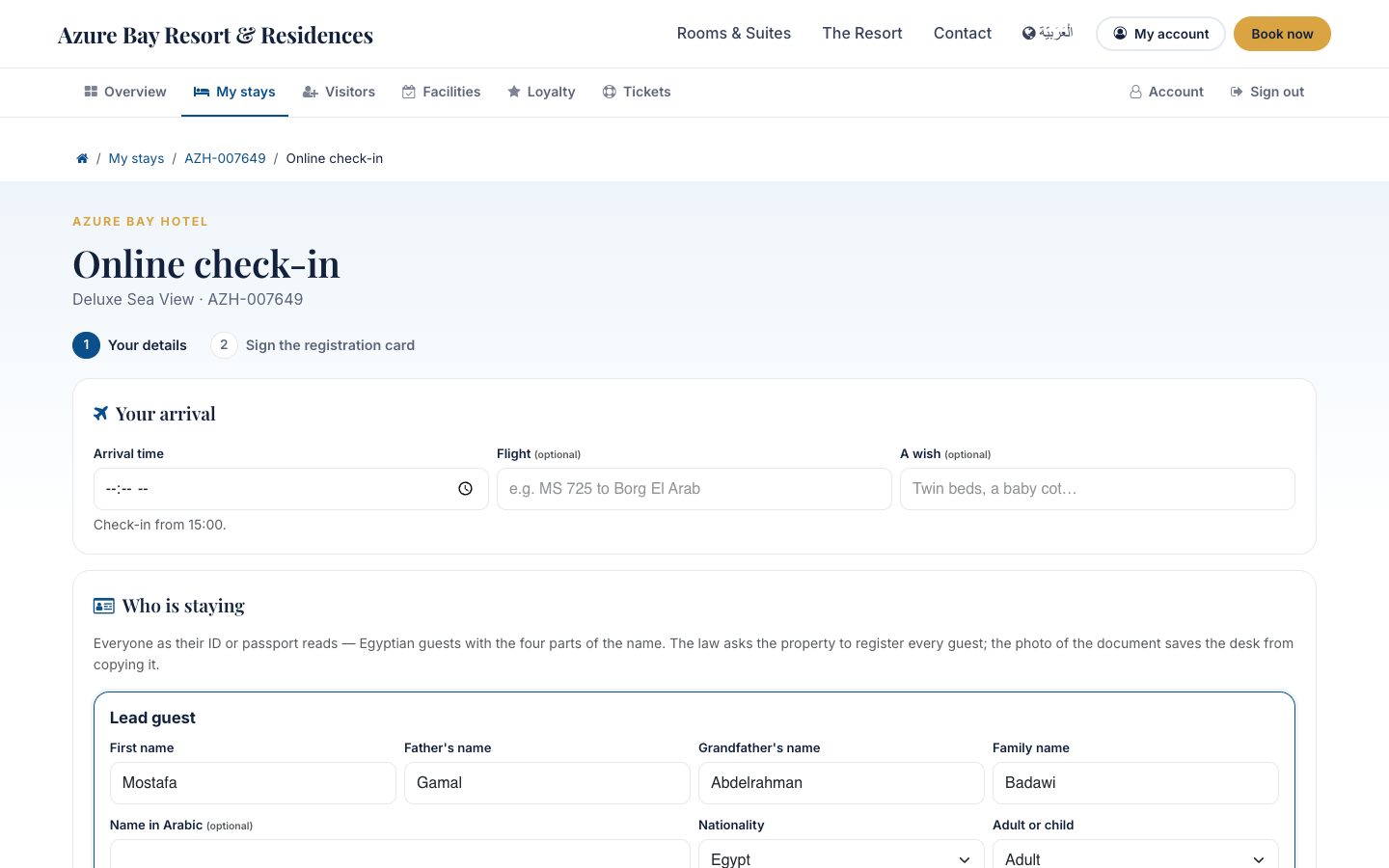
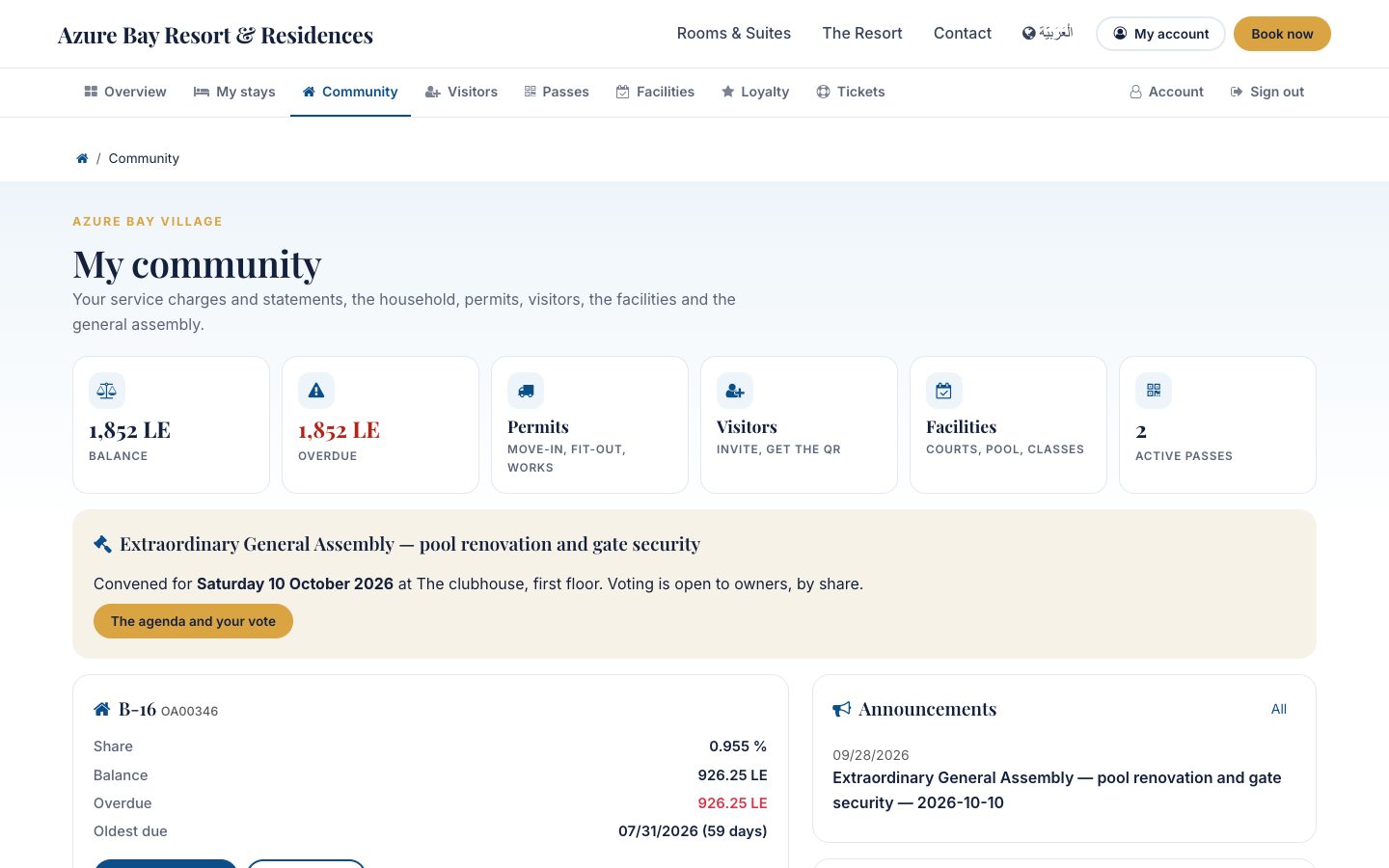
Before you start
- The property site published (Property Website): the portal wears its header, footer and colours.
- An e-mail address on every person who should sign in — it becomes their login and receives the invitation.
- An outgoing mail server, so invitations and password e-mails leave the mail queue.
- To let owners pay service charges online: a payment provider enabled in Invoicing; the invoice page then shows Pay now.
How to
Give someone portal access
- Open the guest (Guests › Guests), the ownership account (Community) or the resident and press Grant portal access. Odoo's portal wizard opens on the right contacts; tick Grant Access. For several at once, select them in the list and use Action › Grant portal access.
- The login is the contact's e-mail; the invitation with the link to choose a password waits in the mail queue and goes out with the next run.
- To invite every guest automatically, open the property, Guest Portal tab, and tick Invite guests to the portal at confirmation: each confirmed reservation gives its lead guest a login and queues the invitation. It is off until you turn it on.
- Guests › Portal › Portal Users lists every login with what the person is to you (guest, booker, owner, resident, staff) and when they last signed in.
Review and apply an online pre-check-in
- Guests › Portal › Pre-check-ins opens on those waiting for the desk, soonest arrival first; the stay shows the same under its Pre-check-in button.
- Open one: the arrival time and flight, every occupant as the ID reads (the four parts of an Egyptian name, nationality, document number and expiry, date of birth) with the photo of the document, the consents and the signature.
- A red line under Problems is what a police list would refuse — correct it in the occupant row, or Return to the guest with a reason they read on the portal.
- Apply to the stay: the guests are matched by ID number or created, the companions put on the stay with their relationship to the lead guest, the photos filed as identity documents on each guest, the arrival time and flight set, the wishes added to the reservation, and the registration card signed with the signature the guest drew and filed as a document. At arrival the desk only hands over the key.
What guests do online
- My stays: every stay under their name, with the balance and the online check-in for the coming ones.
- During the stay: towels, amenities, a housekeeping time, something to fix, room service — each becomes a guest request on the stay, handed to housekeeping or maintenance like one taken at the desk. Report an issue opens a help-desk ticket that already knows the stay and the unit.
- Before the stay: a wish (late arrival, a baby cot, twin beds) waits in Portal Requests for the desk to confirm.
- Make more of your stay: the upsell offers that apply to the stay; Add to my stay posts the charge on the folio with the service charge and VAT, exactly as the desk would.
- The folio with its charges, fees, VAT and payments, the statement PDF, the invoices addressed to them, loyalty points and tier, and after departure the survey link.
What owners, residents and bookers do online
- My community: the balance and the arrears of each ownership account, the service-charge invoices with their PDF and Pay now, the statement PDF, the household, the announcements for owners or residents.
- Permits: move-in, move-out, fit-out, works, delivery or a private event — created in Requested for the community office to approve (fit-out and works carry the permit fee).
- Visitors: an invitation for a day and an hour, created in Requested; once security approves it, the visitor's QR pass is on the page to share. Passes & cards shows their own passes with the QR, the validity and the zones, and the membership card.
- Facilities: pick a court, the pool or a class and a day; the free slots come from the facilities engine with the owner or resident price; booking confirms it and invoices a paid slot.
- General assembly: while an assembly is convened, the primary owner of each account votes on every resolution, by share; the results show once it is held.
- Violations: notified or fined violations can be appealed — the violation moves to Under appeal with the owner's text.
- A company, agent or tour-operator contact sees Bookings: the account's reservations by status, each with its stays, folios and invoices, and the city-ledger statement aged by 30, 60 and 90 days with its PDF.
Follow Portal Requests
- Guests › Portal › Portal Requests lists everything that came in, newest first, with the record it created and that record's status.
- Rows follow their record: approving the permit or the invitation, finishing the guest request, applying the pre-check-in or closing the ticket marks them done; a refusal marks them rejected.
- Wishes for a coming stay and household changes have no record behind them: Take it, do what they ask (add the cot to the reservation, update the household), write a short Reply the person reads on the portal, and mark it Done.
Questions the desk asks
A second guest wants to see the stay too.
Give them their own login: a companion who is an occupant of the stay sees it on their portal; nobody sees another person's stays, accounts, passes or invoices — the pages answer "not found".
The guest never got the invitation.
Check the mail queue (Settings › Technical › Emails) and the e-mail on the contact; the wizard's Re-send invitation queues it again.
Why can the guest not change the details after the desk applied them?
Applied identities are what the police list was built from. The desk corrects them on the guest profile.
Does the portal work in Arabic?
The pages turn right-to-left for a person whose language is Arabic, dates and months included.
See also: Front desk: arrivals, in house, departures Guest experience: journeys, upsells, loyalty, complaints and satisfaction Community: owners, residents and service charges Access & Security — passes, the gate, visitors, vehicles and patrols Facilities and club memberships Help desk: tickets from guests, owners and residents The property website and online booking
Utilities: meters, readings and utility bills
Every unit's electricity, water, gas or district-cooling meter, and the common areas' meters, read by hand, from a CSV file, at the lease handover or by a smart meter; readings that look wrong held back until someone checks them; tiered tariffs; one bill a month per payer — the owner through the ownership account, the tenant under the lease, the long-stay guest on the folio — and prepaid meters topped up at the office.
Where:Utilities › Dashboard · Meters · Readings · Bills · Prepaid Top-ups · Billing Run · Configuration › Tariffs
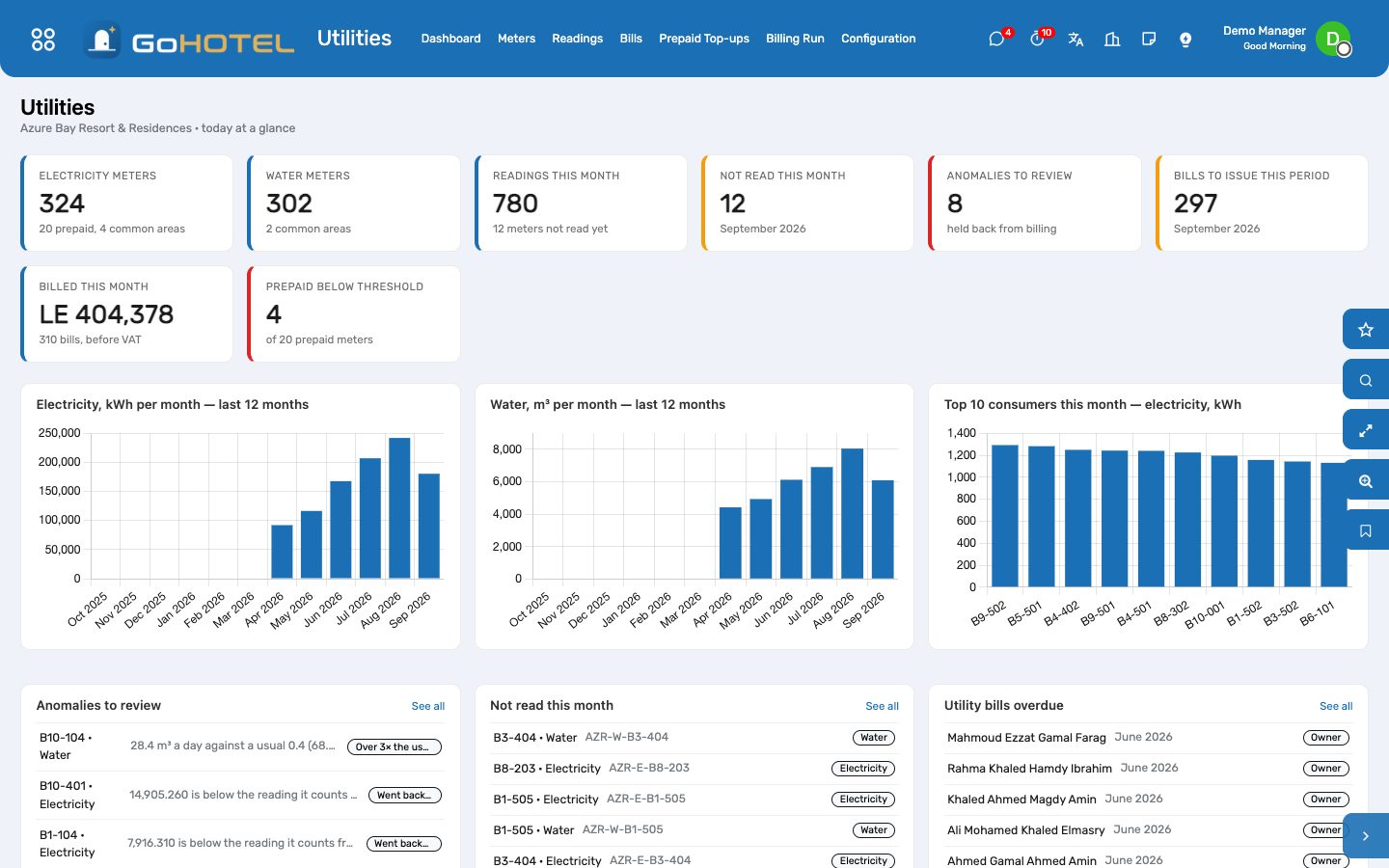
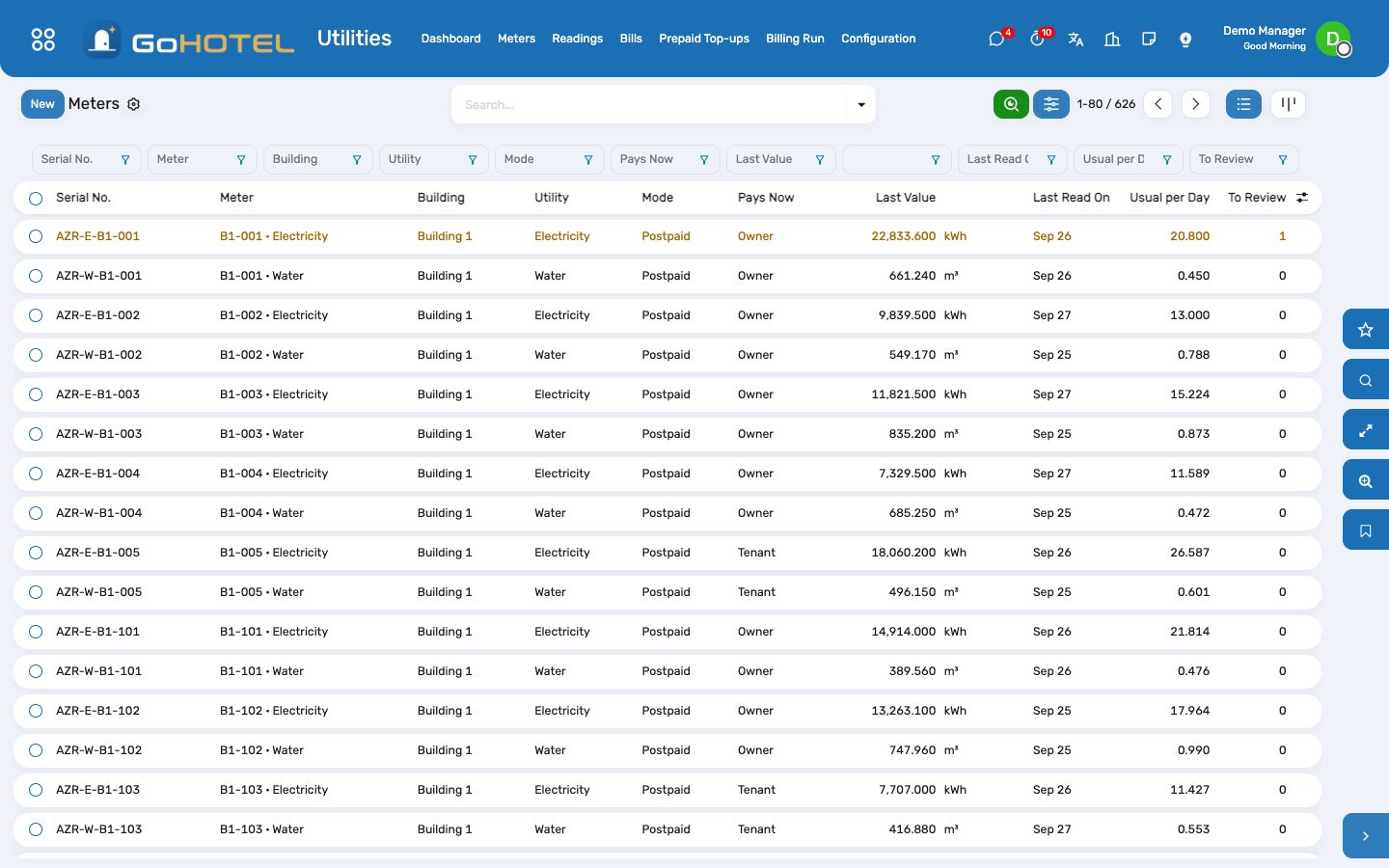
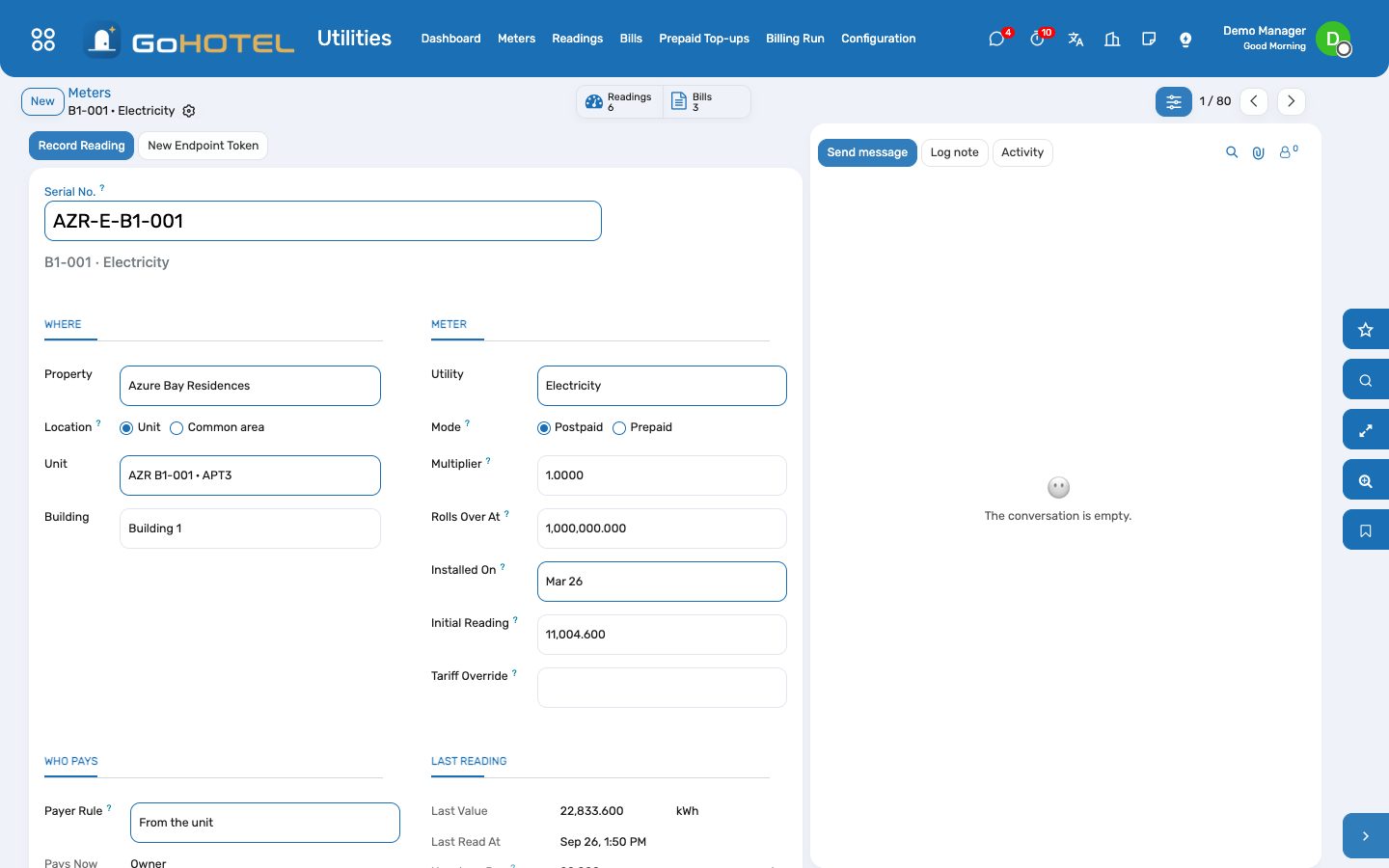
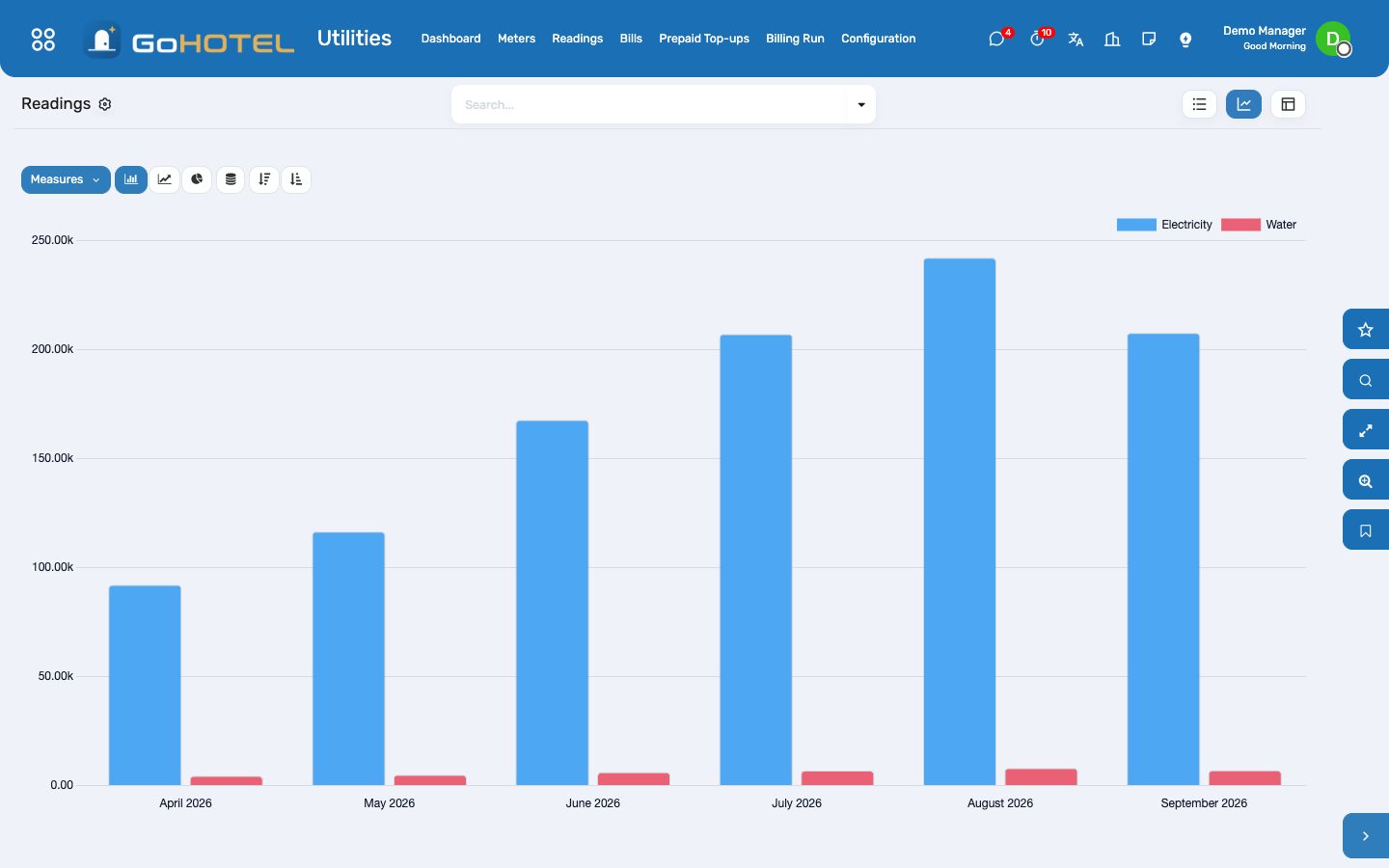
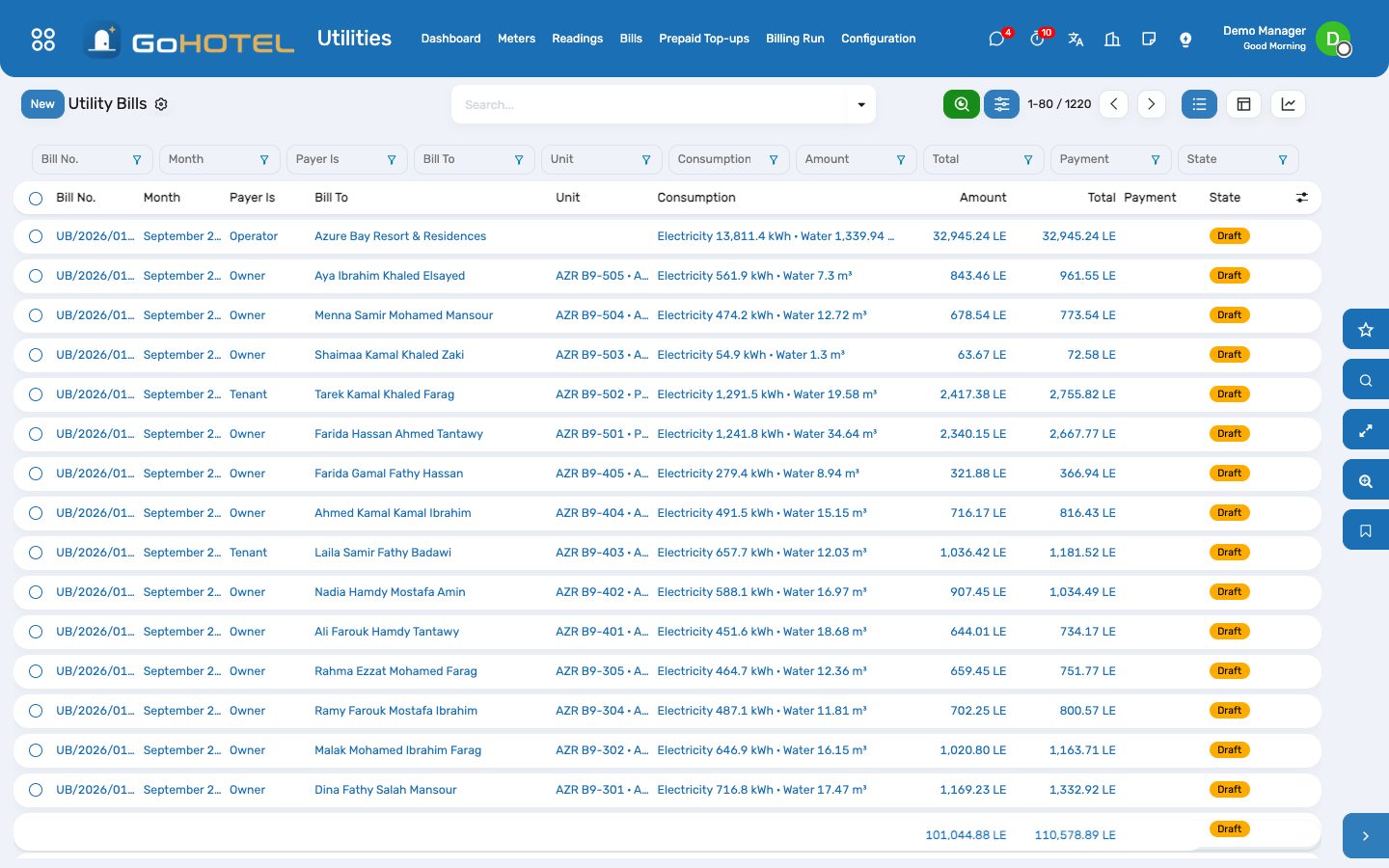
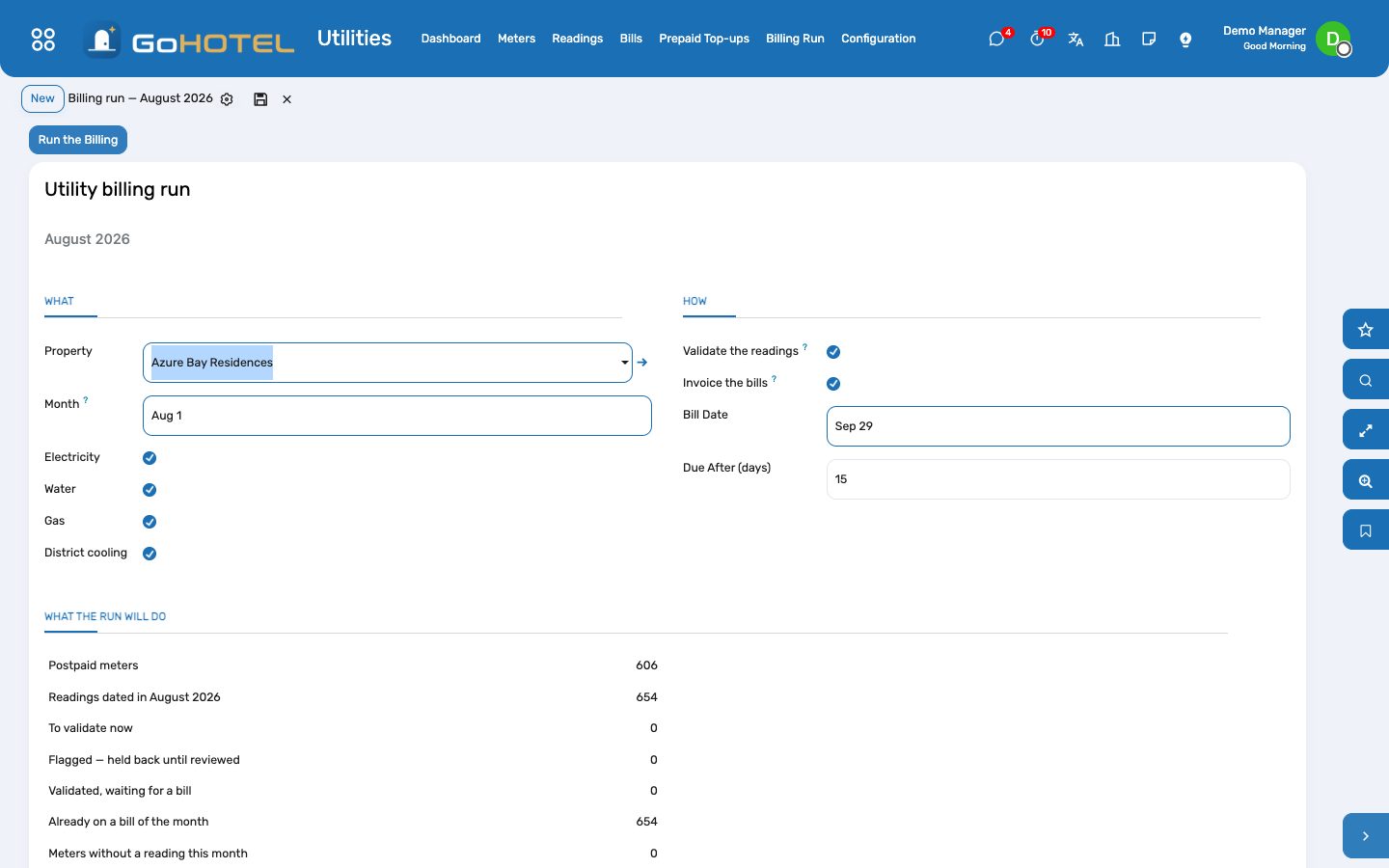
Before you start
- Units flagged Owner-held with an active ownership account under Community; leases with their tenants.
- The tariffs under Utilities › Configuration › Tariffs. The demo ships illustrative figures, labelled as such — replace the blocks, the prices and the fixed fee with the tariff your utility or the community board publishes.
- The taxes on the utility products (Electricity consumption, Water consumption…): they decide the VAT on every bill and top-up. A product with no taxes bills without VAT.
- A sales journal, a bank and a cash journal in Accounting.
- On the property, the Utilities Office: who receives the monthly billing reminder and the low-credit activities.
How to
Set up the tariffs
- Utilities › Configuration › Tariffs › New: the property (empty for every property of the company), the utility, postpaid or prepaid, the validity, the fixed monthly fee and the rounding.
- On the Tiers tab, one row per block of units a month: 0–50 at one price, 50–100 at the next, and so on; the last block has no upper limit. Each block is priced separately, so a month of 80 units pays 50 at the first price and 30 at the second.
- Worked Examples shows what a month of typical consumption costs before VAT — check it against the published tariff.
Register the meters
- Utilities › Meters › New: the serial number printed on the meter, the property, and either the unit or — for a common area — what it serves (street lighting, the pool plant) with the building, zone or space.
- The utility, postpaid or prepaid, the multiplier for a meter on current transformers (the register × the multiplier = units), the value at which the register rolls back to zero, the installation date and the register on that day.
- Payer Rule: From the unit (the default) bills the tenant of the lease running at the time, else the long-stay guest in house, else the owner through the ownership account; a common area is always the operator's cost. Force it only when the contract says otherwise.
- The unit form shows its meters behind the Meters button.
Record the reading round
- On a meter, Record Reading: the date and time and the figure on the display; the consumption since the last reading shows before you save.
- For a whole round, Utilities › Readings › Import CSV: a file with the columns serial, datetime, value — dates as 2026-09-25 10:30 or 25/09/2026 10:30, in the property's time. Lines with an unknown serial, an unreadable figure or a second reading at the same moment are listed and skipped; the rest are imported.
- Signing off a lease handover (Community › Leases › Handovers) puts its electricity, water, gas and cooling figures on the unit's meters as handover readings: the month is then split between the owner before the move-in and the tenant after it.
- A smart meter posts to its own address, shown on the meter's Smart Meter tab with a copy button: one JSON object per reading, {"value": 12345.6, "datetime": "2026-09-27T10:15:00+03:00"}. New Endpoint Token retires the old address.
Review the flagged readings
- Every reading is checked as it arrives. It is flagged when the register went backwards, when it rolled over its maximum, or when it used more than three times the meter's usual daily consumption of the last 90 days.
- Utilities › Readings, filter Anomalies to review — or the list on the dashboard. The red banner on the reading says what was found and against what.
- A typing slip: correct the figure and it is checked again. A genuine jump (a leak, guests, a heater left on): write what you found in the note and Validate. A register that went backwards cannot be validated — correct it, or if the meter was replaced, archive it and register the new one.
Run the monthly billing
- Utilities › Billing Run: the property, the month and the utilities. The page shows what the run will do: the readings to validate, the flagged ones held back, the meters with no reading this month, the bills already built.
- Run the Billing validates the month's readings, builds one bill per payer — every meter of that payer on the same bill, each priced by its tariff — and, with Invoice the bills ticked, invoices them at once. Untick it to review the drafts first, then Invoice from the list.
- The owner's bill is invoiced through the ownership account, so it appears on the owner's balance, statement and dunning ladder; the tenant's bill is an invoice to the tenant tagged with the lease; the long-stay guest's bill is posted on the open folio as a utilities charge; the operator's common areas become a cost bill with nothing to invoice.
- On the 1st of each month the office gets an activity when last month still has readings without a bill.
Follow the bills
- Utilities › Bills lists each bill with its consumption, its amount before VAT and after, and whether the invoice is paid. The pivot compares months and payers; filter Overdue for the reminders.
- Payments are registered in Accounting like any other customer payment and matched to the invoice.
- A bill that was wrong: Credit & Cancel issues the credit note for the full invoice and returns its readings, which the next run bills again once they are corrected. A draft bill is repriced from the tariff with one click.
Prepaid meters
- On a prepaid meter, Top Up (or Utilities › Prepaid Top-ups › New): the amount paid, VAT included, the cash desk or the bank it went into and the payment reference.
- Take Payment works out the units the amount buys at the tariff — the blocks continue from what the meter already bought this month — posts the invoice to the payer and the payment into the journal, matched together, and the meter's credit rises. Print Receipt gives the payer the units, the VAT and the new balance.
- Every reading draws the credit down. Below the meter's threshold the office gets an activity and the payer an e-mail; the alert clears itself after the next top-up.
Questions the desk asks
The unit is let — why does the owner get part of this month's bill?
The move-in handover recorded the meters on the day the tenant arrived. Consumption before it is the owner's, after it the tenant's: each reading goes to whoever held the unit at the middle of its interval.
Why is there no bill for a meter this month?
Either it was not read (see Not read this month on the dashboard) or its reading is flagged and waiting for a review.
A reading covers two months because the reader missed one.
The bill stretches the tiers and the fixed fee over the days read — 60 days count as two months — so the blocks are not crossed early. A regular monthly cycle of 25 to 35 days always counts as one month.
Can a hotel guest be charged for electricity?
Only an in-house long stay: a reservation of the kind Long stay, or 28 nights and more (the number is the gl_hotel_utilities.long_stay_nights setting). The charge goes on the folio like any other and is settled at check-out.
Where does the VAT come from?
From the taxes of the tariff's product, on the invoice, the folio charge and the top-up alike; nothing in Utilities computes a tax by itself.
Can the meters read themselves?
Any gateway able to post JSON over HTTPS can send readings to the meter's endpoint today. MQTT and Modbus gateways and STS prepaid vending are on the roadmap as a connector.
See also: Community: owners, residents and service charges The property, its units and its fee rules
The phone app — guests, owners, residents, staff and guards
One app on the property's own address — the address followed by /app — that installs on any phone from the browser, Android or iPhone, and carries the property's name, colours and icon. Everyone signs in with the login they already have, and the app shows what that person is to the property: a guest sees the coming stay, the online check-in, the folio, requests, offers, loyalty and the way there; an owner in the owner programme sees the unit's calendar, blocks it for a stay, reads the statements and approves repairs; an owner or resident of the community sees the passes with their QR code, the service charges, the facilities, visitors and announcements; housekeeping finishes rooms with a photo, maintenance closes work orders, the desk checks in arrivals, the guard scans passes at the gate, and every employee sees the week's duty, asks for a swap, checks in and asks for time off. Push notifications tell each of them when something happens that concerns them.
Where:On a phone: the property's address + /app. In the back office: Guests › Mobile App › Dashboard · Devices · Push Log · Settings
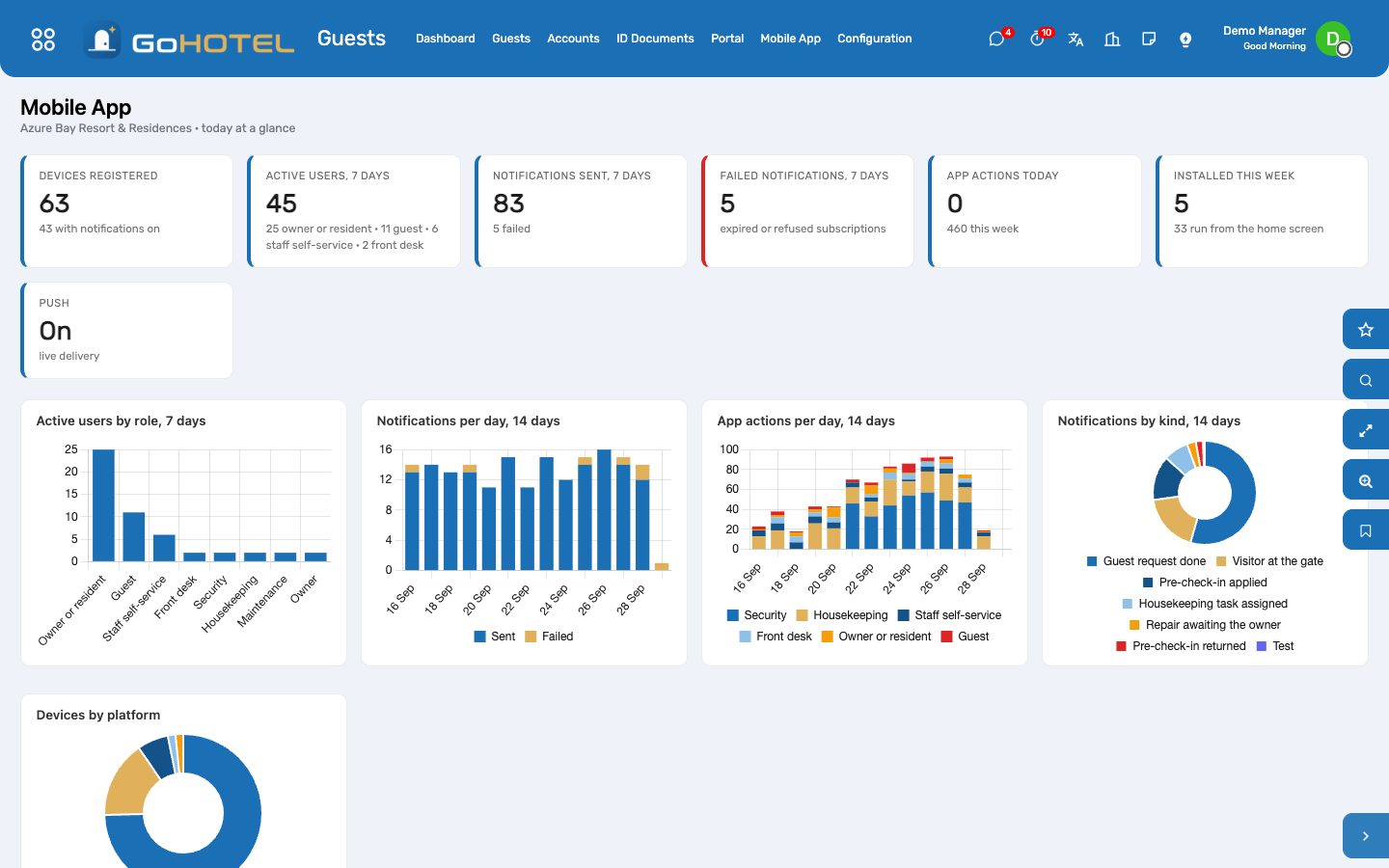
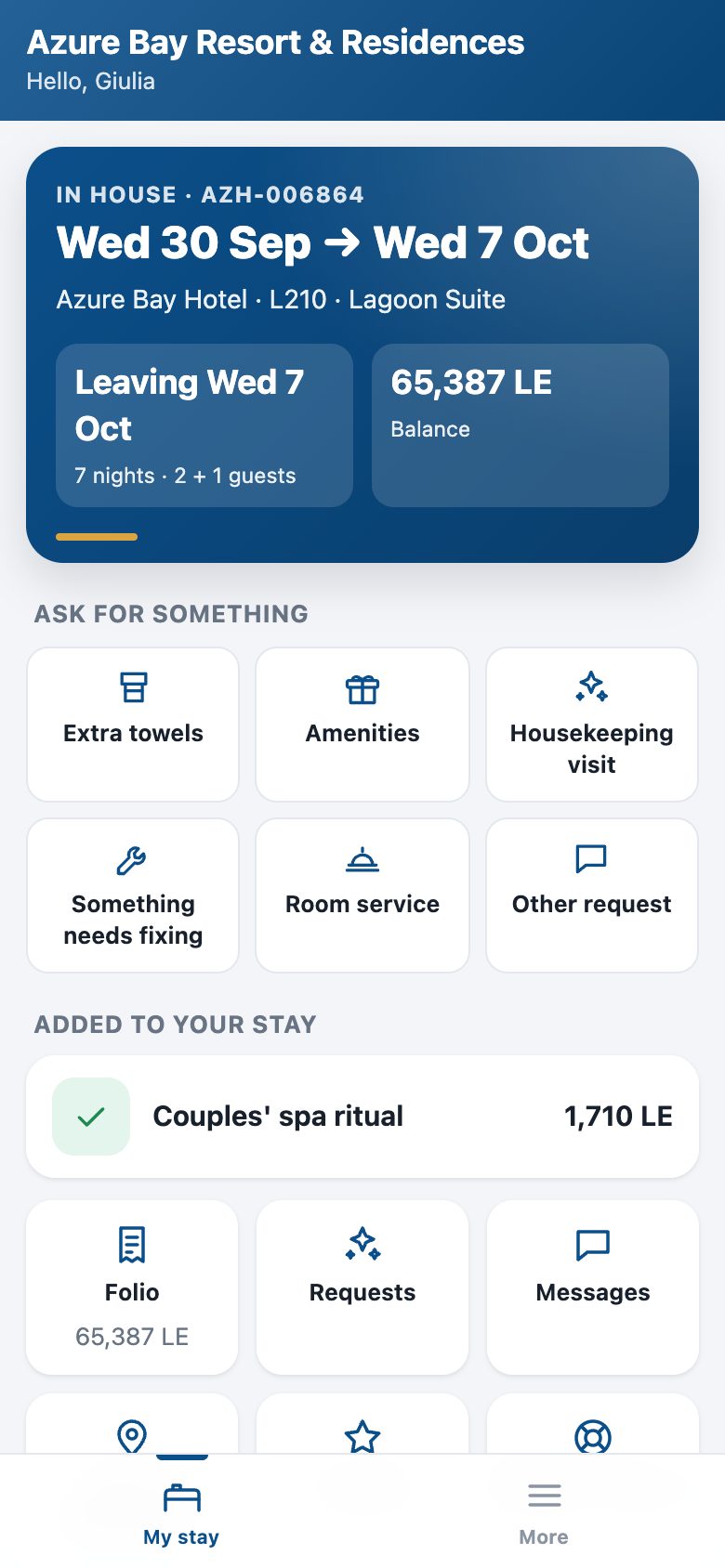
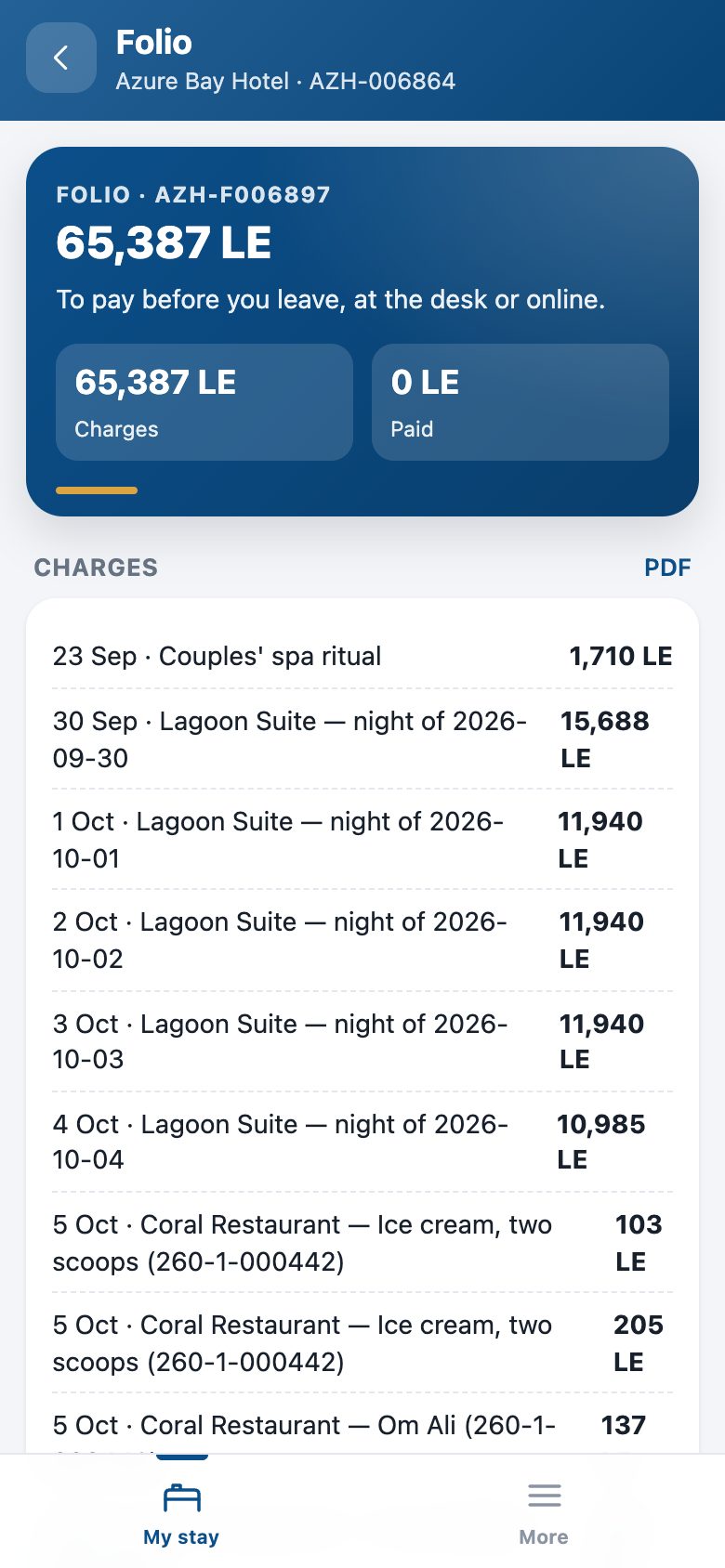
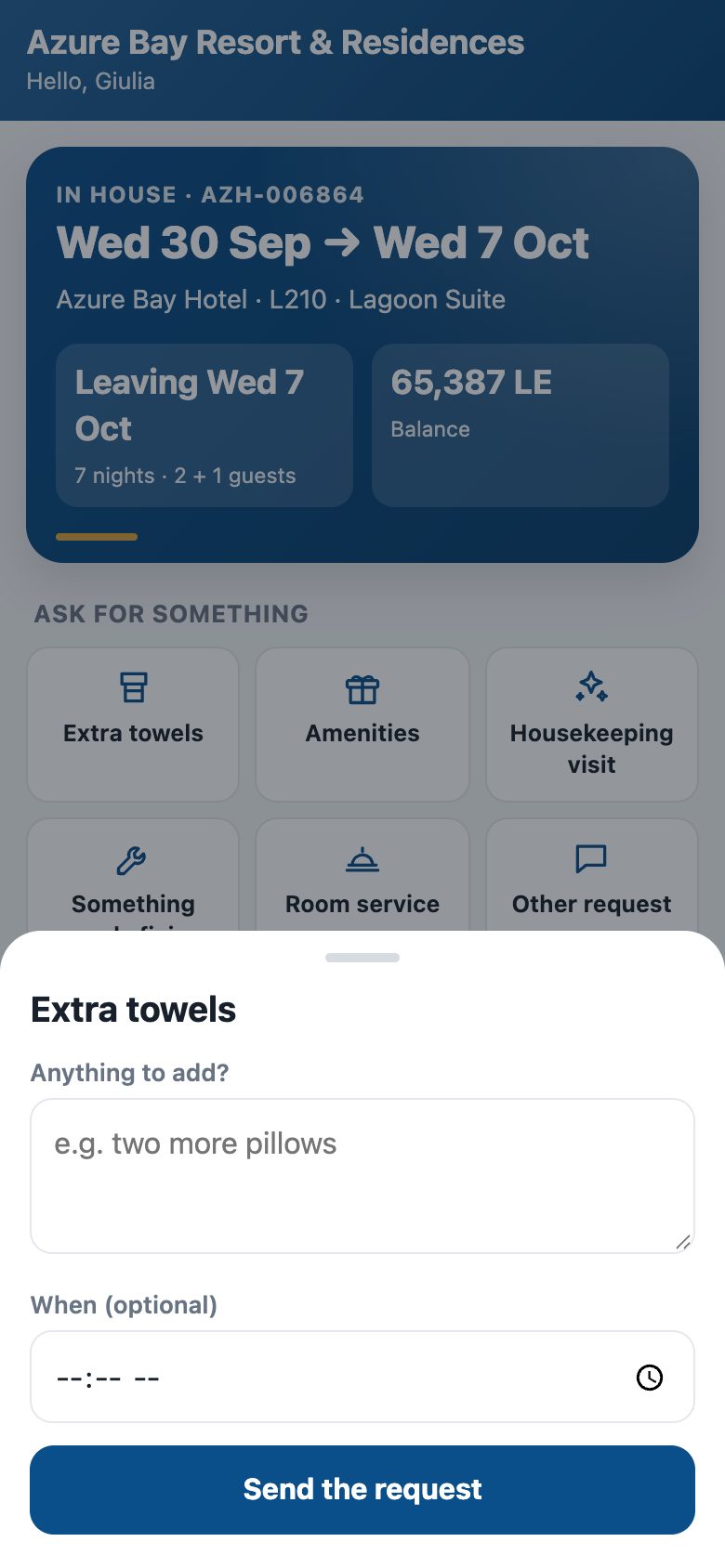
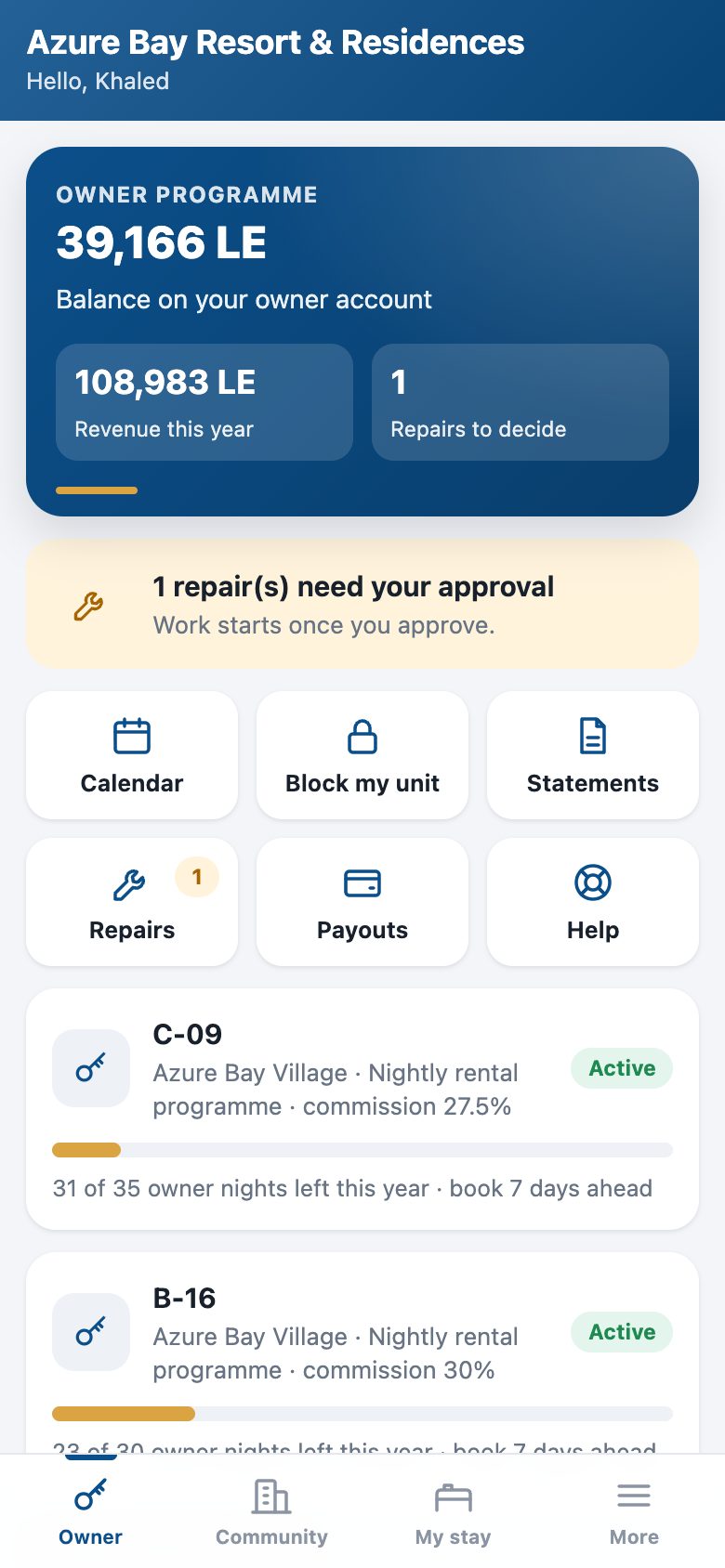
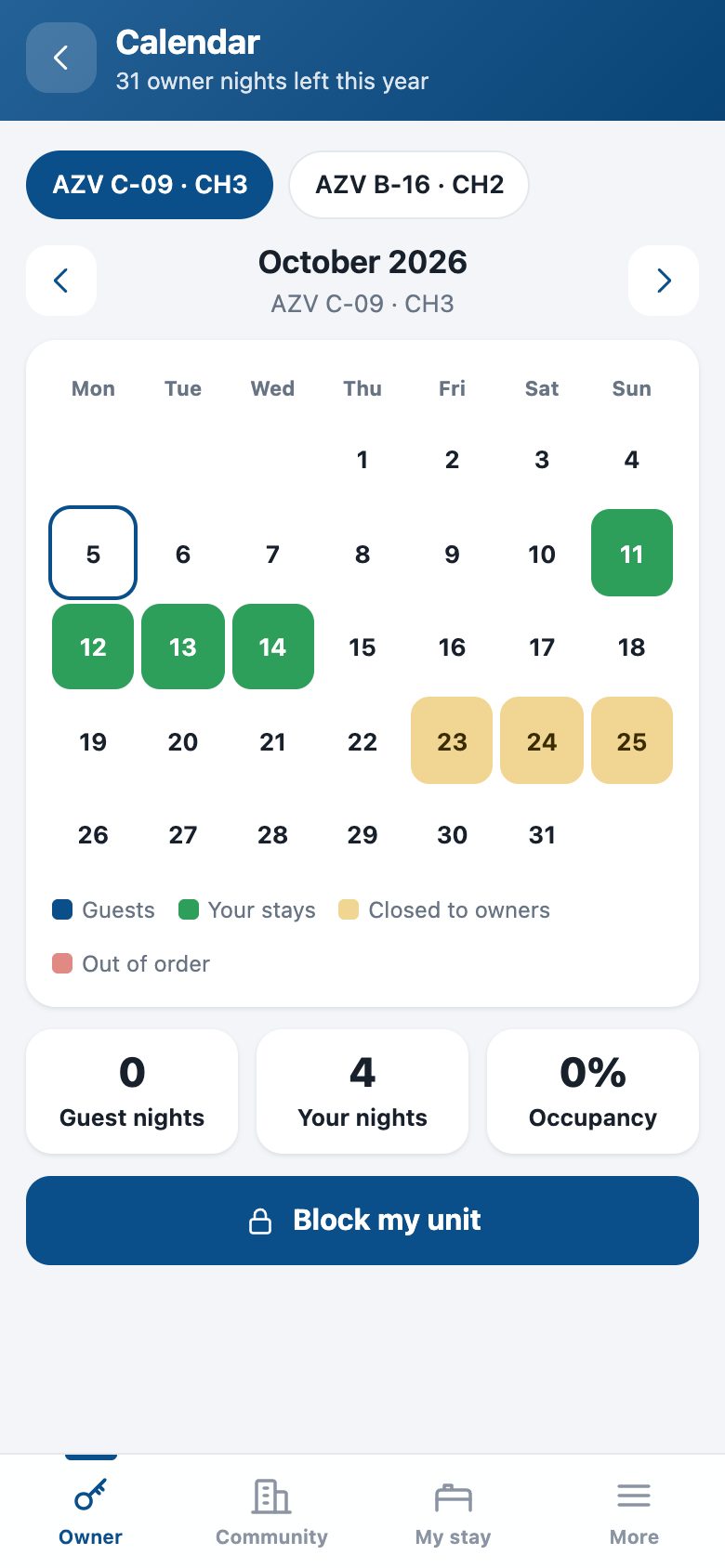
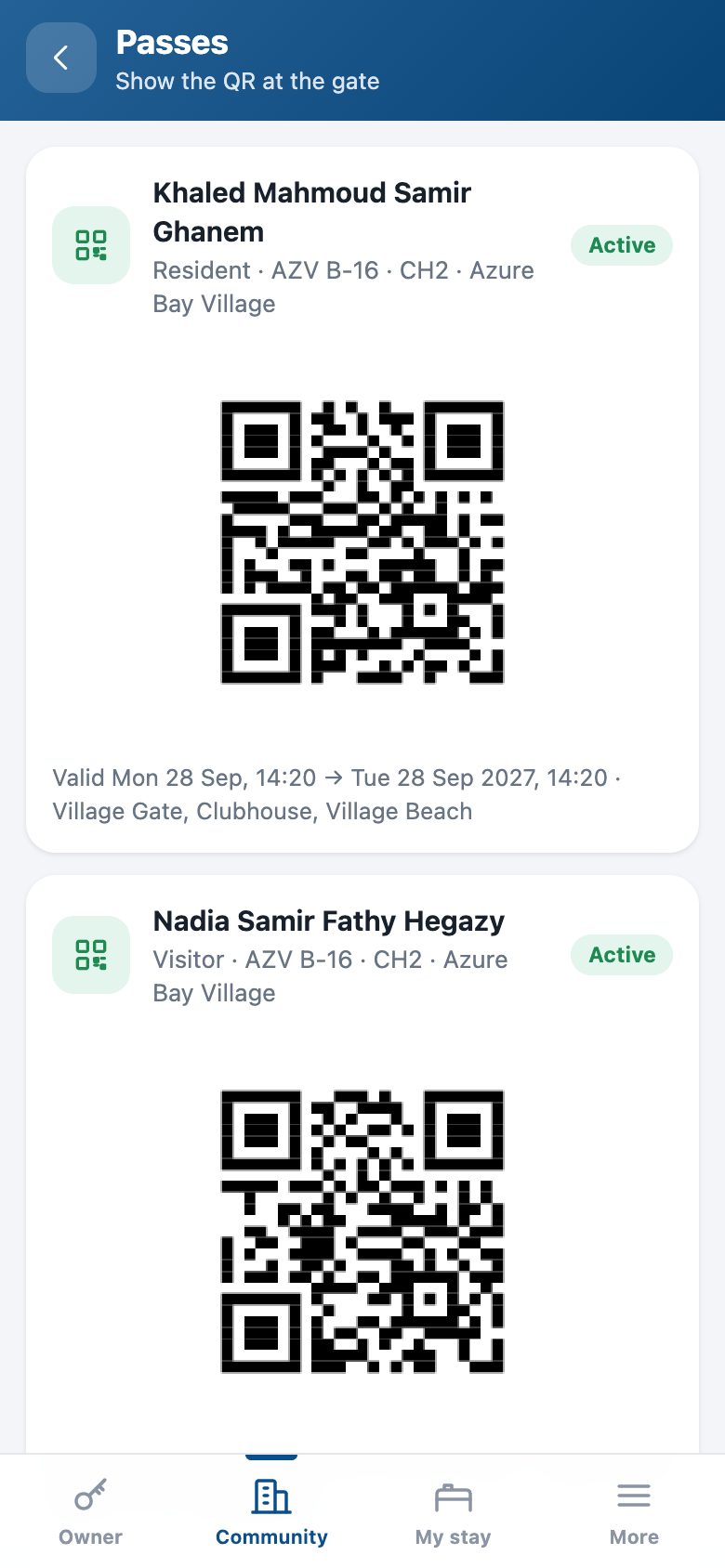
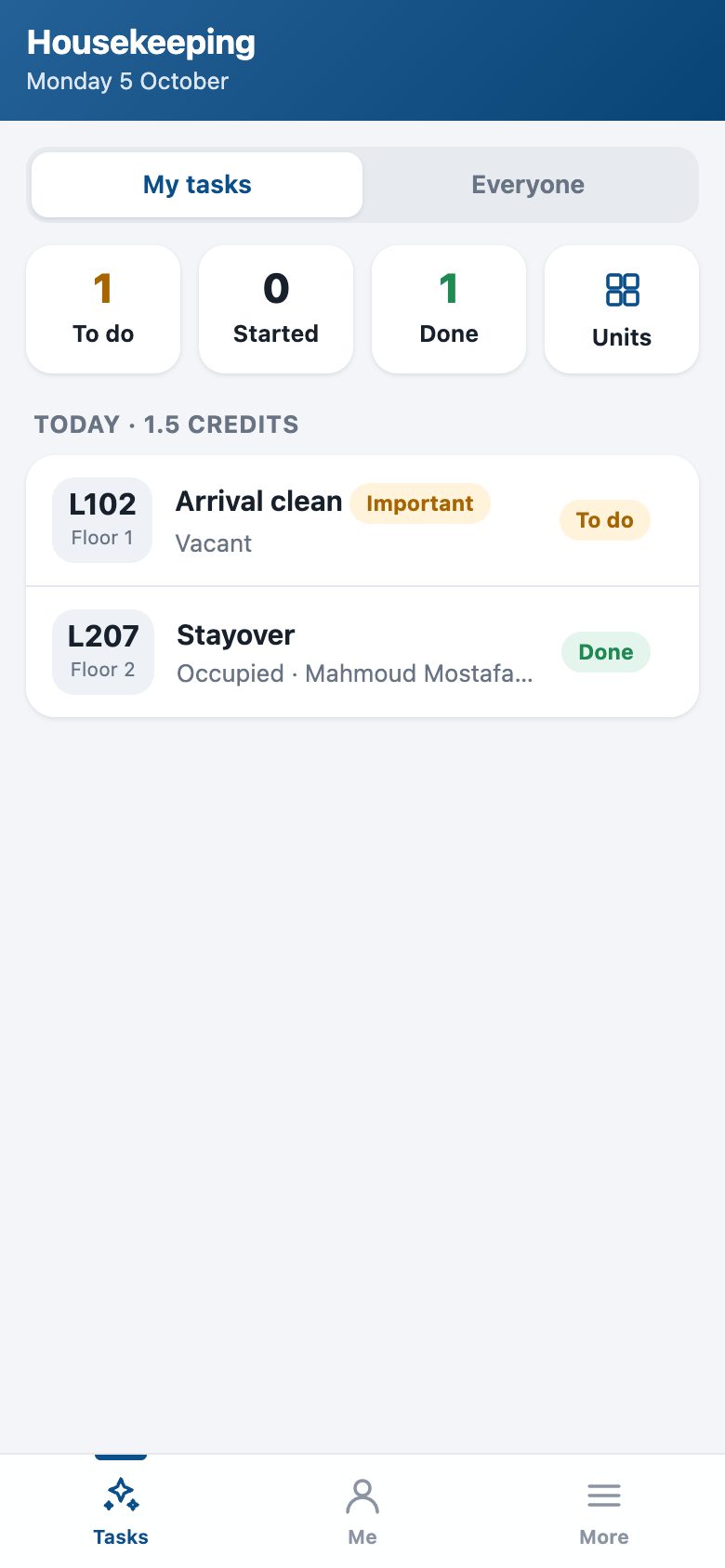
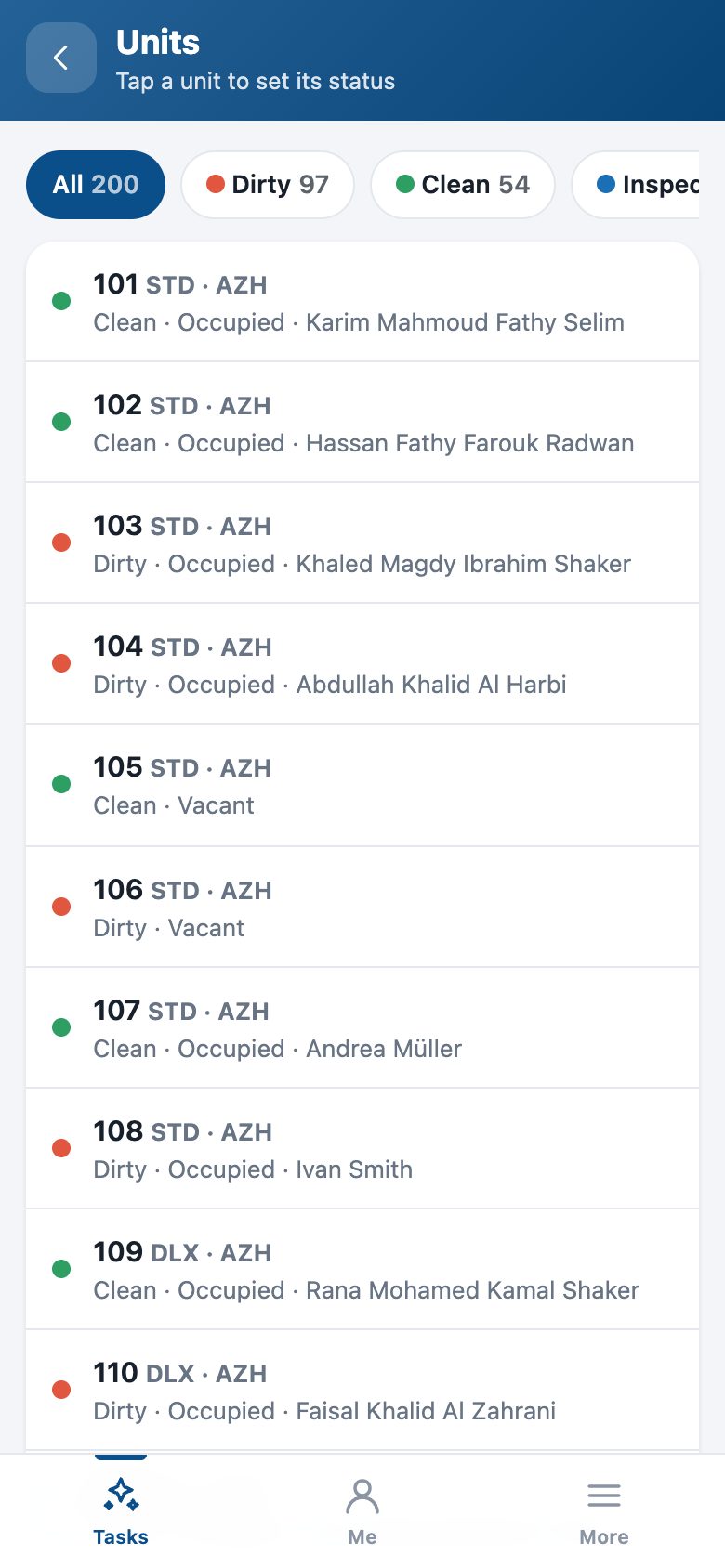
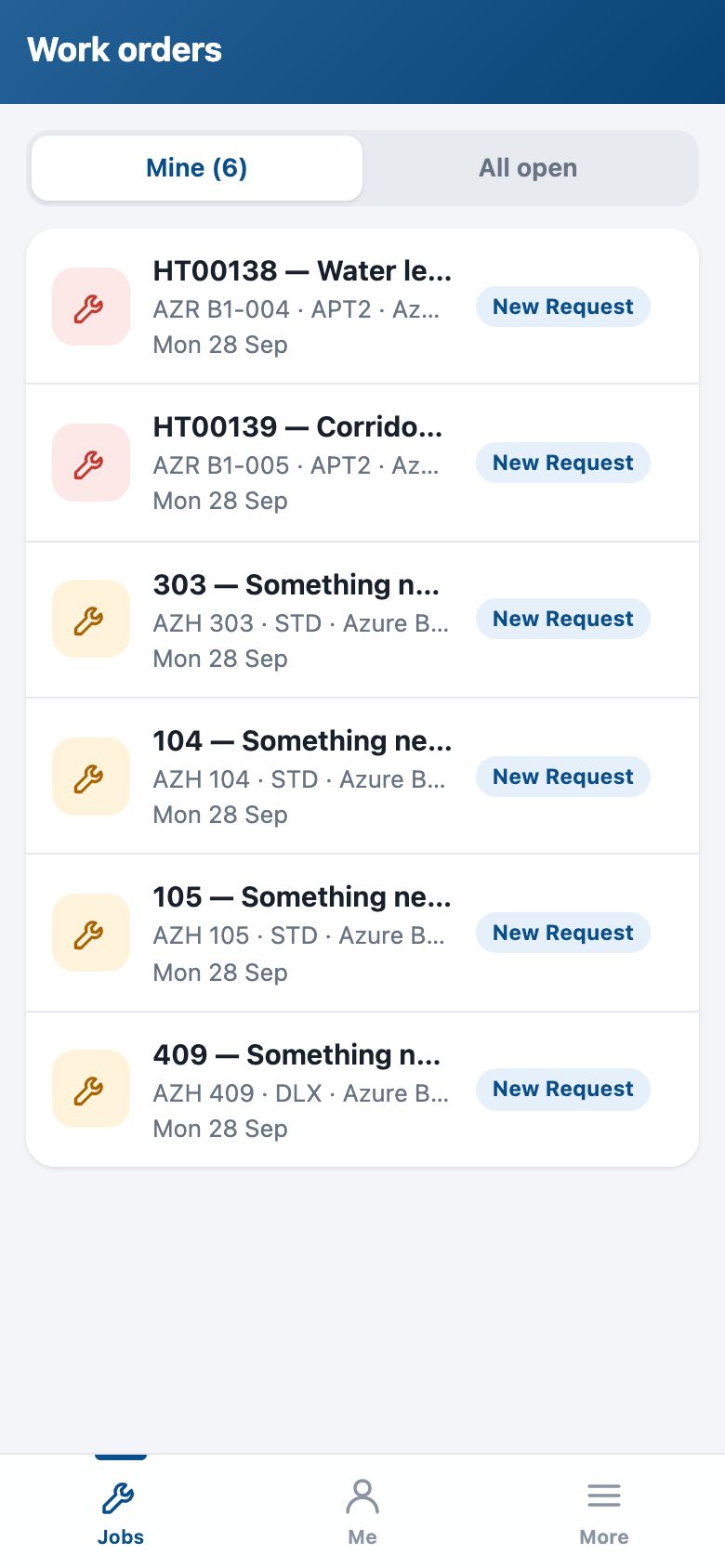
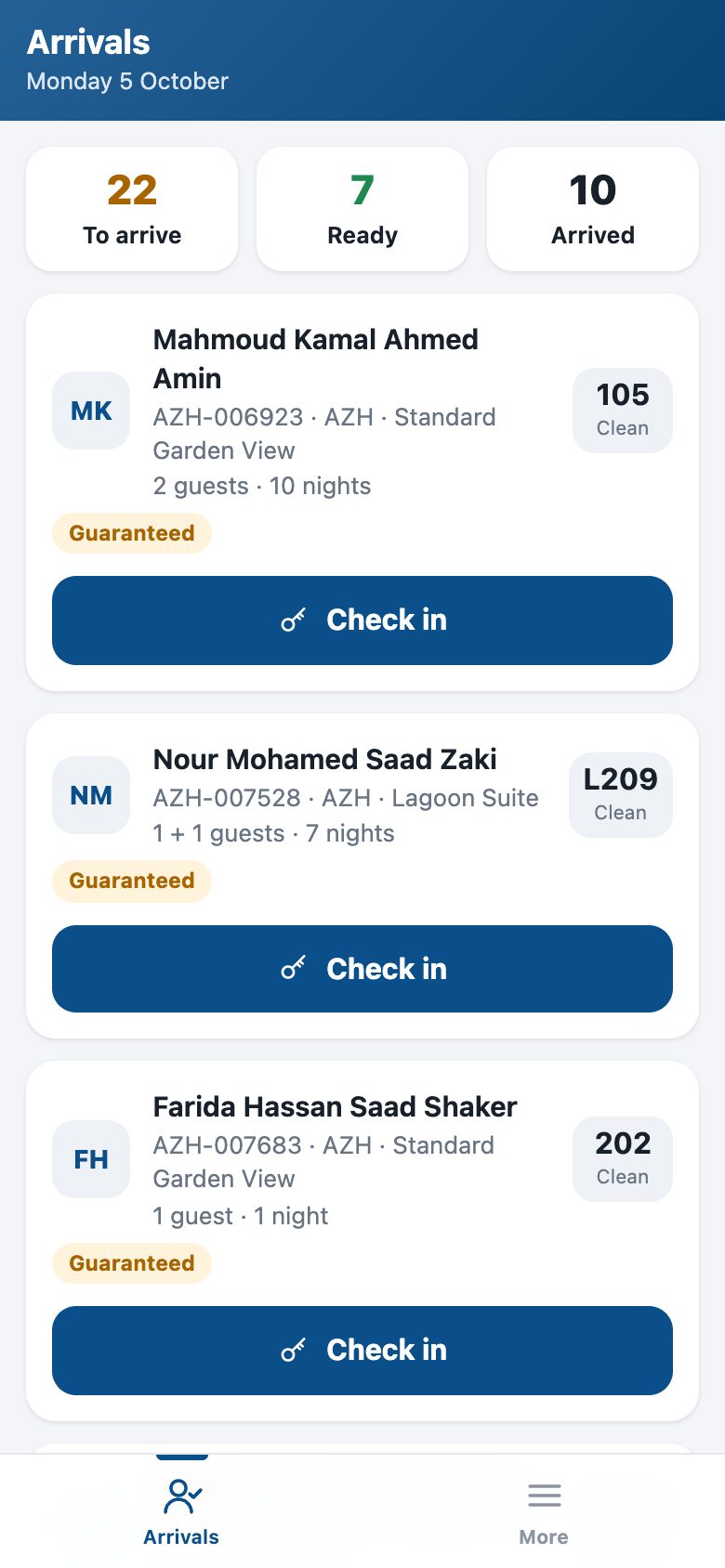
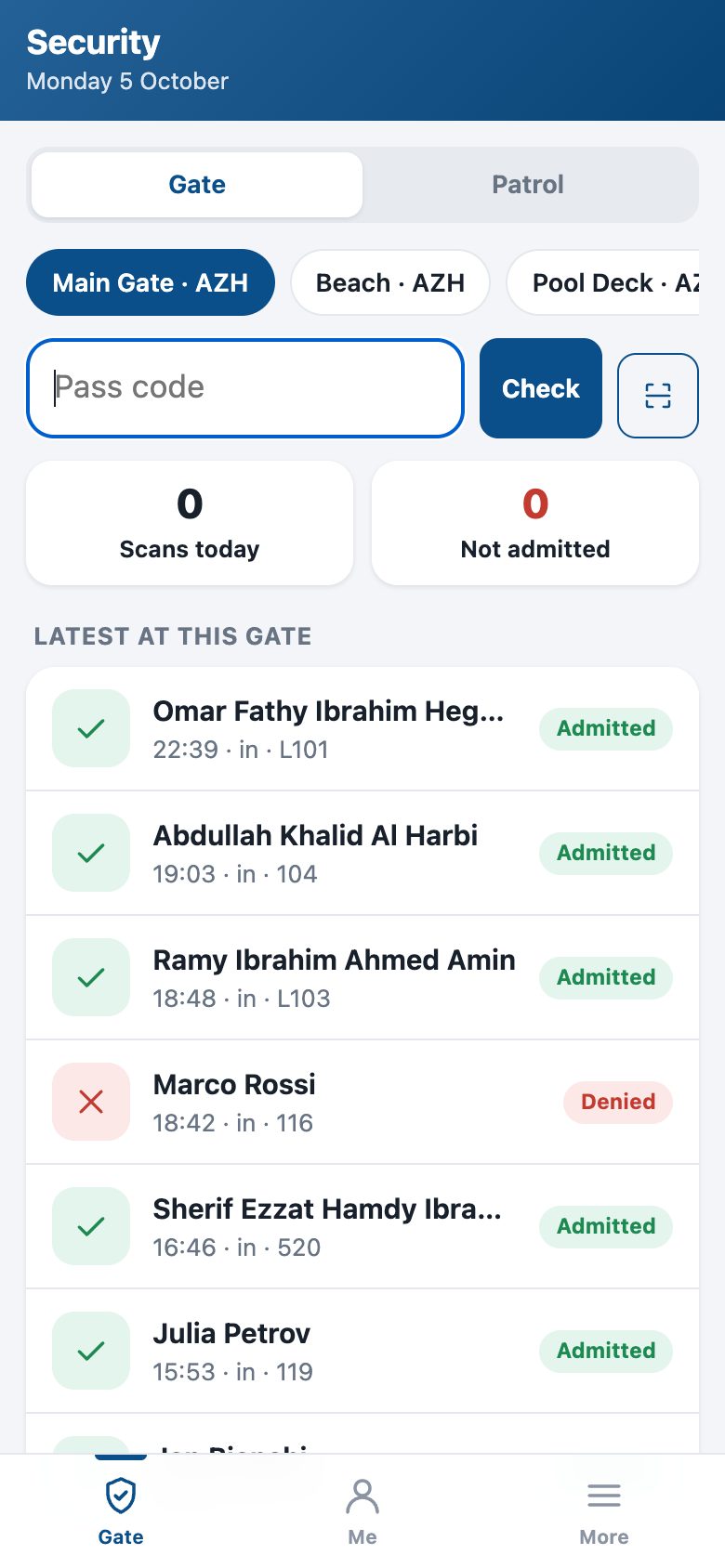
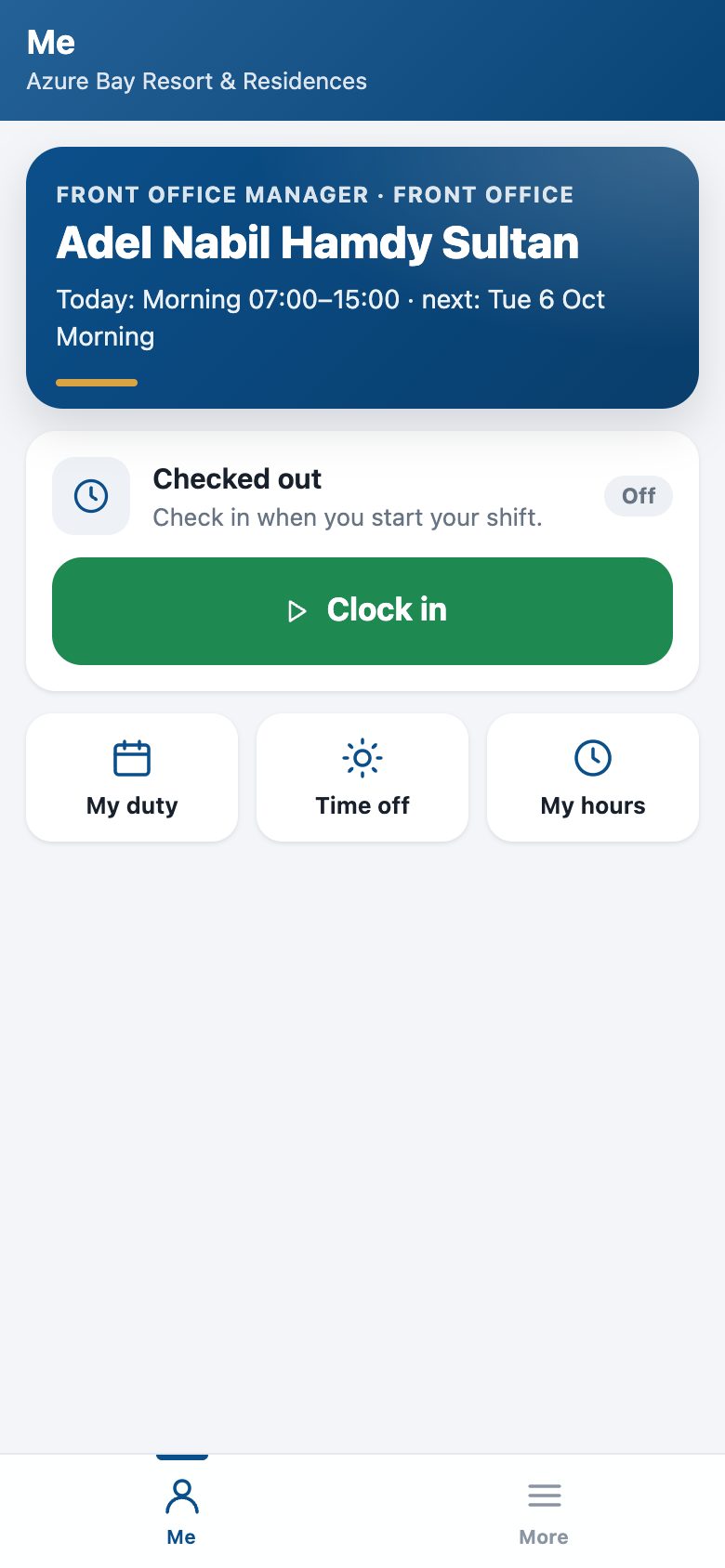
Before you start
- The address
- The property site published (Property Website): the app takes its name, colours and icon from it — the logo when one is set, else the property's initials on its colour.
- Logins
- Guests, owners and residents use their portal login (Grant portal access). Staff use their own login; what they see follows their role — Housekeeping, Maintenance, Front Office, Security — and every employee with a login gets the self-service screens.
- Notifications
- Settings › GoHotel › Mobile app: push is on once the server has the push library and the keys, which are made at install. Simulate prepares every notification exactly as for real and logs it without delivering — for training.
- On iPhone
- Notifications need iOS 16.4 or later and the app added to the home screen first (Share › Add to Home Screen).
How to
Put the app on a phone
- Open the property's address followed by /app in the phone's browser. Someone not signed in lands on the property's own sign-in page and comes back to the app.
- Android: tap Install on the banner (or the browser menu › Install app). iPhone: Share › Add to Home Screen. From then on the icon opens the app full screen, like any other app.
- More › Notifications › Turn on, and allow them when the phone asks. More › Language switches between English and Arabic; Arabic reads right to left.
- The app keeps the last thing each screen showed: with no network, the screens still open with a line saying when they were last updated. Actions need the network.
What a guest does
- My stay shows the coming stay (or the one in house): dates, unit, how many nights and guests, the balance.
- Before arrival: Check in online opens the online check-in on the portal — arrival time, everyone as their ID reads with a photo of the document, the signature. The card turns green once the desk applies it. Send a wish tells the desk about a late arrival or a baby cot.
- In house: the keys issued, and Ask for something — towels, amenities, a housekeeping visit, something to fix, room service. Each becomes a guest request handed to housekeeping or maintenance like one taken at the desk, and the guest is told on the phone when it is done.
- Make more of your stay: the offers that apply; Add posts the charge on the folio with the service charge and VAT where they apply. Folio shows every charge, the payments and the balance with the PDF; Messages writes to the desk on the stay; Loyalty shows the points and the tier; Map & directions opens the property in the phone's maps; Report an issue opens a help-desk ticket that knows the stay.
What an owner does (owner programme)
- Owner: the balance of the owner account, the revenue this year, the owner nights left this year and the notice the contract asks for.
- Calendar: the unit's month — guest stays, the owner's own stays, periods closed to owners and out-of-order days — with the month's occupancy.
- Block my unit: dates, own stay or a guest by name, adults and children. The contract checks the allowance, the closed periods, the notice and availability; a refused block says why, in the contract's words. A confirmed block is an owner-use reservation at the zero rate, with the cleaning charge the contract sets.
- Statements with their PDF, Payouts, and Repairs: a repair above the contract's threshold waits for the owner — Approve lets the work start, Decline tells the property at once.
What an owner or resident of the community does
- Community: the service charges due and overdue, the accounts with their statement, the announcements, what is coming up.
- Passes: each pass with its QR code, its validity and the zones it opens — the gate scans it from the screen.
- Invoices: every service-charge invoice with its status and PDF. Facilities: pick the court, the pool or the clubhouse and a day; the free slots come from the facilities engine with the owner's or resident's price and the weekly quota.
- Visitors: invite a visitor for a day; once security approves, the visitor's QR appears to share, and the host is told on the phone when the visitor is admitted at the gate.
Housekeeping on the phone
- Tasks shows the attendant's rooms for today — departures, stayovers, arrivals and touch-ups — with what is to do, started and done; Everyone shows the whole team's list.
- Open a task, Start, then Finish with a photo: the camera opens, the picture is shrunk on the phone and filed on the task, and finishing turns the unit clean (or inspected where the section skips inspection) exactly as in the back office. A task raised by a guest's request closes that request, and the guest is told.
- Units: the property's units by status; tap one to set it clean, inspected or dirty. Out-of-order units are left to maintenance.
- The attendant is told on the phone when the morning's sheet hands them their rooms — one notification, however many rooms.
Maintenance, the desk and the gate
- Jobs: the technician's open work orders; Start moves the job to the next stage, Finish with a photo files the picture and closes it — the unit comes back in order, a guest-chargeable job is charged to the folio, an owner-chargeable one goes to the owner's ledger. A job waiting for the owner's approval says so and cannot start.
- Arrivals: today's arrivals with their unit and its status, the online check-in, and what stands in the way (a dirty unit, a missing ID). A stay whose registration is complete shows Check in: the desk's own check-in runs — registration card, key and gate passes as at the counter.
- Gate: pick the gate, scan the pass (or type the code, or use the phone's camera where it can). VALID or NOT VALID with the reason, the holder, the unit, the validity and the zones; choose coming in or going out, then Admit or Refuse. Every decision writes the access log, an unknown code included; admitting an invited visitor marks the invitation used.
- Patrol: scan each checkpoint of the round in order; the round starts with the first scan and shows what is left.
Every employee: duty, swaps, attendance, time off
- Me: today's shift and the next one, and a big Check in / Check out button — the attendance record Odoo keeps, with the phone's position where the property records it.
- My duty: this week and next. Ask a colleague to swap sends a request the colleague accepts on their phone and HR approves; the colleague sees it under Asked of you.
- Time off: the balances and the requests; Request time off sends it for approval. An employee on the staff portal login has the same screens.
Follow the app from the back office
- Guests › Mobile App › Dashboard: devices and how many have notifications on, active users of the last seven days by role, notifications sent and refused, app actions per day, the latest installs.
- Devices: every phone that opened the app, its login, platform and browser, whether it runs from the home screen, when it was first and last seen. Send a test notification from the device, or Stop notifications.
- Push Log: every notification — to whom, on which device, why (the record that raised it), and what the push service answered. A refused one can be sent again; a subscription the phone dropped is forgotten by itself.
- Settings: the app's address, push on or off, live or simulate, the public key, and a test to your own phone.
Questions the desk asks
Is it an app from the store?
No. It is the property's own web address, installed from the browser; there is nothing to publish, and an update reaches every phone the next time the app opens.
Does a guest see anyone else's stay?
No. Every screen asks the portal service whose stay, unit or pass it is before it shows anything; staff act with their own rights.
A notification did not arrive.
Open Push Log: "sent" means the push service took it (the phone may be off or in battery saver); "failed" gives the service's answer; "push off" says why push is off. On iPhone the app must be on the home screen.
Can a room attendant on the staff portal login use the housekeeping screens?
The housekeeping, maintenance, desk and gate screens need a staff login with that role; a staff-portal login gets the self-service screens only.
See also: The portal — guests, bookers, owners and residents online Housekeeping Maintenance and engineering Front desk: arrivals, in house, departures Access & Security — passes, the gate, visitors, vehicles and patrols Owner Programme: rental contracts, the owner ledger, statements and payouts Community: owners, residents and service charges Rosters, service charge and staff credentials Help desk: tickets from guests, owners and residents