Access & Security — passes, the gate, visitors, vehicles and patrols
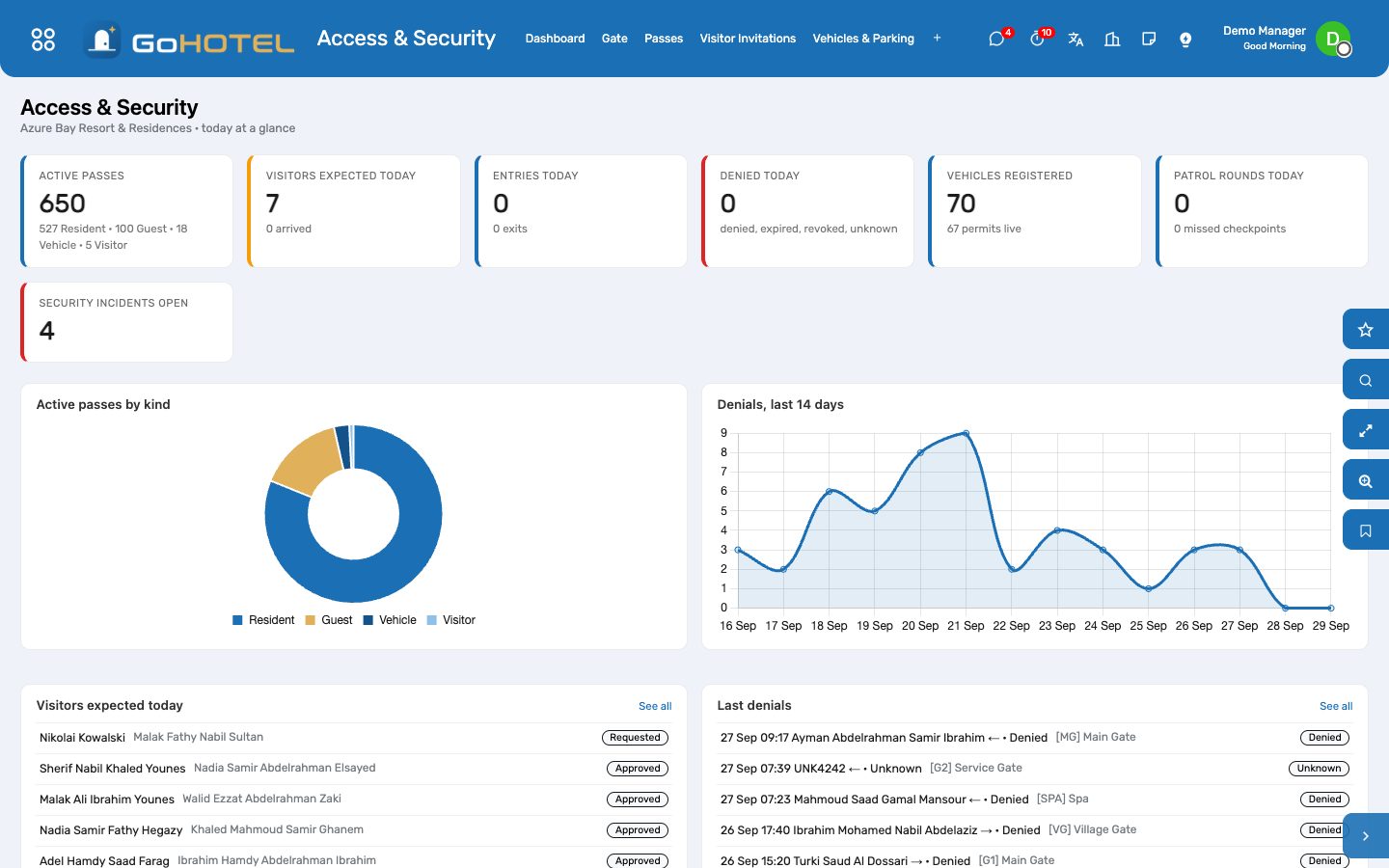
Every person and vehicle the gate lets in carries a pass: a QR token, a validity window and the zones it opens. Guest passes are issued at check-in and expire at check-out; resident passes are issued for every unit owner in one click; a visitor gets one when the host's invitation is approved. The gate screen scans, shows the holder with photo and unit, admits or denies, and writes the access log the dashboard reads. Vehicles and parking permits answer the plate lookup; patrol routes are walked checkpoint by checkpoint; what goes wrong lands on the incident register.
Where:Access & Security › Dashboard · Gate · Passes · Visitor Invitations · Vehicles & Parking · Patrols · Access Log · Incidents · Configuration › Access Zones
Before you start
- Access zones for each property (Configuration › Access Zones): the gates and everything a pass may open.
- On the property, the Access tab: the default guest zones (what a check-in pass opens) and the default resident zones.
- Guards, supervisors and front-office agents in the Security, Manager or Front Desk role.
How to
Work the gate
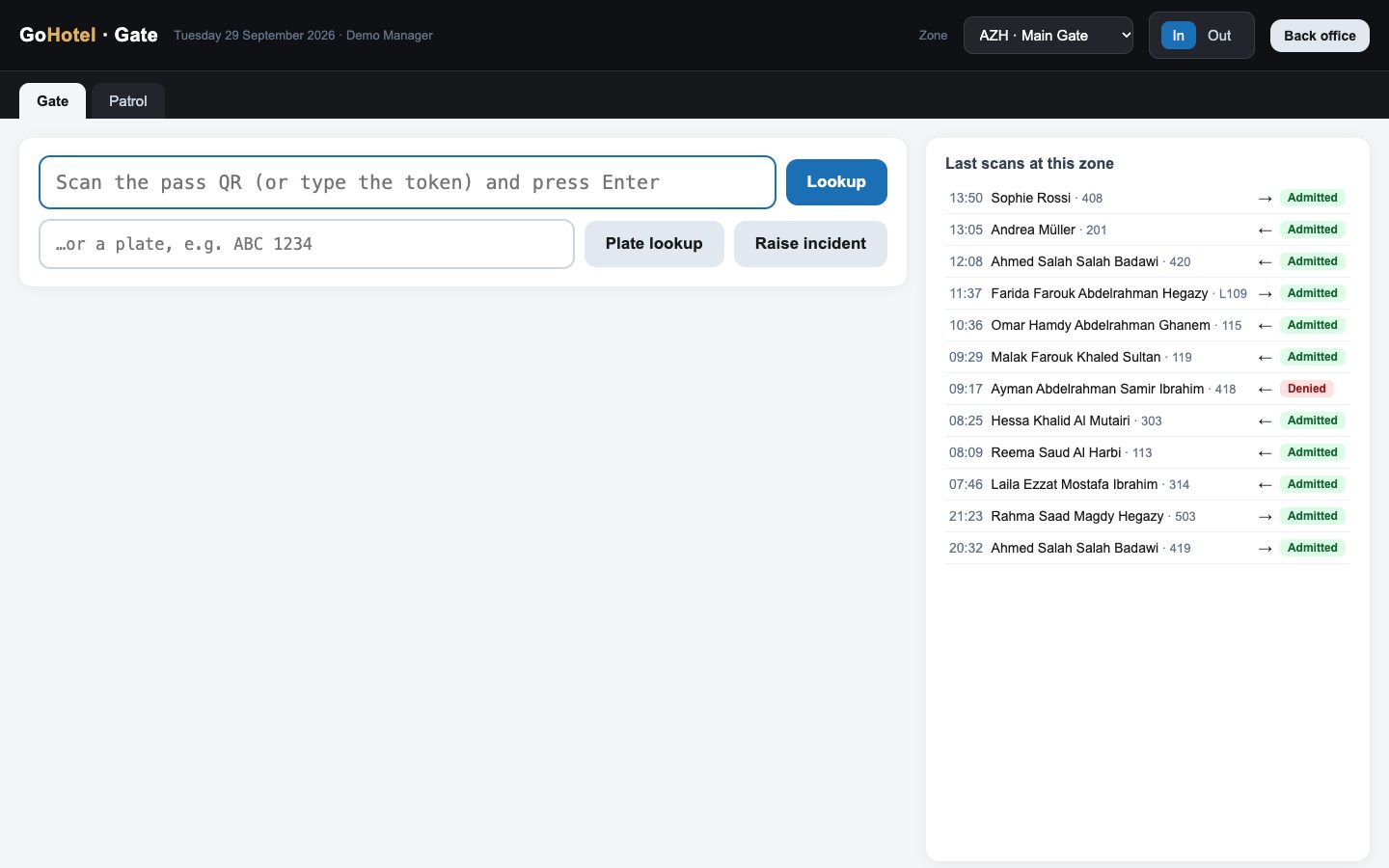
- Access & Security › Gate opens the scanning screen in the browser; pick the zone you are at (remembered for the session) and the direction, In or Out.
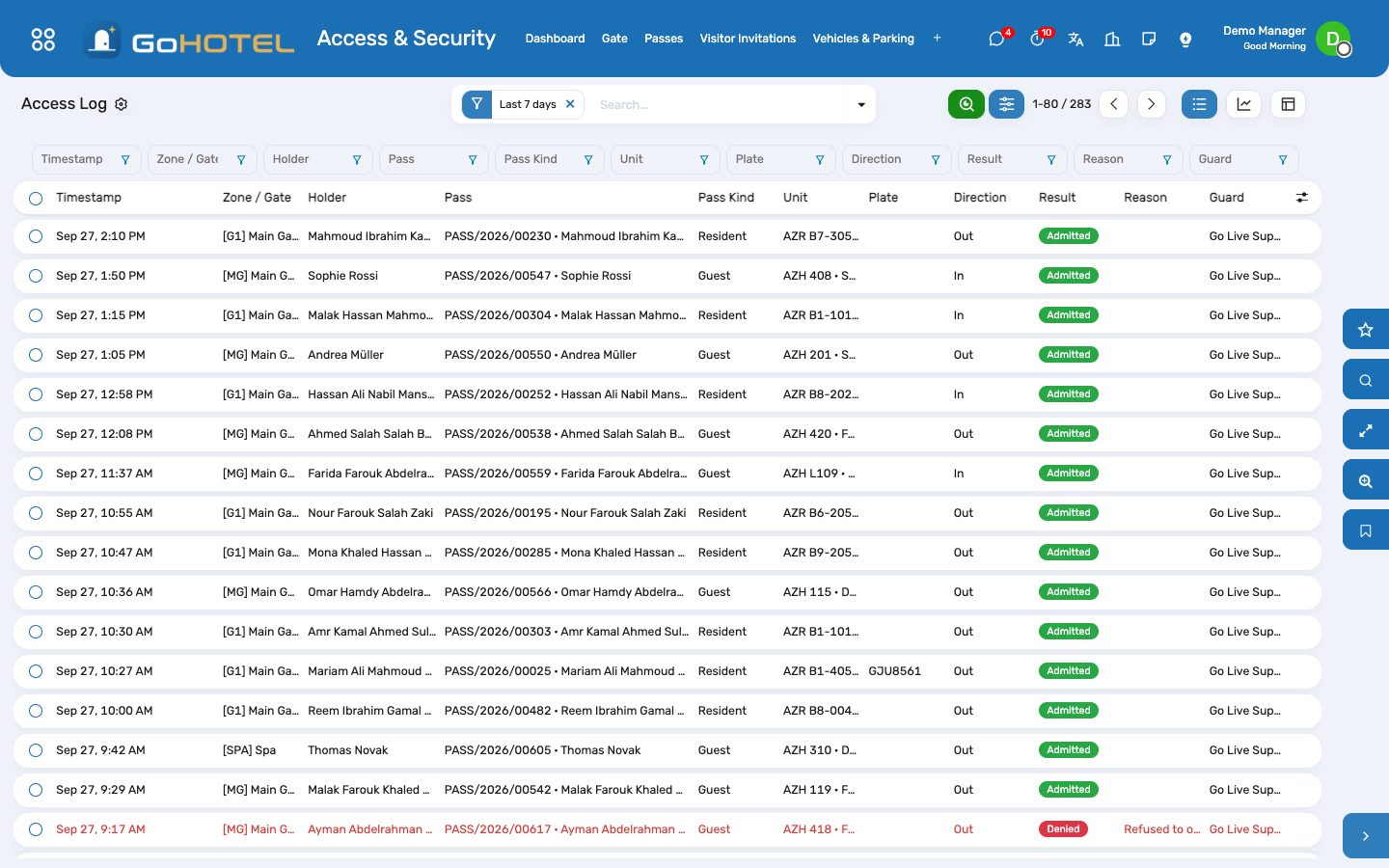
- Point the scanner at the pass — it types the token and Enter — or type a plate and press Plate lookup. The holder appears with photo, unit, validity, zones and a green Valid or a red reason: expired, revoked, not yet valid, wrong zone, blacklisted.
- Admit or Deny (Enter or F2 admits, Escape clears). Either writes the access log with the zone, the direction, the guard and the reason; a visitor pass admitted In marks the invitation as arrived.
- Raise incident opens a one-line prompt and files a security incident with the pass, the plate, the zone and the log entry attached.
Passes for guests and residents
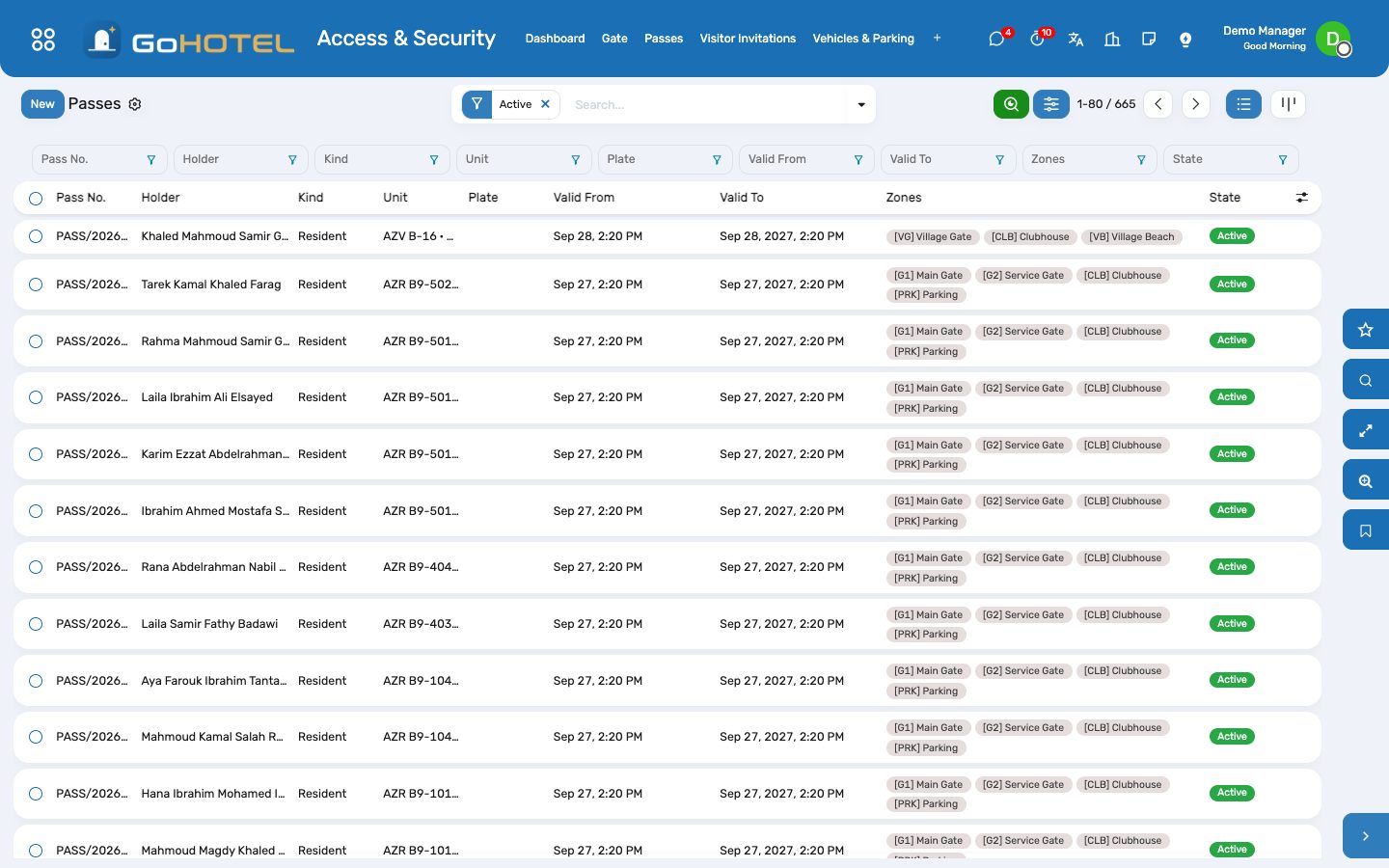
- Guest passes need nothing: check-in issues one per occupant with the property's default guest zones, valid until the departure day's check-out time; check-out expires them. The stay's Passes button shows them.
- Resident passes: on the property, Access tab, Issue resident passes — one active pass per unit owner (and per resident once the community pack is installed); owners who already hold one are skipped. Valid a year.
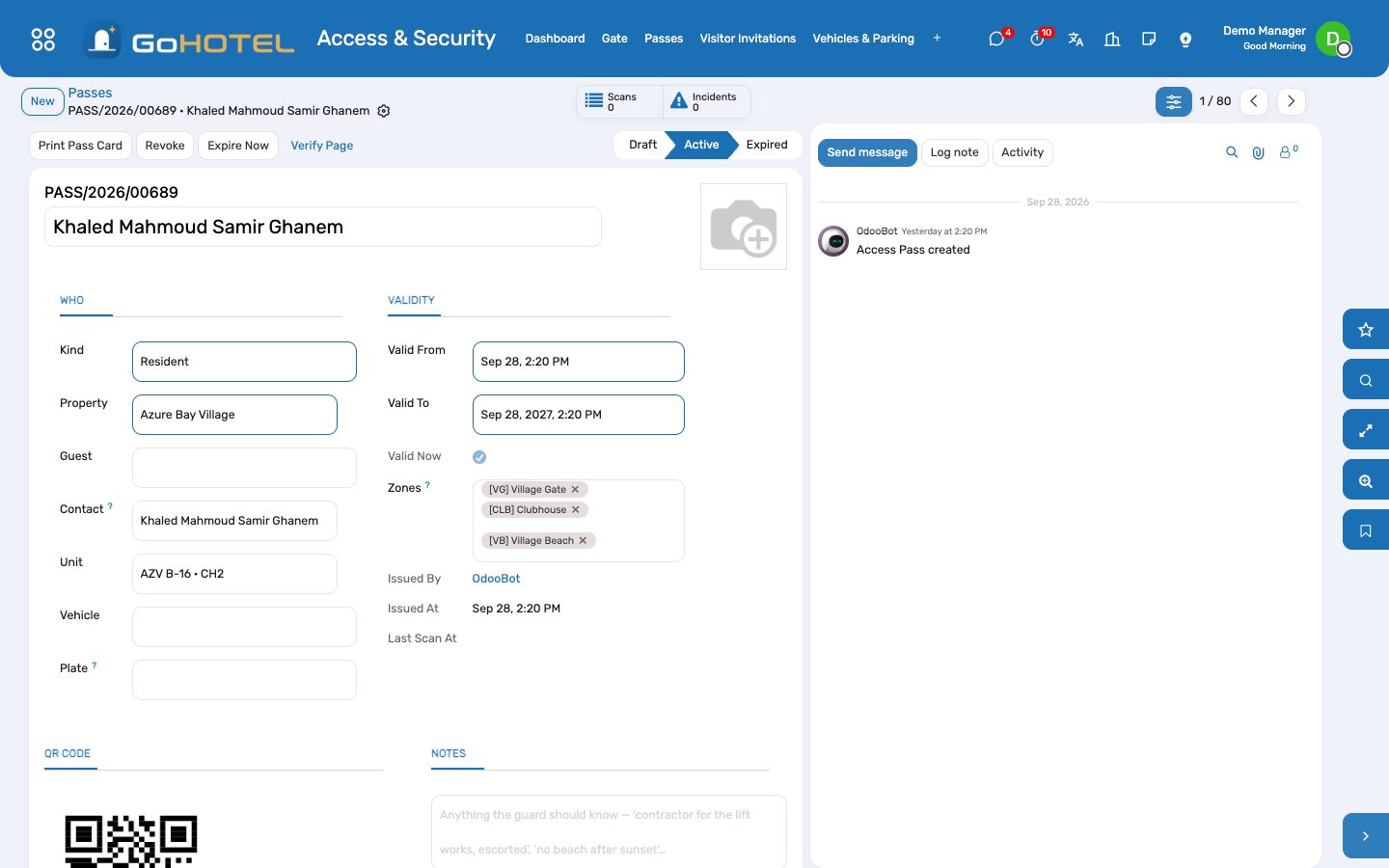
- Contractor, vehicle and wristband passes: Passes › New, name the holder or the plate, the validity and the zones, Activate. Print Pass Card gives a card with the QR; Verify Page is the public link a printed or e-mailed pass carries — it says valid or not valid and nothing else.
- Revoke stops a pass at once; Reissue after an expiry or a revocation gives a new token so the old card is dead.
Visitors
- Visitor Invitations › New: the host (owner, resident or the stay), the unit, the visitor's name, phone, e-mail, the day, the expected hour, the plate if they drive.
- Approve & Issue Pass creates a visitor pass valid that day; Send by E-mail queues the pass with its QR to the visitor. The gate marks the invitation Arrived when it admits the pass.
- Invitations whose day has passed expire overnight, with their passes.
Vehicles and parking
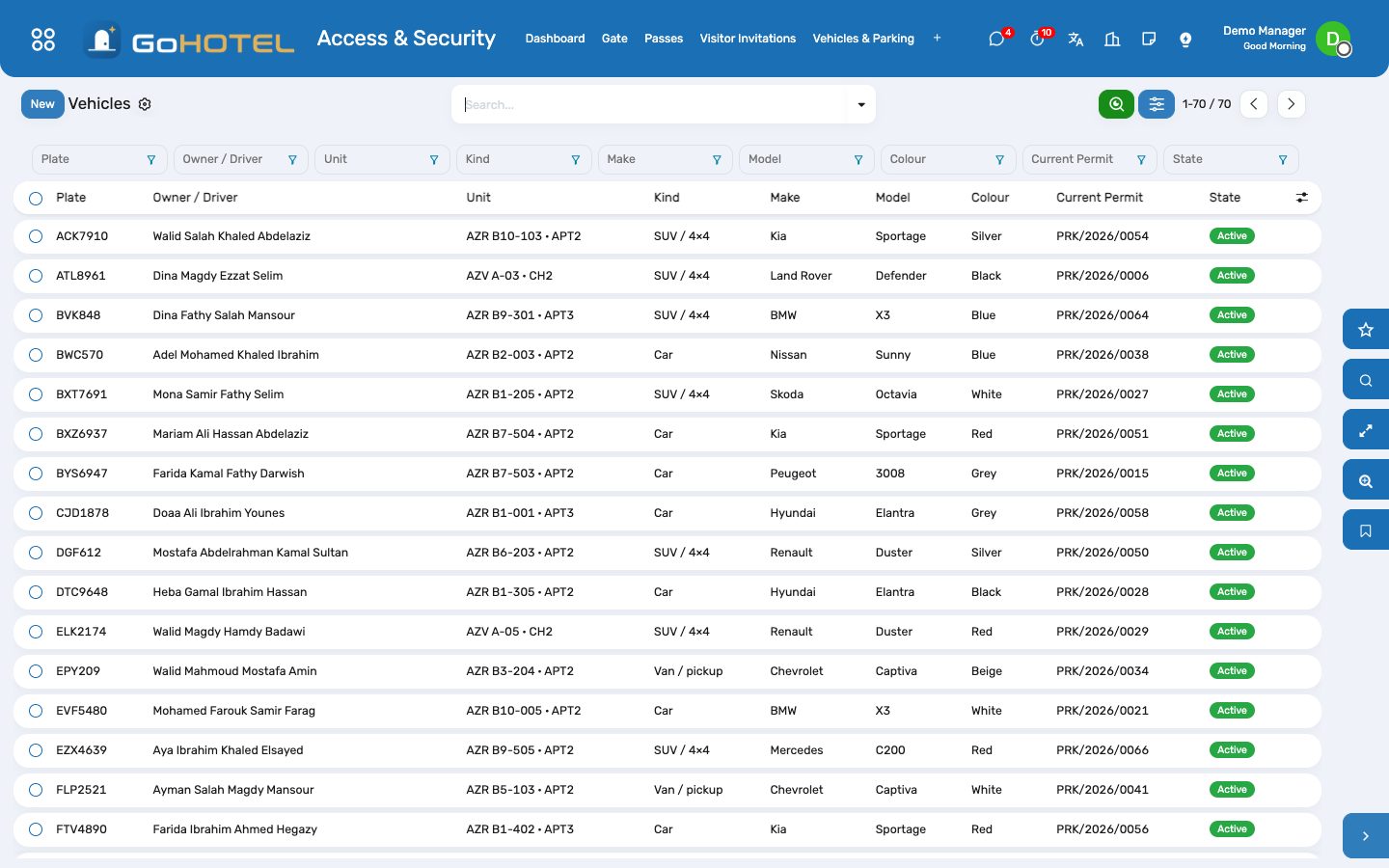
- Vehicles › New: the plate (stored without spaces, in capitals), owner or driver, unit, make, model, colour; Block refuses it at the gate whatever its permits say.
- Parking permits on the vehicle: the parking zone, the bay, the validity; Activate. The plate lookup at the gate answers with the permit — or "no permit", "expired", "blocked".
Patrols
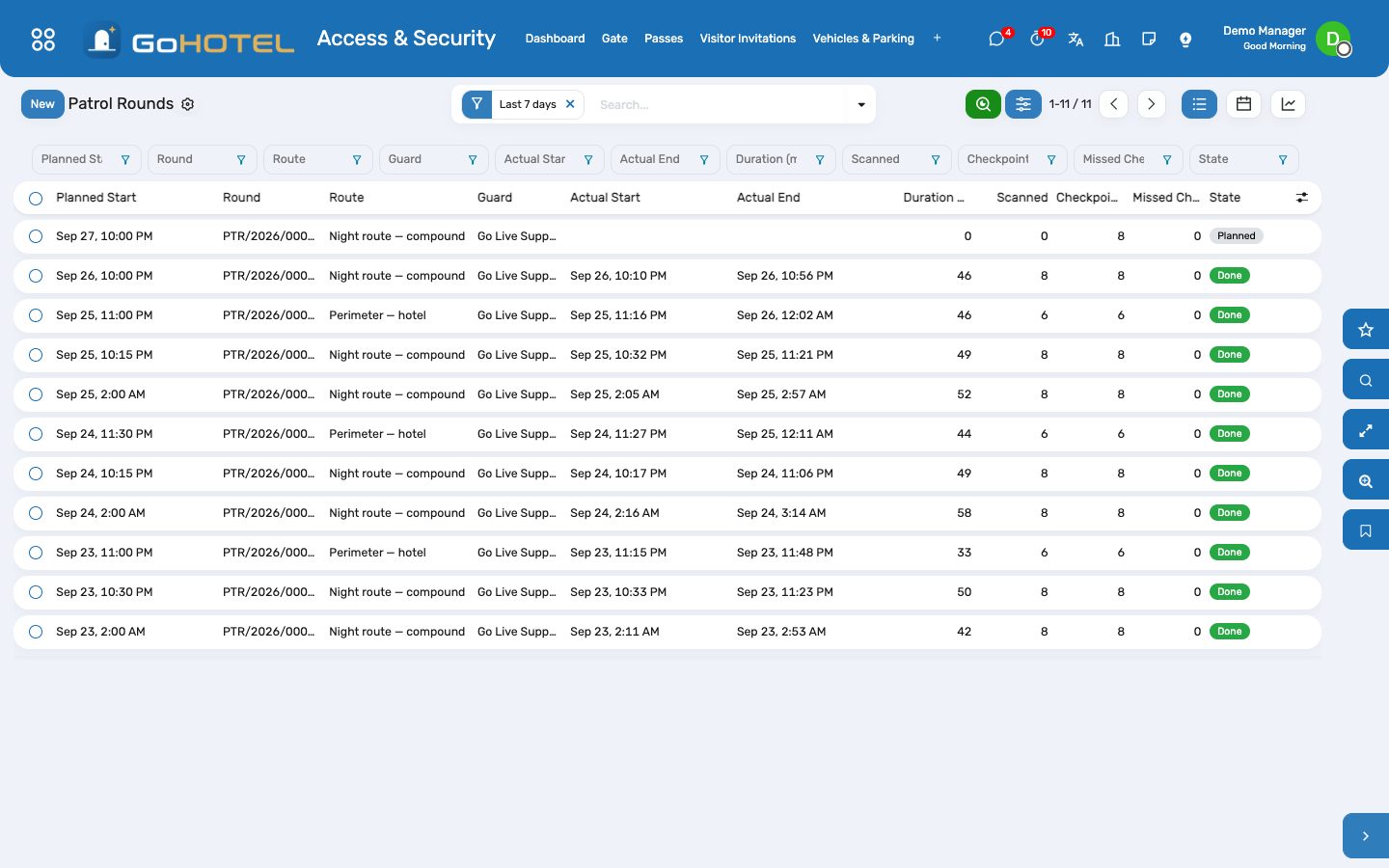
- Patrols › Routes › New: the checkpoints in the order the guard walks them, where each label is fixed; Print Checkpoint Labels gives the QR labels.
- The guard opens the gate screen's Patrol tab and scans each label: the first scan starts the planned round of the night (or opens one), each scan is recorded with whether it came in order, the last scan closes the round.
- Rounds show the scans, the duration and the missed checkpoints; the dashboard counts today's rounds and what they missed.
Questions the desk asks
The scanner types the token but nothing happens.
The cursor must be in the scan box — click it, or press Escape to clear and refocus. A checkpoint label scanned on the Gate tab says so; use the Patrol tab.
Can a guard admit an expired pass?
Yes, with a reason: Admit always writes "admitted" and keeps the reason. Deny on an expired pass writes "expired", so the dashboard counts it honestly.
Who sees the gate screen?
Security, Front Desk and Manager roles; anyone else gets a refusal. The public verify page shows only valid or not valid.
See also: The property, its units and its fee rules Reservations and the tape chart Community: owners, residents and service charges