The portal — guests, bookers, owners and residents online
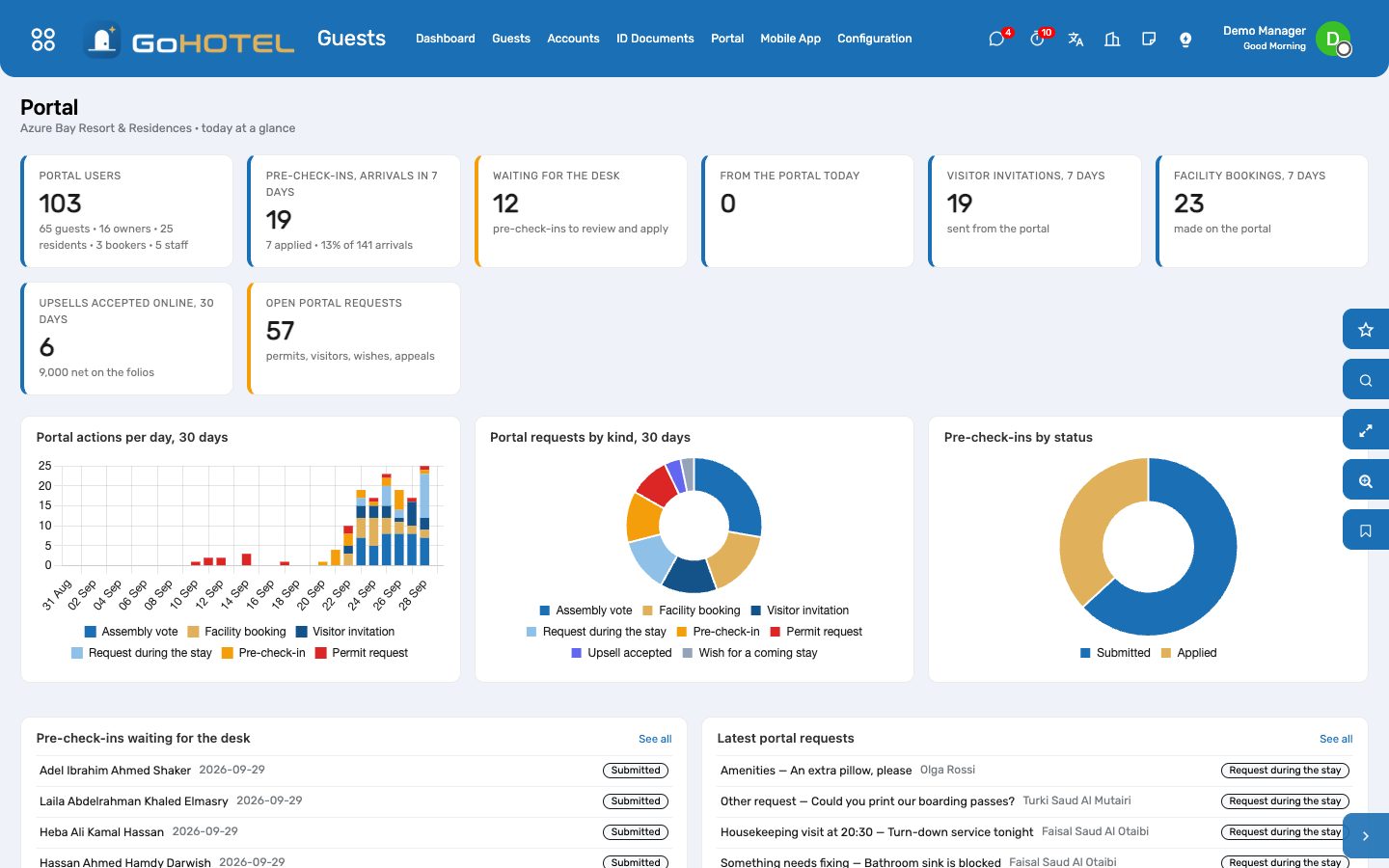
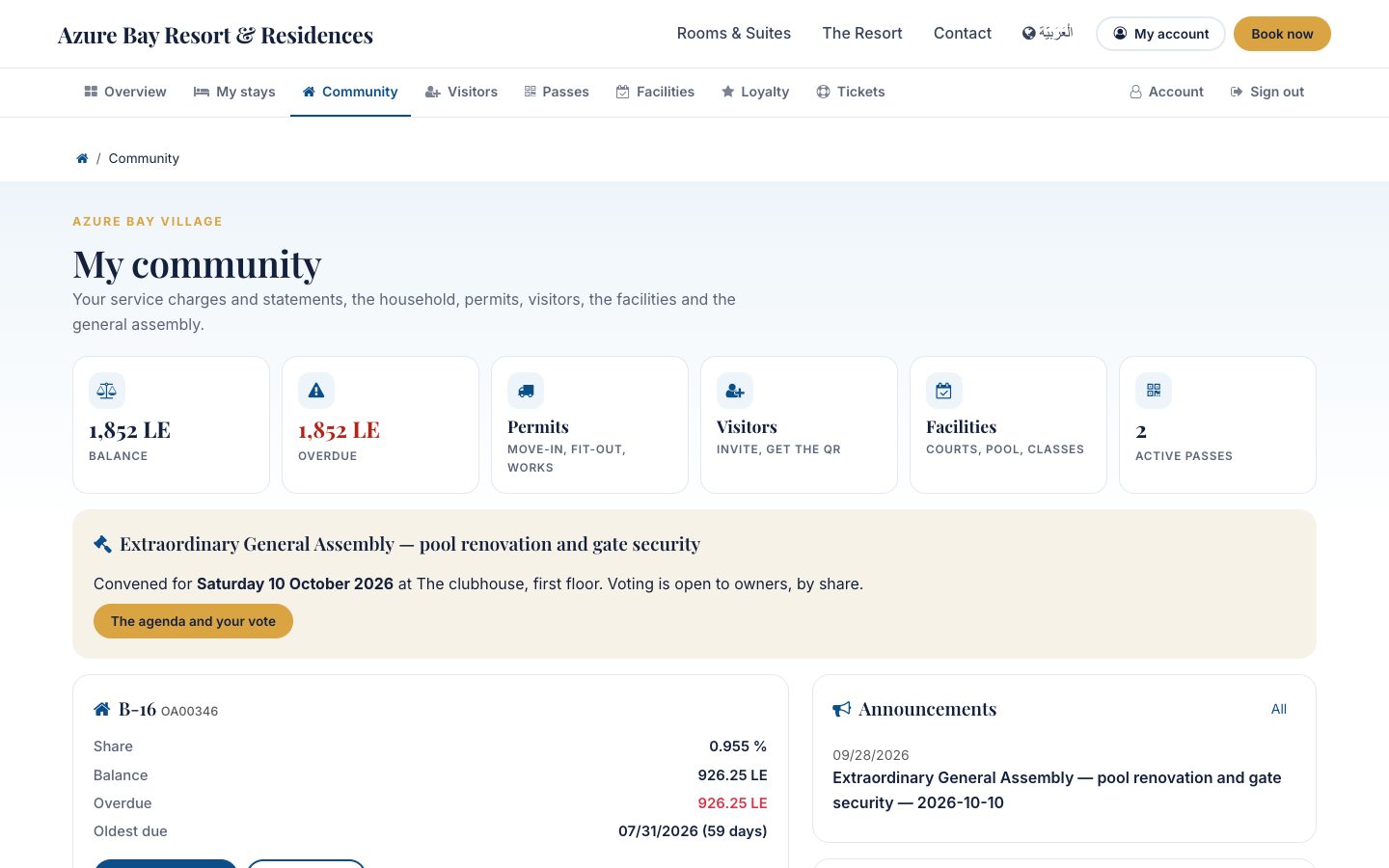
One login per person, on the property's own site at /my, and the pages that person needs: a guest sees their stays, checks in online with a photo of the ID and a signature, follows the folio, asks for towels, accepts an offer; a company booker sees the account's bookings and statement; an owner or a resident sees the service charges and the statement, the household, permits, visitors and their QR pass, the facilities and the general assembly. What the portal asks for waits for the desk or the office in the state that record uses for "asked": a pre-check-in is applied with one button, a permit waits in Requested, an invitation in Requested. Every action lands in Portal Requests, and the Portal dashboard shows what came in.
Where:Guests › Portal › Dashboard · Pre-check-ins · Portal Requests · Portal Users; the Grant portal access button on a guest, an ownership account and a resident; the Guest Portal tab of the property
Before you start
- The property site published (Property Website): the portal wears its header, footer and colours.
- An e-mail address on every person who should sign in — it becomes their login and receives the invitation.
- An outgoing mail server, so invitations and password e-mails leave the mail queue.
- To let owners pay service charges online: a payment provider enabled in Invoicing; the invoice page then shows Pay now.
How to
Give someone portal access
- Open the guest (Guests › Guests), the ownership account (Community) or the resident and press Grant portal access. Odoo's portal wizard opens on the right contacts; tick Grant Access. For several at once, select them in the list and use Action › Grant portal access.
- The login is the contact's e-mail; the invitation with the link to choose a password waits in the mail queue and goes out with the next run.
- To invite every guest automatically, open the property, Guest Portal tab, and tick Invite guests to the portal at confirmation: each confirmed reservation gives its lead guest a login and queues the invitation. It is off until you turn it on.
- Guests › Portal › Portal Users lists every login with what the person is to you (guest, booker, owner, resident, staff) and when they last signed in.
Review and apply an online pre-check-in
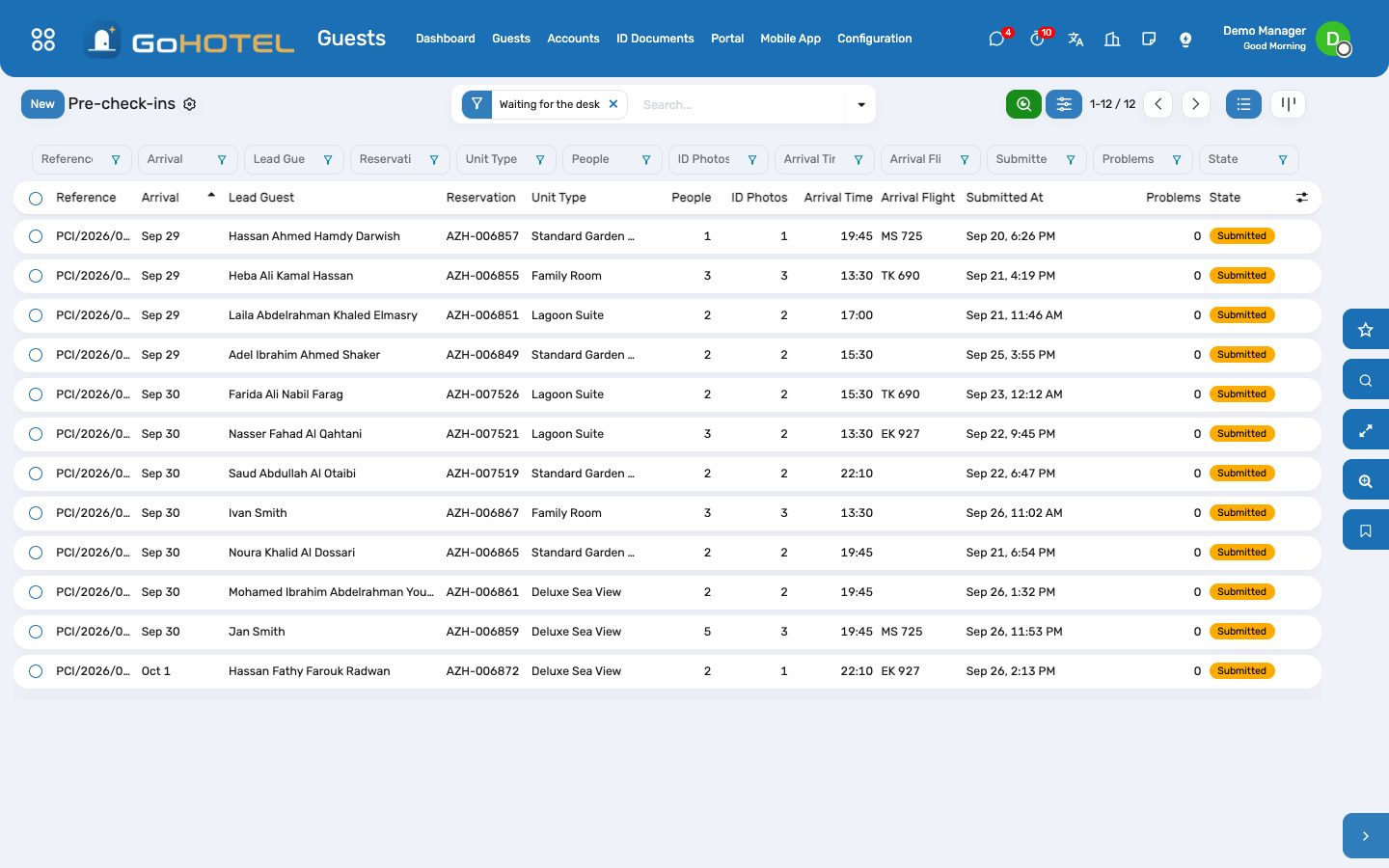
- Guests › Portal › Pre-check-ins opens on those waiting for the desk, soonest arrival first; the stay shows the same under its Pre-check-in button.
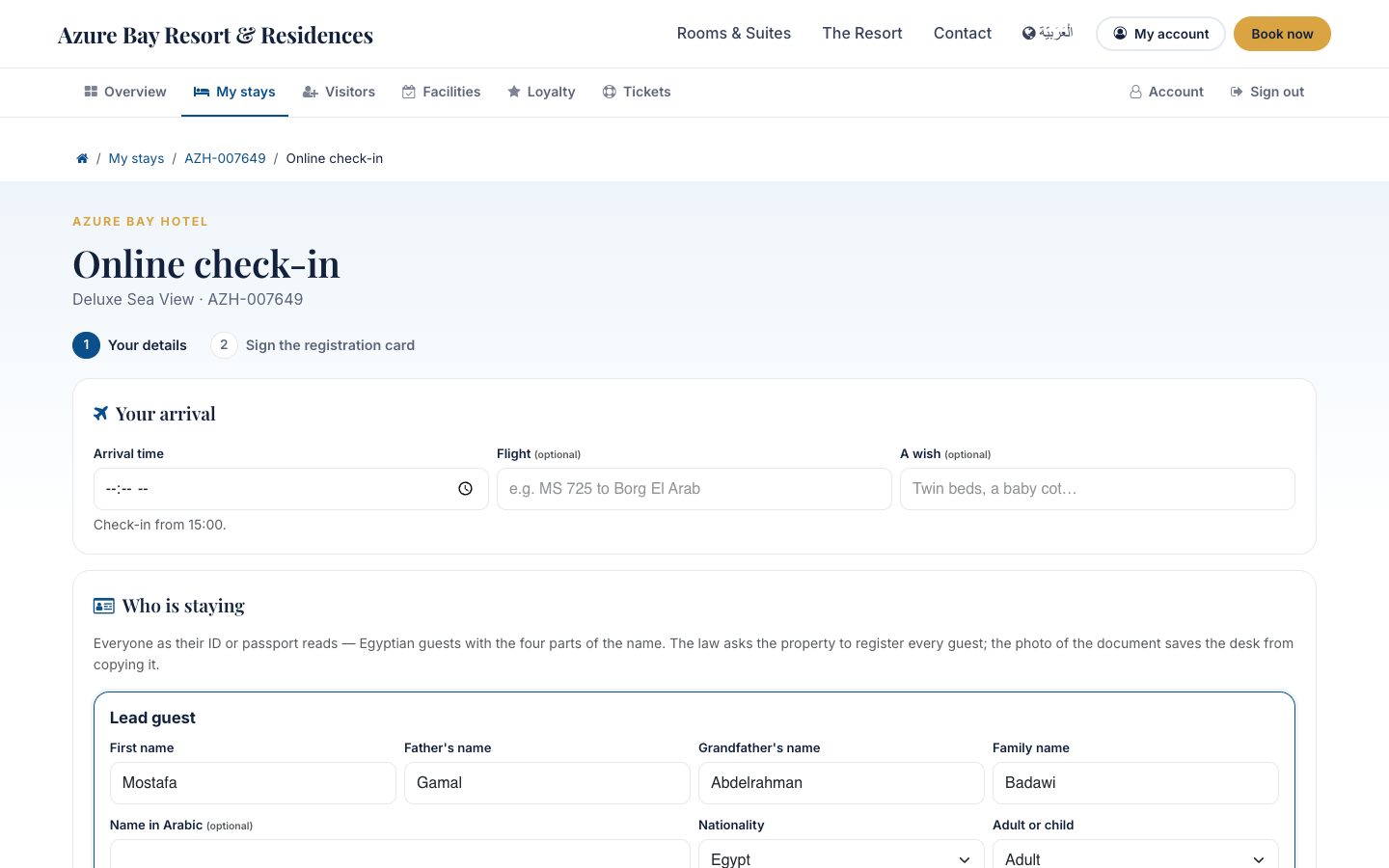
- Open one: the arrival time and flight, every occupant as the ID reads (the four parts of an Egyptian name, nationality, document number and expiry, date of birth) with the photo of the document, the consents and the signature.
- A red line under Problems is what a police list would refuse — correct it in the occupant row, or Return to the guest with a reason they read on the portal.
- Apply to the stay: the guests are matched by ID number or created, the companions put on the stay with their relationship to the lead guest, the photos filed as identity documents on each guest, the arrival time and flight set, the wishes added to the reservation, and the registration card signed with the signature the guest drew and filed as a document. At arrival the desk only hands over the key.
What guests do online
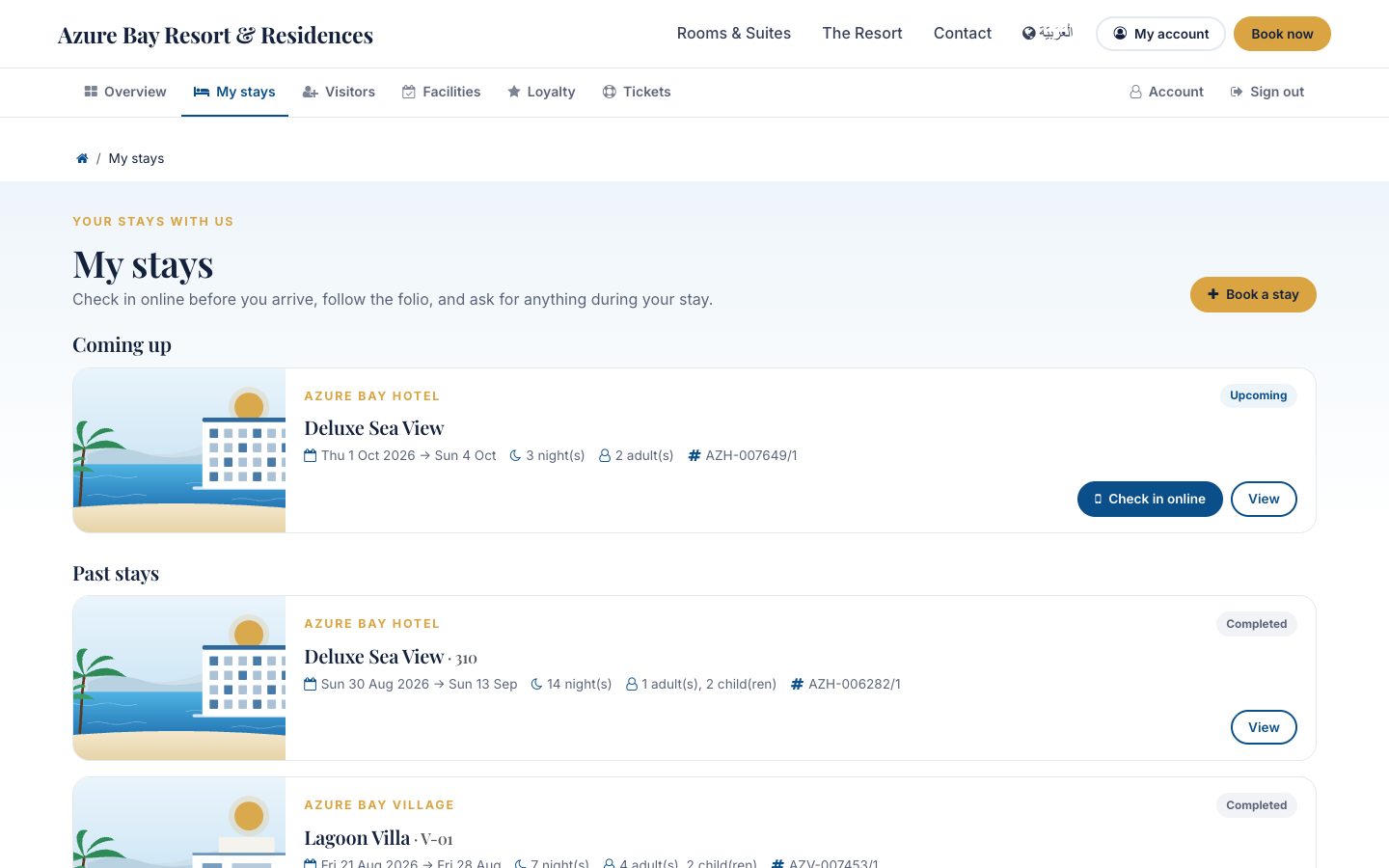
- My stays: every stay under their name, with the balance and the online check-in for the coming ones.
- During the stay: towels, amenities, a housekeeping time, something to fix, room service — each becomes a guest request on the stay, handed to housekeeping or maintenance like one taken at the desk. Report an issue opens a help-desk ticket that already knows the stay and the unit.
- Before the stay: a wish (late arrival, a baby cot, twin beds) waits in Portal Requests for the desk to confirm.
- Make more of your stay: the upsell offers that apply to the stay; Add to my stay posts the charge on the folio with the service charge and VAT, exactly as the desk would.
- The folio with its charges, fees, VAT and payments, the statement PDF, the invoices addressed to them, loyalty points and tier, and after departure the survey link.
What owners, residents and bookers do online
- My community: the balance and the arrears of each ownership account, the service-charge invoices with their PDF and Pay now, the statement PDF, the household, the announcements for owners or residents.
- Permits: move-in, move-out, fit-out, works, delivery or a private event — created in Requested for the community office to approve (fit-out and works carry the permit fee).
- Visitors: an invitation for a day and an hour, created in Requested; once security approves it, the visitor's QR pass is on the page to share. Passes & cards shows their own passes with the QR, the validity and the zones, and the membership card.
- Facilities: pick a court, the pool or a class and a day; the free slots come from the facilities engine with the owner or resident price; booking confirms it and invoices a paid slot.
- General assembly: while an assembly is convened, the primary owner of each account votes on every resolution, by share; the results show once it is held.
- Violations: notified or fined violations can be appealed — the violation moves to Under appeal with the owner's text.
- A company, agent or tour-operator contact sees Bookings: the account's reservations by status, each with its stays, folios and invoices, and the city-ledger statement aged by 30, 60 and 90 days with its PDF.
Follow Portal Requests
- Guests › Portal › Portal Requests lists everything that came in, newest first, with the record it created and that record's status.
- Rows follow their record: approving the permit or the invitation, finishing the guest request, applying the pre-check-in or closing the ticket marks them done; a refusal marks them rejected.
- Wishes for a coming stay and household changes have no record behind them: Take it, do what they ask (add the cot to the reservation, update the household), write a short Reply the person reads on the portal, and mark it Done.
Questions the desk asks
A second guest wants to see the stay too.
Give them their own login: a companion who is an occupant of the stay sees it on their portal; nobody sees another person's stays, accounts, passes or invoices — the pages answer "not found".
The guest never got the invitation.
Check the mail queue (Settings › Technical › Emails) and the e-mail on the contact; the wizard's Re-send invitation queues it again.
Why can the guest not change the details after the desk applied them?
Applied identities are what the police list was built from. The desk corrects them on the guest profile.
Does the portal work in Arabic?
The pages turn right-to-left for a person whose language is Arabic, dates and months included.
See also: Front desk: arrivals, in house, departures Guest experience: journeys, upsells, loyalty, complaints and satisfaction Community: owners, residents and service charges Access & Security — passes, the gate, visitors, vehicles and patrols Facilities and club memberships Help desk: tickets from guests, owners and residents The property website and online booking