The phone app — guests, owners, residents, staff and guards
One app on the property's own address — the address followed by /app — that installs on any phone from the browser, Android or iPhone, and carries the property's name, colours and icon. Everyone signs in with the login they already have, and the app shows what that person is to the property: a guest sees the coming stay, the online check-in, the folio, requests, offers, loyalty and the way there; an owner in the owner programme sees the unit's calendar, blocks it for a stay, reads the statements and approves repairs; an owner or resident of the community sees the passes with their QR code, the service charges, the facilities, visitors and announcements; housekeeping finishes rooms with a photo, maintenance closes work orders, the desk checks in arrivals, the guard scans passes at the gate, and every employee sees the week's duty, asks for a swap, checks in and asks for time off. Push notifications tell each of them when something happens that concerns them.
Where:On a phone: the property's address + /app. In the back office: Guests › Mobile App › Dashboard · Devices · Push Log · Settings
Before you start
- The address
- The property site published (Property Website): the app takes its name, colours and icon from it — the logo when one is set, else the property's initials on its colour.
- Logins
- Guests, owners and residents use their portal login (Grant portal access). Staff use their own login; what they see follows their role — Housekeeping, Maintenance, Front Office, Security — and every employee with a login gets the self-service screens.
- Notifications
- Settings › GoHotel › Mobile app: push is on once the server has the push library and the keys, which are made at install. Simulate prepares every notification exactly as for real and logs it without delivering — for training.
- On iPhone
- Notifications need iOS 16.4 or later and the app added to the home screen first (Share › Add to Home Screen).
How to
Put the app on a phone
- Open the property's address followed by /app in the phone's browser. Someone not signed in lands on the property's own sign-in page and comes back to the app.
- Android: tap Install on the banner (or the browser menu › Install app). iPhone: Share › Add to Home Screen. From then on the icon opens the app full screen, like any other app.
- More › Notifications › Turn on, and allow them when the phone asks. More › Language switches between English and Arabic; Arabic reads right to left.
- The app keeps the last thing each screen showed: with no network, the screens still open with a line saying when they were last updated. Actions need the network.
What a guest does
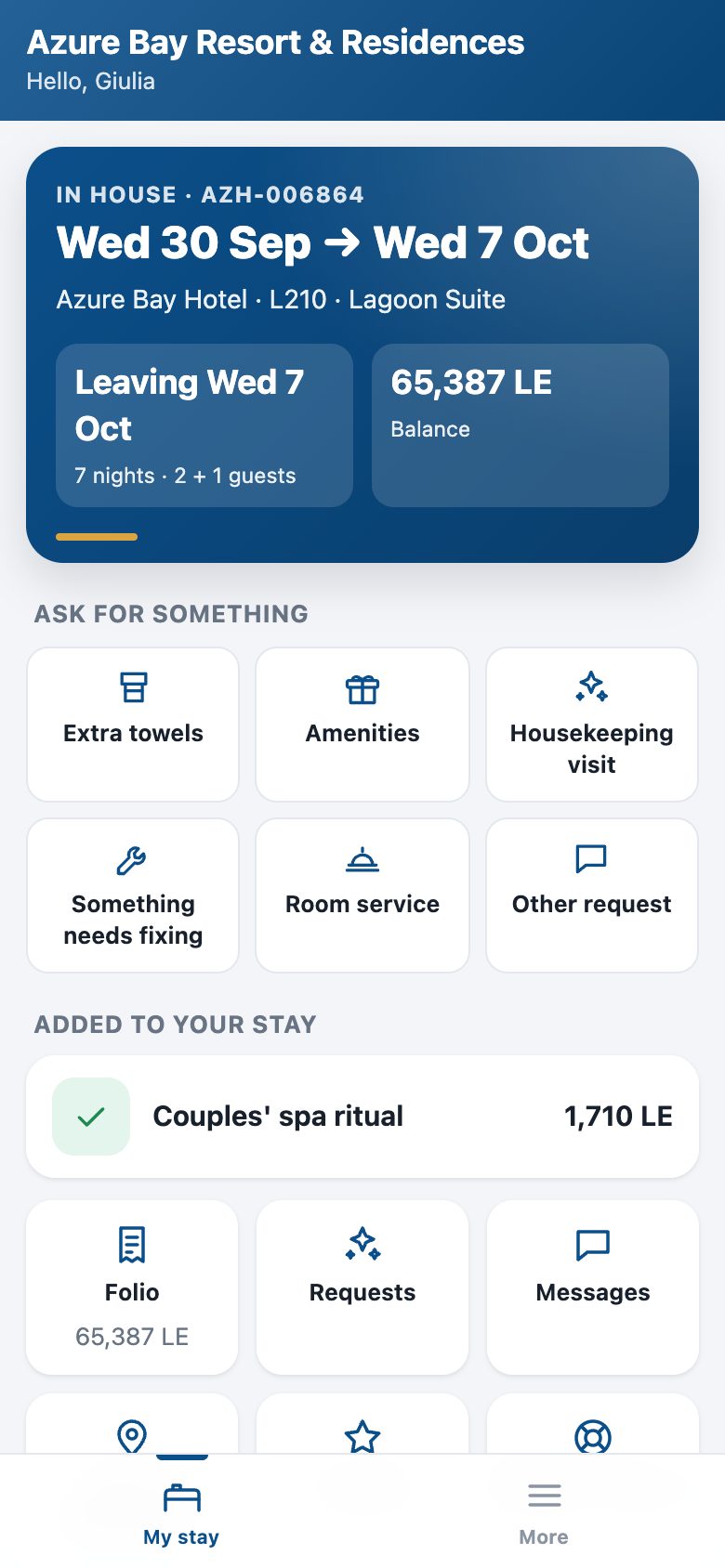
- My stay shows the coming stay (or the one in house): dates, unit, how many nights and guests, the balance.
- Before arrival: Check in online opens the online check-in on the portal — arrival time, everyone as their ID reads with a photo of the document, the signature. The card turns green once the desk applies it. Send a wish tells the desk about a late arrival or a baby cot.
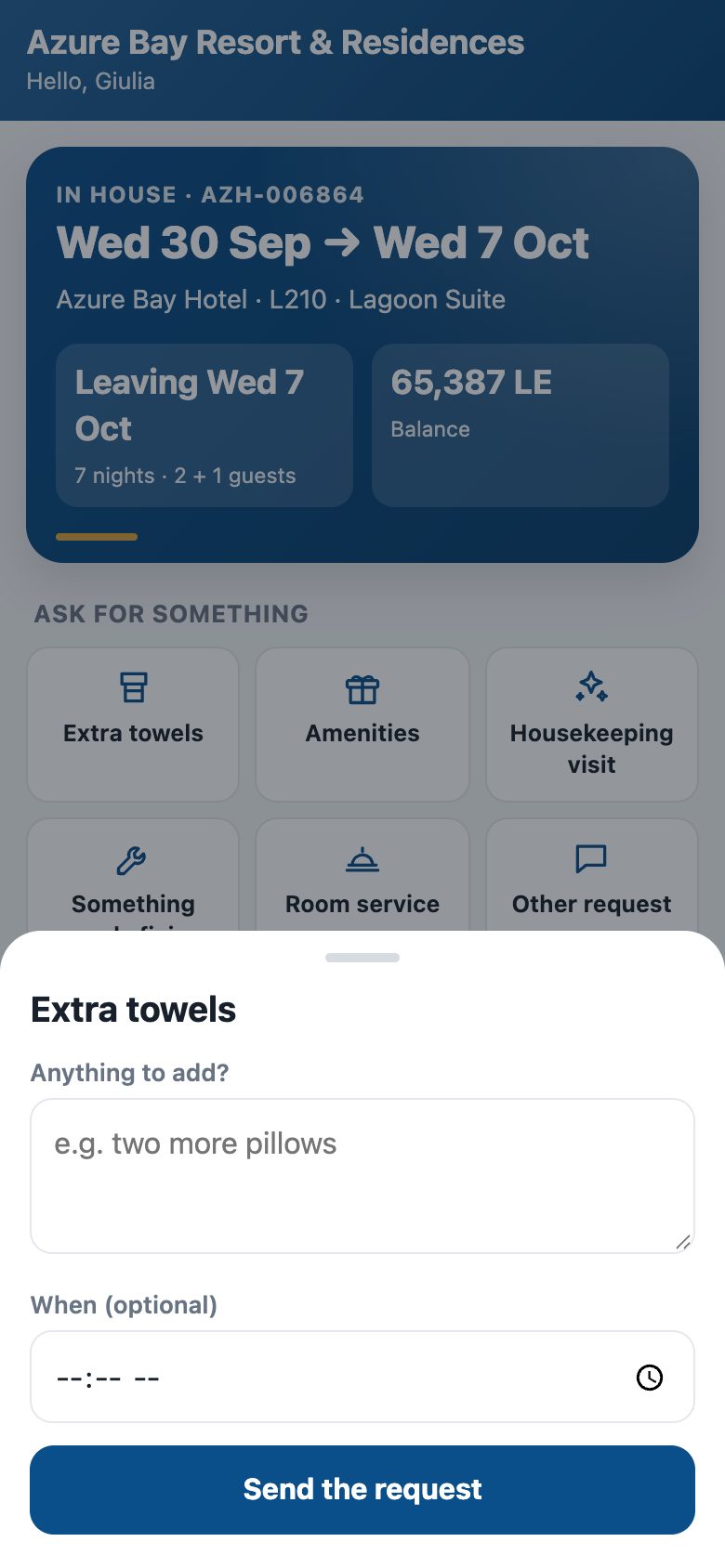
- In house: the keys issued, and Ask for something — towels, amenities, a housekeeping visit, something to fix, room service. Each becomes a guest request handed to housekeeping or maintenance like one taken at the desk, and the guest is told on the phone when it is done.
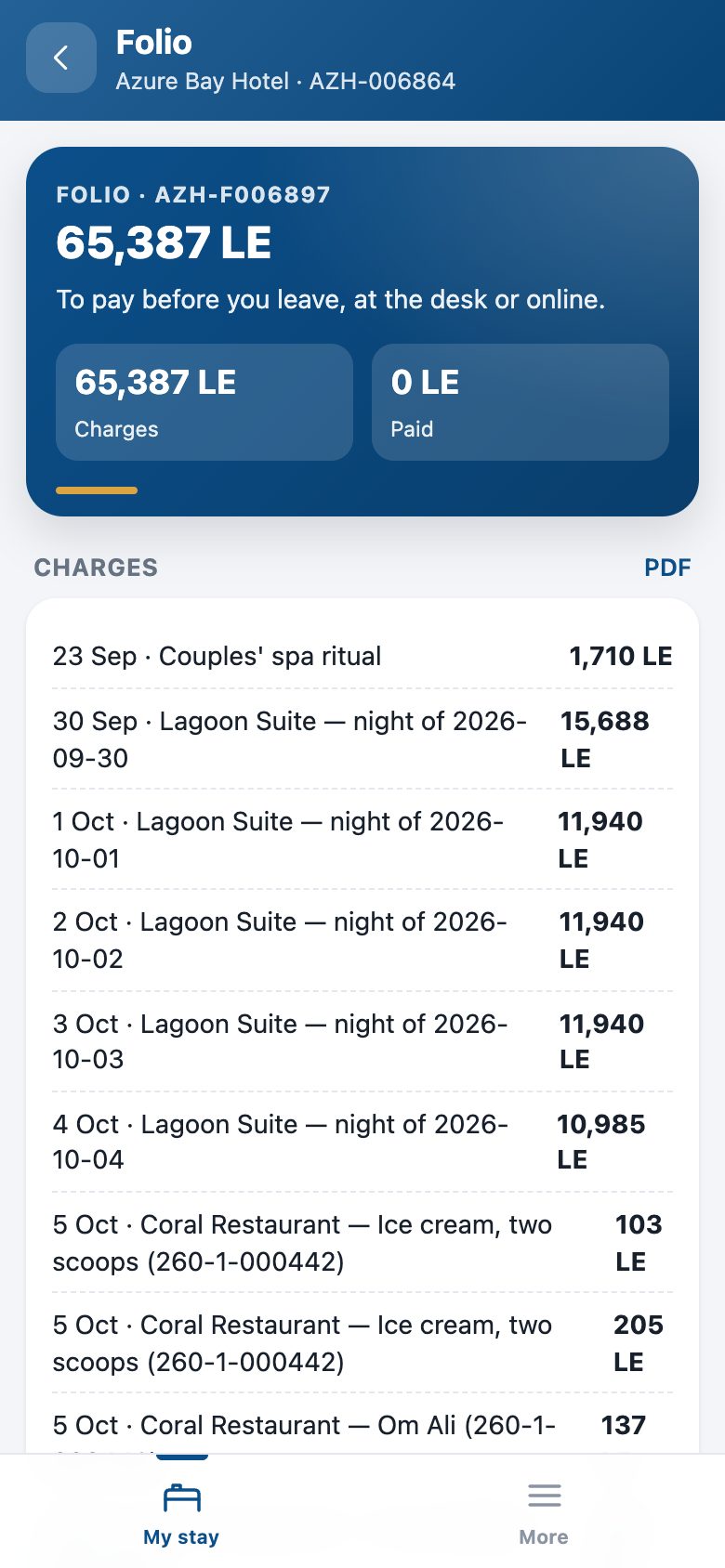
- Make more of your stay: the offers that apply; Add posts the charge on the folio with the service charge and VAT where they apply. Folio shows every charge, the payments and the balance with the PDF; Messages writes to the desk on the stay; Loyalty shows the points and the tier; Map & directions opens the property in the phone's maps; Report an issue opens a help-desk ticket that knows the stay.
What an owner does (owner programme)
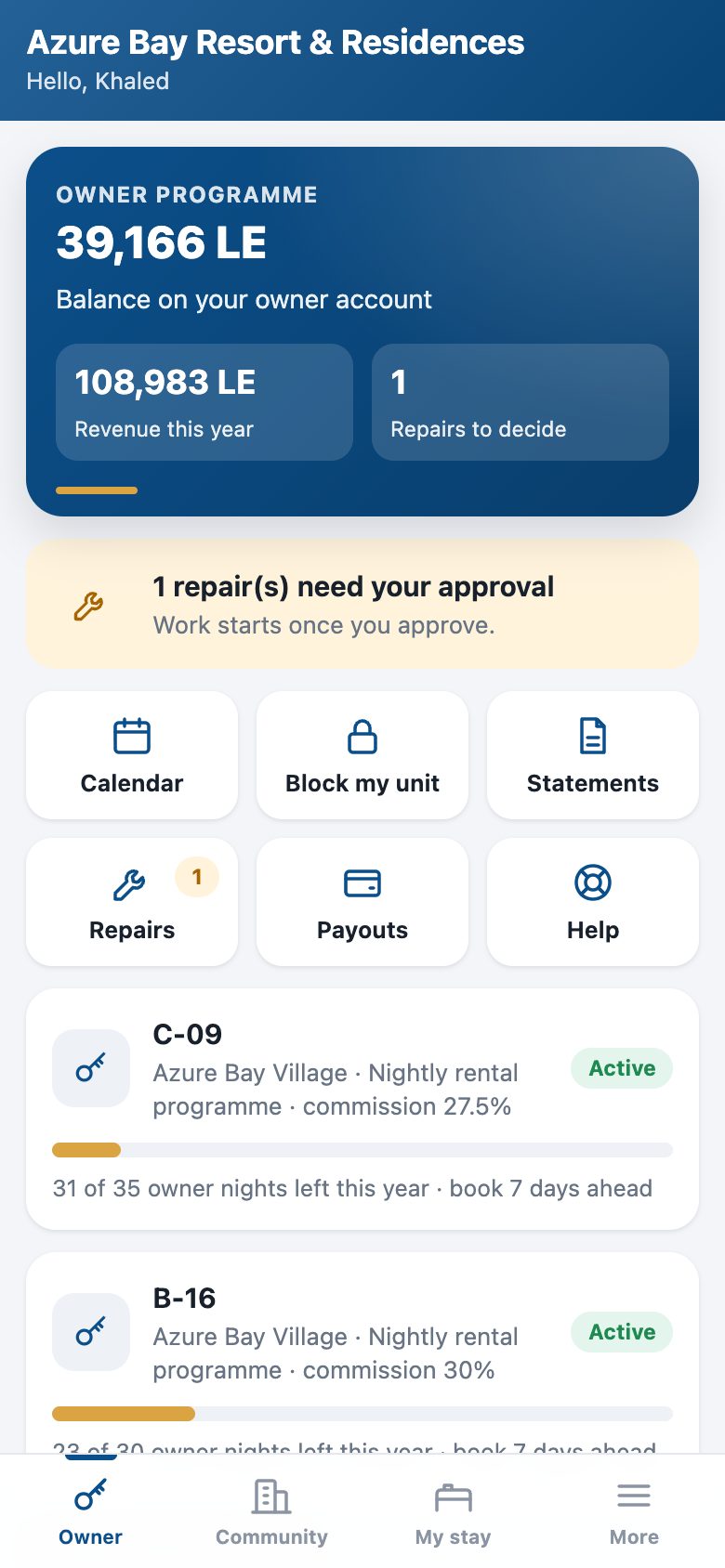
- Owner: the balance of the owner account, the revenue this year, the owner nights left this year and the notice the contract asks for.
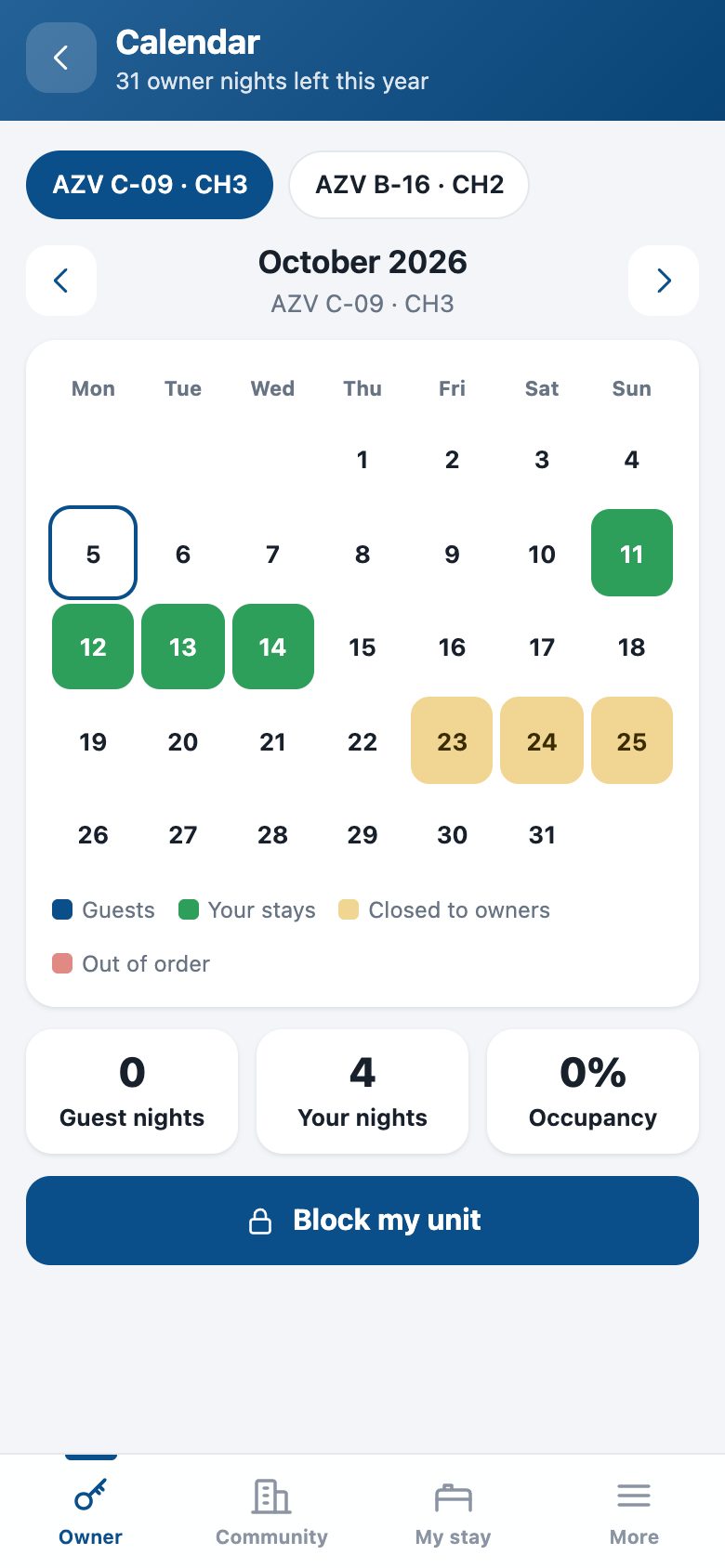
- Calendar: the unit's month — guest stays, the owner's own stays, periods closed to owners and out-of-order days — with the month's occupancy.
- Block my unit: dates, own stay or a guest by name, adults and children. The contract checks the allowance, the closed periods, the notice and availability; a refused block says why, in the contract's words. A confirmed block is an owner-use reservation at the zero rate, with the cleaning charge the contract sets.
- Statements with their PDF, Payouts, and Repairs: a repair above the contract's threshold waits for the owner — Approve lets the work start, Decline tells the property at once.
What an owner or resident of the community does
- Community: the service charges due and overdue, the accounts with their statement, the announcements, what is coming up.
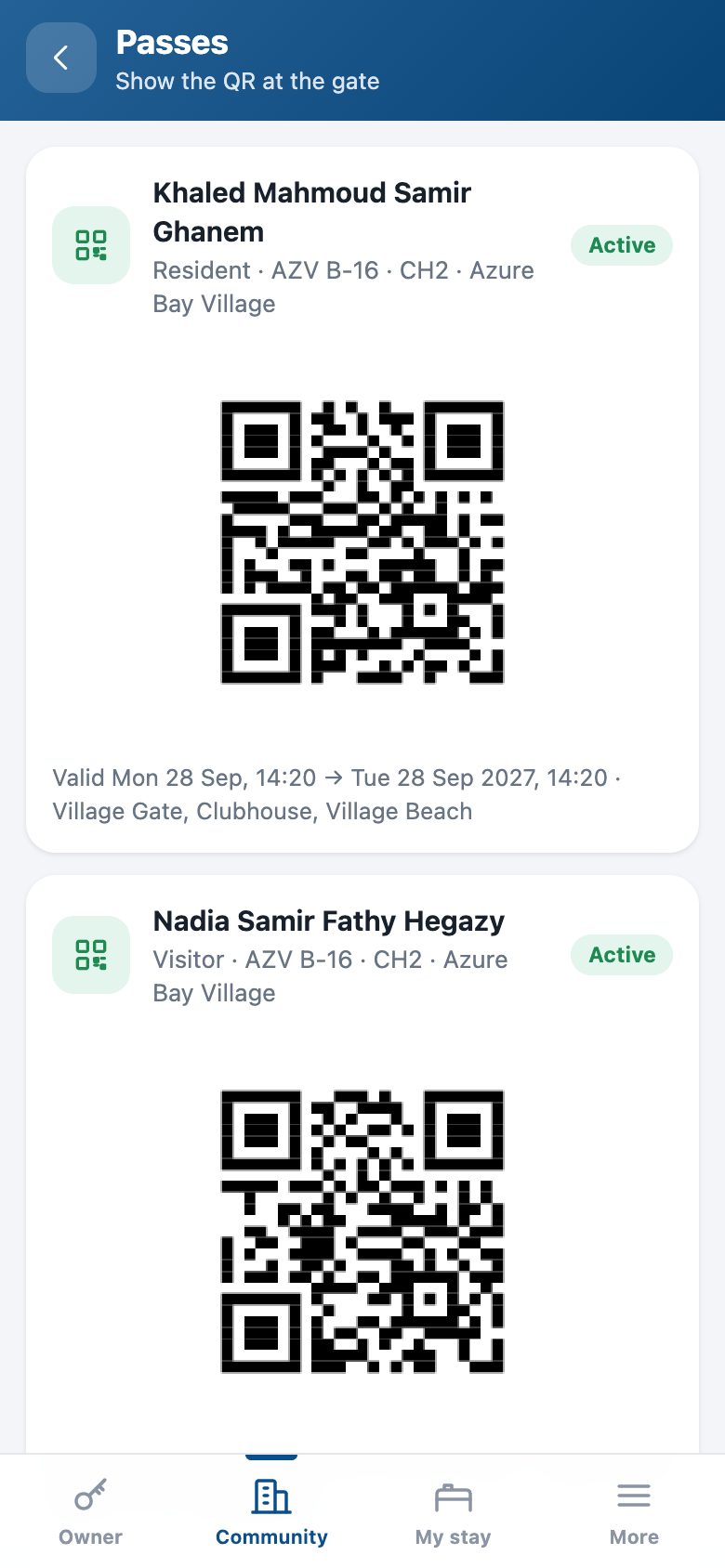
- Passes: each pass with its QR code, its validity and the zones it opens — the gate scans it from the screen.
- Invoices: every service-charge invoice with its status and PDF. Facilities: pick the court, the pool or the clubhouse and a day; the free slots come from the facilities engine with the owner's or resident's price and the weekly quota.
- Visitors: invite a visitor for a day; once security approves, the visitor's QR appears to share, and the host is told on the phone when the visitor is admitted at the gate.
Housekeeping on the phone
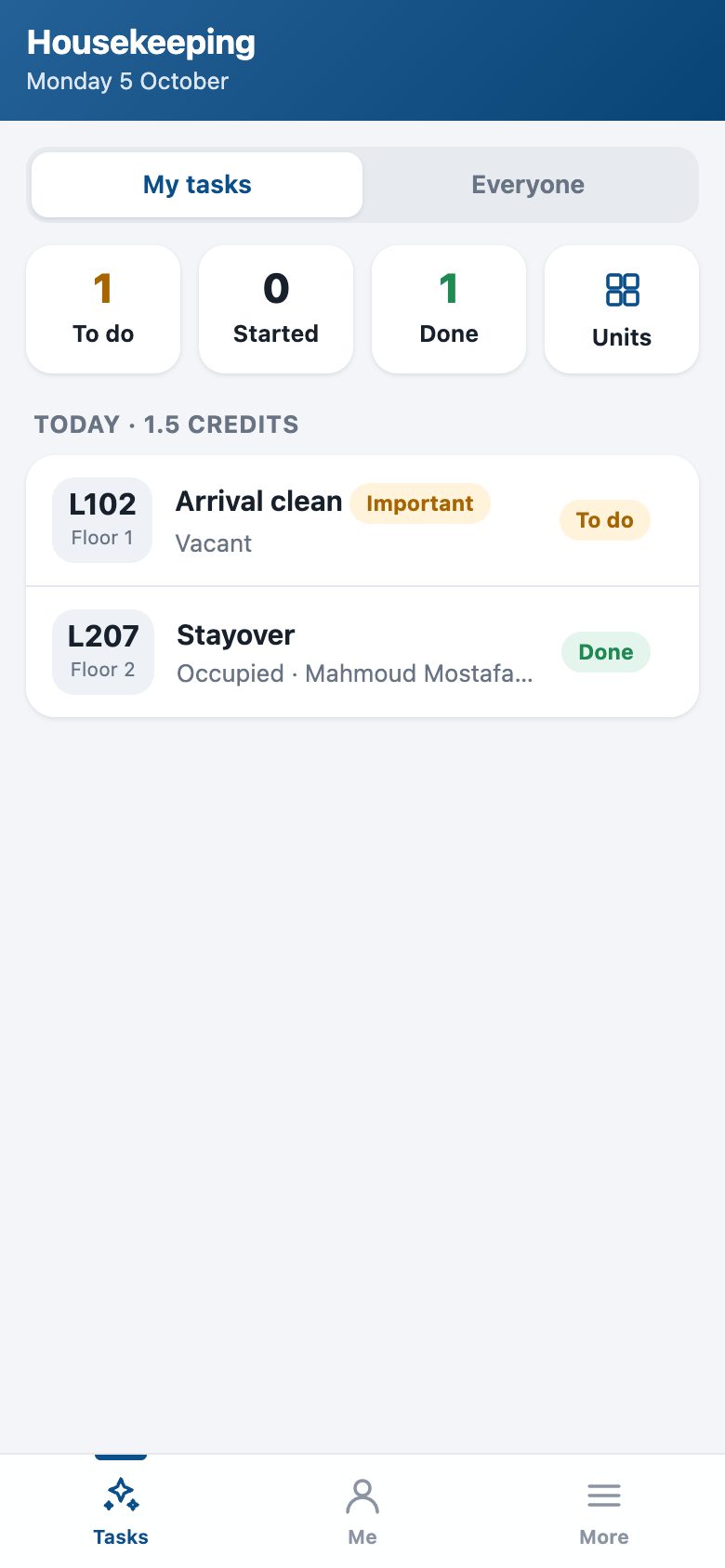
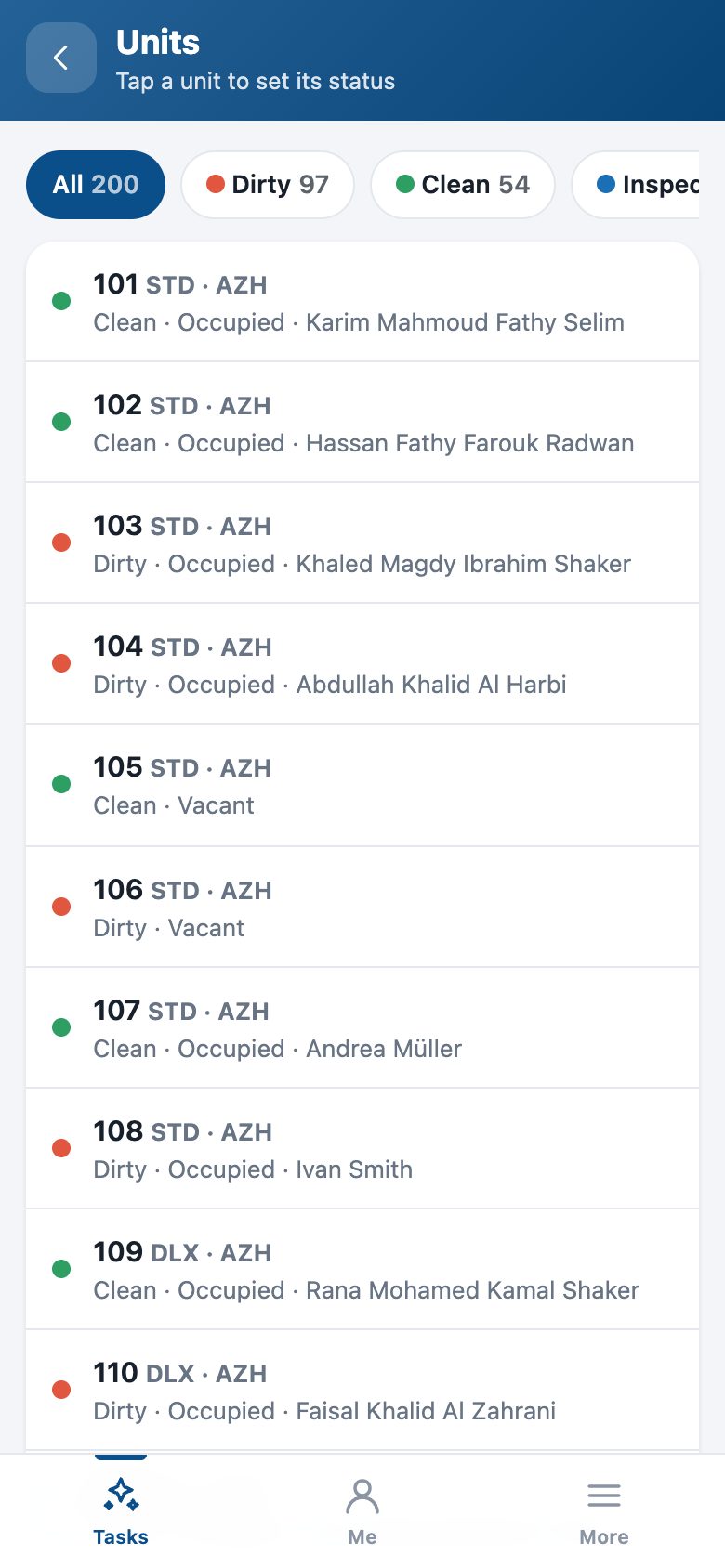
- Tasks shows the attendant's rooms for today — departures, stayovers, arrivals and touch-ups — with what is to do, started and done; Everyone shows the whole team's list.
- Open a task, Start, then Finish with a photo: the camera opens, the picture is shrunk on the phone and filed on the task, and finishing turns the unit clean (or inspected where the section skips inspection) exactly as in the back office. A task raised by a guest's request closes that request, and the guest is told.
- Units: the property's units by status; tap one to set it clean, inspected or dirty. Out-of-order units are left to maintenance.
- The attendant is told on the phone when the morning's sheet hands them their rooms — one notification, however many rooms.
Maintenance, the desk and the gate
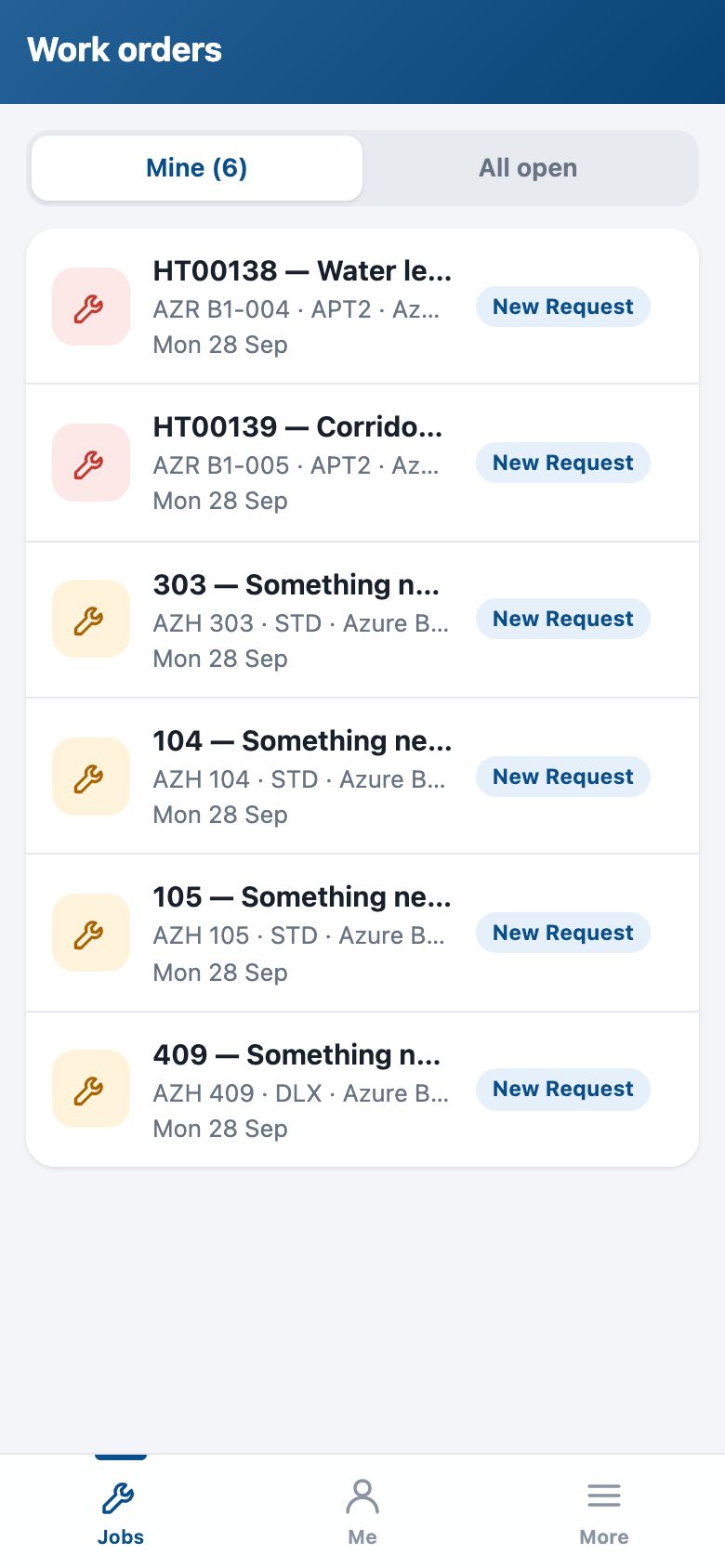
- Jobs: the technician's open work orders; Start moves the job to the next stage, Finish with a photo files the picture and closes it — the unit comes back in order, a guest-chargeable job is charged to the folio, an owner-chargeable one goes to the owner's ledger. A job waiting for the owner's approval says so and cannot start.
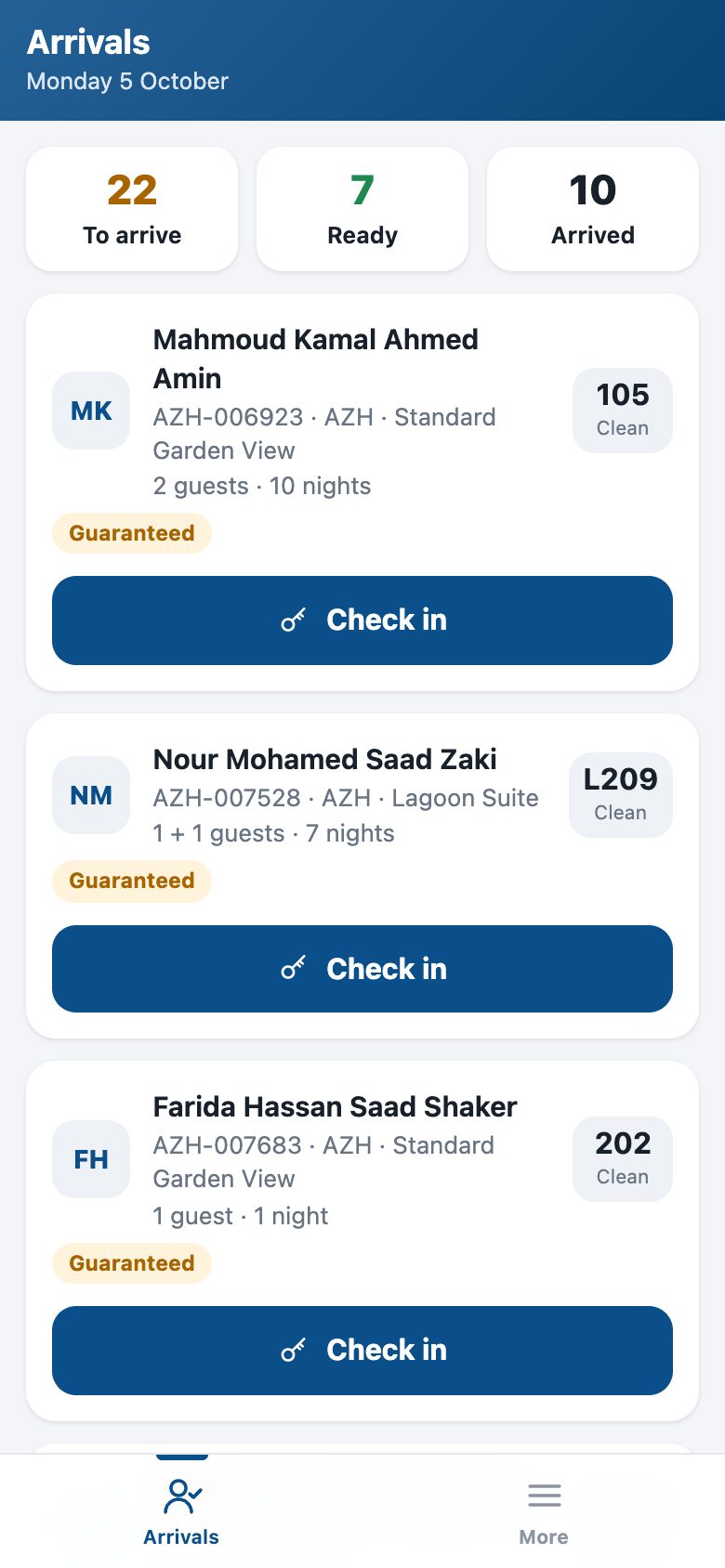
- Arrivals: today's arrivals with their unit and its status, the online check-in, and what stands in the way (a dirty unit, a missing ID). A stay whose registration is complete shows Check in: the desk's own check-in runs — registration card, key and gate passes as at the counter.
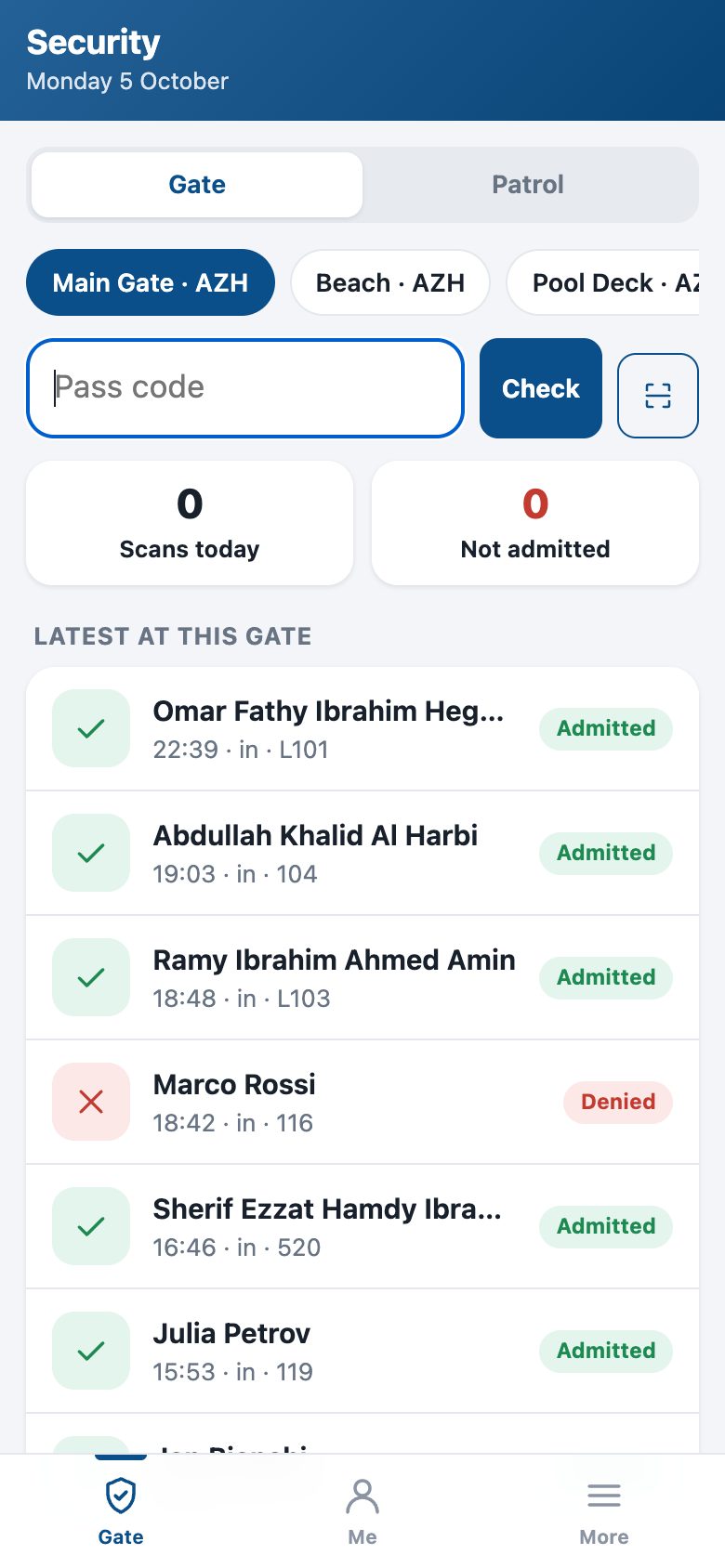
- Gate: pick the gate, scan the pass (or type the code, or use the phone's camera where it can). VALID or NOT VALID with the reason, the holder, the unit, the validity and the zones; choose coming in or going out, then Admit or Refuse. Every decision writes the access log, an unknown code included; admitting an invited visitor marks the invitation used.
- Patrol: scan each checkpoint of the round in order; the round starts with the first scan and shows what is left.
Every employee: duty, swaps, attendance, time off
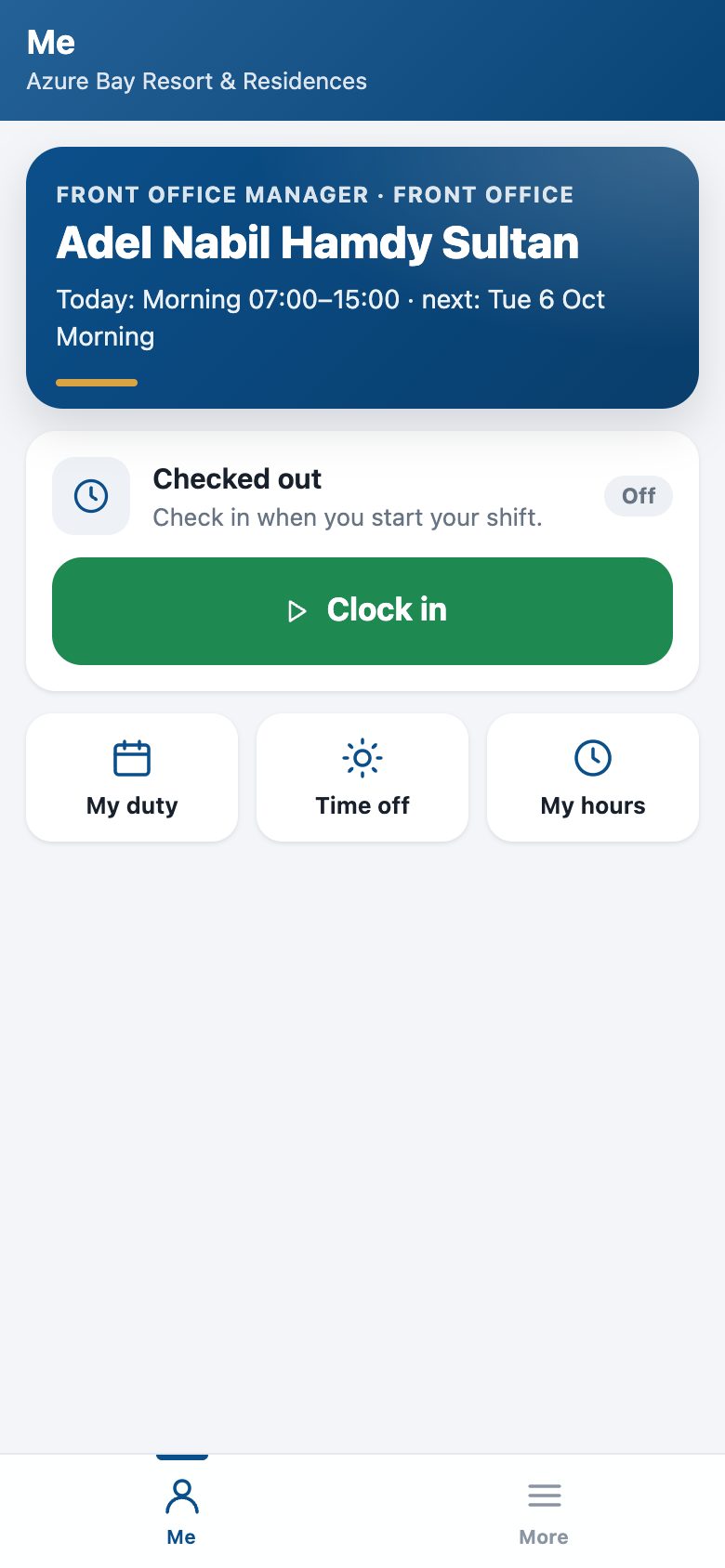
- Me: today's shift and the next one, and a big Check in / Check out button — the attendance record Odoo keeps, with the phone's position where the property records it.
- My duty: this week and next. Ask a colleague to swap sends a request the colleague accepts on their phone and HR approves; the colleague sees it under Asked of you.
- Time off: the balances and the requests; Request time off sends it for approval. An employee on the staff portal login has the same screens.
Follow the app from the back office
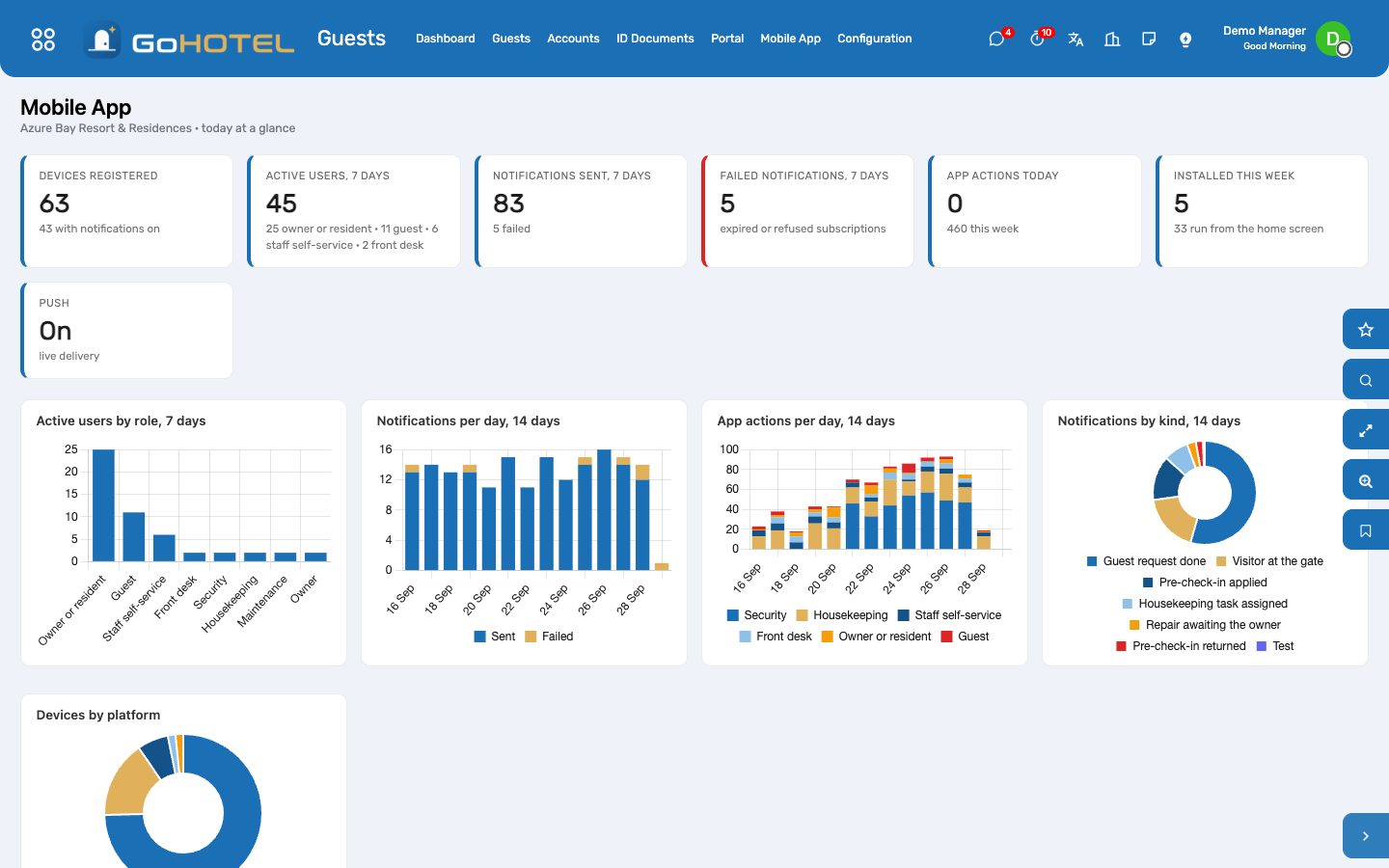
- Guests › Mobile App › Dashboard: devices and how many have notifications on, active users of the last seven days by role, notifications sent and refused, app actions per day, the latest installs.
- Devices: every phone that opened the app, its login, platform and browser, whether it runs from the home screen, when it was first and last seen. Send a test notification from the device, or Stop notifications.
- Push Log: every notification — to whom, on which device, why (the record that raised it), and what the push service answered. A refused one can be sent again; a subscription the phone dropped is forgotten by itself.
- Settings: the app's address, push on or off, live or simulate, the public key, and a test to your own phone.
Questions the desk asks
Is it an app from the store?
No. It is the property's own web address, installed from the browser; there is nothing to publish, and an update reaches every phone the next time the app opens.
Does a guest see anyone else's stay?
No. Every screen asks the portal service whose stay, unit or pass it is before it shows anything; staff act with their own rights.
A notification did not arrive.
Open Push Log: "sent" means the push service took it (the phone may be off or in battery saver); "failed" gives the service's answer; "push off" says why push is off. On iPhone the app must be on the home screen.
Can a room attendant on the staff portal login use the housekeeping screens?
The housekeeping, maintenance, desk and gate screens need a staff login with that role; a staff-portal login gets the self-service screens only.
See also: The portal — guests, bookers, owners and residents online Housekeeping Maintenance and engineering Front desk: arrivals, in house, departures Access & Security — passes, the gate, visitors, vehicles and patrols Owner Programme: rental contracts, the owner ledger, statements and payouts Community: owners, residents and service charges Rosters, service charge and staff credentials Help desk: tickets from guests, owners and residents