Revenue: KPIs, pace, forecast, budget and pricing
The night audit leaves one KPI row per property per business date — units available and sold, occupancy, arrivals and departures, revenue by department and by segment, ADR, RevPAR, TRevPAR. On top of it: what is on the books for every stay date against the same time last year, a forecast you can edit, the budget against the actuals, competitor rates beside your BAR, and pricing rules that suggest a price and wait for you to apply it.
Where:Revenue › Dashboard · Daily KPIs · Pickup & Pace · Forecast · Budget · Rate Shopping · Pricing Rules · Suggestions · Reports
Before you start
- History
- Revenue › Configuration › Backfill KPIs & Pickup: once, after installing, to build the KPI rows of the audits already done and to reconstruct the pickup snapshots from the booking dates. From then on the night audit writes every day itself.
- Unit type classes
- Property › Unit Types: Rate Shop Class (standard, deluxe, suite) on each type, so a competitor's "deluxe" lines up with yours.
- Competitors
- Revenue › Configuration › Competitors: the three to five hotels a guest compares you with — name, stars, distance. The property itself appears as its own row.
- Budget
- Revenue › Budget › New: property and year; twelve months appear with the month's capacity filled in.
How to
Read the morning numbers
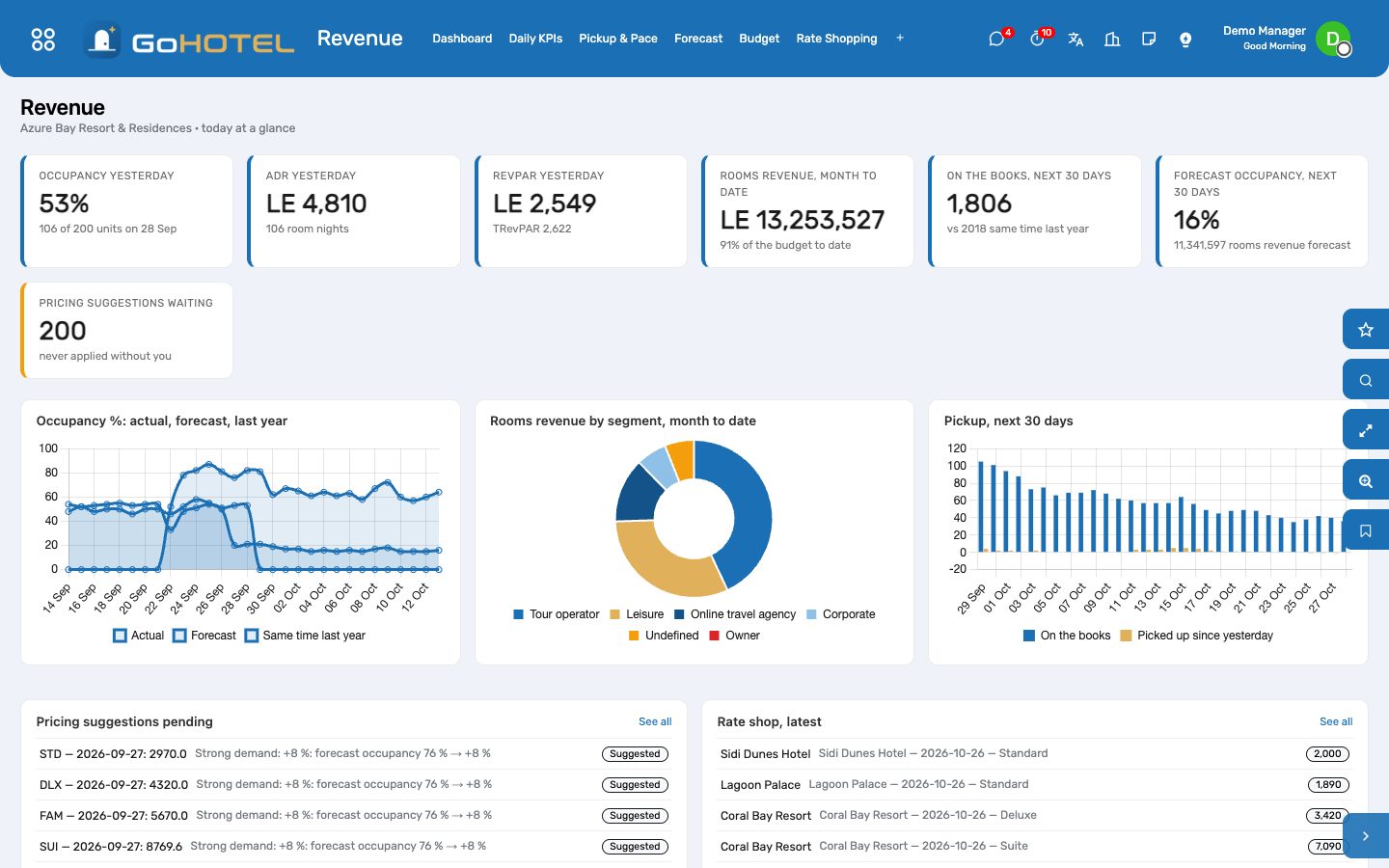
- Revenue › Dashboard: occupancy, ADR and RevPAR of the last audited night; rooms revenue month to date and how much of the budget that is; rooms on the books for the next 30 days against the same time last year; the forecast occupancy of the next 30 days; the suggestions waiting.
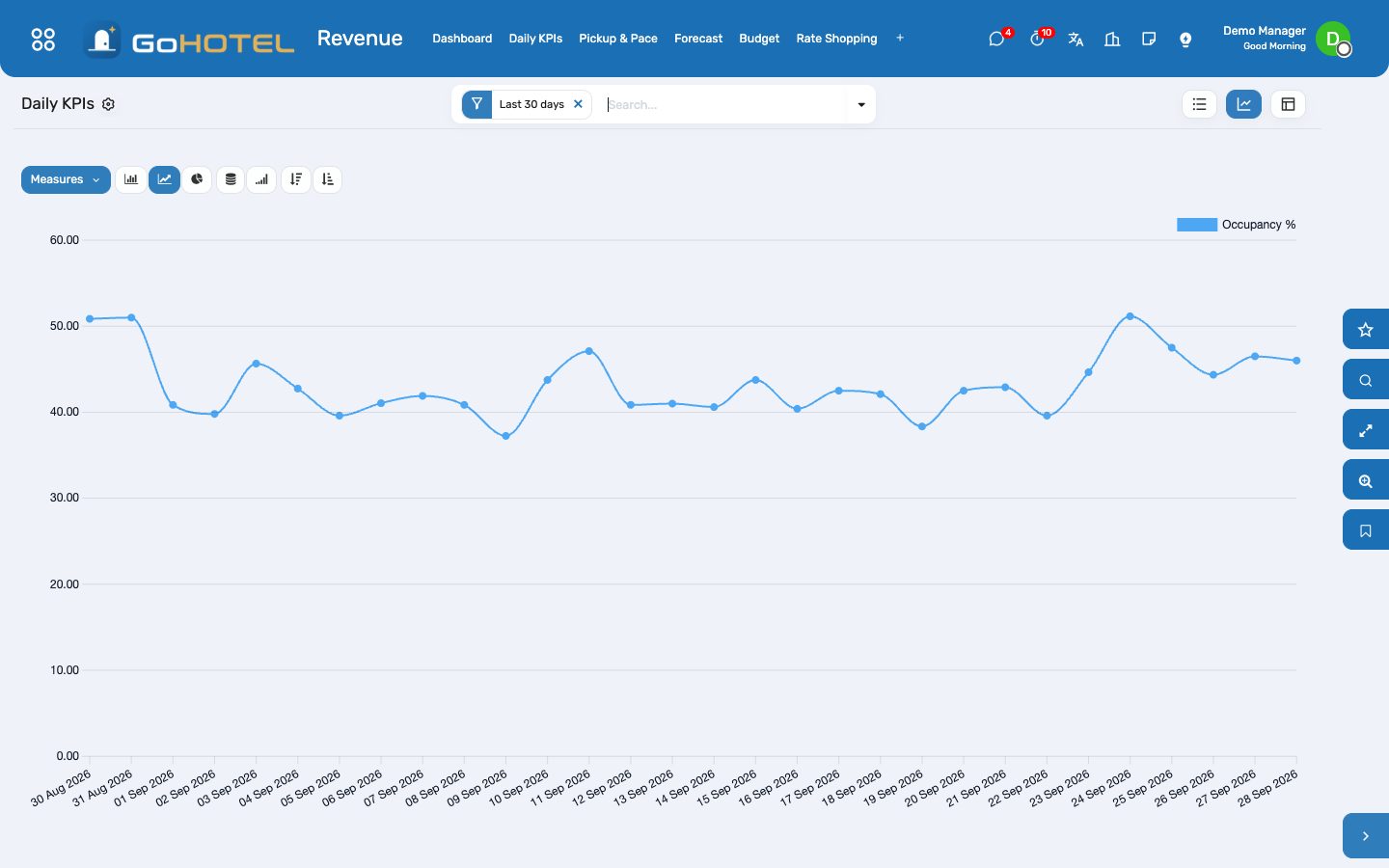
- Revenue › Daily KPIs: one row per night. The graph view draws occupancy and RevPAR; the pivot cuts the month by property or by day of week. Every row opens on its segment × source split.
- Revenue › Reports › Daily Flash: pick the property and the business date and print the manager's PDF — yesterday, month and year to date against budget and last year, pickup for the next 30 days, the top segments. Every KPI row also prints it from its Print menu.
Watch pickup and pace
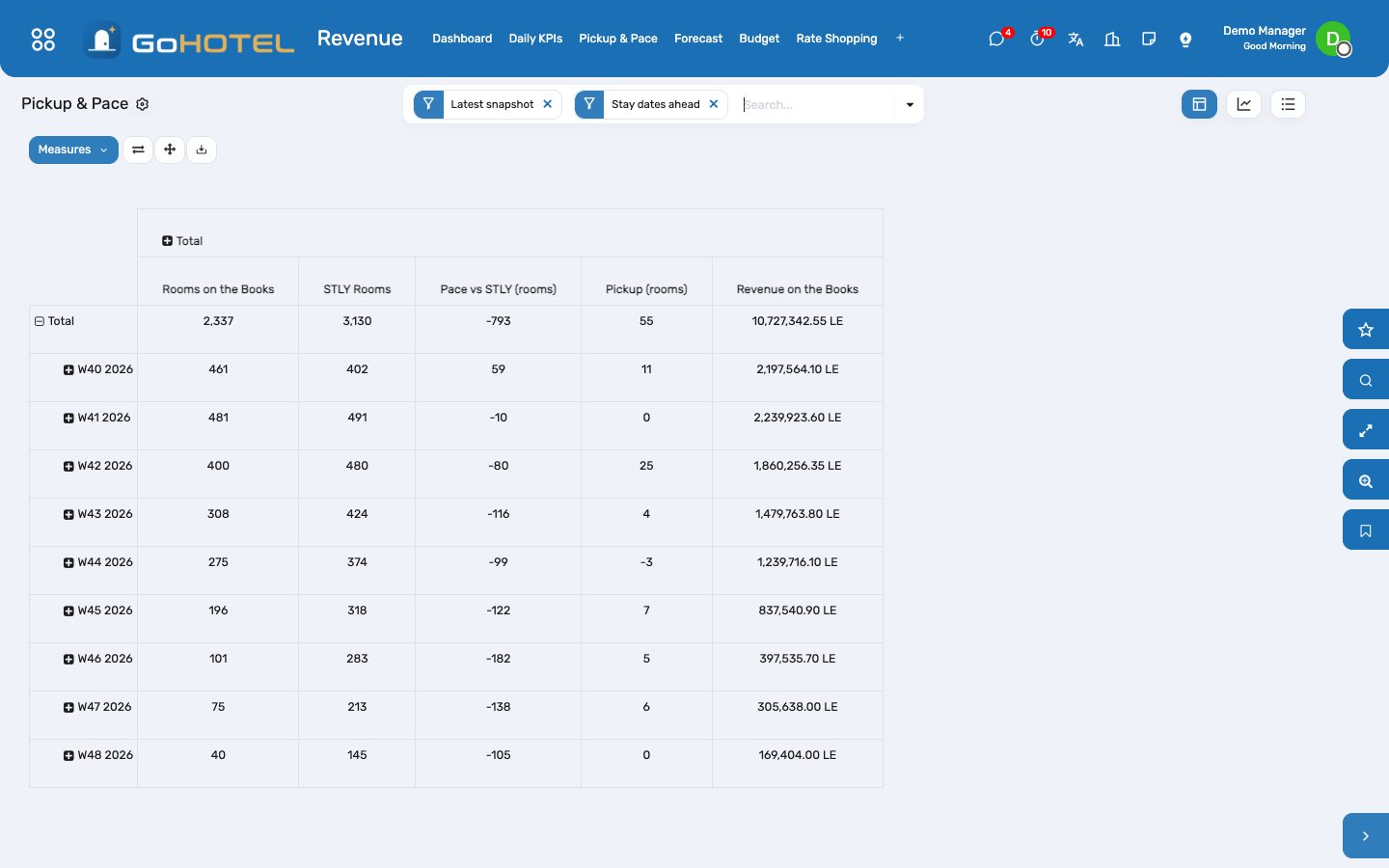
- Revenue › Pickup & Pace opens on the latest snapshot, stay dates ahead: rooms on the books per stay week, the same time last year at the same lead time (STLY), the pace (difference) and the pickup since yesterday.
- Pace vs Last Year (the button on the list, or Revenue › Reports) draws rooms on the books and the same time last year as two lines by stay date; remove the "Latest snapshot" filter and group by "As of" to see how one stay date filled up day after day.
- A snapshot is taken every night by the scheduled action and at the end of every night audit. Snapshot Now takes one on the spot; Backfill rebuilds the past from the booking dates.
Forecast the next ninety days
- Revenue › Forecast › Generate Forecast: properties, first day, number of days. Each day starts from last year's actual for the same weekday a year ago — or, before there is a last year, from the average of the same weekday over the last eight weeks — and is adjusted by the pace, never below what is already on the books.
- The list is editable: type the occupancy or the ADR you know better and the row turns "Edited" and is left alone by the next generation; Back to Generated hands it back.
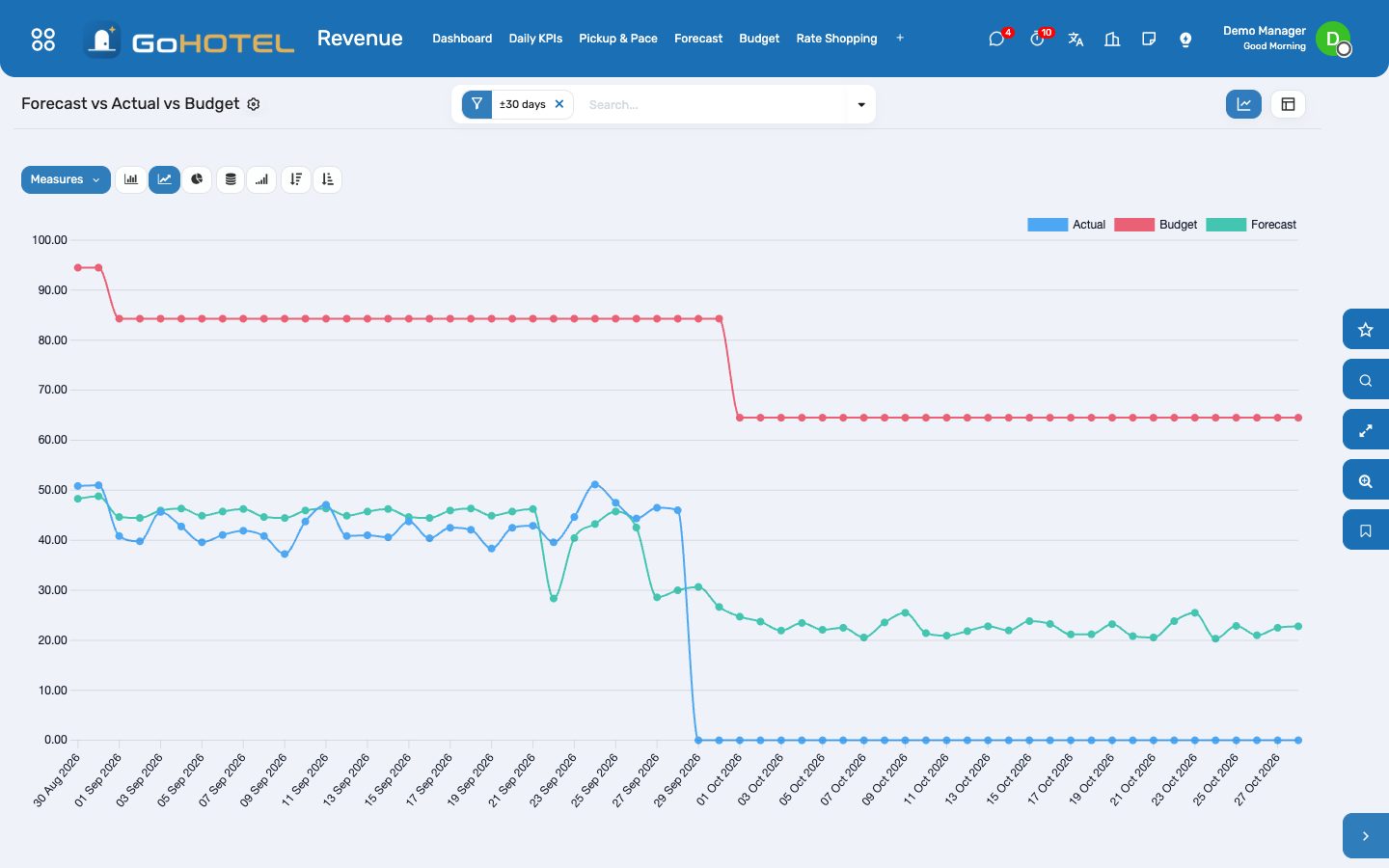
- Forecast vs Actual vs Budget (the button on the list, or Revenue › Reports) draws the three as lines on one axis; the pivot totals rooms and revenue per week. The By Segment tab splits the day by the segment mix of the last four weeks.
Enter the budget and follow it
- Revenue › Budget › New: property and year. On each month type rooms revenue, F&B revenue, other revenue and room nights; occupancy, ADR and RevPAR follow from the month's capacity.
- Approve the budget. Actuals fill in from the daily KPIs after every audit; Refresh Actuals recomputes them on the spot.
- Budget vs Actual (the smart button, or Revenue › Reports) is the month-by-month pivot: budget and actual for rooms, total revenue and occupancy, and the variance pro rata to the days that have actuals.
Shop the competition
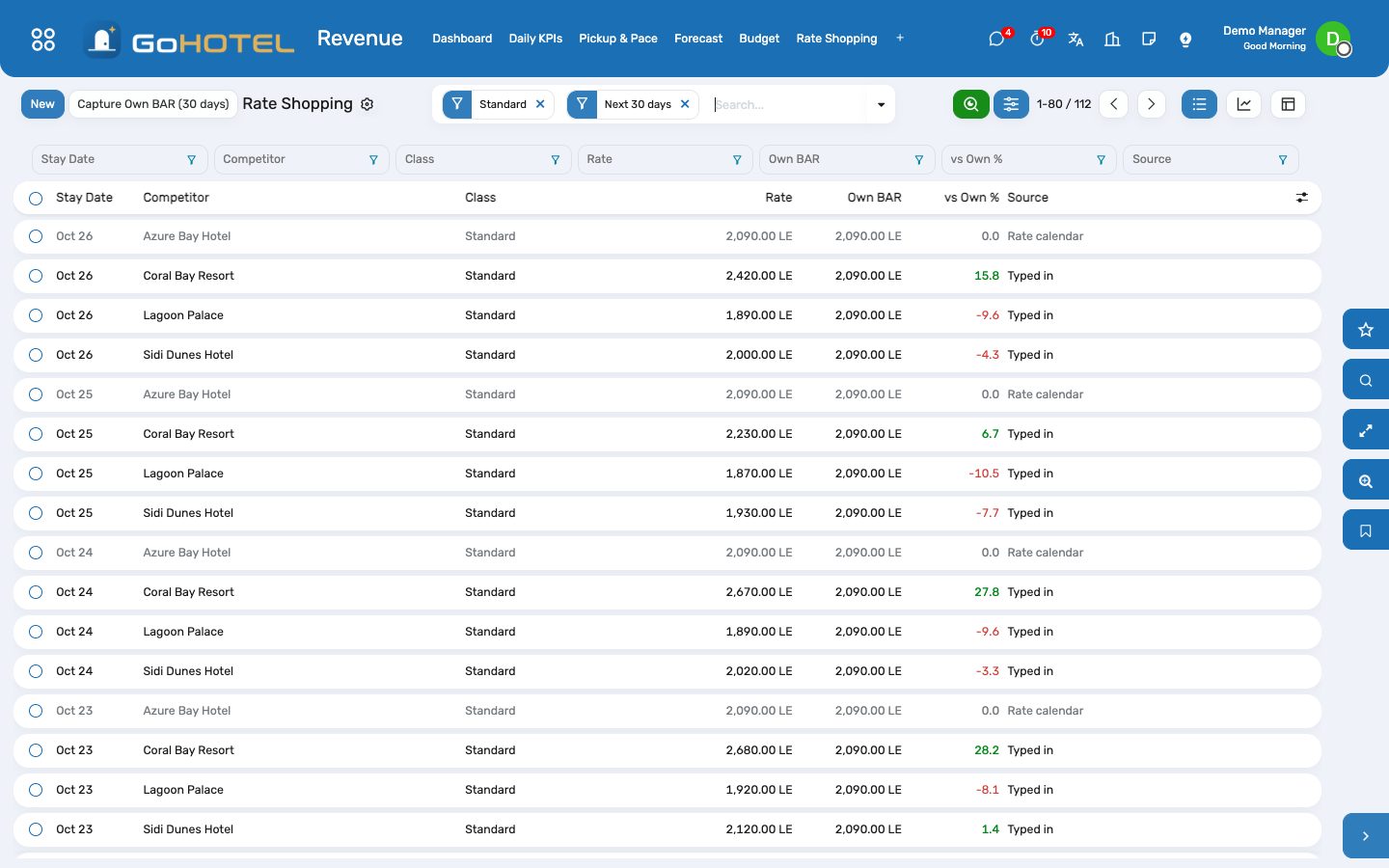
- Revenue › Rate Shopping: one line per competitor, stay date and class — type the rate you read on the booking sites; the line shows your own BAR for the same date and class and the parity in %.
- Capture Own BAR writes your own prices for the next 30 days as rows of the property's own competitor record, so the graph draws you and them on one chart.
- To load a sheet, use Import on the list: columns Competitor, Stay Date, Class (standard / deluxe / suite), Rate, Currency. One rate per competitor, date and class — a second capture of the same day replaces the first.
Let the rules suggest, and decide
- Revenue › Pricing Rules › New: the property, the plan whose base price moves (BAR), the unit types (empty = all), a condition — forecast occupancy at least X %, rooms on the books at least N, days to arrival at most D — the change (± % or ± amount), a floor and a ceiling, and the priority. The first rule that matches a date and unit type wins.
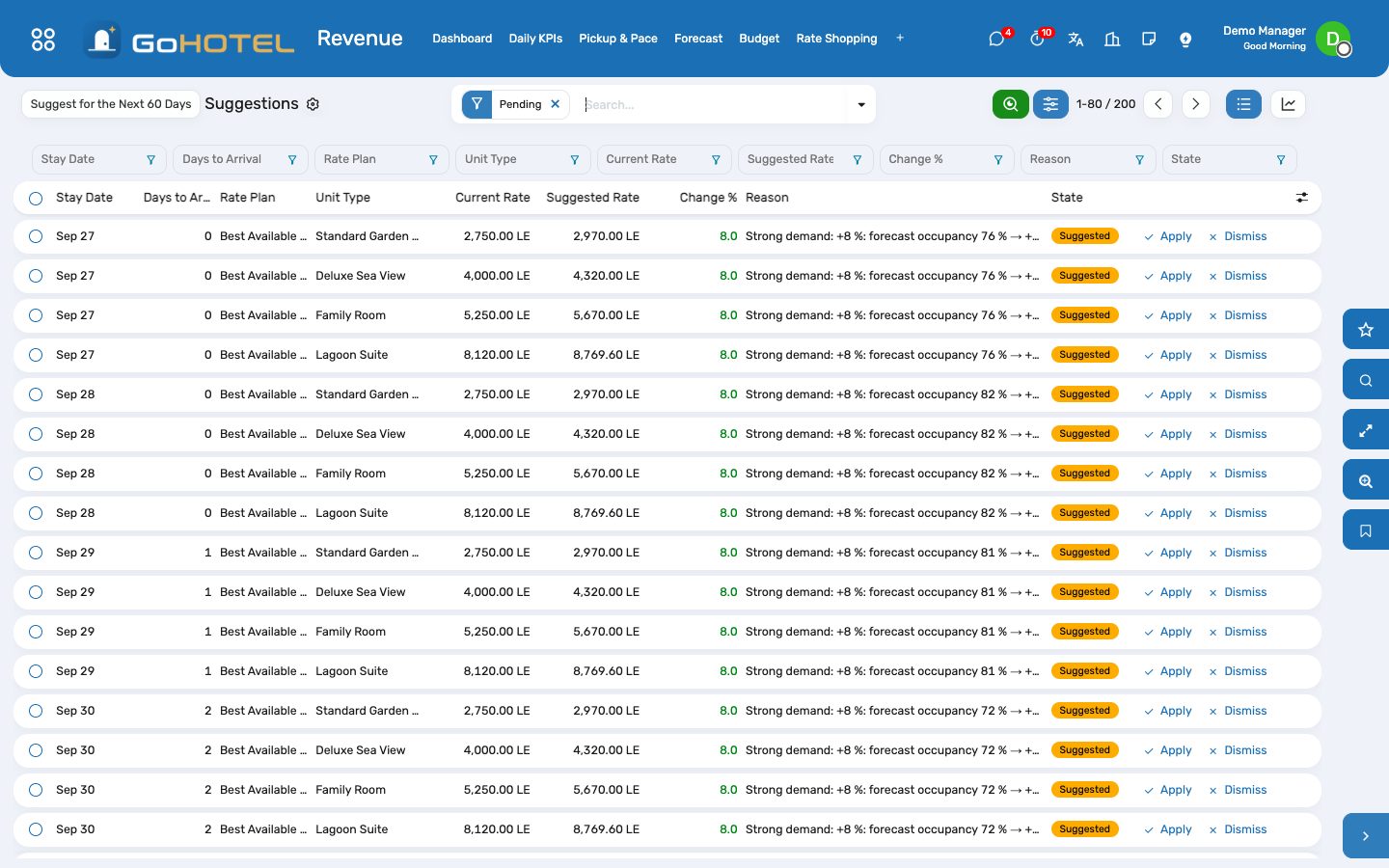
- Suggest Prices runs the rules over the next 60 days and lists, per date and unit type, the current base price, the suggested price and the reason. Nothing is applied by itself; the scheduled action only refreshes the list every day.
- Revenue › Suggestions: Apply on a line (or Apply Selected) writes the price into the rate calendar as that day's override — the same cell edit you would make by hand — and marks the suggestion applied. Dismiss keeps a proposal out of the way.
Questions the desk asks
The KPI row for last night is missing.
The audit writes it in its "Other modules" step; if that step failed, run Revenue › Configuration › Backfill KPIs & Pickup for the date, or Rebuild from Audit on the list.
Why are the last-year columns empty?
They compare with the KPI rows 364 days earlier; a property that started this year has none yet. The forecast then uses the recent same-weekday average as its baseline and says so in the Baseline column.
Can a rule change prices without me?
No. Rules only write suggestions; a price changes when a person presses Apply, and the change is a one-day override in the rate calendar that can be edited or removed there.
Our village charges by chalet, not by room.
A unit is whatever the property sells a night of; occupancy, ADR and RevPAR are per unit, and the village has its own rows, budget and forecast.
See also: Rate plans, rates, restrictions and allotments Folios, charges, payments and the city ledger The property, its units and its fee rules